

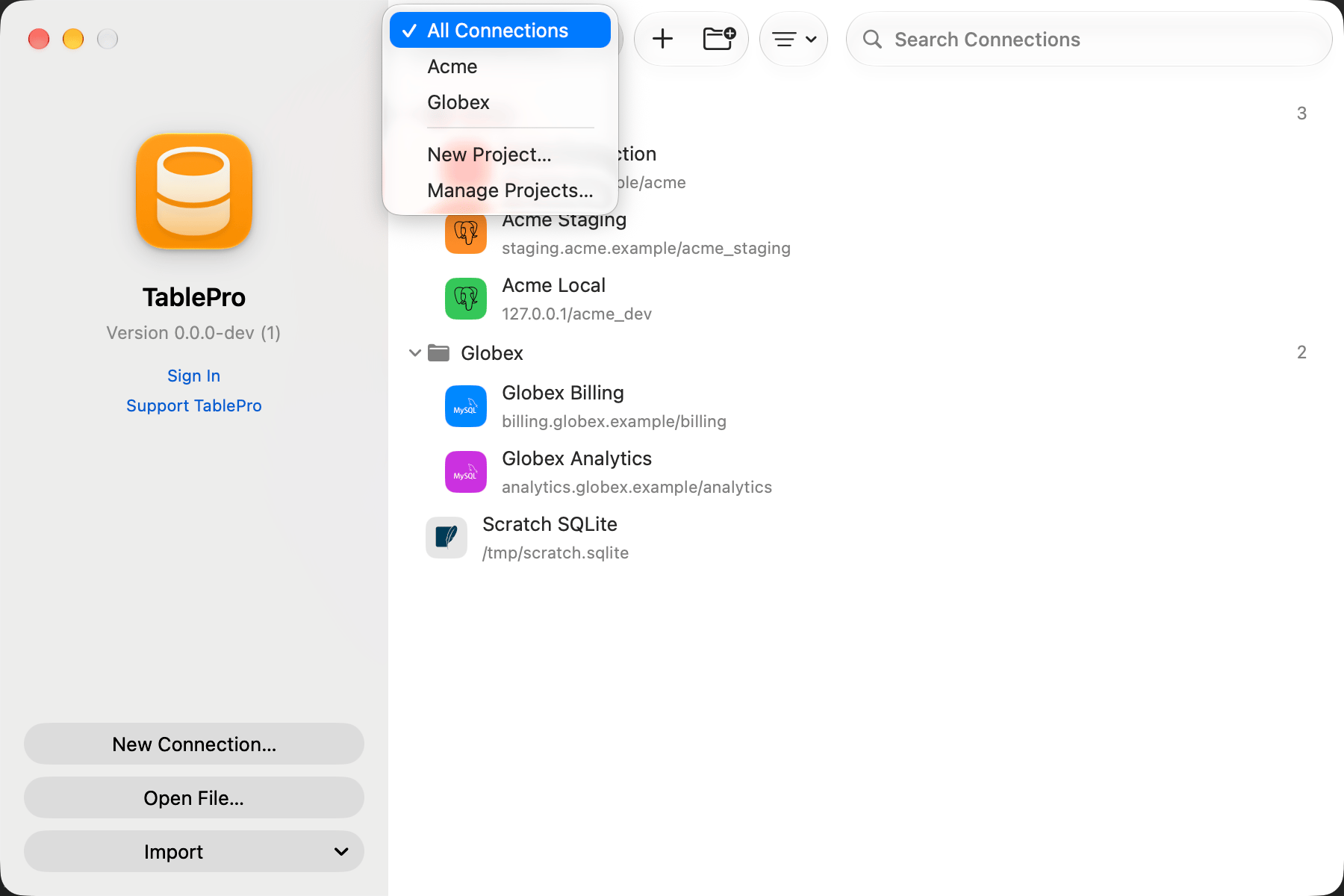
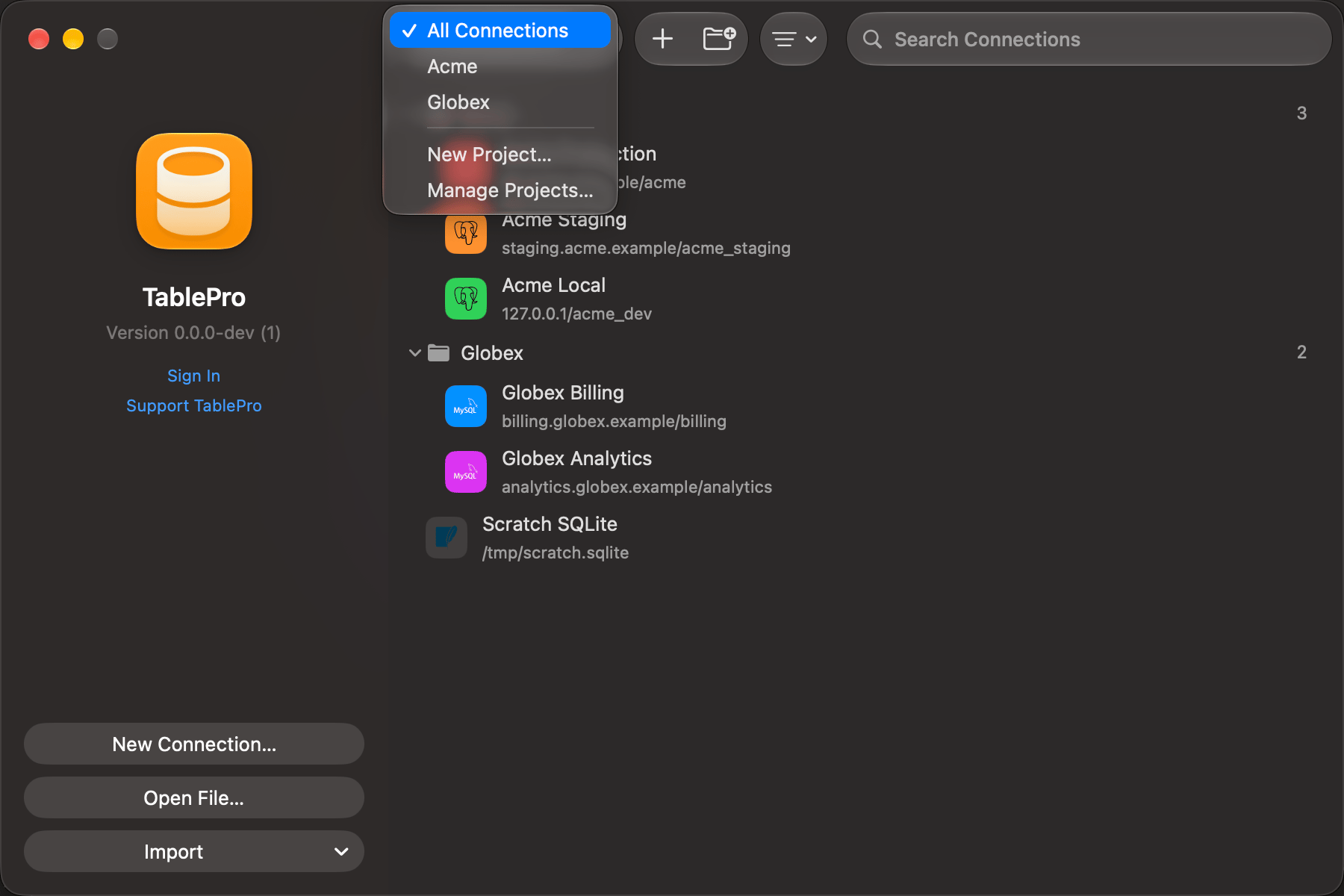
All Connections is checked until you choose a project
Create a project
1
Choose New Project…
It is at the foot of the pop-up button’s menu and under File > Project.
2
Name it
Type a name and click Create. A name another project holds is refused, whatever its case.
3
Fill it
The list switches to the new project and reads No Connections in with its name. Add a connection with the button under that, or go back to All Connections and move connections in.
Move connections into a project
A project holds top-level groups and ungrouped connections. Right-click one and choose Move to Project, then the project, or None to take it out of every project. Select several first to move them together. Edit > Undo puts a move back.- A group takes its subgroups and their connections along.
- A connection inside a group has no Move to Project. Move its top-level group, or take the connection out of the group first.
- A connection is in one project at most.
What follows the active project
Open windows stay open when you switch. A
tablepro:// link and a saved Shortcut still open a connection of another project, since they name it by id.
A search that finds nothing inside a project offers Search All Connections, which switches to All Connections and keeps the text you typed.
Manage projects
Choose Manage Projects… from the pop-up button or from File > Project.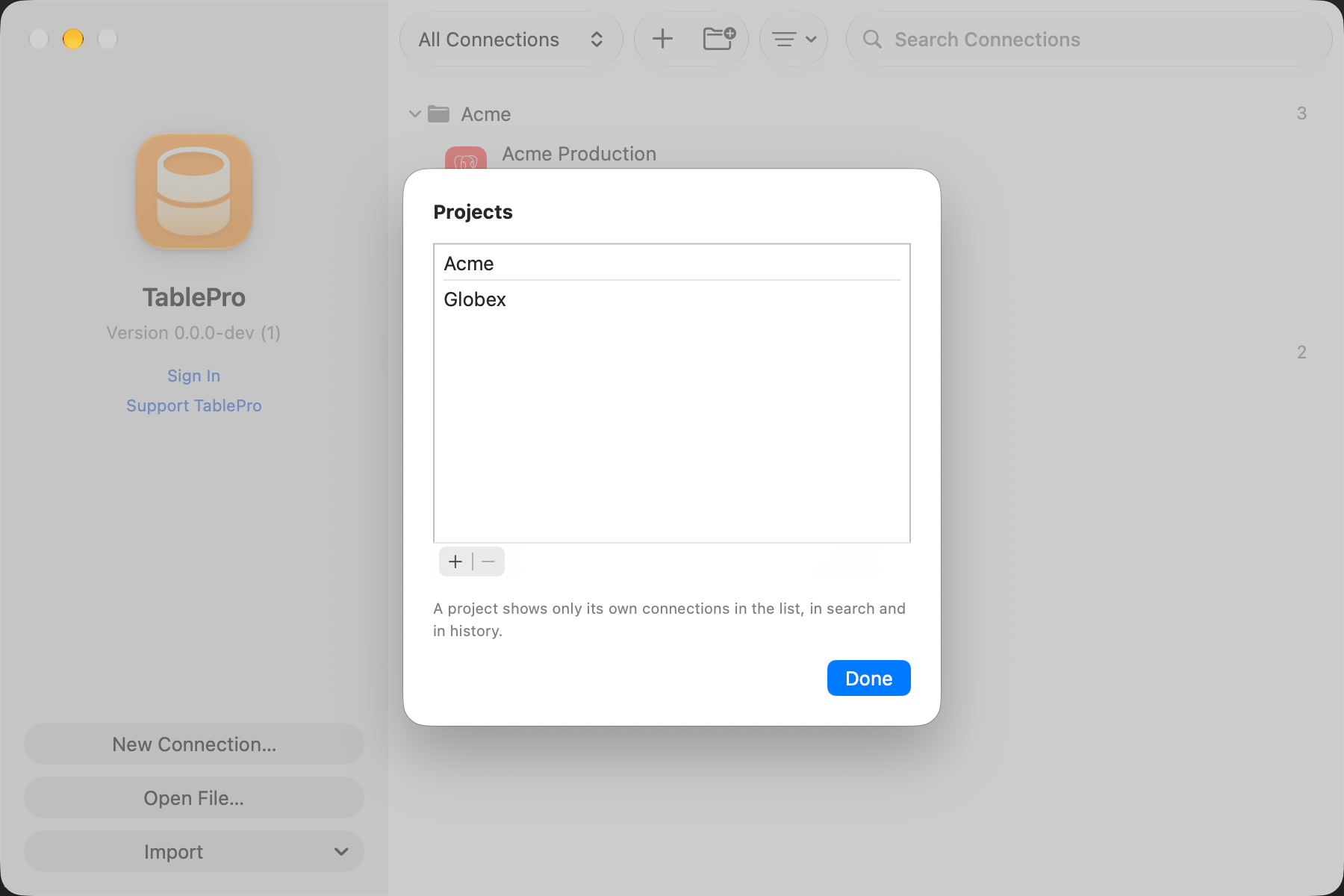
Rename a project in its row
Deleting a project keeps its connections and groups. They leave the project and show under All Connections, and when the deleted project was the active one, so does the list.
Sync
On TablePro Sync, projects go to your other Macs while Connections and Groups & Tags are both on under What Syncs. The projects travel with their order, and so does the project each top-level group and ungrouped connection is in. A project deleted on one Mac goes from the others too, and its groups and connections stay in no project. iCloud does not carry projects: on iCloud they stay on the Mac they were set on. Which project is active stays on each Mac with either provider.Outside clients
Switching project also narrows what other programs are offered:
The assistant inside TablePro is not narrowed: it works on its own window’s connection. A project only narrows. Tokens, External Clients and approvals apply as before, so a client reaches nothing through a project that it could not reach without one.