Installation

This guide covers detailed installation instructions, system requirements, and troubleshooting common installation issues.

System Requirements

Minimum Requirements

RequirementSpecification
macOS VersionmacOS 13.5 (Ventura) or later
ProcessorApple Silicon (M1/M2/M3/M4/M5) or Intel x86_64
Memory4 GB RAM minimum
Storage~50 MB free disk space
  • macOS: Latest version for best performance
  • Memory: 8 GB RAM or more for large databases
  • Storage: SSD for optimal performance
TablePro is built using native Apple frameworks and does not require any additional runtime environments like Java or .NET.

Download

From GitHub Releases

  1. Navigate to the TablePro Releases page
  2. Find the latest release
  3. Download the appropriate DMG for your Mac:
ArchitectureFileFor Macs with
Apple SiliconTablePro-arm64.dmgM1, M2, M3, M4, M5 chips
IntelTablePro-x86_64.dmgIntel processors

Checking Your Mac’s Architecture

  1. Click the Apple menu () in the menu bar
  2. Select About This Mac
  3. Look for:
    • Chip: Apple M1/M2/M3/M4/M5 = Apple Silicon
    • Processor: Intel = x86_64

Installation Steps

Standard Installation

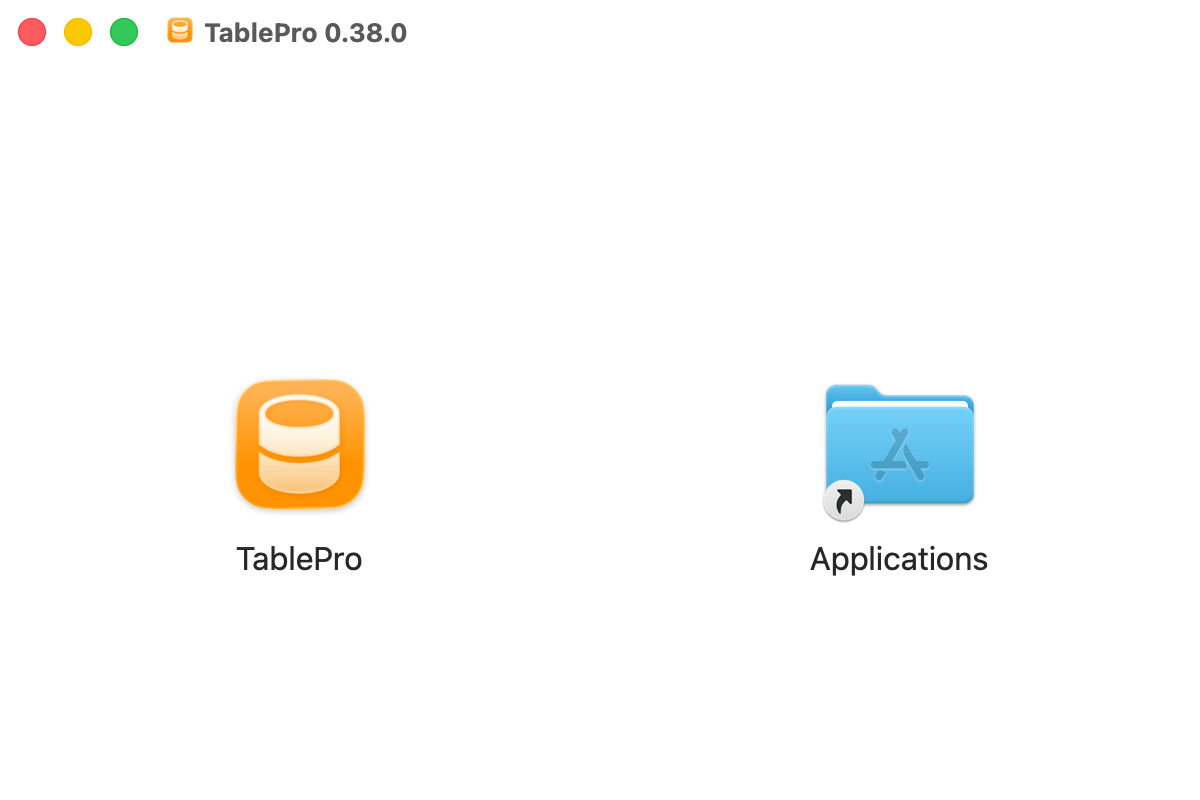
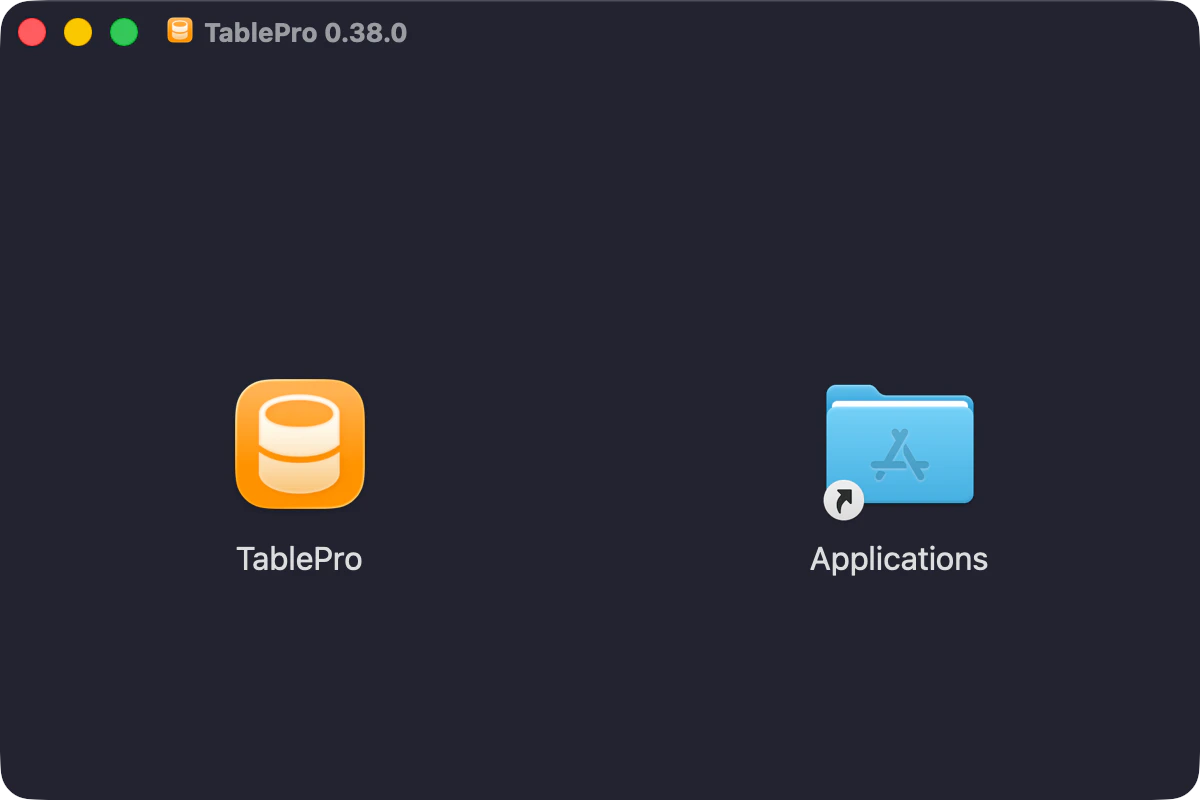
  1. Open the DMG file
    • Double-click the downloaded .dmg file
    • A new Finder window will appear
  2. Drag to Applications
    • Drag the TablePro icon to the Applications folder shortcut
    • Wait for the copy to complete
Drag to Applications
  1. Eject the DMG
    • Right-click the mounted DMG in Finder sidebar
    • Select Eject
  2. Launch TablePro
    • Open Finder > Applications
    • Double-click TablePro

First Launch Security

Since TablePro is not signed with an Apple Developer certificate, macOS Gatekeeper may prevent it from opening on first launch.
This is expected behavior for unsigned applications. TablePro is safe to use - the source code is fully open source and available for inspection.

To open an unsigned application:

1

Locate the app

Open Finder and navigate to Applications
2

Right-click to open

Right-click (or Control-click) on TablePro
3

Select Open

Choose Open from the context menu
4

Confirm

In the dialog that appears, click Open
You only need to do this once. Subsequent launches will work normally.

Alternative: System Settings

If the right-click method doesn’t work:
  1. Open System Settings > Privacy & Security
  2. Scroll down to the Security section
  3. You should see a message about TablePro being blocked
  4. Click Open Anyway
  5. Enter your password if prompted

Updating TablePro

Automatic Updates

TablePro includes built-in automatic updates powered by Sparkle. The app periodically checks for new versions in the background and notifies you when an update is available.

Manual Update Check

To manually check for updates:
  1. Open TablePro menu in the menu bar
  2. Click Check for Updates…

Update Settings

You can configure update behavior in Settings > General > Software Update:
  • Enable or disable automatic update checks
  • Choose how often to check for updates
Your connections and settings are stored separately from the application and will be preserved when updating.

Data Storage Locations

TablePro stores data in the following locations:
DataLocationStorage Type
Connections~/Library/Preferences/com.TablePro.plistUserDefaults
Settings~/Library/Preferences/com.TablePro.plistUserDefaults
PasswordsmacOS Keychain (secure storage)Keychain
Query History~/Library/Application Support/TablePro/query_history.dbSQLite

Uninstallation

Remove the Application

  1. Quit TablePro if it’s running
  2. Open Finder > Applications
  3. Drag TablePro to the Trash

Remove Application Data (Optional)

To completely remove all TablePro data:
# Remove application support data
rm -rf ~/Library/Application\ Support/TablePro

# Remove preferences
rm ~/Library/Preferences/com.TablePro.plist

# Remove Keychain items (via Keychain Access app)
# Search for "TablePro" and delete related items
Removing application data will delete all your saved connections and query history. Make sure to export any important data first.

Troubleshooting

”TablePro is damaged and can’t be opened”

This error can occur if macOS quarantine attributes weren’t removed properly:
xattr -cr /Applications/TablePro.app
Then try opening the application again.

”TablePro can’t be opened because it is from an unidentified developer”

Follow the First Launch Security instructions above.

Application crashes on launch

  1. Check that you downloaded the correct architecture version
  2. Ensure you’re running macOS 13.5 or later
  3. Try removing and reinstalling the application
  4. Check Console.app for crash logs

Connection issues after installation

If TablePro opens but can’t connect to databases:
  1. Verify your database server is running
  2. Check firewall settings (System Settings > Network > Firewall)
  3. Ensure the database server allows connections from localhost

Building from Source

For developers who want to build TablePro from source:
  1. Clone the repository:
git clone https://github.com/datlechin/tablepro.git
cd tablepro
  1. Open the Xcode project:
open TablePro.xcodeproj
  1. Build and run:
    • Select the TablePro scheme
    • Press Cmd+R to build and run
See the Development Setup guide for detailed instructions.

Next Steps