

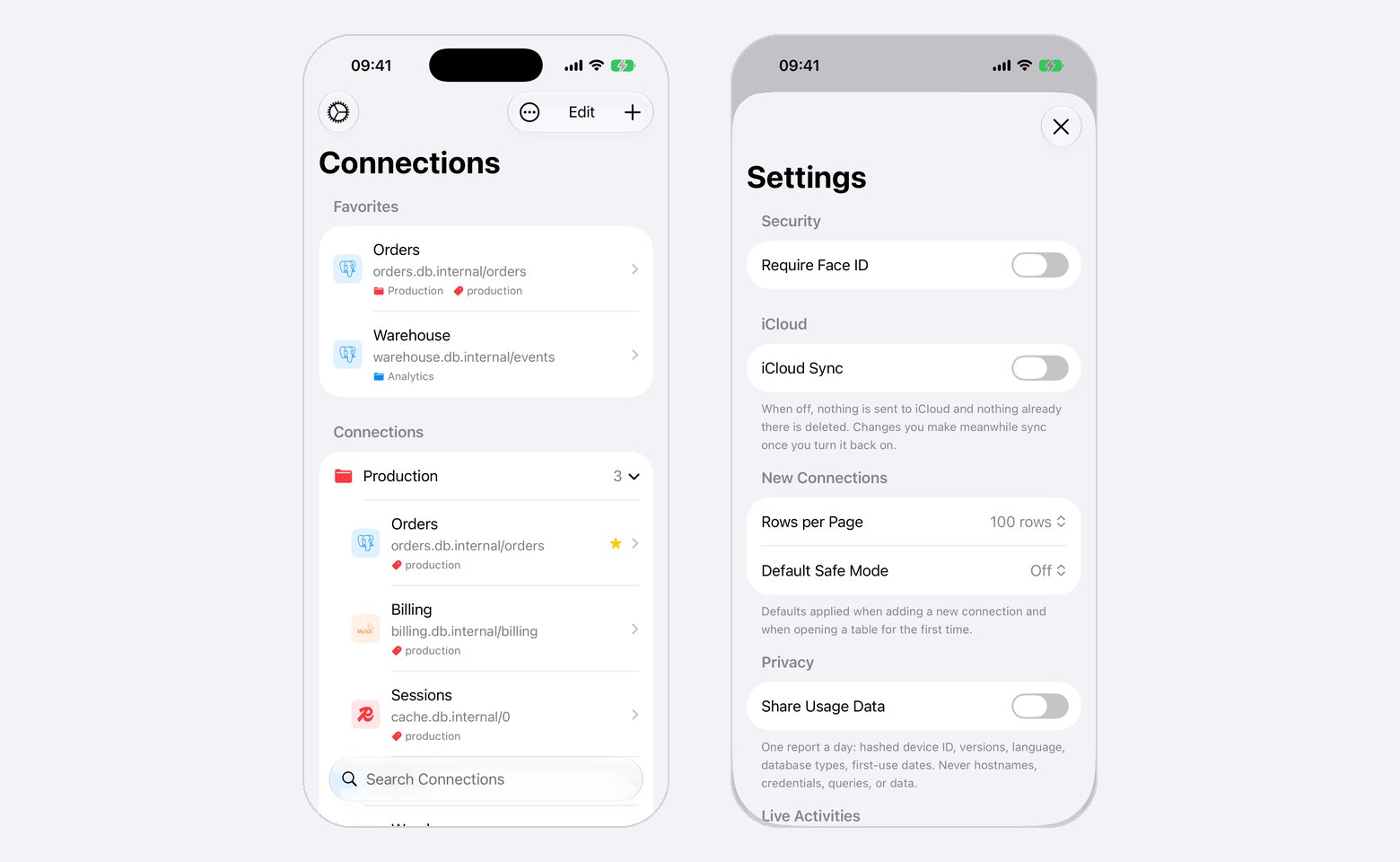
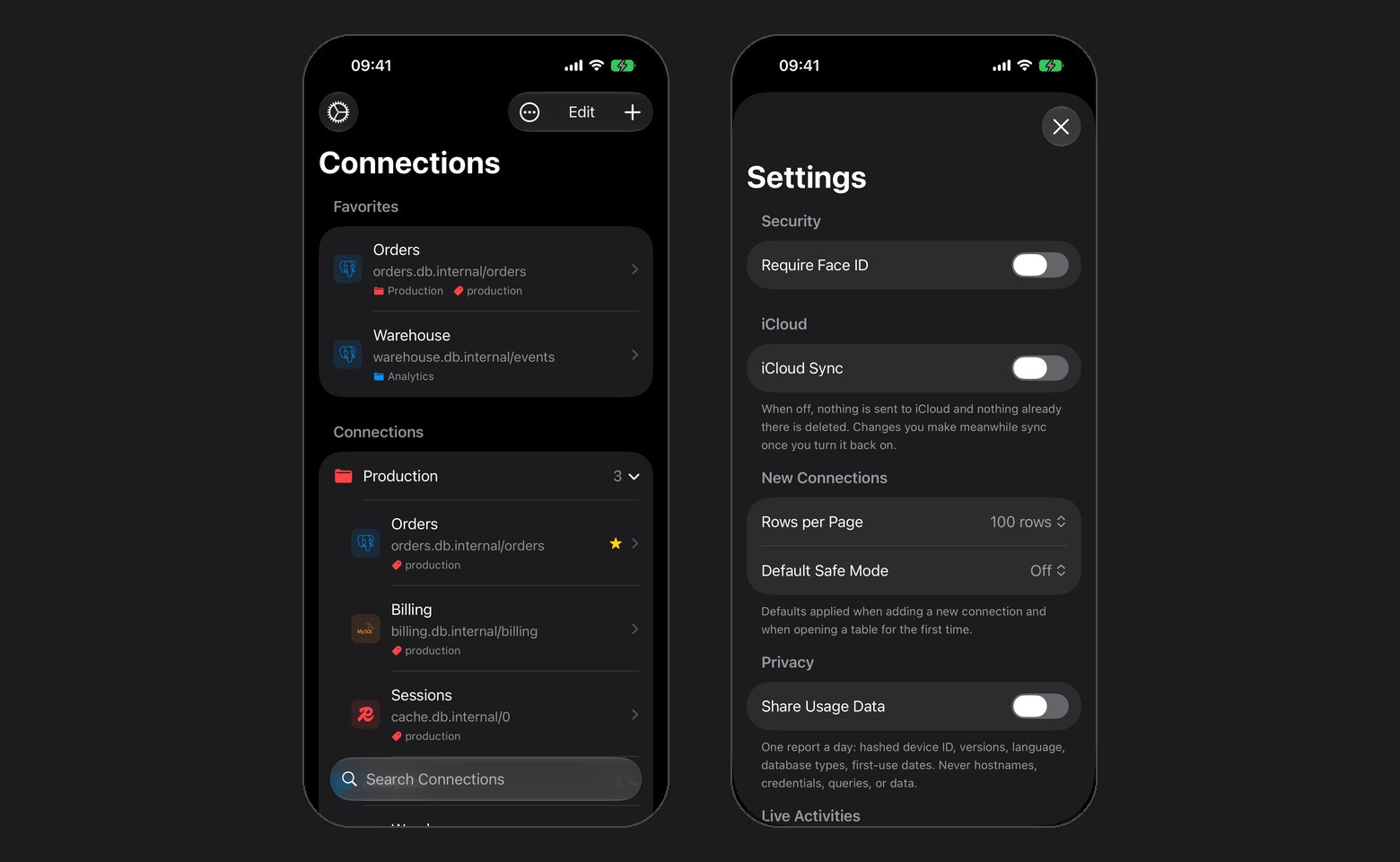
The connection list and Settings on iPhone
First launch
A welcome sheet lists what the app does. Continue leads to at most two questions, each asked once:
Both answers can change later, under Settings > iCloud and Settings > Privacy. After an update, a What’s New sheet lists what changed, once per version.
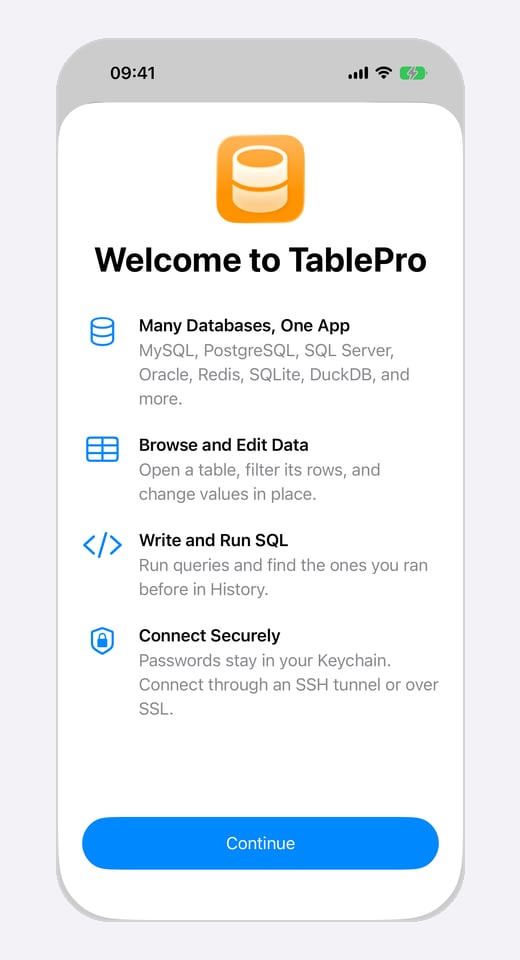
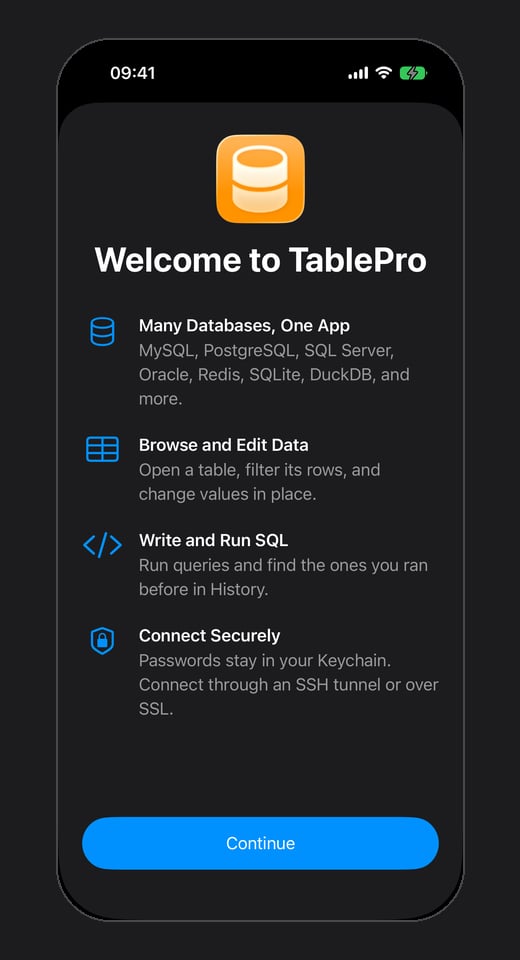
Swipe the sheet down to skip both questions
Supported databases
Every driver is compiled in, so there is no plugin system and nothing to install. The type picker offers these thirteen:Redshift is not in the picker, but the driver is present: a Redshift connection created on the Mac connects once it syncs over.
.tablepro file marks these rows the same way.
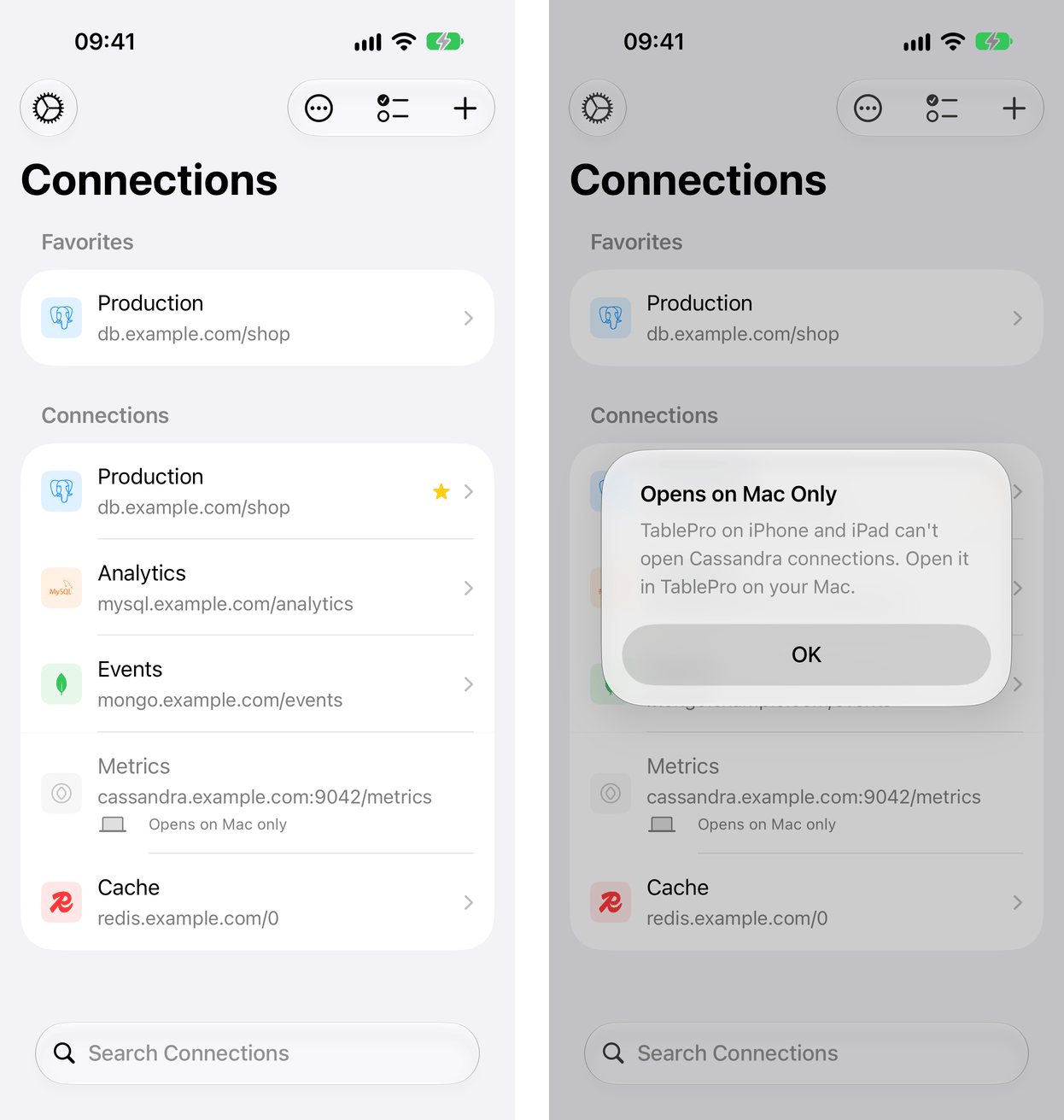
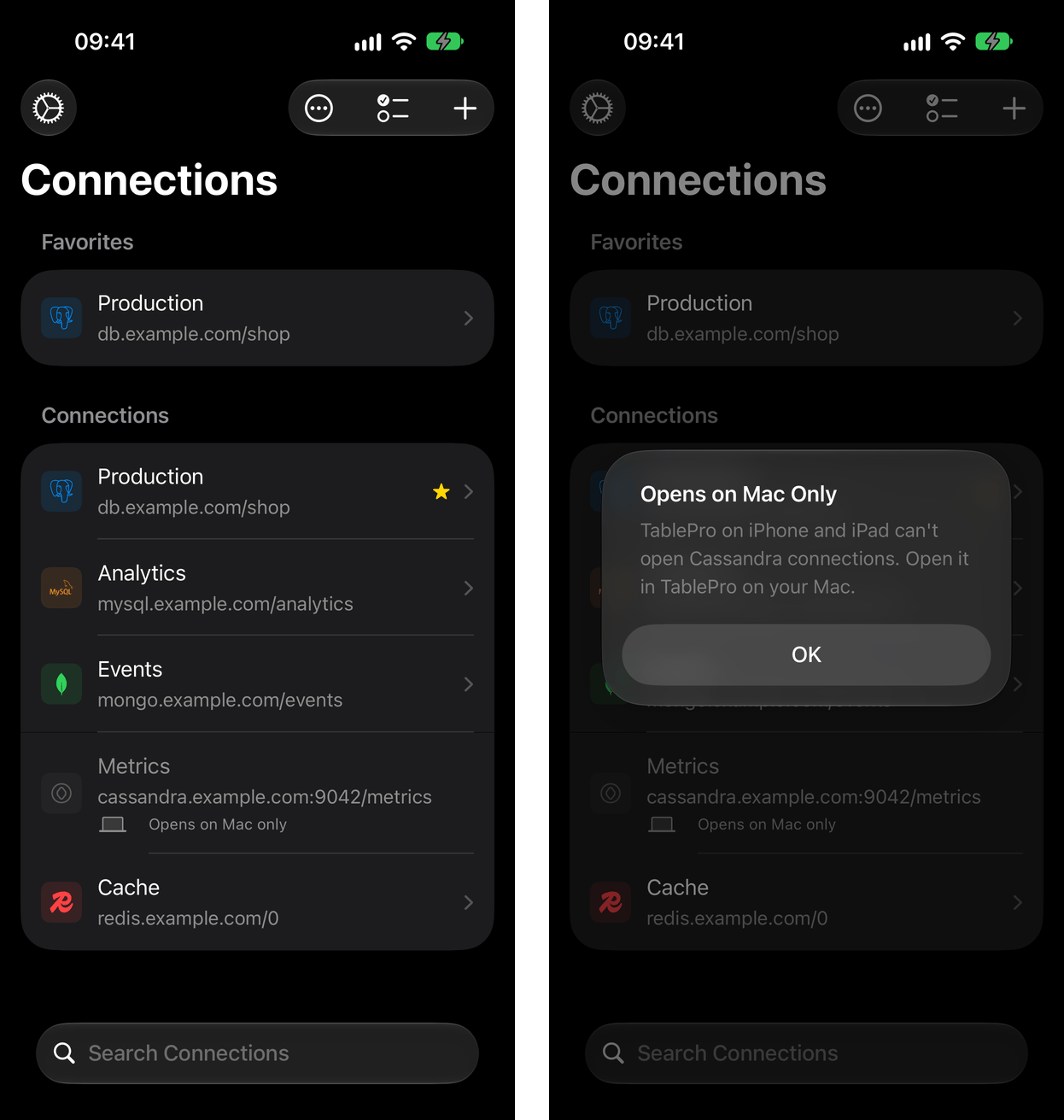
Tap a Mac-only connection to see why it stays closed
The connection list
Favorites come first, then Recent with the five connections opened last, then your groups, nested the way the Mac nests them. The More menu holds Sort By (Manual, Name, Database Type, Last Connected), New Group, Manage Tags, Open Sample Database, and import and export. Type a tag’s name in the search field to filter by it; with two tags or more chosen, Match All Tags appears in the More menu.
Duplicate copies the saved password, SSH secrets, client certificates and file access along with the settings. Recent and the sort order stay on the device.
A connection, group or tag form with unsaved changes stays open when swiped down, and Cancel asks before it discards them.
The sample database
Open Sample Database sits on the empty list and in the More menu. It opens Chinook, a SQLite database of a music store, at its Track table, with no server to set up. The sample stays on this device: it never syncs, goes into a.tablepro file or hands off to another device. To throw away your edits, touch and hold Chinook (Sample) and choose Reset Database.
What syncs over
The same CloudKit container as the Mac. iCloud Sync is off on both until you turn it on: here during first launch or under Settings > iCloud. While it is off nothing leaves the device, and edits made in the meantime go up when you turn it back on, provided the device is still signed in to the same Apple Account. Sign in to a different Apple Account and sync starts over for that account: its connections come down, edits not yet sent go up to it, deletions not yet sent are dropped, and the other connections already on the device stay and go up the next time you edit them. Four kinds of data cross: connections (host, port, SSH tunnel and SSL settings, color, icon, safe mode level, favorite), groups with their nesting and icons, tags, and saved queries with their folders. Saved queries have no switch of their own here and sync whenever iCloud Sync is on. SSH profiles, table favorites, and app settings are skipped, and query history on the phone is only what you ran on the phone. Four things a connection depends on are per device and never sync:
Passwords, a Cloudflare D1 API token included, are a separate opt-in, off by default, at Settings > iCloud > Sync Passwords. They ride iCloud Keychain and only new saves are affected, so re-save a password on the Mac to push it across. A private key saved on this device, a jump host’s included, follows the same setting: with Sync Passwords on, iCloud Keychain copies the key to your other iPhones and iPads, which use it, and to your Mac, which does not. A change made on another device arrives within seconds while the app is open. In the background, iOS decides when to wake the app for it, and turning off Background App Refresh for TablePro stops those wakes. Coming back to the app syncs too, at most once a minute. Pull down on the connection list to sync now; a background refresh runs about every 30 minutes.
When a sync cannot finish, the connection list and Settings > iCloud name the reason, and changes made meanwhile wait on the device. For iCloud Storage Is Full, open the Settings app, tap your name, then tap iCloud, and free up space or add storage. The upload is tried again after 5 minutes, then twice as long each time up to an hour; pull down on the list to try at once. For TablePro Data Was Removed from iCloud, choose Upload Again to send everything on the device back up, or Turn Off iCloud Sync to keep it here only.
A change that syncs in while a connection is open leaves the screen where it is. A change to how it connects, such as a new host, port, username, database, SSH tunnel or SSL mode, reconnects it once no row or form on it has unsaved changes. Saving a new password, SSH password, key passphrase, private key or certificate for an open connection reconnects it the same way. A connection deleted on another device shows Connection Deleted before returning to the list.
A database created with Create New Database, or copied in by picking it, stays with its connection through an app update and a restore from backup. A file that is gone is reported as unavailable, and so is a file connection synced from another iPhone or iPad; the connection never opens an empty database, or a file of the same name on this device, in its place.
IAM sign-in
Short-lived tokens replace the password for AWS IAM on Amazon RDS and Aurora (MySQL, MariaDB, PostgreSQL) and ElastiCache (Redis), and for Google Cloud IAM on Cloud SQL (MySQL, PostgreSQL). Pick the method under Authentication in the connection’s form, and the Password field goes away. Each connect signs a fresh token and never saves it. The methods match the Mac’s, but two of them read files that only the Mac has:
A key for this device and the IAM Identity Center settings stay on this device. They never sync, whatever Sync Passwords says, and the connection on the Mac does not change. Opening a connection that still needs one says which, with Edit Connection to add it.
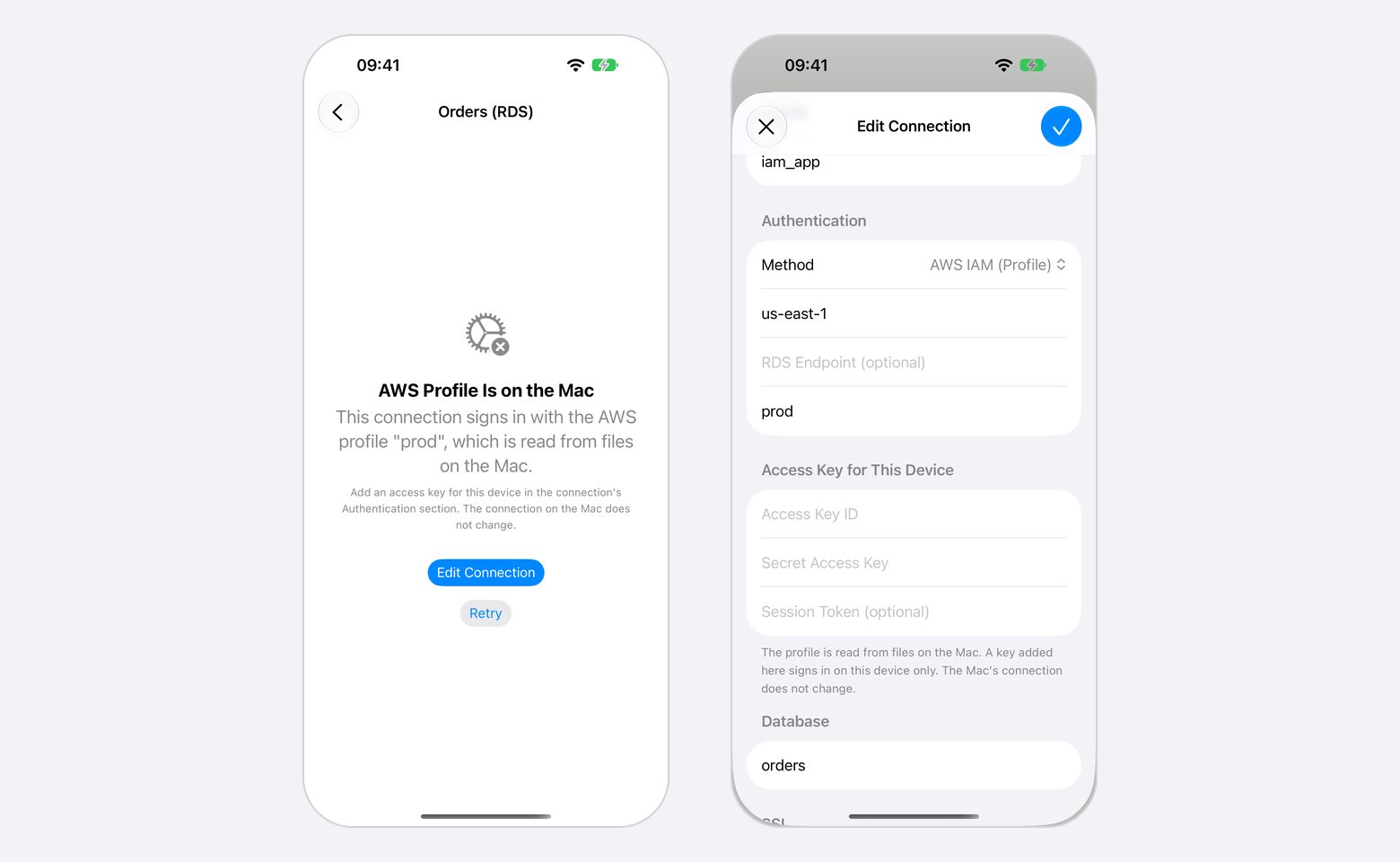
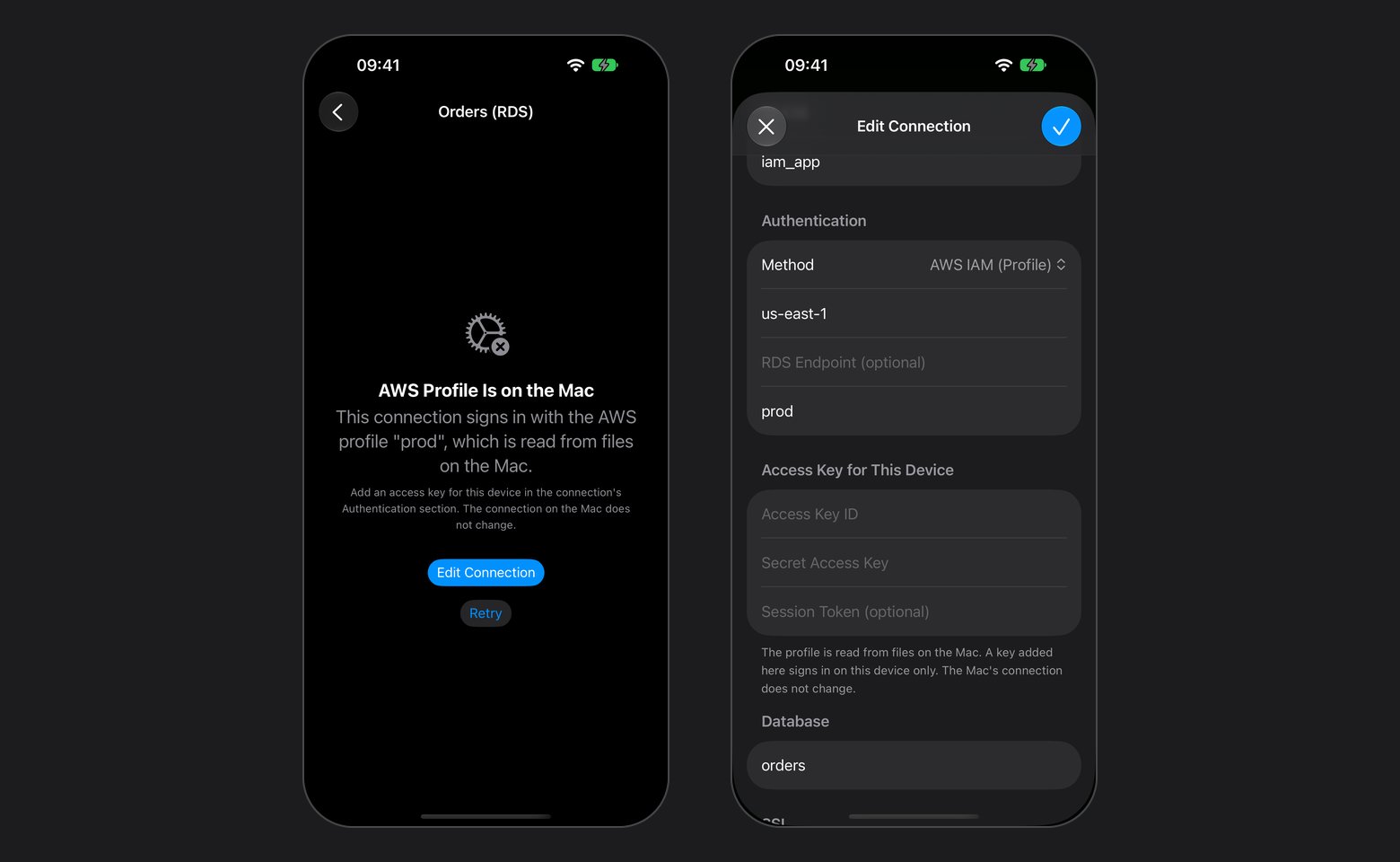
A Profile connection signs in once this device has its own access key
What works
An open connection fills the screen and carries four sections: Tables, Query, History, Info. They sit in a tab bar on iPhone and in a sidebar on iPad. On iPad, and on iPhone Duo’s inner display, the table list and the open table sit side by side. At phone width the list fills the screen and a table opens over it. On iPhone Duo the system draws the toolbar and the tab bar down the side of the display. The outer display is 466 by 678 points, shorter than any other iPhone, so rows keep the height those bars would have taken across the top and bottom.Cmd+1 through Cmd+4 switch between them on a keyboard, a toolbar menu switches database and schema when the engine has more than one, and Connections returns to the list.
Browsing
Rows show as cards or as a grid. Pick Cards or Grid in a table’s More menu, or in the More menu of Query once it has results, and the choice applies everywhere. iPhone starts with cards and iPad with the grid. A card previews four of its fields, and eight where the display is wide enough. The grid shows one row per line under a fixed header, and the row’s key column stays at the leading edge while the other columns scroll sideways. Touch and hold a row in either layout to share, copy, or delete it.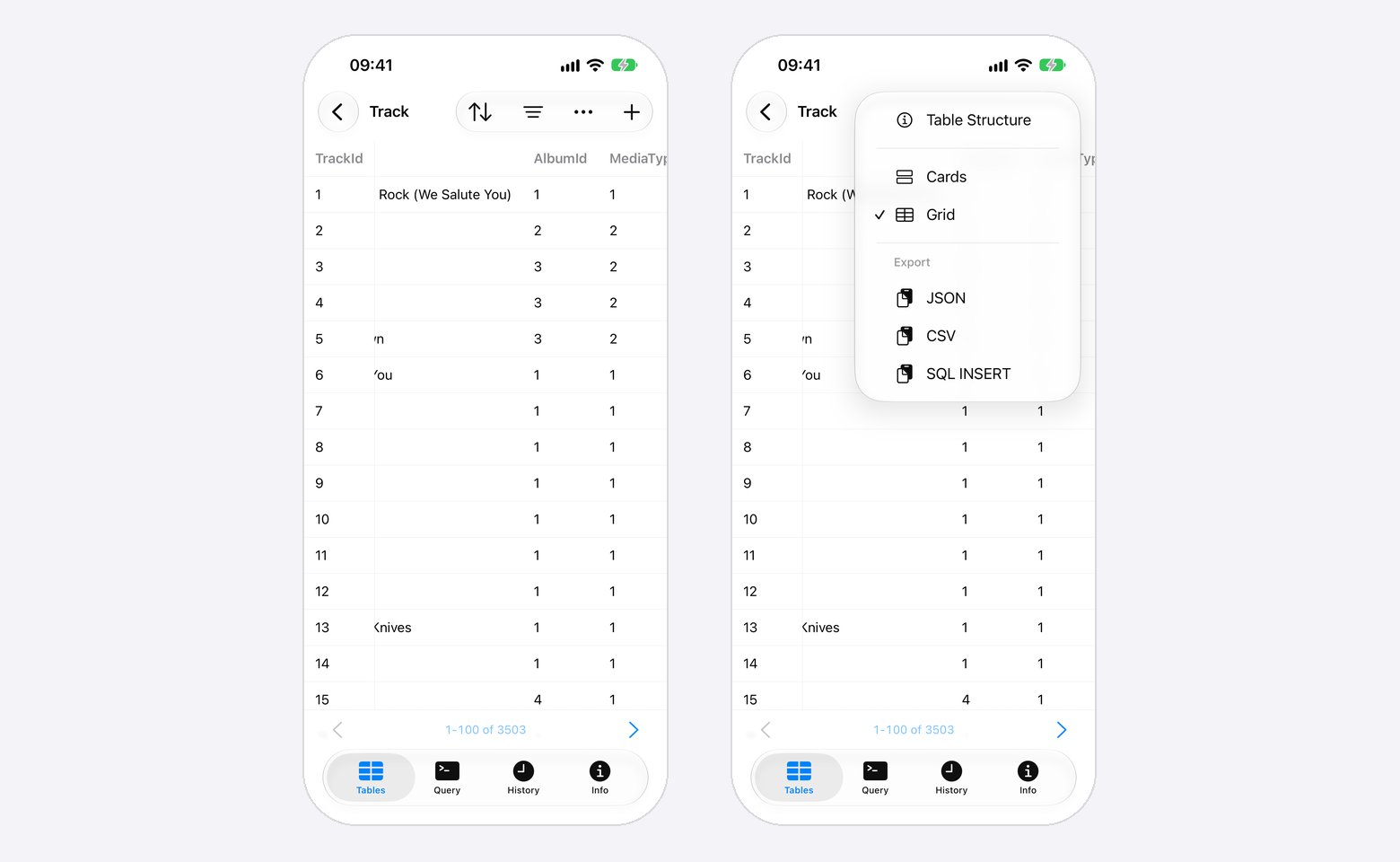
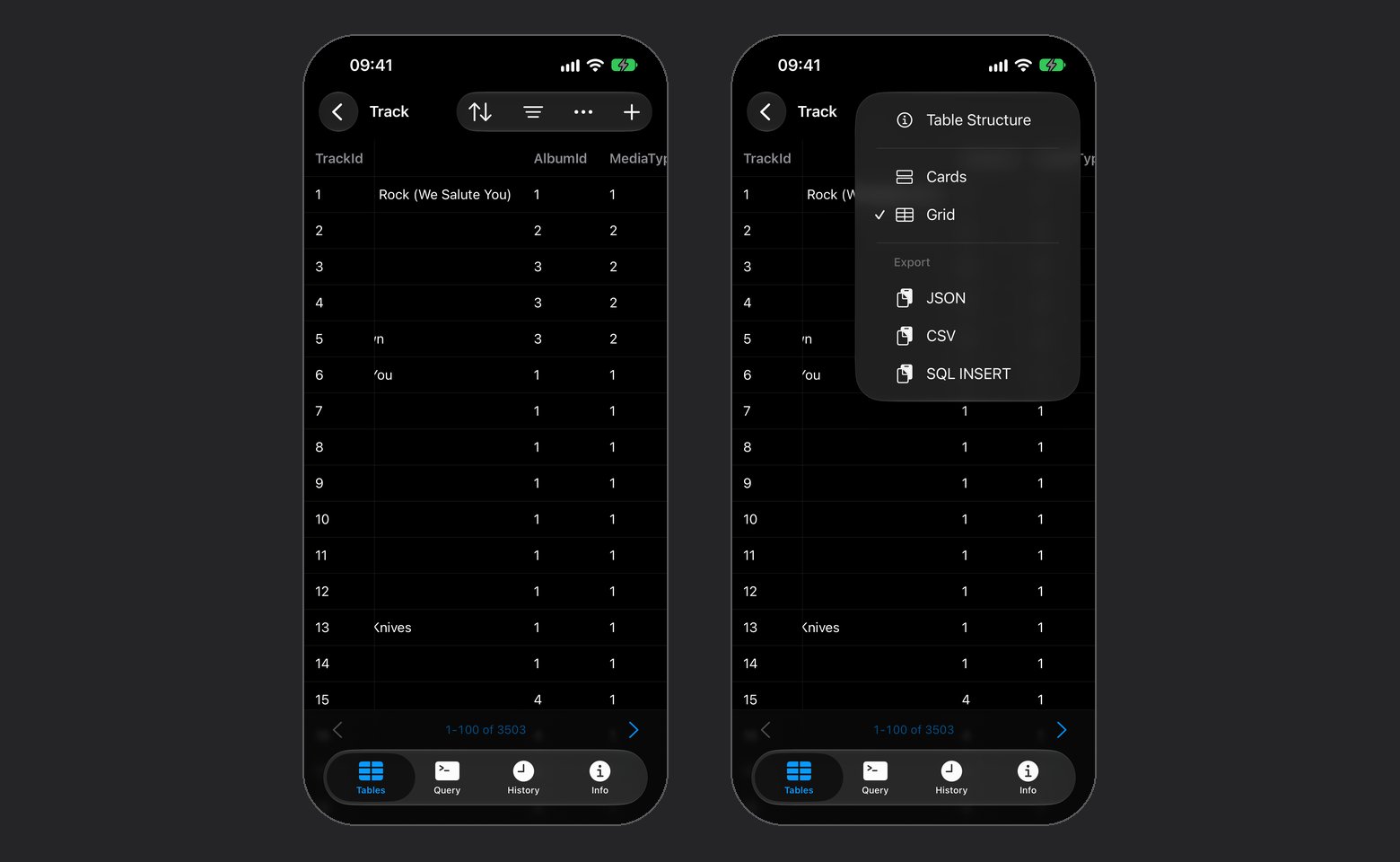
The key column stays put while the other columns scroll
INSERT, and Delete, which asks first and appears where a row can be deleted. Done leaves Select mode. Loading another page, or changing the sort, search or filters, clears the picks. The More menu of Query has Select Rows for a result too, with Export and Copy, and a new run ends it.
Search the table list by name. A PostgreSQL materialized view sits under Views and opens read only. Page a table at 50, 100, 200, or 500 rows, jump to a page number, sort by a column, search text columns, and stack filters with AND or OR. On PostgreSQL, ClickHouse, SQL Server and Oracle, pages follow the primary key, after your sort when you pick one, so paging never repeats or skips a row. The search field types quotes and dashes as you key them, so O'Brien finds O'Brien with Smart Punctuation on.
To follow a foreign key, tap the link under its value on a row, or long-press a row in the list and pick the key. A sheet previews the row it points at, titled with the table and, when it differs from the one open, the schema. A value in the preview that is itself a foreign key opens the next row in the same sheet, and Back returns one step. Open Table opens that table filtered to the key, and when one row matches it lands on that row, ready to edit. Back then returns to the filtered list and to the row you started from. While that row has an edit open, Open Table is dimmed.
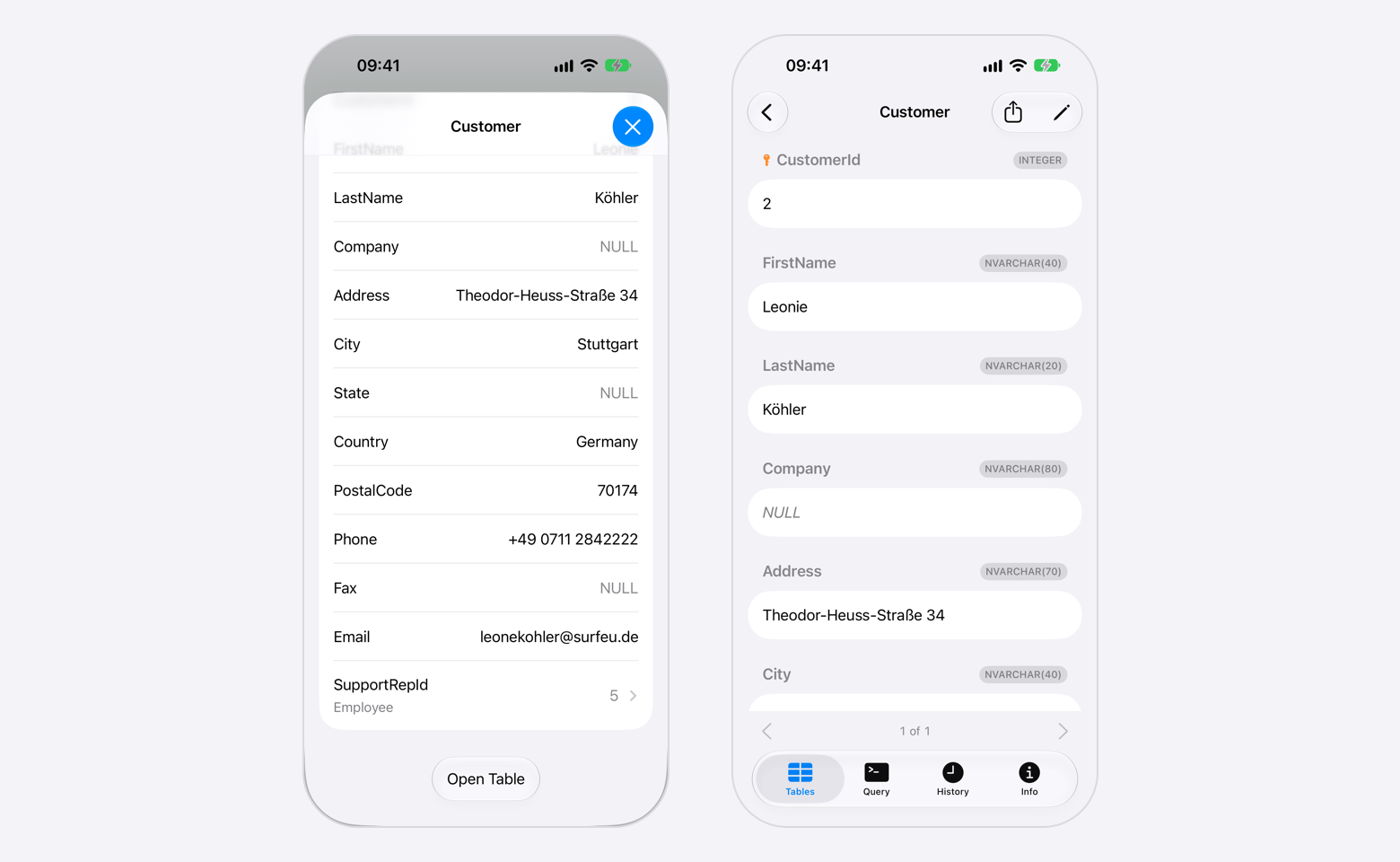
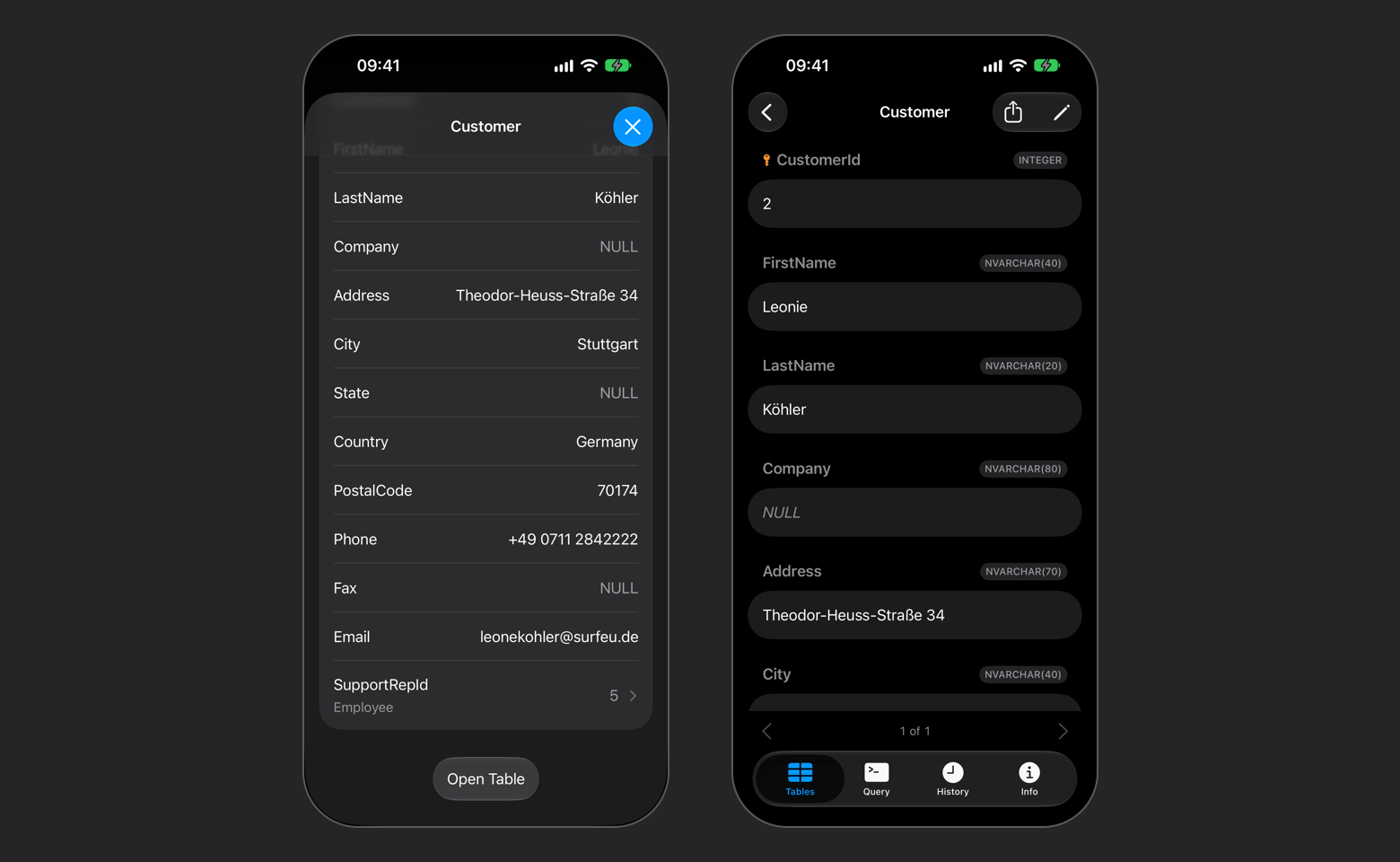
One more tap from the preview to the row in its table
INCLUDE columns and a partial index’s WHERE clause. On Redshift the index list holds the DISTKEY and SORTKEY columns.
On MongoDB a collection opens as a table: its top-level fields are the columns, _id first, and a nested document or array reads as one line of JSON. Search matches text fields, and from MongoDB 4.2 a number, a date or an ObjectId by its text too. The filters offer every operator except the LIKE patterns, and Table Structure lists the fields found in a sample of documents and the indexes.
On Redis the list holds the current database’s keys. A key opens by type: a string’s value, a hash’s fields, a list’s elements by index, a set’s members, a sorted set’s members and scores, a stream’s entries. There is no search, sort, filter or Table Structure for a key.
Editing
Tap a row to open it full screen, page between rows, edit values, toggle one toNULL, and save. An emptied date, number, boolean or JSON field saves NULL, and in a NOT NULL column it keeps its value; an emptied text field saves an empty string. While you edit, Cancel takes the place of the back button and asks before it throws away a changed value, and so does Connections in another tab. Inserting and deleting rows, and truncating or dropping a table, are here too; a PostgreSQL foreign table offers neither Truncate nor Drop. Editing needs a primary key, and a row whose key holds binary data opens read only.
A ClickHouse key is not unique, so a ClickHouse row is matched on every value it holds: a save is an ALTER TABLE … UPDATE and a delete an ALTER TABLE … DELETE, and a row holding a value over 4 KB or binary data opens read only, with no Load full value. Each one waits until the server has applied it. When another row holds the same value in every column, the save or delete is refused with Identical Rows, since it would change both.
A MongoDB document is found by its _id: a save sets the fields you changed, a delete removes that document, and a nested value edits as JSON. A save or delete is refused when the _id text reads as two of the types the collection holds, such as an ObjectId and a string, since the row could be either.
A new row starts with every column on DEFAULT, which leaves that column out of the INSERT so the database fills it in. The badge beside a field switches it between DEFAULT, NULL and a typed value, and NULL is offered on nullable columns only. Generated columns are never written, and an auto-increment key stays on DEFAULT until you type one.
A save, insert, delete, truncate or drop runs inside a read-write transaction, except on ClickHouse and MongoDB, which have none. MySQL, MariaDB, TiDB, PostgreSQL, Redshift, Oracle and SQLite report what their session is already holding, and a write there runs inside that rather than under a transaction of its own, so the rows wait for whoever opened it. A server that starts its sessions read-only is a different problem: see Server read-only is not Safe Mode. SQL typed into the Query section is yours and goes out as written.
JSON values
Ajson or jsonb field opens indented on the row screen. Tap View as JSON to read all of it: Text shows the value indented, and Tree folds each object and array. Touch and hold a tree row for Copy Value, Copy Key and Copy Key Path, which copies a path such as $.user.emails[0]. A text column holding a JSON object or array offers View as JSON too.
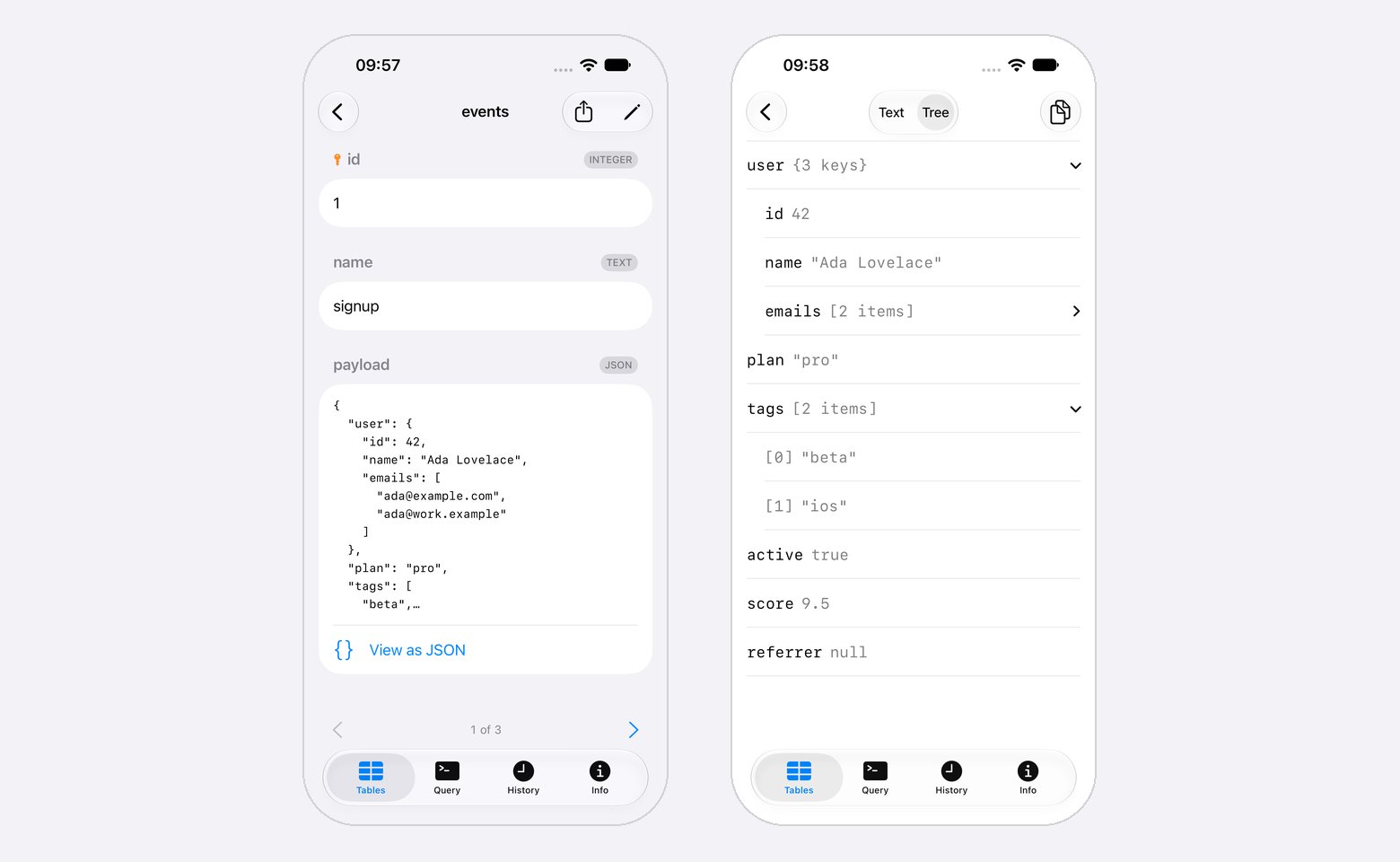
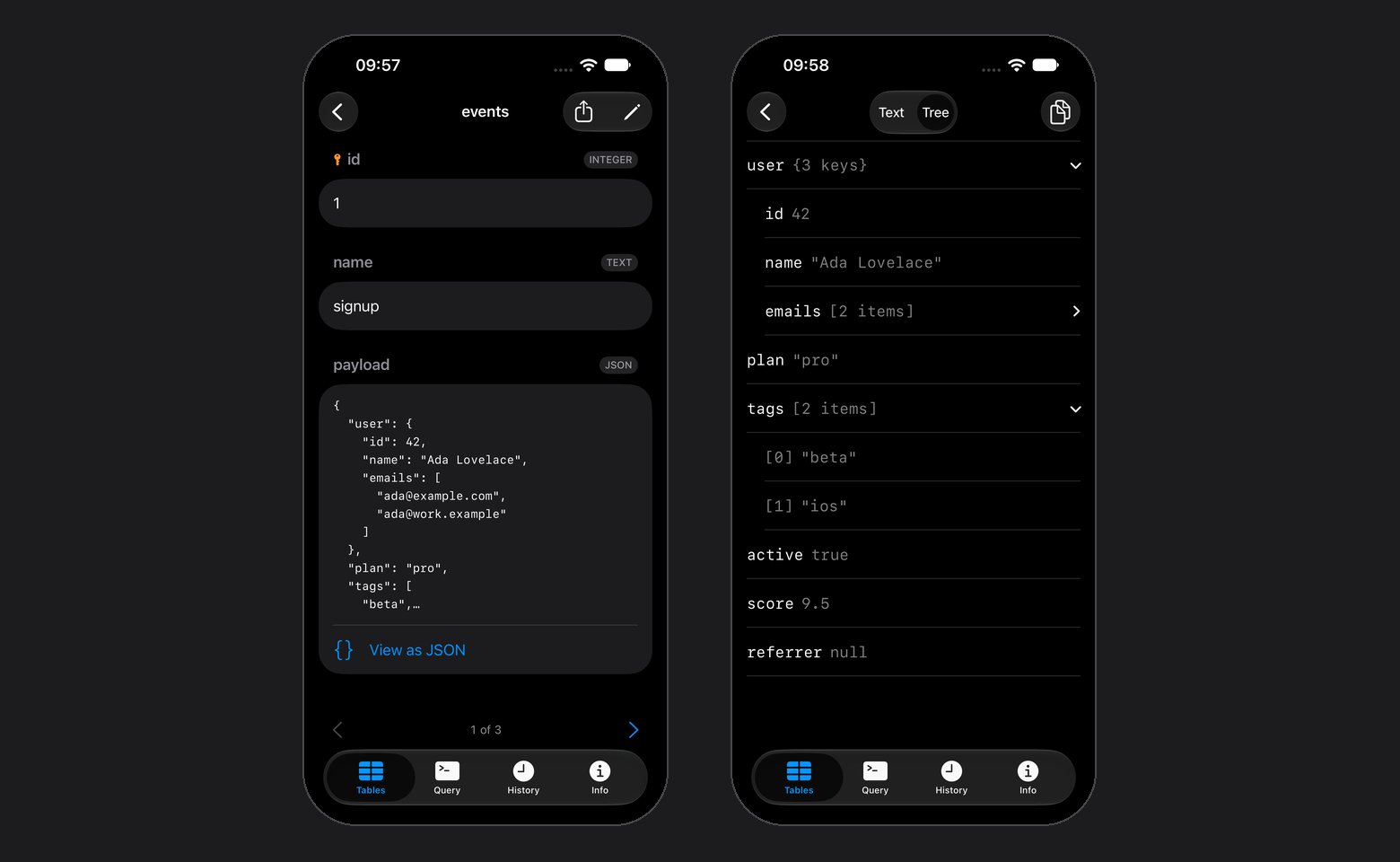
Tree mode starts with the first level open
Line 18, column 1: Unexpected character., and Done stays dimmed. Tap that line to move the cursor there.
A table value over 4 KB arrives cut. Tap Load full value first; until then it is plain text with no View as JSON. A Query result keeps long values whole while they fit in the memory the device has free; past that they arrive cut, the result says so, and the row marks them Shown in part. A value too long to show on the row opens in full with View Full Value.
Querying
Suggestions fill the bar above the keyboard as you type, in front of the fixed keys. AfterFROM, JOIN, INTO or UPDATE they are tables and views; after SELECT, WHERE, ON or SET, the columns of the tables the statement names, and the engine’s own functions; elsewhere, keywords. An alias and a dot, as in i., give that table’s columns, and a schema and a dot, as in sales., give that schema’s tables (a database on MySQL and MariaDB). Comparing an enum column, as in status = , offers its values. Tap one to replace the word you are typing, quoted when the engine needs it. A table’s columns load the first time it needs them and again after each run, over a second connection where the engine allows one, so typing leaves what SELECT ROW_COUNT() or SHOW WARNINGS reports for your last statement alone. On iPad with a hardware keyboard, Tab inserts the first suggestion and Escape hides the bar until you type or move the cursor.
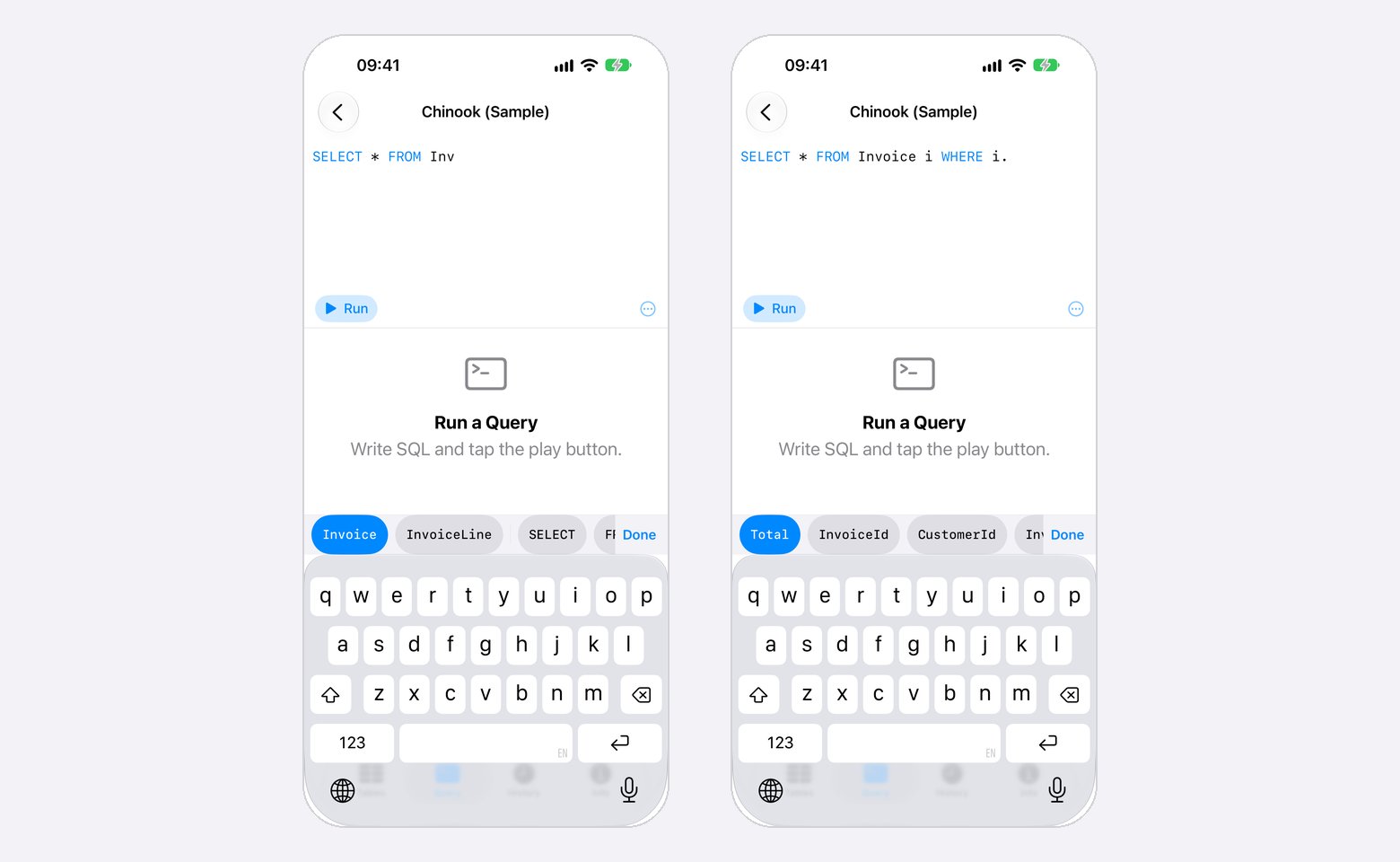
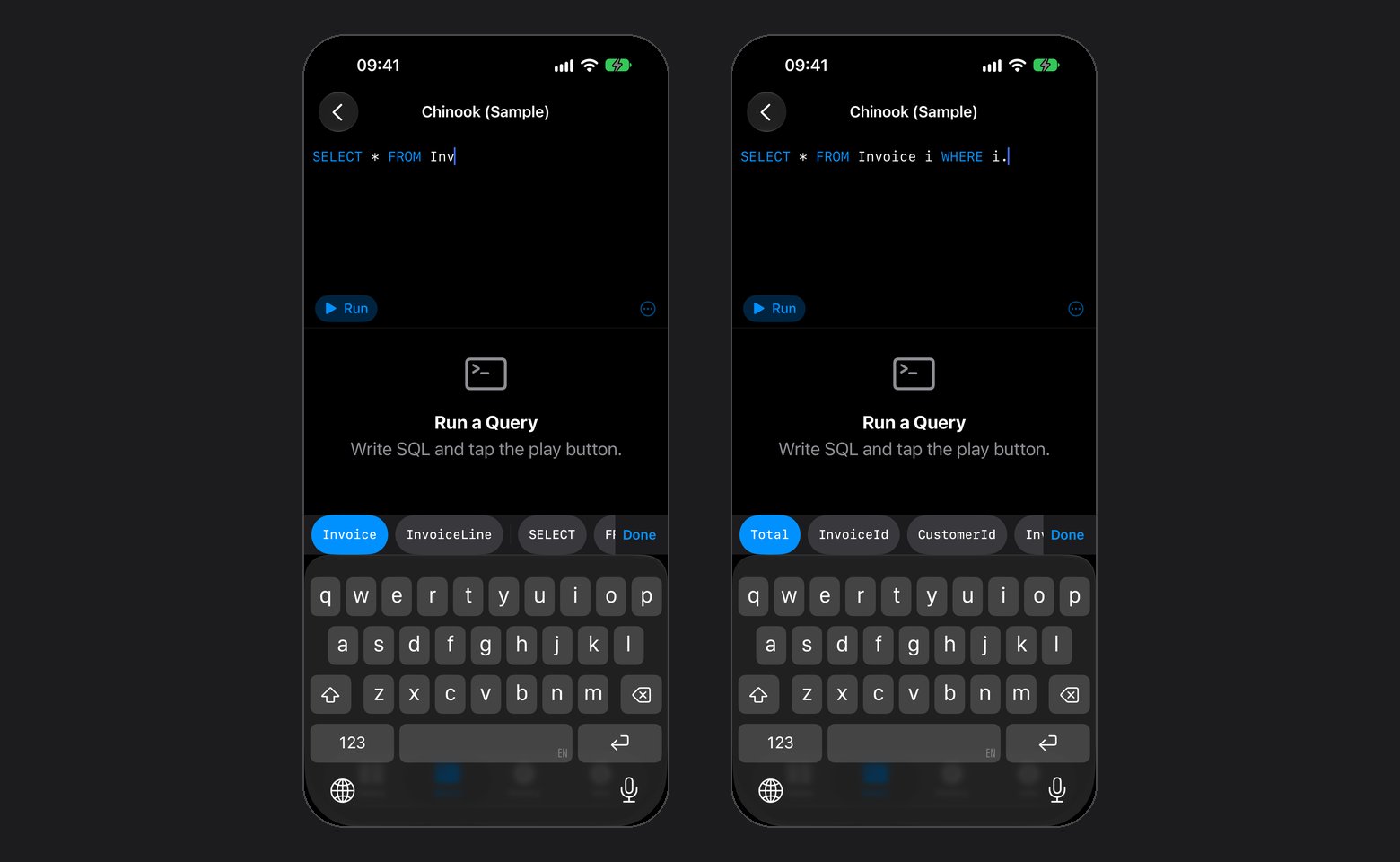
Tables after FROM, columns after an alias
Cmd+Enter runs the statement or the selection, Cmd+Shift+Enter runs every statement, and Cmd+. stops. On iPad the menu bar’s Query menu lists Run Statement, Run All Statements, Stop and Clear Query, and its View menu switches sections with Cmd+1 through Cmd+4.
On MySQL, MariaDB, TiDB, OceanBase and SQL Server, a USE you run moves the table list and the database menu to that database, and a dropped connection reconnects there; while a window has unsaved changes on the connection, the USE is undone and a message says why. Until a run with a USE ends and the menu has followed it, Run waits in every window. Tables names the database the menu shows in every statement it sends, as [database].[schema].[table] on SQL Server, so a save, insert, delete, truncate or drop reaches the table on screen wherever the session sits. On PostgreSQL, a SET search_path you run, or a Roll Back that undoes one, moves the schema menu to the schema the session uses.
Tap a query in History or Saved Queries, or a table under SELECT * FROM … in the More menu, to add it to the editor. It fills an empty editor; otherwise it goes after your text as a statement of its own, with the cursor in it, and Undo takes it back. A statement that creates, alters or drops a table refreshes the table list in every window open on the connection. History keeps the last 200 runs on the device, fewer once their text passes 2 MB, and drops the oldest first, so a script it shows is always whole.
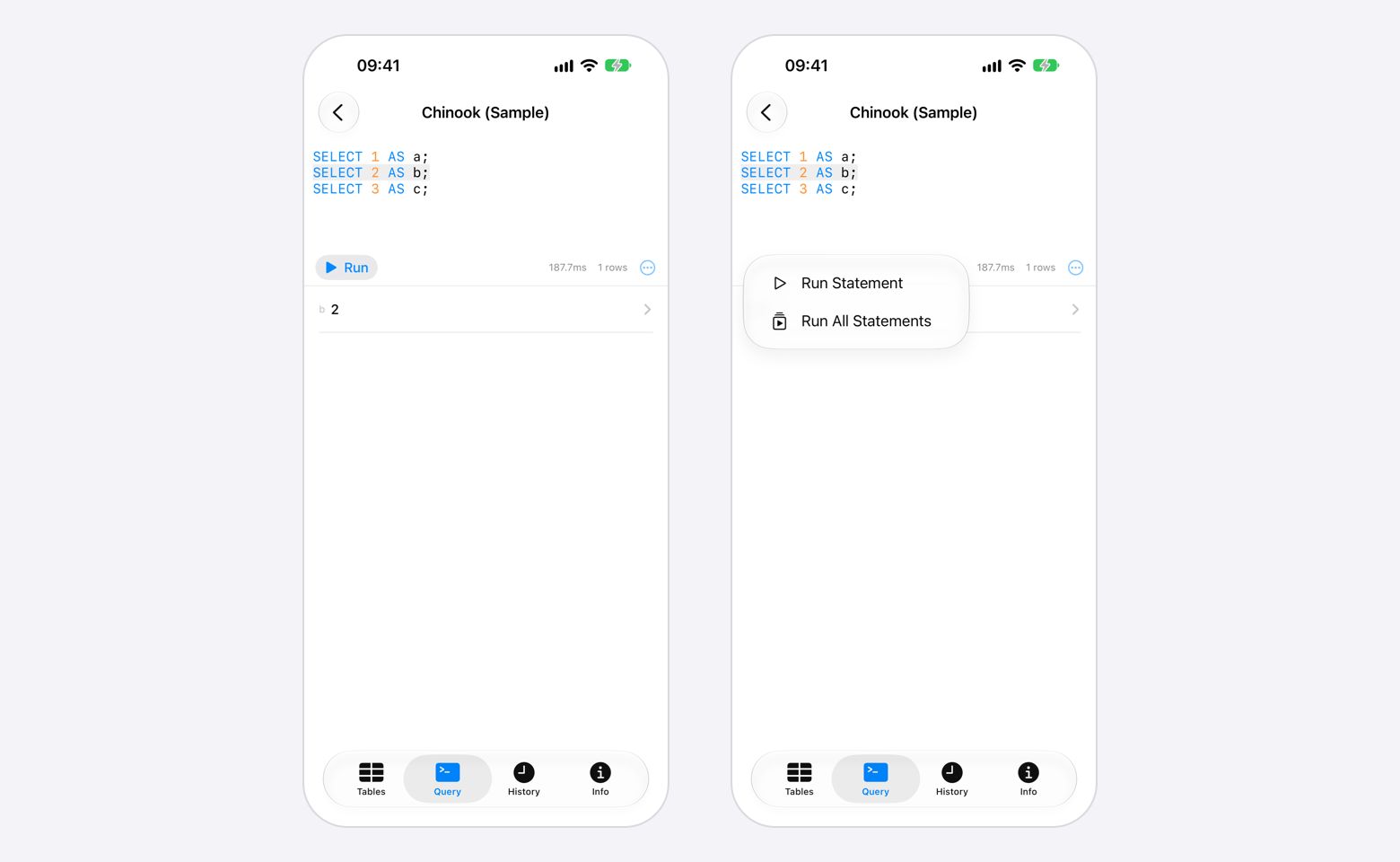
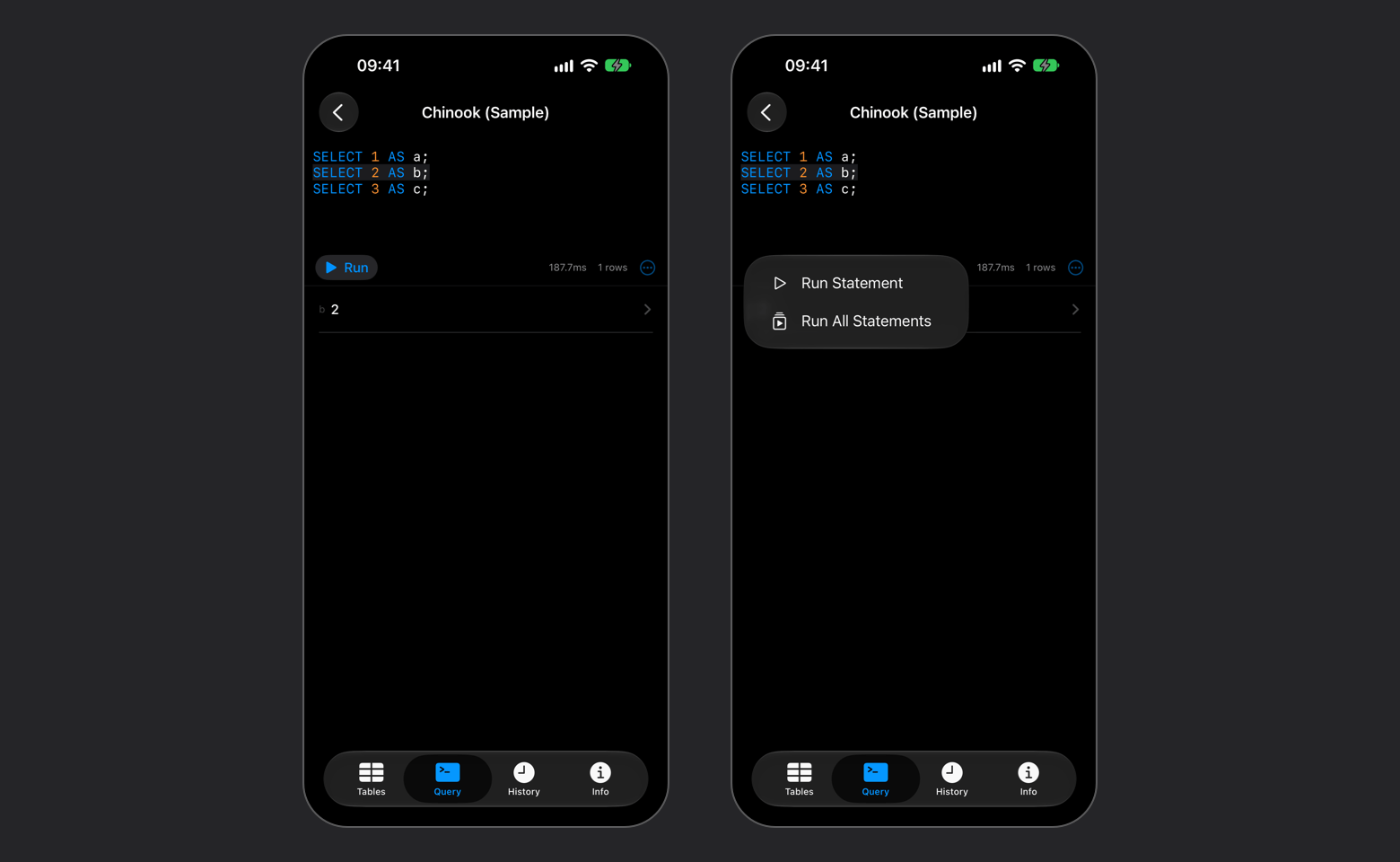
The band marks the statement Run sends
SELECT before an UPDATE runs without the Confirm Writes question. Each statement commits as it runs unless your script opened a transaction. The result area shows the last statement’s rows, or how many rows the run changed. The first statement that fails ends the run: the error names its position, as in Statement 2/3 failed, and, where the connection reports its transaction state, whether the statements before it stay applied or wait in your open transaction.
On SQL Server, lines with no semicolon between them are one statement up to the next line holding only GO, so Run sends that batch. In a selection or Run All Statements, each GO line ends a batch, each batch goes to the server whole, and GO 5 runs its batch five times.
On MongoDB the editor takes the shell JavaScript the Mac takes. A statement ends where the program’s top level does, so a loop or a function body runs whole, and Safe Mode counts a statement as a read only when every call in it reads and its arguments are plain data: see MongoDB. use analytics moves the table list and the database menu along with it once the statement returns, a stopped one included. While a window, this one included, has unsaved changes on the connection, the use is undone instead. Browsing and row edits always run in the database the menu names.
On Redis a command ends at a semicolon or at a line break outside quotes, so each line is its own command and a quoted value may run across lines. A command with an unclosed quote fails without running. Quotes and escapes read as they do on the Mac: see Redis CLI.
Stop cancels the running statement and starts no other. On MySQL and Redis the statement keeps running on the server until it finishes. Share Results and Copy Results in the More menu give the result as JSON, CSV, or SQL INSERT text; Redis and MongoDB leave out SQL INSERT. In JSON, a numeric column gives numbers and a boolean column true or false; every other typed column gives strings, so a VARCHAR holding 1e10 or true stays text. A column with no type, such as count(*) on SQLite, gives a number or a boolean when its value reads as one. A value shown in part, or a binary value, stops that text with Cannot Export: leave that column out of the SELECT, or write a file with Export Results…, which runs a single read statement again and takes every value whole, bytes included. A result too large for the memory left stops the text with a message to return fewer rows. Copying rows from a table reads values over 4 KB in full first.
A running query appears in a Live Activity on the lock screen and Dynamic Island, with the elapsed time and the row count so far. Settings > Live Activities > Hide Query replaces the SQL text there with “Running query”. The card clears when the query ends. Quitting the app mid-query leaves it behind, marked interrupted, until the next launch clears it.
Saved queries
Open the More menu (•••) beside Run and choose Saved Queries. The list holds this connection’s queries and the global ones, in their folders, and search matches names, keywords and SQL. Tap a query to add its SQL to the editor the way a History entry goes in: it fills an empty editor, otherwise it follows your text and Undo takes it back. Nothing runs until you tap Run. Save Query… in the same menu keeps the editor’s text, with the first line of the SQL filled in as its name. Turn on Global to list the query on every connection. Keywords and the size limit follow the Mac’s rules, and a keyword expands in the Mac’s editor only.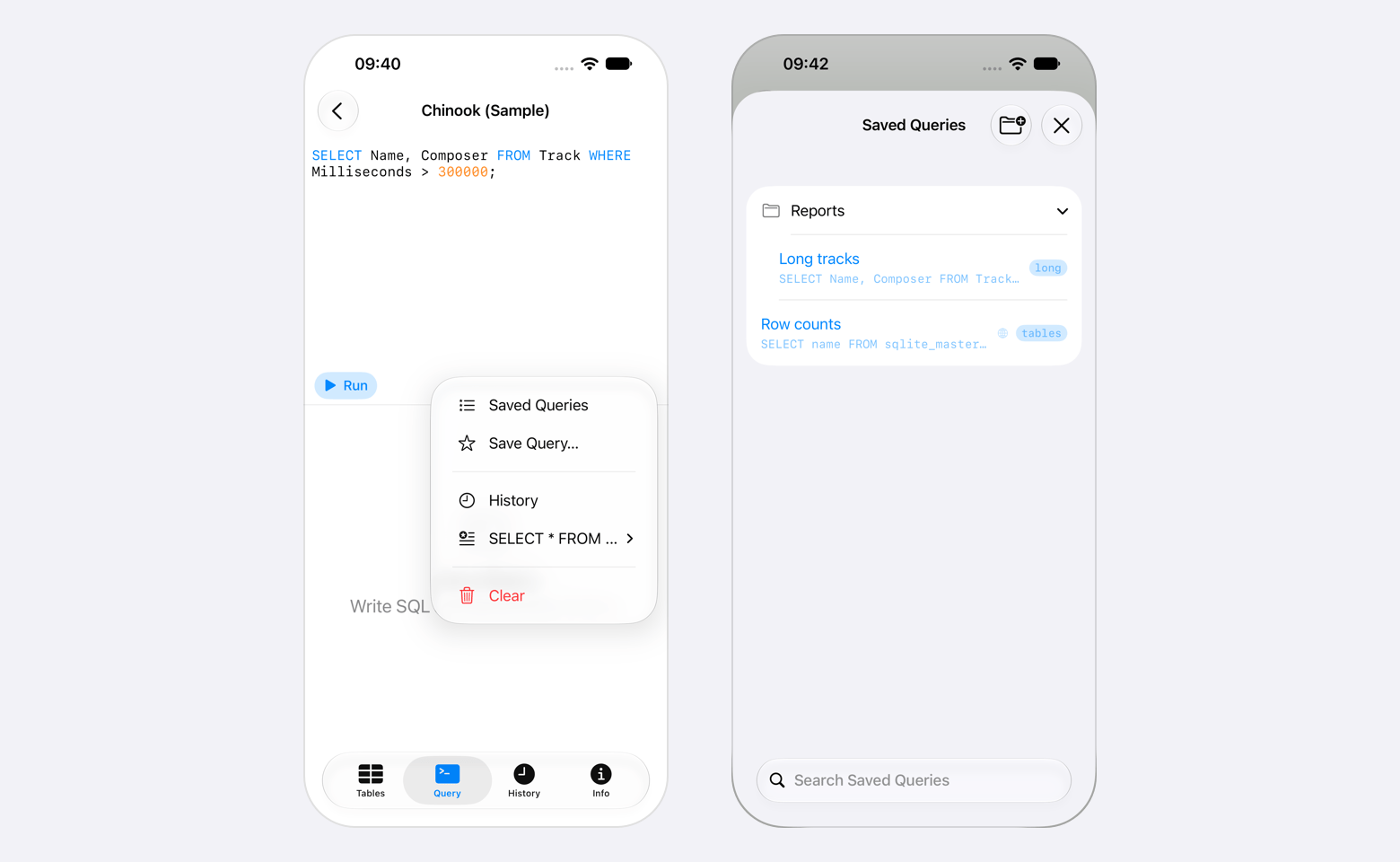
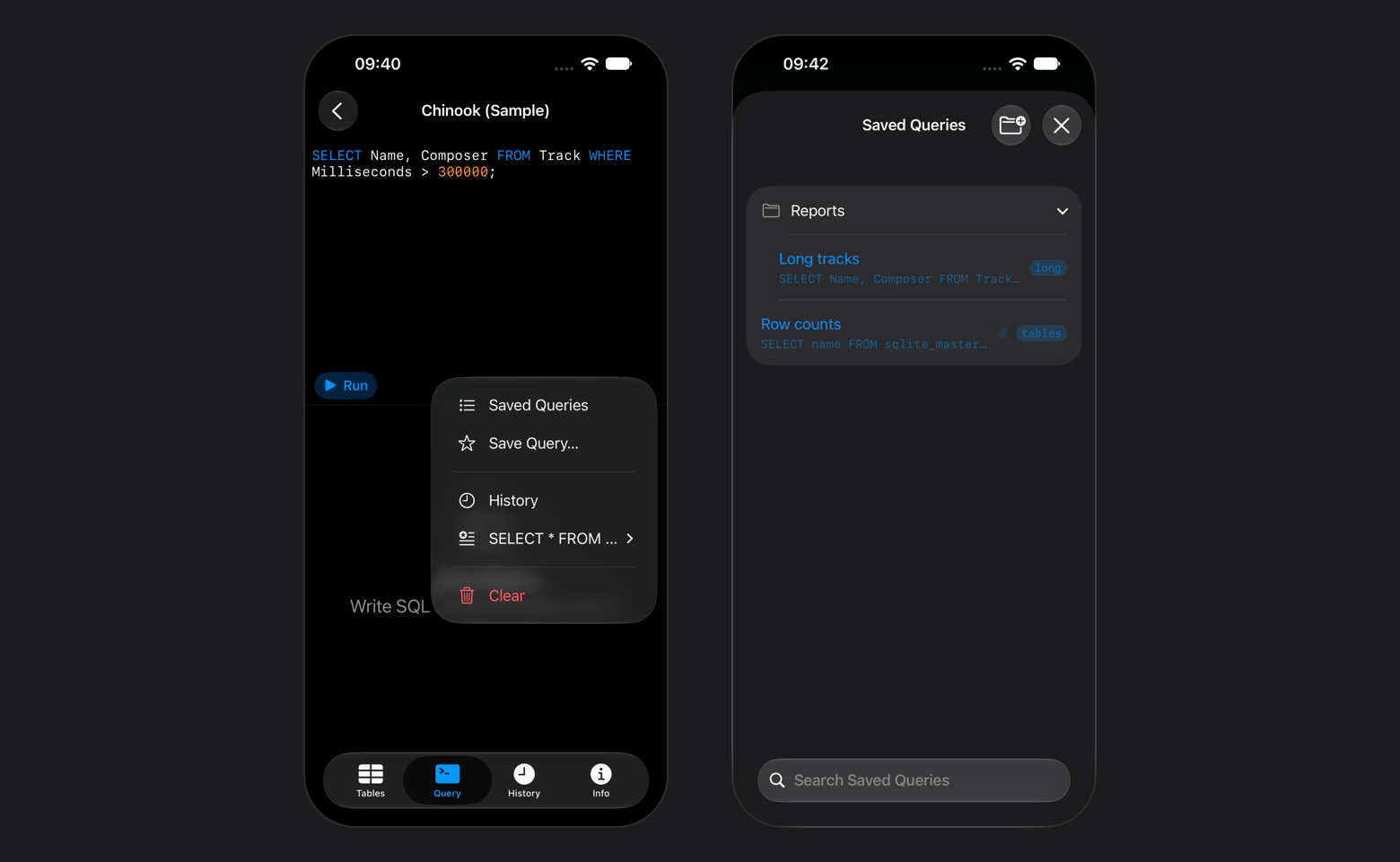
A globe marks a global query
To change a saved query’s SQL, edit it on the Mac. Version history and linked SQL folders are Mac only.
Open transactions
AfterBEGIN in Query, a bar sits at the bottom of every section until the transaction ends, by its buttons or by a typed COMMIT or ROLLBACK. A typed ROLLBACK reloads open tables and closes row screens the way Roll Back does. On a MySQL or MariaDB server with autocommit off, opening a table is enough to start one. The bar names the database, or the connection on an engine with one database, and the connection list marks the row with an hourglass. Where their titles do not fit, Roll Back and Commit show as an arrow and a checkmark.
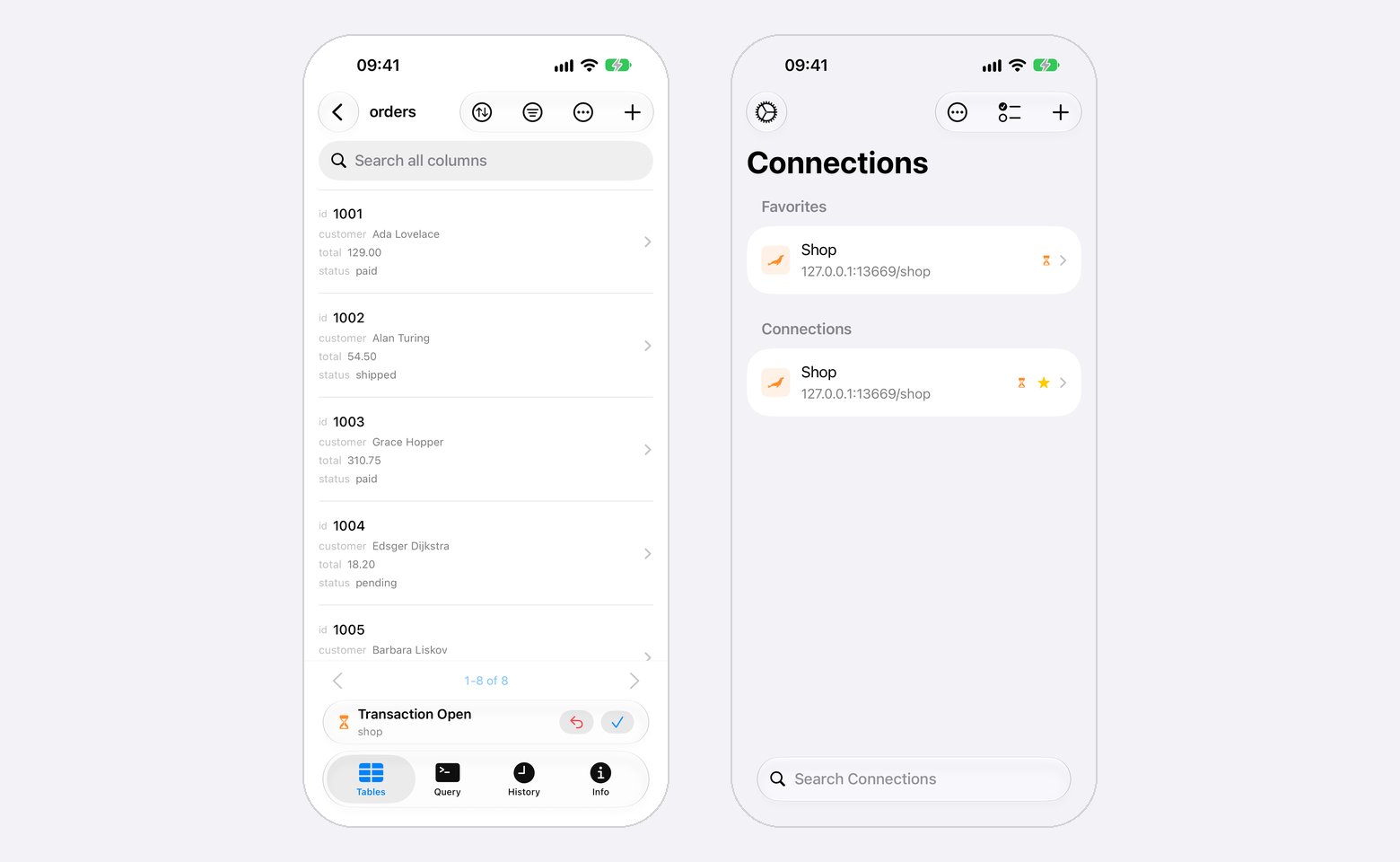
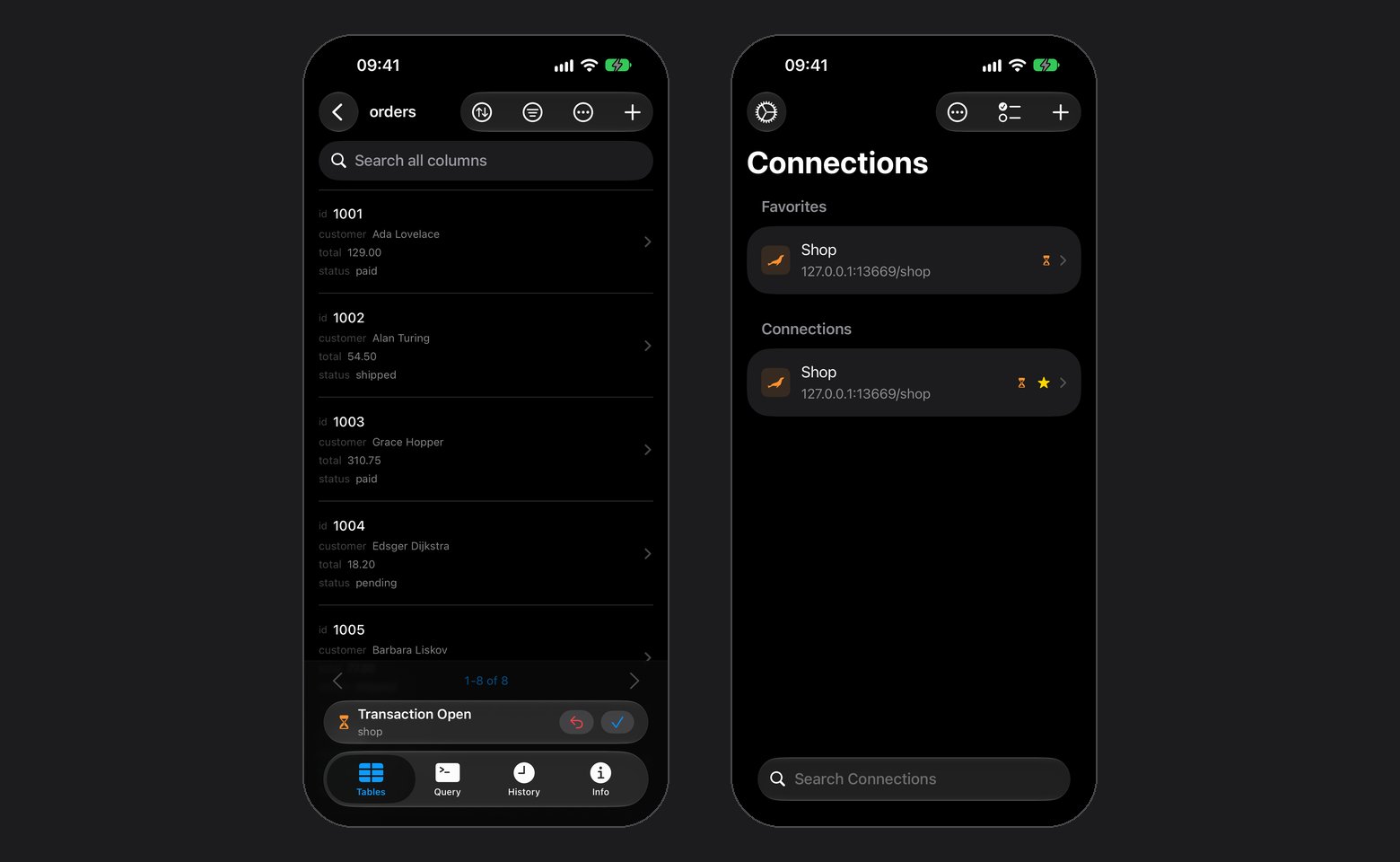
The mark stays on the list after you leave the connection
Transaction Failed means a PostgreSQL statement inside it failed, and the server keeps none of it. Only Roll Back is offered, and a typed
COMMIT rolls it back as well.
The bar shows on PostgreSQL, Redshift, MySQL, MariaDB, TiDB, SQLite, Oracle, DuckDB and SQL Server. OceanBase does not report its session state, so an open transaction there shows nothing.
A connection that drops with a transaction open reconnects and says the server rolled the transaction back. One that drops during Commit never got the answer: check which changes were saved before running them again. Switching database on PostgreSQL or Redshift, saving a connection edit that reconnects, or deleting the connection asks first while a transaction is open, since each rolls it back. On MySQL, MariaDB, TiDB, OceanBase and Oracle, Truncate and Drop commit an open transaction, and their confirmation says so. Two iPad windows on one connection follow each other’s database switch.
When the connection drops
Returning to the app, reopening a connection that is still open, or a tunnel that dies checks the session, and one that stopped answering is dialed again once. While that runs, Reconnecting and a spinner sit in the toolbar and the screen stays as it was. A database or schema switch shows Switching to <name>… in the same place; the content takes no taps until it lands, and the tabs and Connections stay usable. When the redial fails, Connection lost takes the screen with the error and Reconnect. A row with unsaved edits keeps its screen instead, and Reconnect sits in the toolbar. A connect that fails shows its error the same way, with Edit Connection beside Reconnect when the fix is in the form. The Status row in Info uses the same words: Connected, Not Connected, Connecting, Reconnecting, Connection lost or Couldn’t connect.Export and import
The formats and their options are the Mac’s, and Import & Export explains each one. Export works on every engine and at every safe mode level. Import writes: Read-Only hides it, Confirm Writes asks once before each file, and MongoDB and Redis import nothing. An import, rows or a SQL file, has its connection to itself: it starts only when nothing else runs there, and until it ends, a query, an edit, a page load or a database switch on that connection stops with “An import is running on this connection.”Export to a file
Pick a Format. Every engine offers CSV, JSON, XLSX and Markdown, the SQL engines add SQL, and MongoDB adds MQL. CSV comes first; pick SQL for a file to restore and XLSX for a spreadsheet. The footer under File Name shows the extension the format adds.
Database Objects lists the objects in a section per kind, in the order a restore needs them, all selected. Select All in a section’s header selects or clears that kind. SQL writes every kind the Mac writes, routines, triggers, types, sequences, events and privileges included; the other formats take tables and views. With SQL or MQL, a selected row carries a menu of its options, Structure, Drop and Data or Drop, Indexes and Data, all on to start. With Drop on, the file drops each object before creating it, so turn it off for a file you might run against a database that holds data.
Tap Export. Cancel stops the run and keeps no file. Once the file is written, the share sheet opens: save it to Files, AirDrop it, or hand it to another app. Split every gives several files, and the share sheet gets them all. After the share sheet closes, the export sheet shows how many rows went out, the file names and any warnings, with Share Again. Done deletes the app’s copy, so keep the file through the share sheet first.
A file export reads every value whole, bytes included. Selected rows are read again from their table when it has a primary key, on every engine but ClickHouse, MongoDB and Redis. Other selected rows, and a query result that is not run again, are written as shown: a value shown in part, or a binary value, stops the export with Cannot Export. While a transaction is open on the connection, selected rows go out as shown, and an export read on a connection of its own leaves out that transaction’s changes and says so when it ends. At Read-Only the export opens no transaction, so Read every table at one snapshot does nothing.
An open MongoDB collection exports whole: a search or filter does not narrow the file, and there is no Filtered and Sorted. On Redis, Export Database… lists each numbered database as one object, written as a row per key with its type, TTL, length and value. A string’s value goes in whole; a hash, list, set, sorted set or stream gets the preview the Mac writes.
Import rows
Rows from a CSV, TSV, JSON or XLSX file go into an existing table or a new one. An open table’s More > Import Rows… starts on that table; More > Import… on the table list starts on none.1
2
Choose the destination
Existing table imports into the table under Import into, which lists tables and leaves views out. New table proposes a name from the file and a column per field.
3
Map the fields
For an existing table, point each field at a column or at Do not import. Match Columns offers Match by Name, Match by Position and Use Saved Mapping. For a new table, tap a column to set Import this field, Name, Type, Allows NULL, Primary Key and Default, which is SQL written as it is: quote a text value.
4
Import
Tap Import. The summary counts the rows inserted, updated, skipped and failed.
Run a SQL file
More > Run SQL File… on the table list runs a.sql or .sql.gz file on the connection, and a SQL file picked under Import… opens the same sheet. It counts the statements and reads the file as UTF-8, falling back to the encoding the file declares or matches; when the sheet says part of the file does not read, choose its Encoding. On error, Wrap in transaction (BEGIN/COMMIT) and Disable foreign key checks are the Mac’s options, and on PostgreSQL the rows of a COPY … FROM STDIN block load through the copy protocol. Tap Run.
Files from other apps
Share a.csv, .tsv, .json, .xlsx or .sql file from Files, Mail or another app and choose TablePro. With a connection open, the file goes to it, into Import Rows or Run SQL File. With none open, Import Into lists your connections, leaving out the ones marked Opens on Mac only, and the one you pick opens with the file. The Connection menu in the sheet moves the file to another connection and closes this one. A connection that cannot take the file says why in the sheet, such as “Import is not supported for MongoDB connections.”, and keeps Import or Run dimmed.
Leaving the app
An export or import keeps running when you switch away. From iOS 26 the system shows its progress, titled Exporting or Importing and the file name. Where iOS does not start that, and on iOS 18 to 25, the run has the background time iOS allows. When you stop it from the system’s progress, iOS ends it, or that time runs out, an export stops and keeps no file. An import stops as Stop and Rollback would and says it stopped when TablePro moved to the background: rows in its own transaction roll back, and under Skip and Continue, or with Wrap in transaction off, the rows already written stay.What is missing
- Schema changes. Truncating and dropping a table is the whole list; creating or altering tables, columns, indexes, triggers, and views is Mac only, and so is creating or dropping a Cloudflare D1 database.
- Changing Redis data. Keys open read only; change them in Query.
- Whole MongoDB documents. Edit Document…, Insert Document… and renaming or removing a field are Mac only; edit field by field here, or use Query.
- Socket connections. A MySQL or MariaDB connection that uses a socket on the Mac opens there only. The connection list shows Mac socket and the path, marked Opens on Mac only, and a tap says why. Importing a
.tableprofile marks such a row the same way. Its socket path syncs here and back intact. - Some of export and import. Parquet and Data Dictionary, a row filter on one table of an export, several files in one import, and Transfer To… are Mac only.
- AI. No chat, no inline suggestions, no MCP server.
Security
Turn on Face ID, Touch ID, or Optic ID under Settings > Security. A cold launch always asks, and the connection from your last session waits behind that question: no connecting screen, no host key prompt, nothing dialed until you authenticate. After that Auto-Lock relocks immediately or after 1, 5, 15, or 60 minutes idle, starting at 5. The lock covers open sheets and connections, and the app switcher shows a locked card instead of your data; a connection open underneath stays connected. Turning the lock off asks you to authenticate first. Each connection carries its own safe mode level, synced from the Mac. Set it with Safe Mode under Organization in the connection’s form. iOS has three: Off, Confirm Writes, and Read-Only, which refuses writes outright. A read can still call a function that writes, such asSELECT purge_orders(). At Read-Only on PostgreSQL, MySQL 5.6.5 and later, and MariaDB 10.0 and later, Query runs each statement in the server’s read-only transaction and then rolls it back. The server refuses a write the function makes in that transaction. On PostgreSQL, a setting it changes, as with set_config, is undone. What a function does outside the transaction still happens: dblink_exec writes over a connection of its own, and pg_terminate_backend and GET_LOCK act on the server. Some sessions cannot take the read-only transaction: OceanBase, Oracle, MySQL before 5.6.5, MariaDB before 10.0, and a session with a transaction or a LOCK TABLES open. A MySQL or MariaDB session with autocommit off has a transaction open after any statement. There, Read-Only refuses a query that calls a function outside TablePro’s list of built-ins; switch to Confirm Writes to run it. Default Safe Mode under Settings > New Connections sets the level a new connection starts at.
SSH tunnels authenticate with a password, a private key or Keyboard Interactive. A tunnel set to SSH Agent on the Mac signs in here with a private key on this device and stays SSH Agent on the Mac. When the server asks for more, after the password or key or through keyboard-interactive, a password prompt gets the SSH password and a code prompt gets the code from Two-Factor Authentication. Any other question, or a code in Prompt at Connect mode, appears on the connection’s screen for you to answer. Auto Generate takes the Base32 secret from your authenticator setup with its algorithm, digits and period, and shares them with the Mac; a tunnel that follows a Mac SSH profile uses the profile’s. A private key on a security key does not work here, and the SSH Sign-In Unavailable alert says so. An unknown host key, the SSH server’s or a jump host’s, prompts with its fingerprint first, on the connection’s own screen. The question waits there until you answer it, and leaving the screen ends that attempt. A key pasted under Paste Key, or picked as a text file, is kept in the Keychain beside the connection’s passwords, never in the saved connection list. A key file that is not text is copied into the app and read from there. Setting Auth Method to Password, choosing Import File, or turning SSH Tunnel off deletes the saved key when you tap Save. A tunnel the Mac forwards to a unix socket on the server forwards to the same socket here. Turning the tunnel off keeps its other settings, here and on the Mac, for when you turn it back on. A tunnel that drops while the connection is open reconnects it, as returning to the app does; see When the connection drops.
Jump hosts
A tunnel that reaches its SSH server through bastions lists them under Jump Hosts in the connection’s form, in the order they are dialed. Tap Add Jump Host to add one, touch and hold a hop to drag it to a new place, and swipe left to delete it. Each hop takes a host, a port, 22 when left empty, and a username, and signs in with a private key, never a password. Hops synced from the Mac arrive with key paths that name files on the Mac, so each reads No key on this device until it gets one here. Open the hop and pick or paste its key, or turn on Same Key as SSH Server to reuse the server’s key from this device. A hop’s key file has to be text. The Mac keeps its own key paths for the same hops. A hop with no key or no username is named before anything is dialed.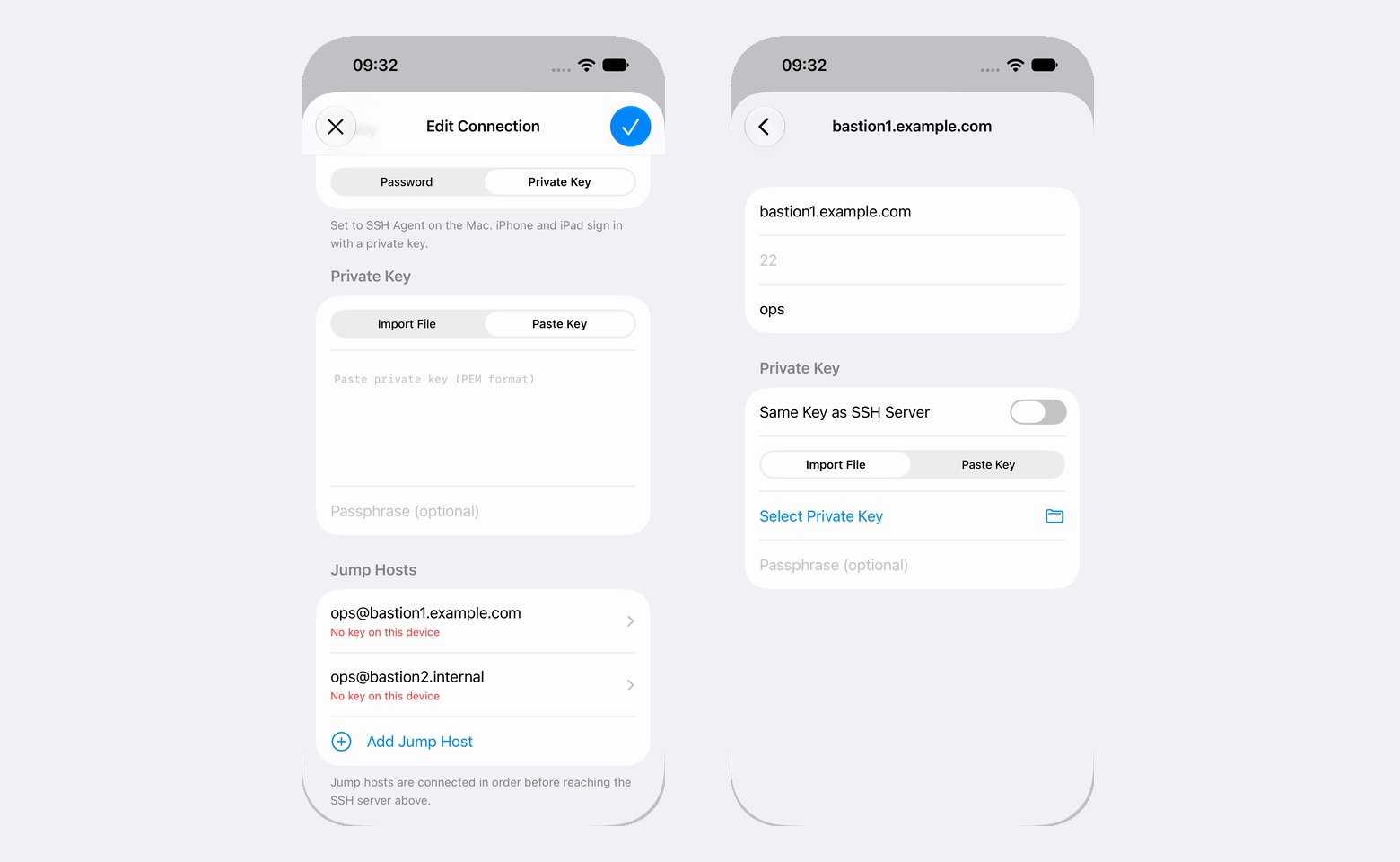
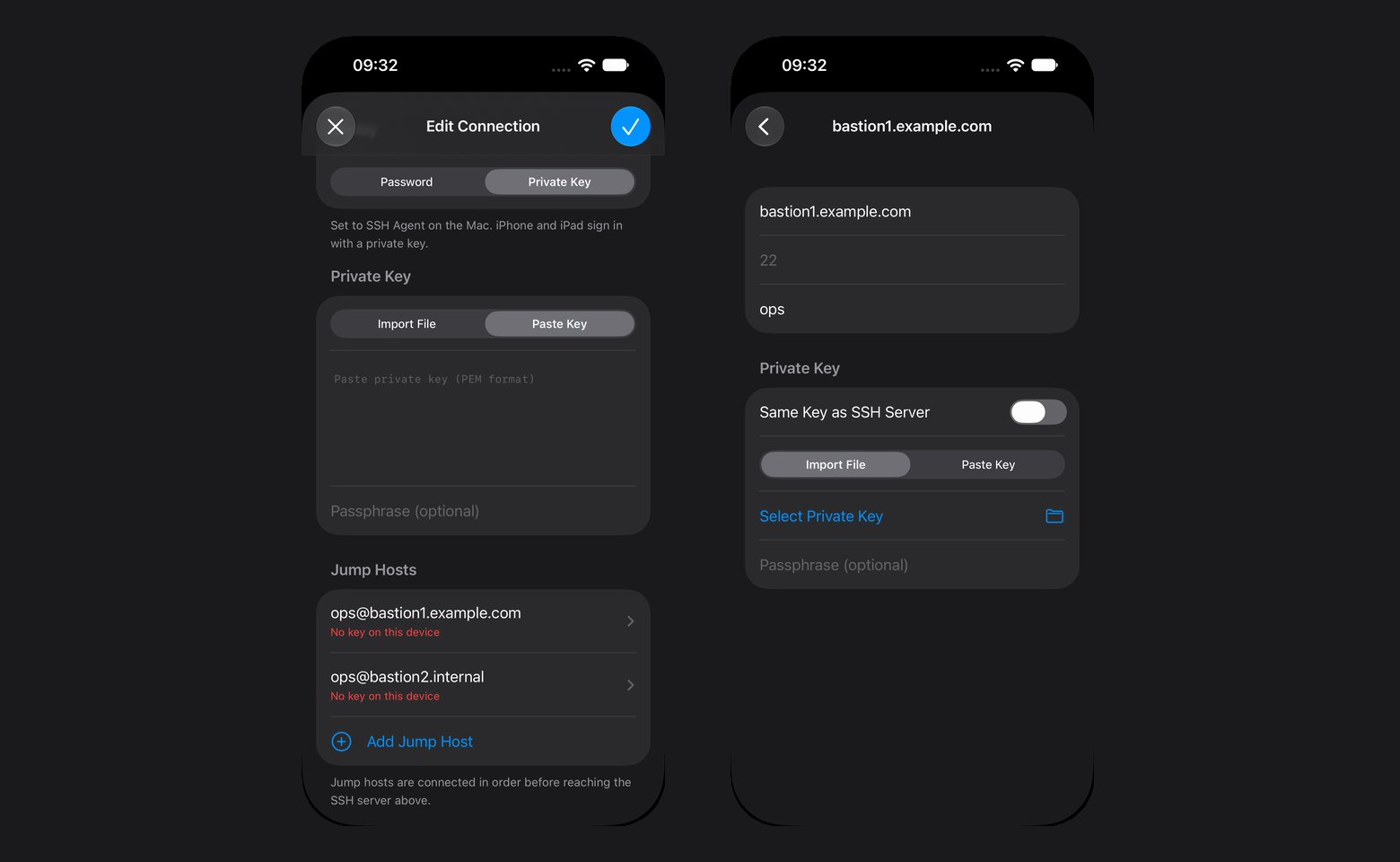
Hops synced from the Mac, before they have keys on this iPhone
Route from Mac
A tunnel whose SSH host is an alias in the Mac’s~/.ssh/config, or that the Mac reaches through ProxyJump, opens here through the hosts the Mac dialed. They arrive once the Mac has connected, under Route from Mac in the connection’s form: each jump host, then the SSH server, with the port and username the Mac used. Only hosts, ports and usernames cross; the config file, keys and key paths stay on the Mac. A hop only the Mac’s config names reads No key on this device until you open it and pick or paste its key, as for any jump host. Changing the SSH server or jump hosts, here or on the Mac, sets the route aside until the Mac connects again, and a copy made here with Duplicate gets its own once the Mac connects to it.
SSH profiles
A connection that uses an SSH profile on the Mac arrives with the profile’s server, sign-in method and jump hosts, read only in the form: change them in the profile on the Mac. It signs in with the profile’s password once the Mac syncs passwords to iCloud Keychain; until then the password field works as it does for any tunnel. A key passphrase saved here wins over the profile’s, since it goes with the key on this device. Turning SSH Tunnel off unlinks the profile from that connection on every device.Privacy
Nothing is sent until you choose Share Usage Data on first launch, or turn on Share Usage Data under Settings > Privacy. While it is on, the app sends events to PostHog, the product analytics service, athttps://eu.i.posthog.com in the EU:
Events carry a random ID that the library makes on the device, and PostHog builds no profile from it. The library, posthog-ios, adds the device model, screen size, language, time zone, whether the device is on Wi-Fi or cellular, the app’s version, build and bundle ID, the iOS version, whether the build came from TestFlight, the library’s version, and a random session ID. PostHog sees the IP address of each request and derives an approximate location from it, such as the country and city. While the switch is on, the library also fetches its settings from
eu-assets.i.posthog.com.
No hostname, username, password, query, or row. With the switch off the app sends PostHog nothing, and a launch with it off never starts the library.
Earlier versions sent one report a day to TablePro’s server instead. If you had chosen Share Usage Data, it stays on after the update and sends to PostHog, and a device that already reported its first connection and query does not send them again. If you declined, it stays off, and if you never answered, the question comes up on the next launch.
Settings > About holds the version, What’s New, the privacy policy, and Acknowledgements for the open source libraries the app ships.
Shortcuts and widgets
Three App Intents put the app in Shortcuts, the Share Sheet, and Siri: Open Connection, Add Row to Table, Add Rows to Table. See Shortcuts for pickers, data formats, and limits. A Quick Connect home screen widget opens a saved connection directly and leaves out the ones that open on the Mac only. Handoff carries an open connection between devices. Atablepro://connect/<uuid> link opens a connection and tablepro://connect/<uuid>/table/<name> opens a table; the Mac’s other links do less or nothing here, as URL scheme lists. A .tablepro file from Files or AirDrop imports its connections and saved queries.