

Create a table or view
Database > New Table… opens the visual structure editor (see Table Structure); on DynamoDB it opens a form for the keys, capacity and indexes instead. Database > New View… opens a query tab holding aCREATE VIEW template for the engine. Both are also on the sidebar’s right-click menu over empty space, where safe mode removes them rather than dimming them. On an engine with no way to create a table, such as Redis or Kafka, New Table… is dimmed in the menu bar and absent from the sidebar.
Drop and truncate
Right-click a table and choose Delete to drop it, or Truncate to empty it and keep the structure. Database > Truncate Table andOption+Delete do the same. Cmd-click to select several tables first and one confirmation covers all of them, with the same options applied to each.
Confirming with Drop or Truncate stages the operation. The row picks up a red minus badge for a pending drop, an orange exclamation badge for a pending truncate. Preview SQL (
Cmd+Shift+P) shows the statements, Save Changes (Cmd+S) runs them alongside any pending cell edits, and choosing the same menu item again takes the table back out of the queue. Once a drop reaches the server, the table leaves the sidebar and completion, and every tab showing it closes, in every window on the connection.
Drop table confirmation with options
Dropping is irreversible. On MySQL and MariaDB, truncate also resets the auto-increment counter. Back up important data first.
Rename
Renaming happens in the row itself. Choose Rename from a table’s right-click menu and the label becomes a field: Return commits, Escape leaves the name alone, and clicking elsewhere commits. The item is absent where the engine cannot rename that kind of object. The statement runs at once instead of joining the drop and truncate queue, so Preview SQL never shows it. Everything bound to the table follows the new name: open tabs keep their rows, filters, sort and column widths, a favourite stays a favourite, and the Recent entry holds its place. A drop or truncate already queued against that table comes back out of the queue.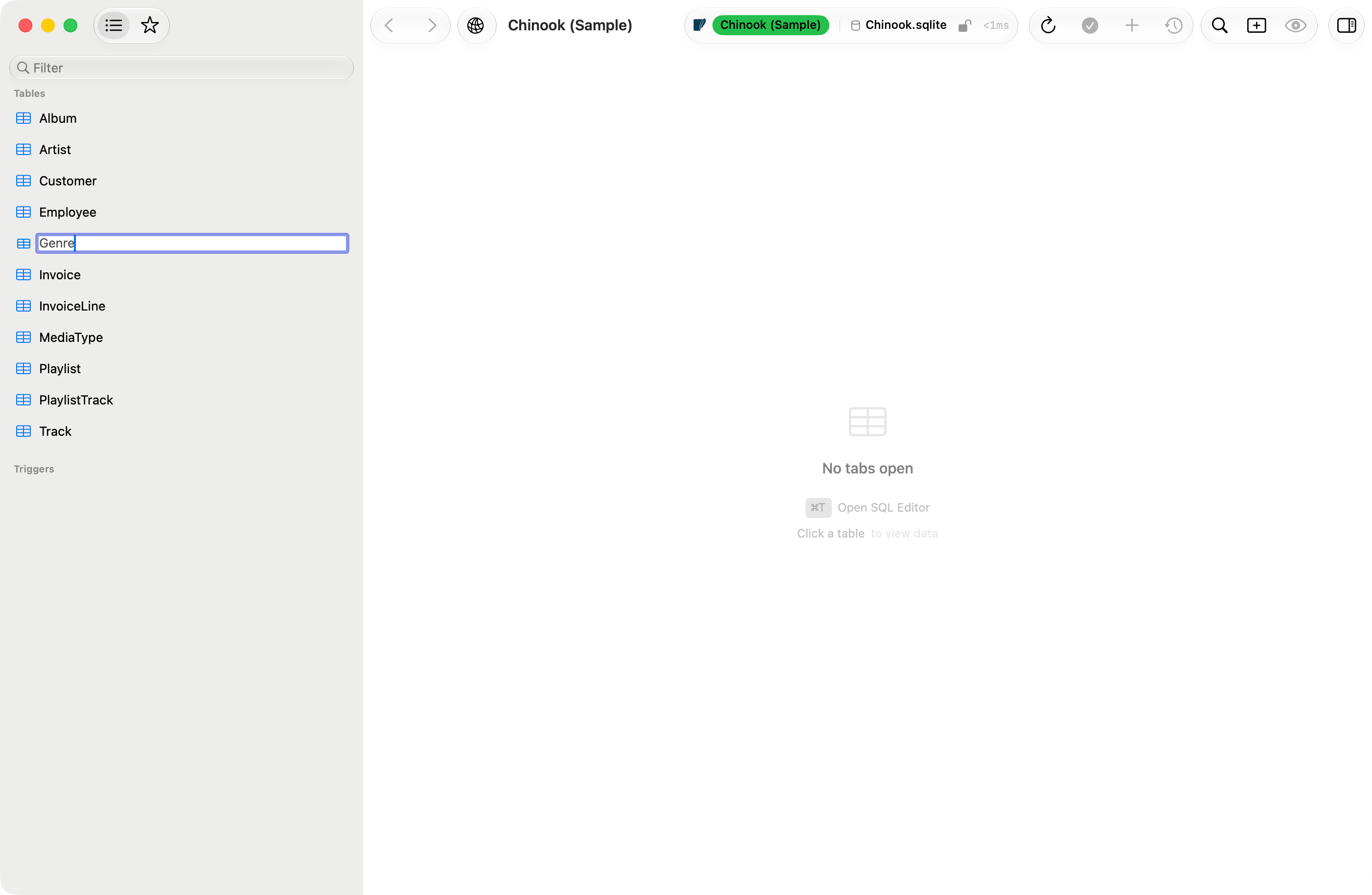
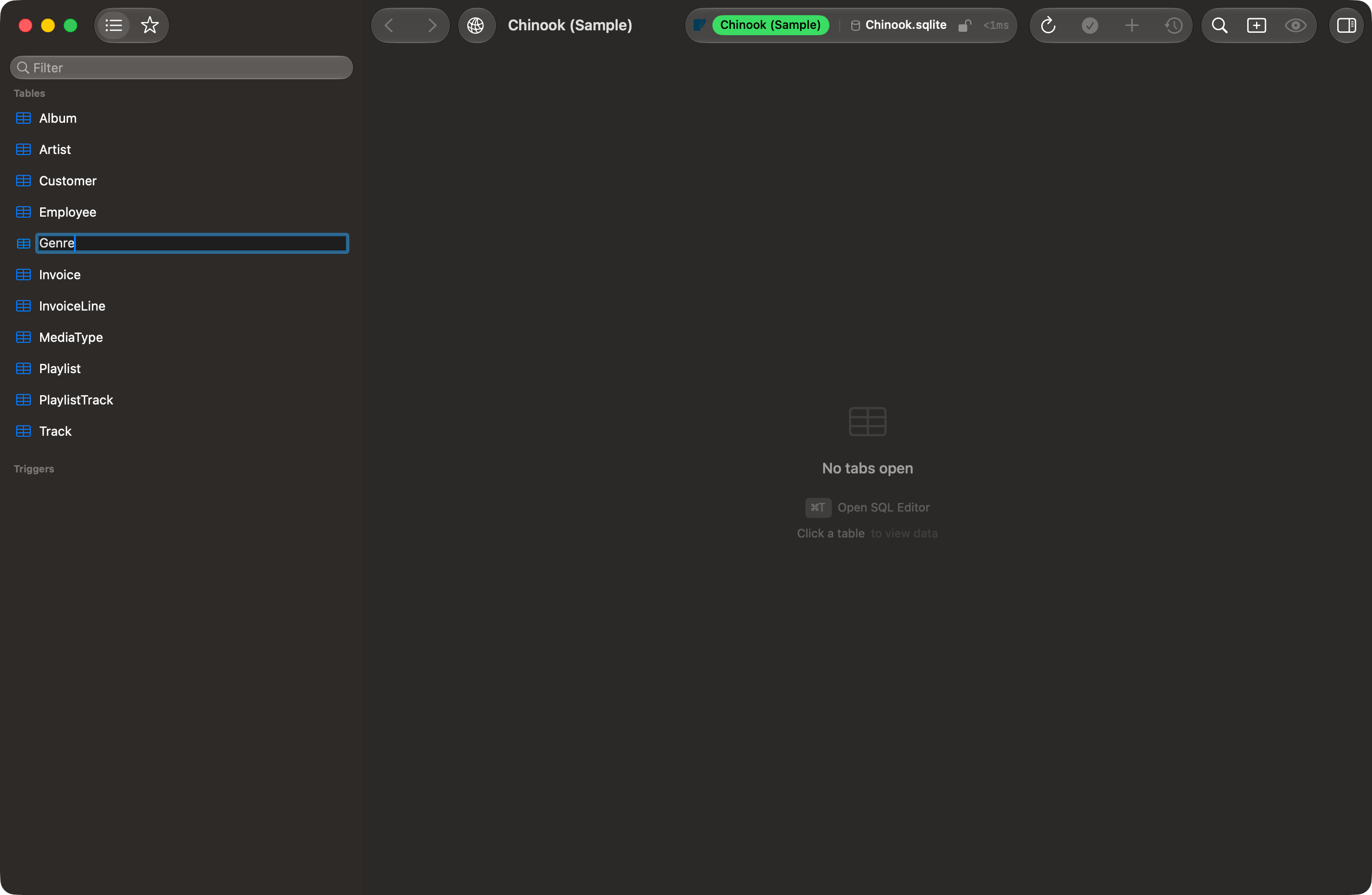
The row's label becomes the rename field
No other engine has a rename, so the item never appears on Cassandra, DynamoDB, Elasticsearch, etcd, Kafka, Redis, SurrealDB, Typesense or Beancount. What resembles one there is a copy followed by a delete, and it changes record identity.
Rename Database and Rename Schema are absent on the container the connection is browsing. Switch to another one first, then rename the one you left.
Maintenance
Right-click a table, choose Maintenance, and pick an operation. The sheet shows the operation’s options and the statement the driver will run, rebuilt as each option changes, so what is previewed is what executes. Each operation lists the object kinds it applies to, so a view offers only the operations its server accepts. On PostgreSQL that means VACUUM and REINDEX are absent on a view, which the server skips or refuses, and CLUSTER is absent on a partitioned table, which can never be clustered. An operation that acts on the whole database, such as SQLite’s VACUUM and its integrity check, names the database rather than a table.
PostgreSQL VACUUM carries FULL (rewrites the table and blocks access), ANALYZE, and VERBOSE toggles. MySQL CHECK TABLE offers QUICK, FAST, MEDIUM (the default), EXTENDED, and CHANGED. The options come from the driver, so an engine that adds one shows it without an app change. No other engine reports maintenance operations, so the submenu is hidden there, and in read-only safe mode.
Views
Views carry an eye icon in the sidebar; materialized views and foreign tables get their own. All three are read-only kinds, so their menus drop Truncate and Import, and the drop item reads Drop View, Drop Materialized View, or Drop Foreign Table. Dropping removes the definition only, and the data in the underlying tables stays. Right-click empty space and choose New View… to write a new one; right-click an existing view and choose Edit View Definition to open the current definition in a query tab. Either way, execute the statement to apply it. Show DDL opens the definition in a read-only tab, with Copy, Export and Open in Editor on it; Copy DDL puts the same statement straight on the clipboard. Both stay available on a read-only connection, where Edit View Definition is hidden. A materialized view holds stored rows, so refreshing it is a server operation. Right-click one and choose Refresh Materialized View…, or use Database > Refresh Materialized View…. The confirmation names the view and warns that other sessions cannot read it while the refresh runs. Refresh concurrently leaves readers alone; it is available on PostgreSQL for a view that has been populated and carries a unique index on plain columns with noWHERE clause, and the alert says which of the two is missing when it is dimmed. Tabs showing the view reload when the refresh finishes. A plain view stores nothing, so Cmd+R re-runs its query instead.
Comments are edited per object. Right-click a table, view, materialized view or foreign table, choose Edit Comment…, and type the text; saving an empty field removes the comment. Column comments live in the Columns tab. Both need an engine that writes comments, which today means PostgreSQL and PGlite.
Sequences and system-versioned tables
A MariaDB sequence carries a number icon in the sidebar and reads as Sequence. It is a read-only kind, so its menu drops Truncate and Import, the drop item reads Drop Sequence, and the Structure tab offers no edit. MariaDB refusesUPDATE, DELETE and TRUNCATE on one with error 1031, and ALTER TABLE … ADD COLUMN with error 4086. Rename still works, through RENAME TABLE. Read the current value with SELECT * FROM seq_name, and change it with SETVAL in the query editor.
A MariaDB table declared WITH SYSTEM VERSIONING stays an ordinary table: row editing, Import, index edits, comments, rename and drop all work. Truncate alone is withheld, because the server refuses it with error 4137. Delete the history with DELETE HISTORY FROM table_name instead. On iPhone and iPad the listing reports such a table as a plain one, so Truncate is offered there and the server’s refusal comes back as an alert.
Databases and schemas
Cmd+K switches database, covered in Managing Connections. The switcher takes the engine’s own vocabulary: Schema on Oracle and Spanner, Keyspace on Cassandra, Dataset on BigQuery, Namespace on SurrealDB. SQLite is file-based, so it points at the welcome window to open a different file.
Database switcher with search
Dropping a database permanently deletes every table in it. The server rejects the drop if your account lacks the privilege.
Several at once
Shift-click for a range, Cmd-click to add or remove one, and the menu counts what it covers: Drop 3 Databases…, Copy 3 Names. Refresh reloads every selected database. Export… opens the export dialog with every table of the selected database already selected, one database at a time; it is absent on DuckDB and PGlite for any database other than the active one. Use as Active Database appears only when a single row is selected and it is not already active. Databases the server will not drop are left out of the drop item. A drop that fails partway finishes the rest, then reports which ones failed and why.Schemas
On engines that group tables by schema, the same menu appears on a schema row: PostgreSQL, SQL Server, SurrealDB, and Dameng. PostgreSQL and Dameng drop the schema withCASCADE. SQL Server has no cascade, so it refuses to drop a schema that still holds objects; drop those first. The confirmation only promises to take dependent objects with it on the engines that do.
Dropping a schema permanently deletes everything in it. On PostgreSQL and Dameng it also drops objects in other schemas that depend on it.
Creating and editing a schema
New Schema… and Edit Schema… sit on the schema row’s menu, at the bottom of the schema switcher, and under Database > Schema. Both open a sheet whose last section is the statements it will run.
A schema on Oracle is a user, so it is created in Users & Roles rather than here. Redshift and CockroachDB report an owner and a comment but no privilege grid, because neither reads a schema ACL the way PostgreSQL does.
Only the boxes you change produce SQL: a role you never touch generates neither a
GRANT nor a REVOKE. The grid is re-read against the server at the moment you press Save, so a grant another session added while the sheet was open survives.
A checked box is dimmed when another role granted that privilege. REVOKE removes only what the role you are connected as granted, so clearing such a box would run a statement that succeeds and leaves the access in place. Connect as the granting role, or as a member of it, to change those.
System schemas are refused for create, edit, rename and drop.