

Export
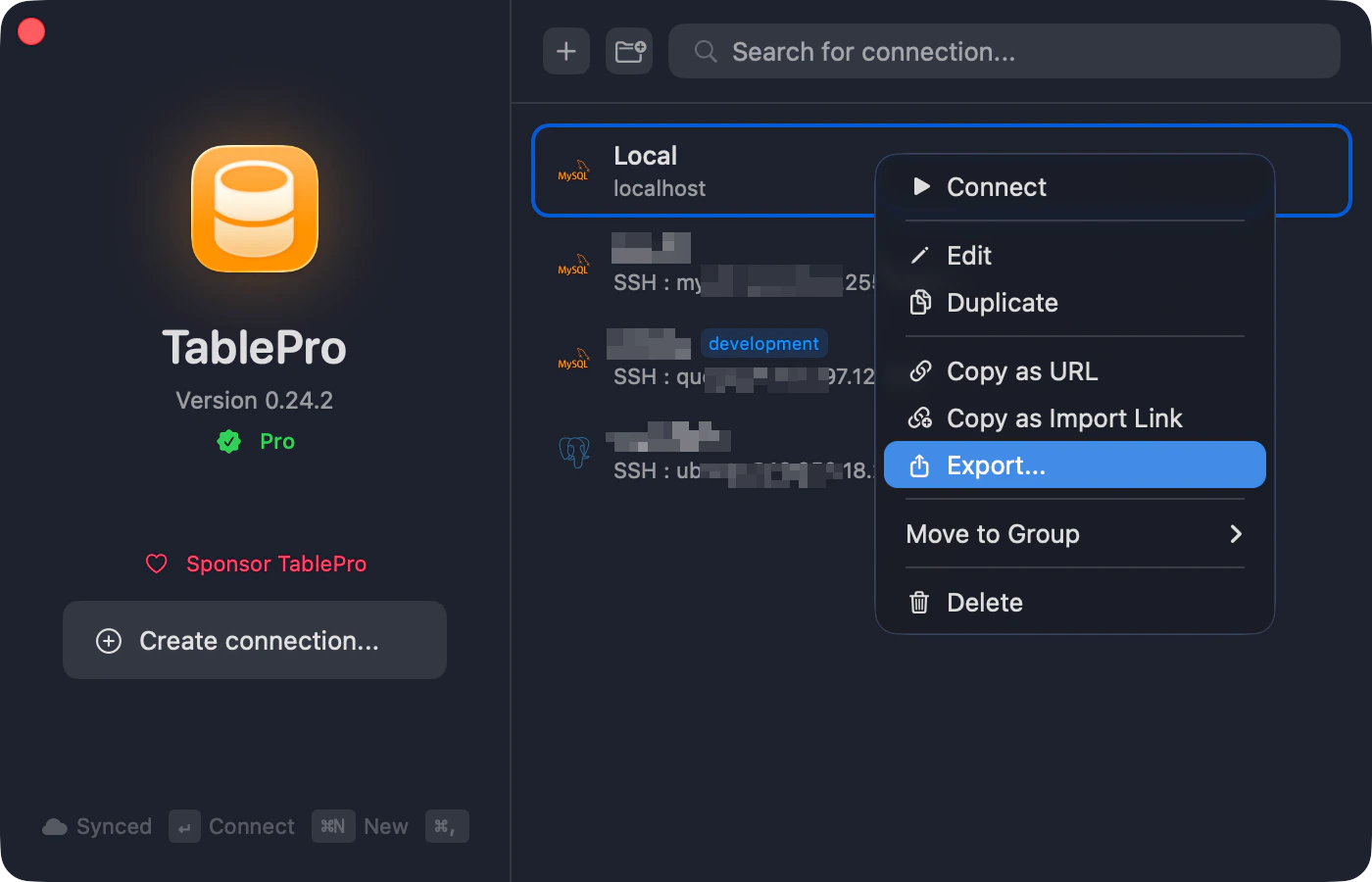
Right-click a connection > Share > Export to File…, selecting several first to export them together, or File > Export > Export Connections… for all of them. The file carries what the connection form holds, from host and port through SSH and SSL configuration, color, tags, group, Safe Mode level, startup commands, AI policy, the Local only flag, and any driver field the plugin does not mark secret. Passwords, key passphrases, TOTP secrets, and secret driver fields stay behind.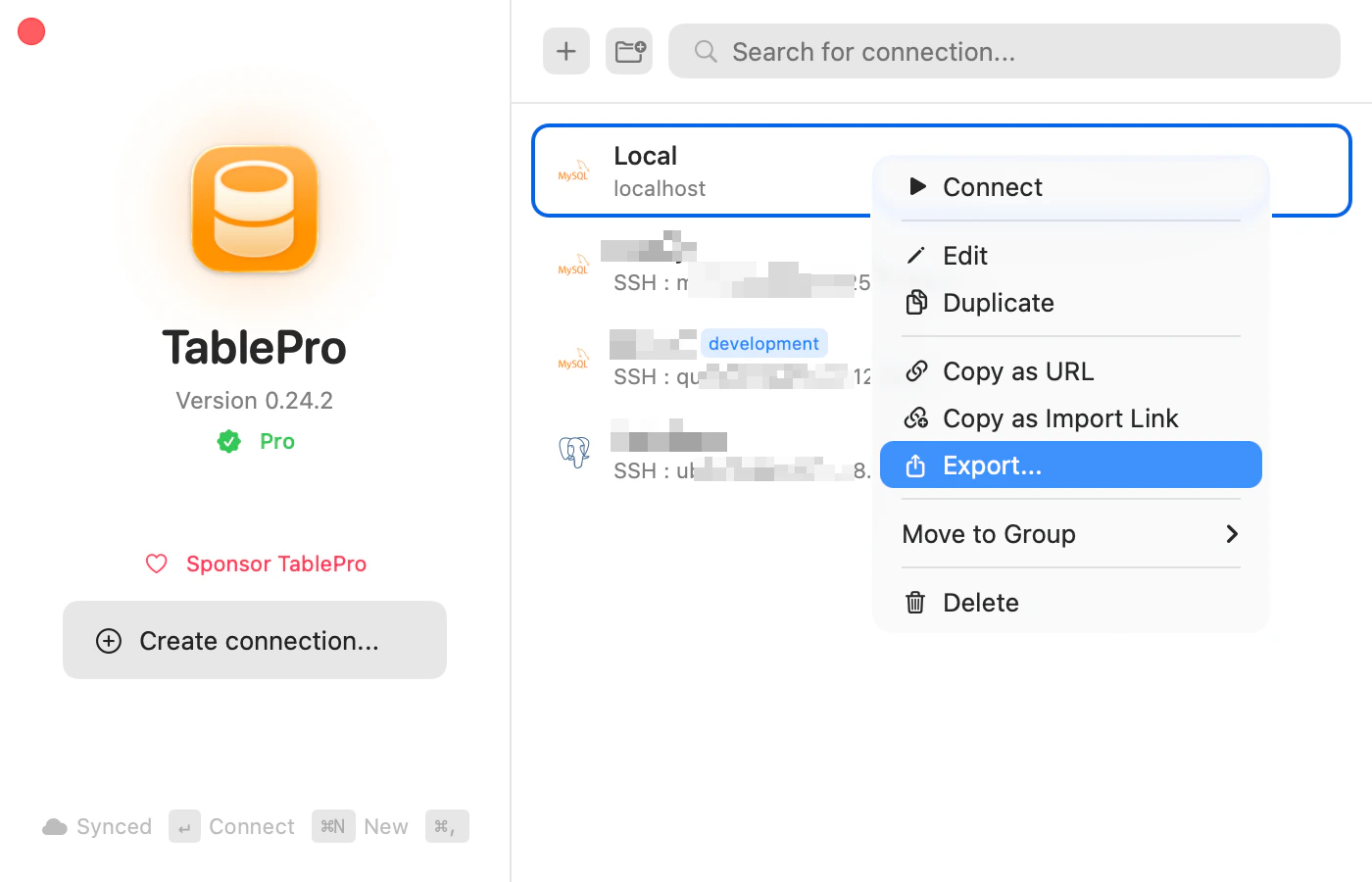
Export connections
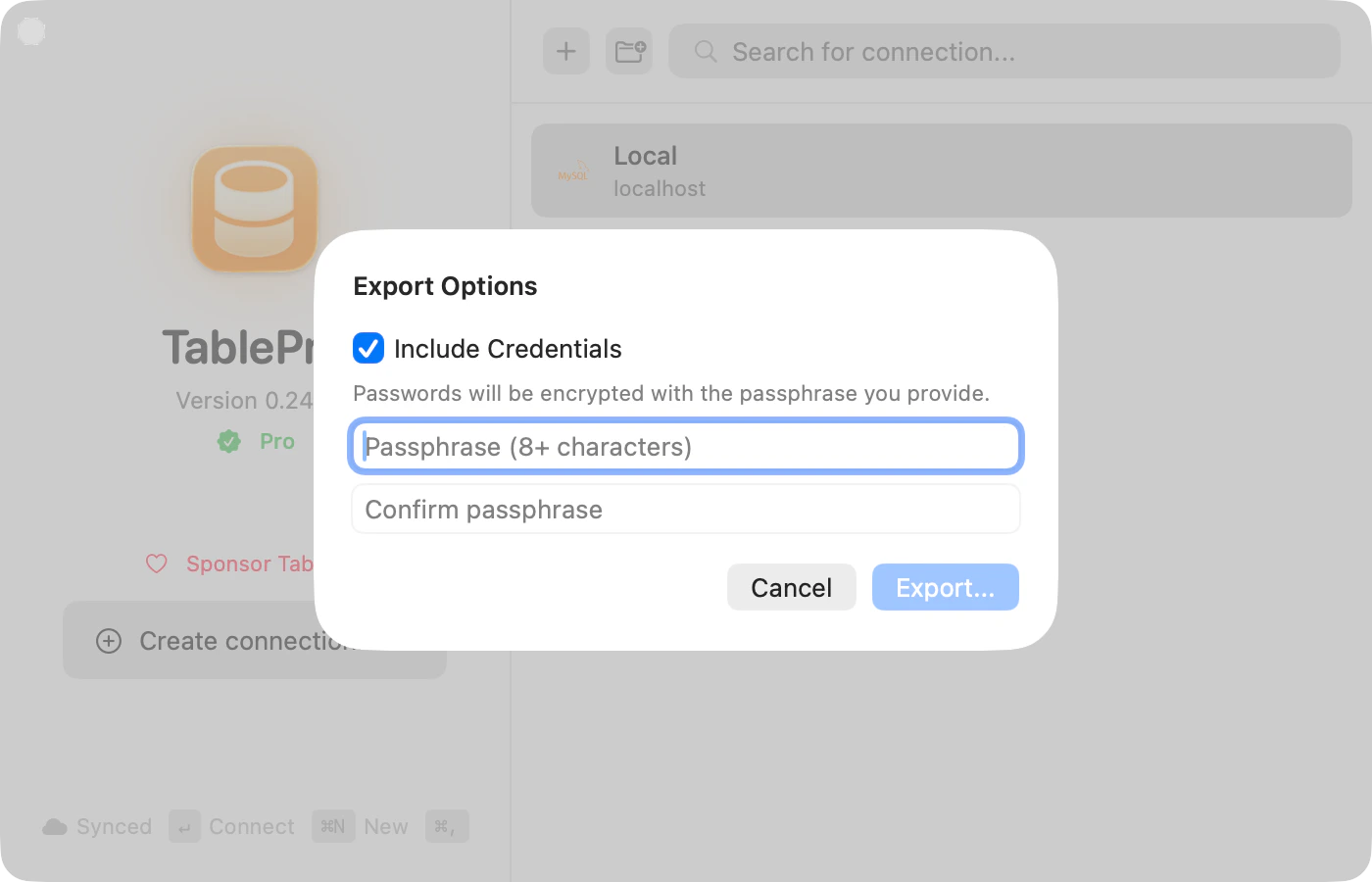
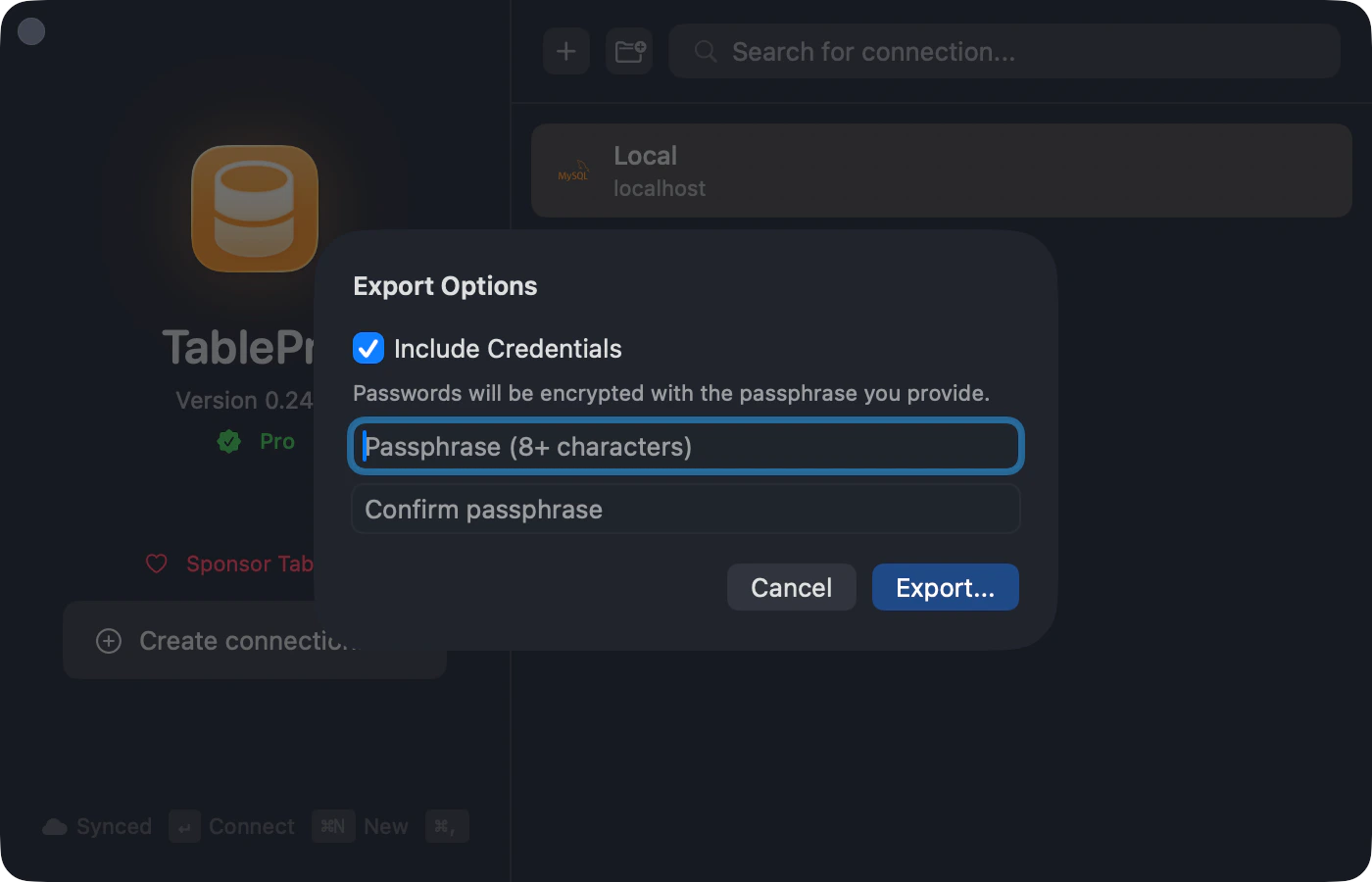
Encrypted export
Needs a Starter license.
Encrypted export
Import
Open a.tablepro file through File > Import > Import Connections…, by right-clicking the empty area of the connection list, by double-clicking the file, or by dragging it onto TablePro. File > Import > Import from URL… takes a database URL instead, described in Connection URLs.
A preview badges each connection before anything is saved: a green checkmark for ready, a yellow triangle when an SSH key or certificate is missing, a “duplicate” tag for one that already exists. Duplicates match by host, port, database, and username and start unchecked. Check one, then pick As Copy, Replace, or Skip.
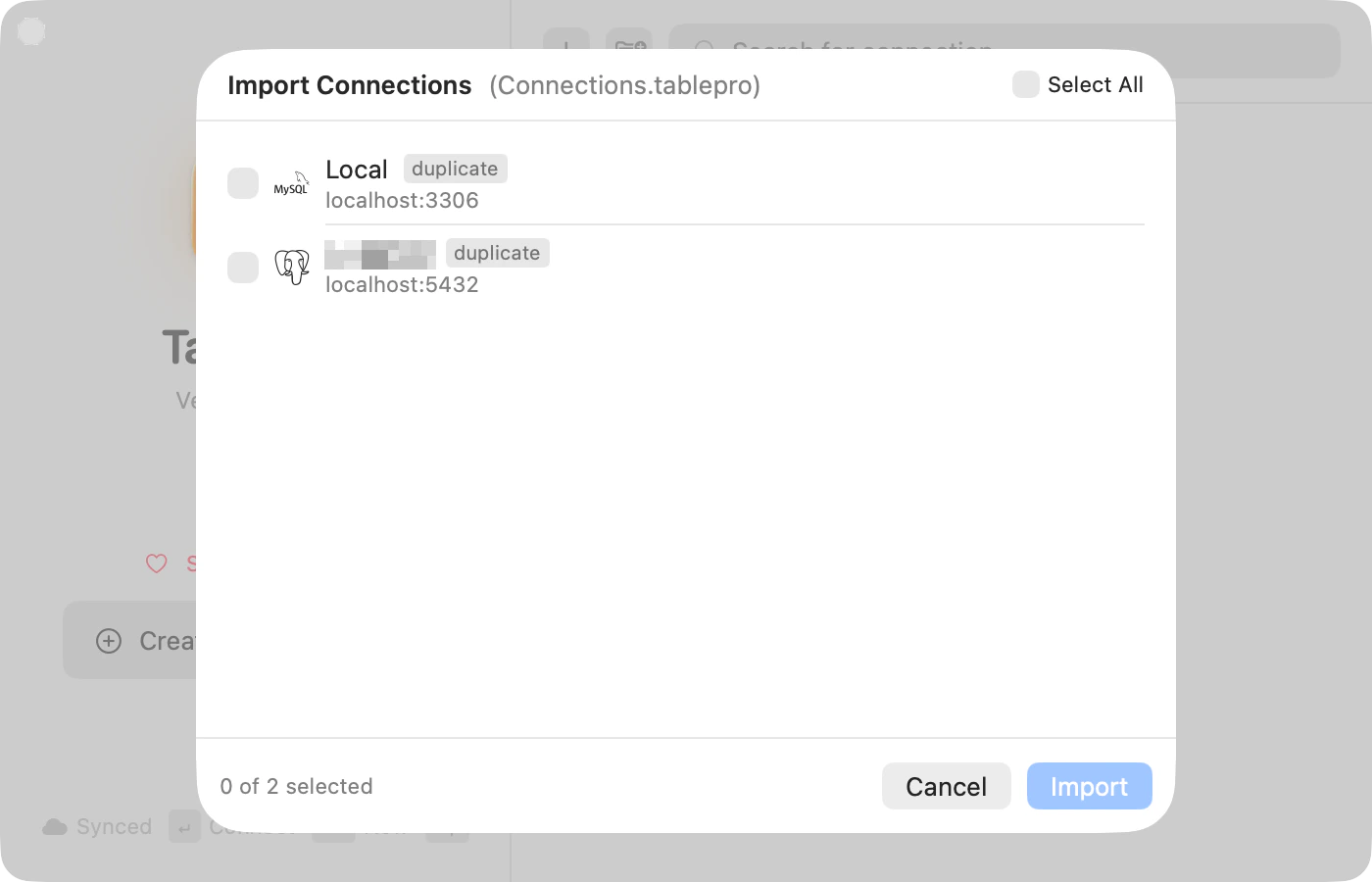
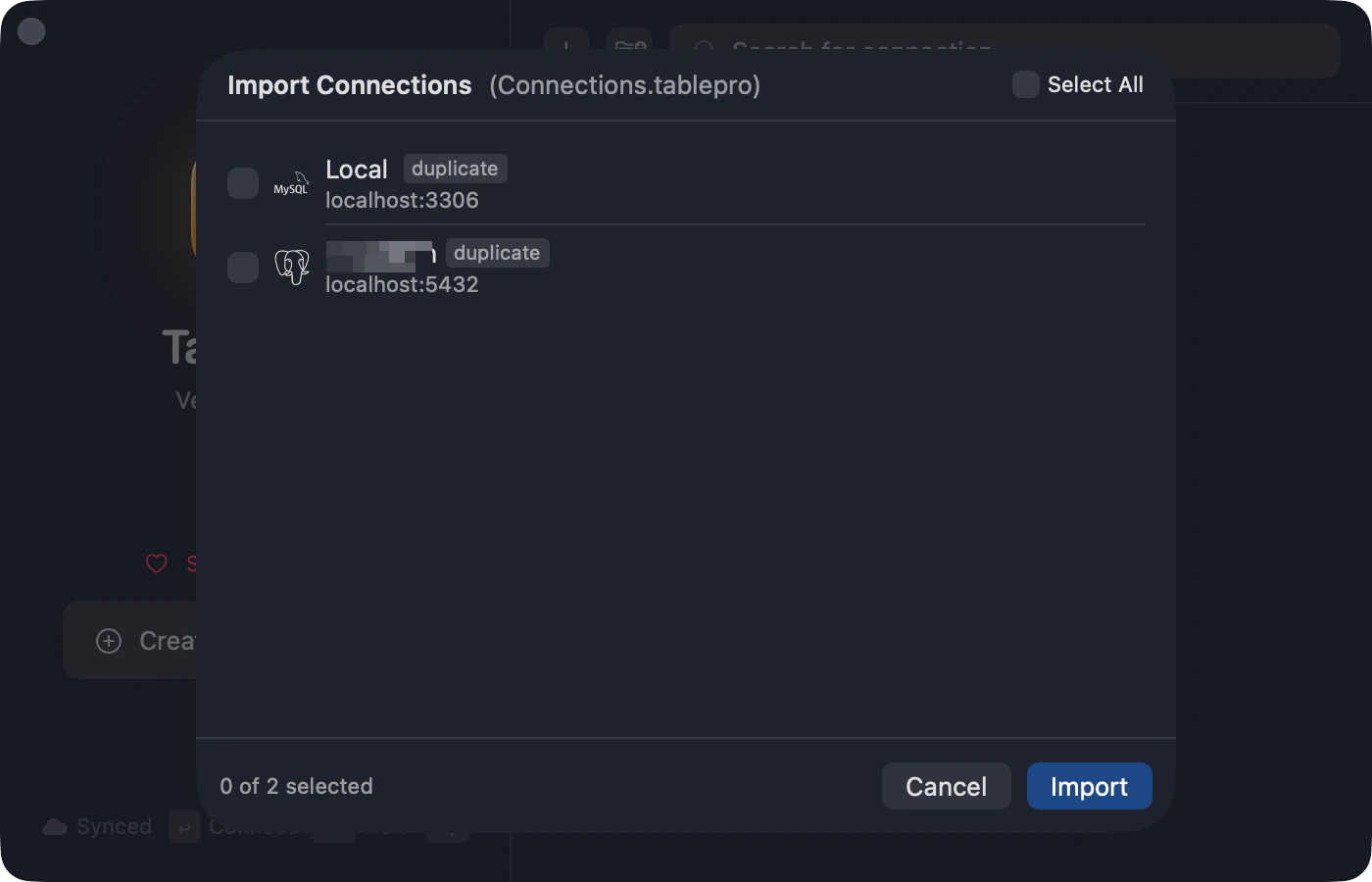
Import preview
Share via link
Share > Copy TablePro Link produces atablepro://import?… URL with the name, host, port, type, username, database, and any SSH or SSL settings. The recipient opens it, reviews the prefilled form, adds a password, and saves.
tablepro://connect/<uuid> opens a saved connection rather than importing one. No menu item builds it; see URL Scheme.
Import from other apps
Choose File > Import > Import from Other App…, pick the source, then review the list and resolve duplicates before clicking Import. Groups and folders carry over, and the source app does not have to be running.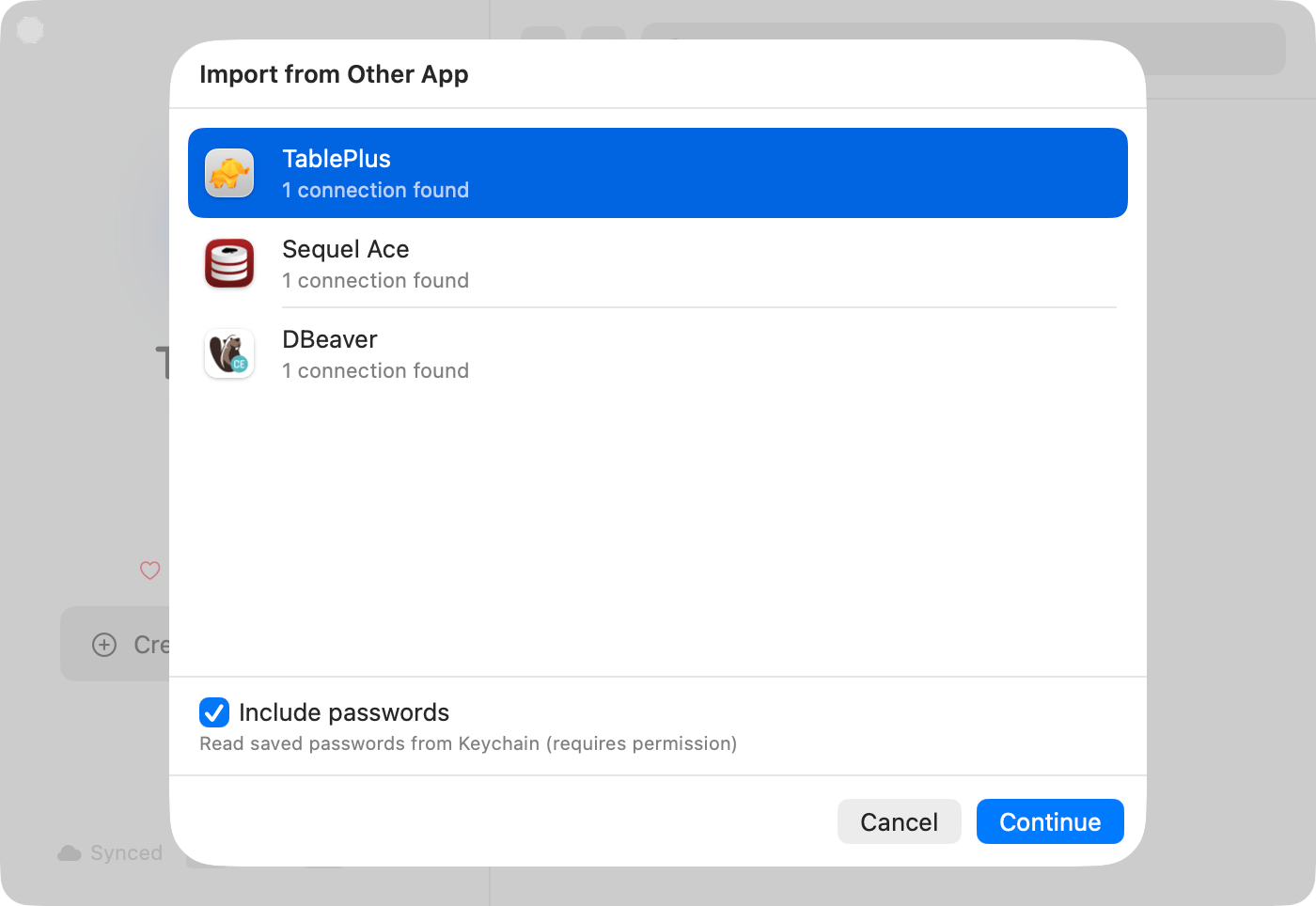
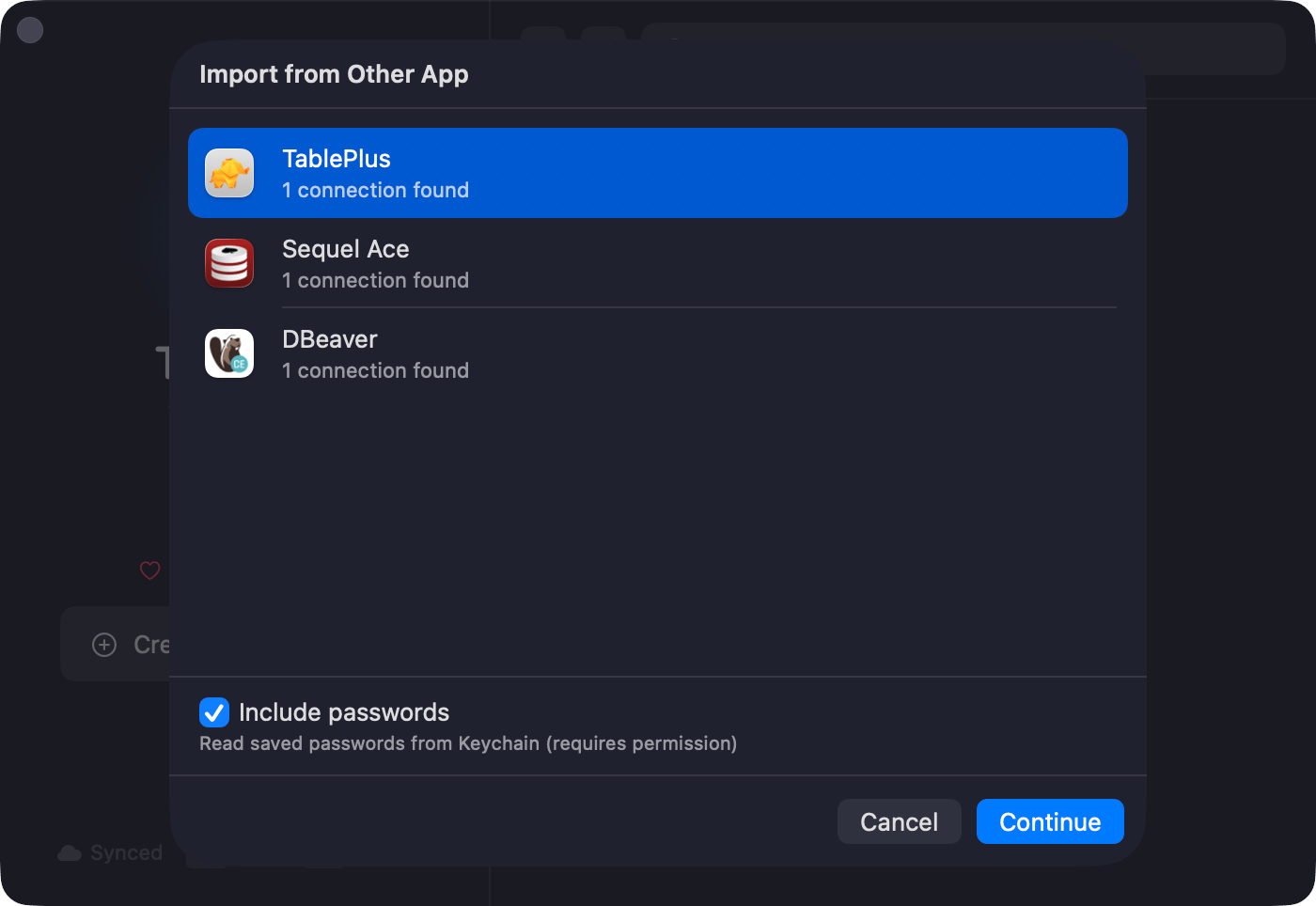
Pick the source app
Import from AWS
Choose File > Import > Import from AWS… to list the RDS instances and Aurora clusters an AWS profile can see, and import them with their endpoint, port, and engine already filled in. See AWS IAM Authentication.On iPhone
TablePro for iPhone reads and writes the same file. Tap the more menu (•••) above the connection list and choose Import Connections, or open a.tablepro file from Files or AirDrop. Export Connections shares through the system share sheet, leaving passwords out unless you turn on Include passwords and set a passphrase.
Linked Folders
Needs a Starter license.
Cmd+,, then Settings > General > Linked Folders > Add Folder… and point it at a directory of .tablepro files: a Git repo, a Dropbox folder, a network drive. Those connections appear read-only in the sidebar, and each person enters their own password.
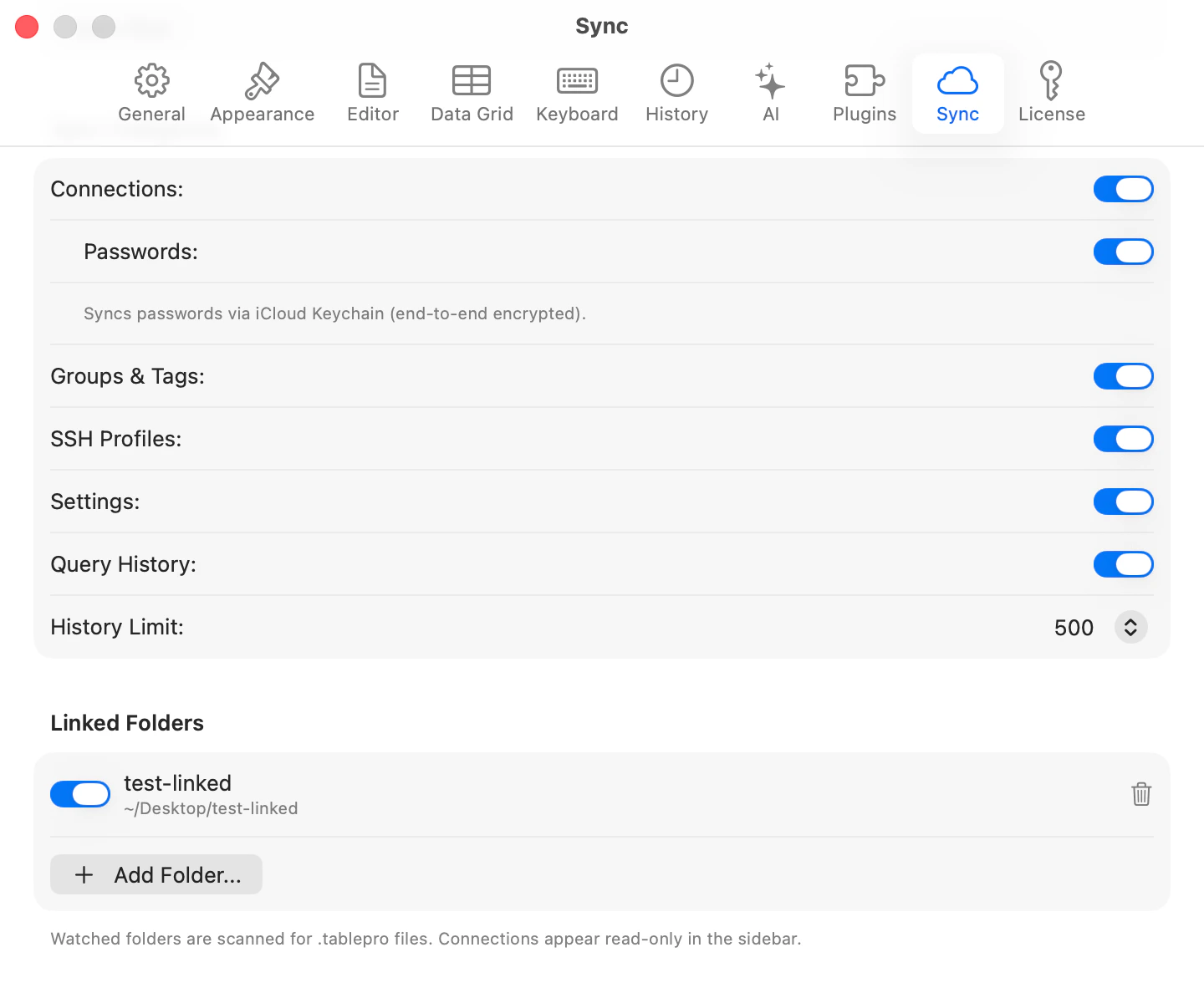
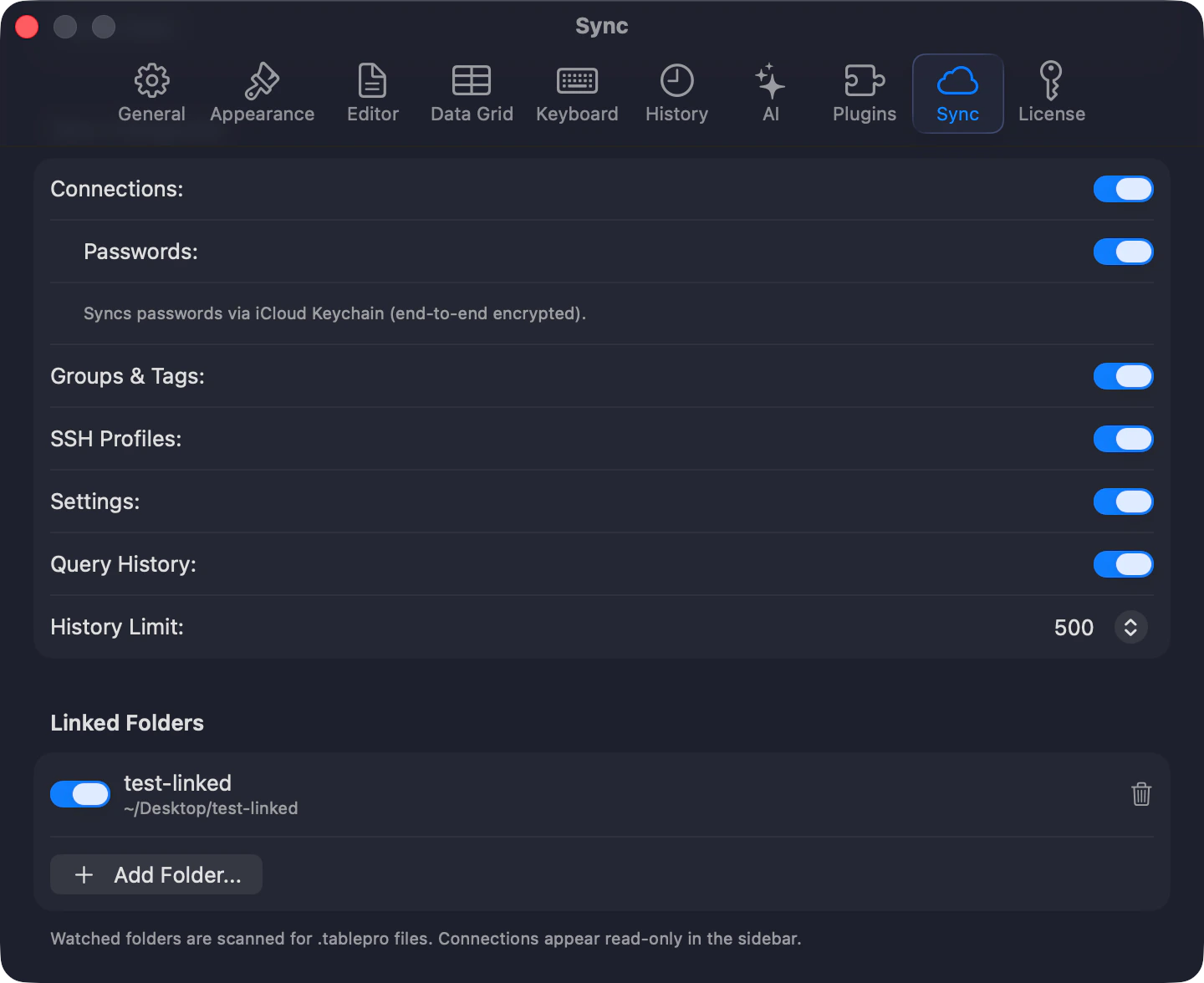
Linked Folders settings
Team Catalog
Needs a Team license.
.tablepro file into a shared folder, asking for the folder the first time. Republishing overwrites the file, and passwords, passphrases, and TOTP secrets are never written. Teammates add that folder as a Linked Folder.
Environment variables
Needs a Starter license.
$VAR or ${VAR} in a .tablepro file and it resolves from TablePro’s process environment at connect time. An app launched from the Dock inherits no shell exports, so set the variable with launchctl setenv NAME value or launch TablePro from a terminal.
Password sources
A connection in~/Library/Application Support/TablePro/connections.json can say where its password comes from instead of keeping one in the Keychain, which suits a script that provisions connections. The source resolves at connect time, replaces the Keychain lookup rather than supplementing it, and never syncs to iCloud. A source that fails to resolve fails the connection.
Every command gets 30 seconds. The three CLI kinds quote each argument, so a reference cannot break out into the shell, and they need the tool on
PATH, in /usr/local/bin, or in /opt/homebrew/bin.
Editing connections.json by hand costs one extra step. TablePro stamps the file when it writes it, and a file that changed underneath it fails the connect with “Your connections file was changed outside TablePro, so this connection’s password source was not run. Open the connection and save it again to confirm the change.” Save it once from the app and sources run again.
File format
JSON. The envelope needsformatVersion, exportedAt, and appVersion; each connection needs name, host, port, database, username, and type, and an empty string is fine where a value does not apply. Groups and tags match by name and are created when missing. Groups export flat, name and color only. Paths use ~/ so they travel.