

Sign in to a company server
1
Open the sign-in window
Signed out, click Sign In on the welcome window, or open Settings > Account and click Use a Company Server….
2
Click Use a Company Server…
It sits under Sign In in the sign-in window.
3
Enter the server's address
Type the address your administrator gave you, such as
tablepro.example.com, and click Continue. An address without https:// gets it. The Mac checks that the address answers as a TablePro server with a valid license before it opens the sign-in page.4
Sign in with your work account
The sign-in sheet opens on your company’s sign-in page.
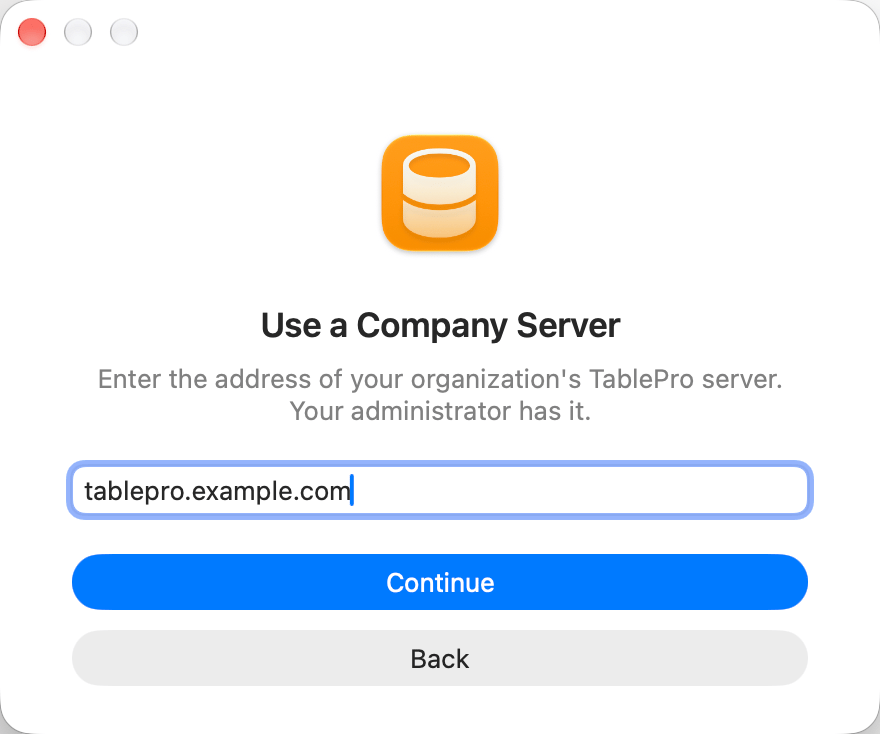
Use a Company Server in the sign-in window
Settings > Account shows Server with the server’s host, and the license installed on it with its seats and end date.
When the address is refused
What is different on a company server
- Shared links are a tablepro.app service. Signed in to a company server, File > Share Query…, Share Result…, Manage Shared Links… and every Share… item are hidden. A link someone sends still opens.
- Plans and billing belong to your organization. Gates name the feature and point to your administrator instead of a purchase, and Settings > Account has no Upgrade…, Billing…, Use License Key… or offline file.
- Devices have no 3-device limit. Every seat includes Pro.
- After the license expires, everything keeps working through its grace, which Settings > Account shows under License. After that, only Team Library keeps working: it still pulls, the server refuses changes, and changes you publish wait on the Mac and go out once the license is renewed.
Set the server for every Mac
An administrator sets the server with a configuration profile for thecom.TablePro domain, delivered by an MDM such as Jamf or Kandji. A key counts only when the profile forces it; the same key written with defaults write is ignored.
A sample profile, with your own address and identifiers:
defaults read com.TablePro com.TablePro.policy.AccountServerURL. Settings > Account shows Managed by your organization under Server once the profile is in force.