

Connection settings
Fill in the form and click Save & Connect. For remote servers use SSH tunneling; Google Cloud SQL instances can connect through the Cloud SQL Auth Proxy.
Any server from 9.1 on works. A feature the server predates stays out of the sidebar and the structure editor:
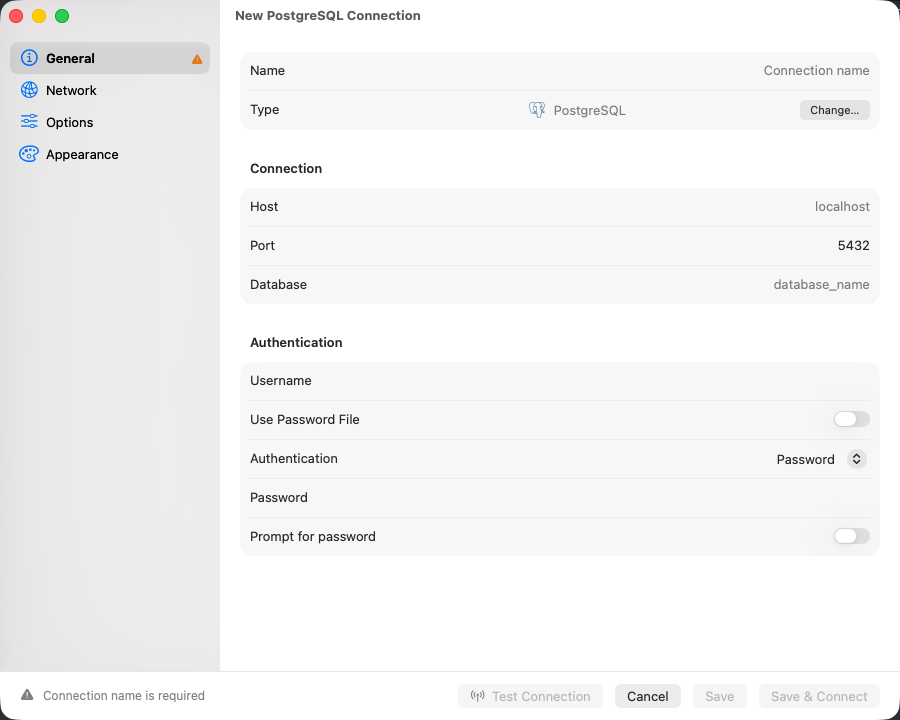
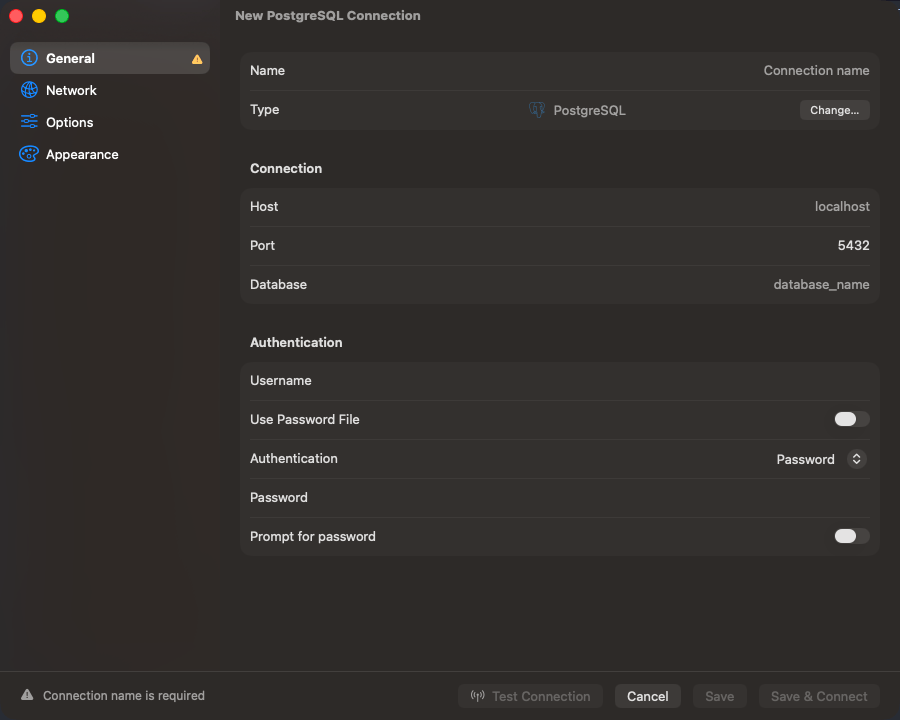
PostgreSQL connection form
Connection URL
postgres:// also works. Opening a URL connects directly. See Connection URL Reference.
Authentication
AWS IAM
Set Authentication to an AWS IAM option and set Username to a database role grantedrds_iam. See AWS IAM Authentication.
Password file
Turn on Use Password File to read the password from~/.pgpass instead of typing one. Entries are hostname:port:database:username:password, * matches any field, first match wins. The form reports what it found, including ~/.pgpass has incorrect permissions (needs chmod 0600), the one that silently blocks a connect.
Databases and schemas
Every database on the server is listed,postgres included; template0 and template1 are not. The sidebar shows every schema you have access to. The toolbar’s centred control names the active database: click it, or press Cmd+K, for the list. The active schema has a picker at the foot of the object list in the flat layout, and Database > Schema everywhere.
Right-click a schema to drop it. The statement is DROP SCHEMA … CASCADE, so views and functions in other schemas that depend on it go too; the confirmation says so before it runs.
Creating and editing a schema
New Schema… and Edit Schema… on a schema row buildCREATE SCHEMA … AUTHORIZATION, ALTER SCHEMA … OWNER TO, COMMENT ON SCHEMA, and the GRANT and REVOKE for USAGE and CREATE. The sheet shows them before it runs them. See Creating and editing a schema.
Owner lists the roles on the server; leave it at Database default to let the connecting role own it. Changing it needs you to be a member of the new owning role, and the server’s own refusal appears under the form.
A grant to PUBLIC is a grant to every user on the server. A role literally named public is a different grantee and the grid keeps the two apart.
Rename from the same sheet, or in place: select the row and press Return.
pg_catalog, information_schema and pg_toast are refused for rename, edit and drop.
A partitioned table is listed once, with how many partitions it holds beside its name. Expand it for the partitions, each labelled with its bound: FROM ('2024-01-01') TO ('2024-02-01'), IN ('de', 'fr'), WITH (modulus 4, remainder 0), or DEFAULT. Expand a partition again if it is subpartitioned.
A partition is a relation, so opening, truncating, renaming and dropping one work as they do on any table. A partition declared in another schema, CREATE TABLE archive.orders_2023 PARTITION OF public.orders, is reached under its parent and carries archive into every statement built from it.
Tables using the older INHERITS inheritance are listed normally, each child on its own. Turn partitions off with Partitions under View Options.
Column types
A column’s type reads the way the server declares it, with its length, precision and type name:character varying(50), numeric(10,2), timestamp(3) with time zone, an enum or a domain under
its own name. On PostgreSQL a type from another schema is qualified, and so is a type an extension
owns wherever the table lives, so a PostGIS column reads public.geometry(Point,4326).
That is what the Structure tab shows, what the MCP tools report as data_type, and what the AI context and autocomplete carry. An enum column keeps its value picker, and a domain column keeps the editor, formatting and sorting of the type underneath it.
jsonb renders as formatted JSON, and uuid, inet, timestamp with time zone, interval and bytea display natively. PostGIS geometry and geography render as EWKT with the SRID kept, SRID=4326;POINT(-73 40.7237), rather than raw EWKB hex; a value that fails to convert stays hex.
An array column opens one of three editors, decided by its element type:
In the list editor, reorder rows with the arrows, add and remove elements, and set a single element to NULL; an empty array and a NULL column stay distinct. Enum elements pick from the labels the type declares, and a label the type no longer lists stays selectable and is flagged. Edit as Text switches to the raw literal at any time.
A
jsonb[] element gets the Text and Tree modes a jsonb cell gets, so the column reads the same browsing a table as it does through to_jsonb(col) in a query. Two things that query cannot show you: a SQL NULL element stays apart from a JSON null element, and reading an element does not rewrite it, so a json[] cell you open and save keeps the exact text it stored.
A value the list cannot represent opens the text editor instead: a multi-dimensional value such as {{1,2},{3,4}}, or a literal carrying explicit bounds such as [0:2]={a,b,c}. Edit the {…} literal directly.
box[] is the one column whose elements are not separated by a comma. PostgreSQL uses a semicolon there, because a box’s own text contains commas, and the list reads it that way.
User-defined types
Enums, composites, domains and ranges are listed under Types in each schema, theCREATE statement rebuilt from pg_type. An enum’s labels are edited in place with ALTER TYPE … ADD VALUE and, from PostgreSQL 10, RENAME VALUE; PostgreSQL has no statement that drops or reorders a label. The structure editor’s type picker offers the schema’s types under User-Defined. See User-Defined Types.
Views and comments
A view’s definition is rebuilt to run anywhere. Every table it reads is schema-qualified, andWITH (security_barrier), WITH (security_invoker) and WITH CASCADED CHECK OPTION are written back, so executing the statement elsewhere keeps the restrictions the original carried. Read it with Show DDL, copy it with Copy DDL, or edit it with Edit View Definition. A materialized view’s statement carries its access method, storage parameters and tablespace, and the DDL tab adds its indexes.
REFRESH MATERIALIZED VIEW runs from Refresh Materialized View…. A plain refresh holds an ACCESS EXCLUSIVE lock, so nothing reads the view until it finishes. Refresh concurrently takes EXCLUSIVE instead and leaves readers working, and PostgreSQL accepts it only for a populated view with a valid unique index on plain columns, no WHERE clause and no expressions; a partial or expression index does not qualify. The refresh runs on its own connection, outside any transaction a query editor holds open. Refreshing needs ownership of the view, or the MAINTAIN privilege from PostgreSQL 17.
Edit Comment… writes COMMENT ON, picking TABLE, VIEW, MATERIALIZED VIEW or FOREIGN TABLE to match the object. Column comments are written from the Columns tab as COMMENT ON COLUMN. Clearing the field writes IS NULL, which removes the comment. Only the object’s owner may comment on it.
An SQL export writes those statements back for tables, views and materialized views, so a dump and a restore keep their comments. See Import & Export.
The Structure tab of a view, a materialized view or a foreign table offers only the edits PostgreSQL takes on that kind of object, which is fewer than a table’s and different for each. See Table Structure.
PostgreSQL refuses INSERT, UPDATE and DELETE on a materialized view, so its rows open read-only in the data grid. Edit the tables it reads from, then choose Refresh Materialized View….
Invalid indexes
ACREATE INDEX CONCURRENTLY or REINDEX CONCURRENTLY that fails or is cancelled leaves an invalid index on the table. The Indexes tab names it, and exports leave it out as pg_dump does. Table Structure covers dropping or rebuilding it.
Cross-database tabs
PostgreSQL has no in-placeUSE, so a tab bound to a database other than the connection’s active one runs on a second connection opened for that database. It shares no temp tables, session variables, or open transaction with the query editor on the main connection: keep a multi-statement transaction or a CREATE TEMP TABLE on tabs bound to one database. Binding itself is on Tabs.
Sessions on the server
Inpg_stat_activity, the connection your query editor uses reports application_name as TablePro. The metadata connections that read the sidebar and the Structure tab, and the ones a cross-database tab runs on, report TablePro Metadata. To name them yourself, put -c application_name=reporting in Connection Options: every connection then uses that name.
Text encoding
Sessions run inUTF8 whatever encoding the database was created with, and the server converts text both ways. Japanese in an EUC_JP database or accented names in a LATIN1 one read and save intact, and stay that way after RESET ALL or DISCARD ALL in a query tab. A -c client_encoding=… in Connection Options is overridden; other settings there still apply.
Tools
EXPLAIN and EXPLAIN ANALYZE run with FORMAT JSON and render as a plan diagram or tree. See EXPLAIN Visualization. Database > Users & Roles shows where each privilege comes from before you grant or revoke it. Backup Dump and Restore Dump shell out to your local pg_dump and pg_restore; see Backup & Restore.
SSL/TLS
New connections default to Preferred (libpqsslmode=prefer): TLS first, plain text if the server refuses it. Pick Verify CA to validate the server certificate. See SSL/TLS.
Limitations
- Columns cannot be reordered. The structure editor adds, renames, retypes, and drops; changing the order of existing columns means recreating the table.
- A cross-database tab cannot share session state with the main connection. Statements that depend on a temp table or an open transaction have to run on one database.
- Backup and restore need
pg_dumpandpg_restoreon your Mac. Neither is bundled; install them with Homebrew.pg_dump15 and later refuse PostgreSQL 9.1, so back one up withpg_dump14 or earlier. - Before PostgreSQL 12, the
run_maintenancetool’sREINDEXwith notableruns withoutCONCURRENTLYand rebuilds the system catalog indexes as well. While an index rebuilds, writes to its table wait, and so do reads that use that index. Run it when the database is quiet.
Troubleshooting
Connection refused: check the server is running, thatlisten_addresses in postgresql.conf covers remote connections, and that the firewall allows port 5432.
FATAL: password authentication failed for user ”…”: the role and password are checked against pg_hba.conf. Confirm the method on the matching line (scram-sha-256 or md5 for passwords, trust for local dev), and that the line matches the host you are connecting from.
ERROR: invalid byte sequence for encoding “UTF8”: 0x…: the database’s encoding is SQL_ASCII, which stores bytes without checking them, and a value in the result is not UTF-8. Run SHOW server_encoding to confirm. Move the data to a UTF8 database: dump it with pg_dump --encoding= and the encoding the text was written in, such as EUC_JP or WIN1252, then restore that dump into a database created with ENCODING 'UTF8'.
A Postgres-compatible engine loads no tables: wire-compatible engines connect under the PostgreSQL type, and the catalogs they omit are probed for rather than assumed. An engine without pg_matviews still lists its tables; object kinds it does not expose will not appear at all.