

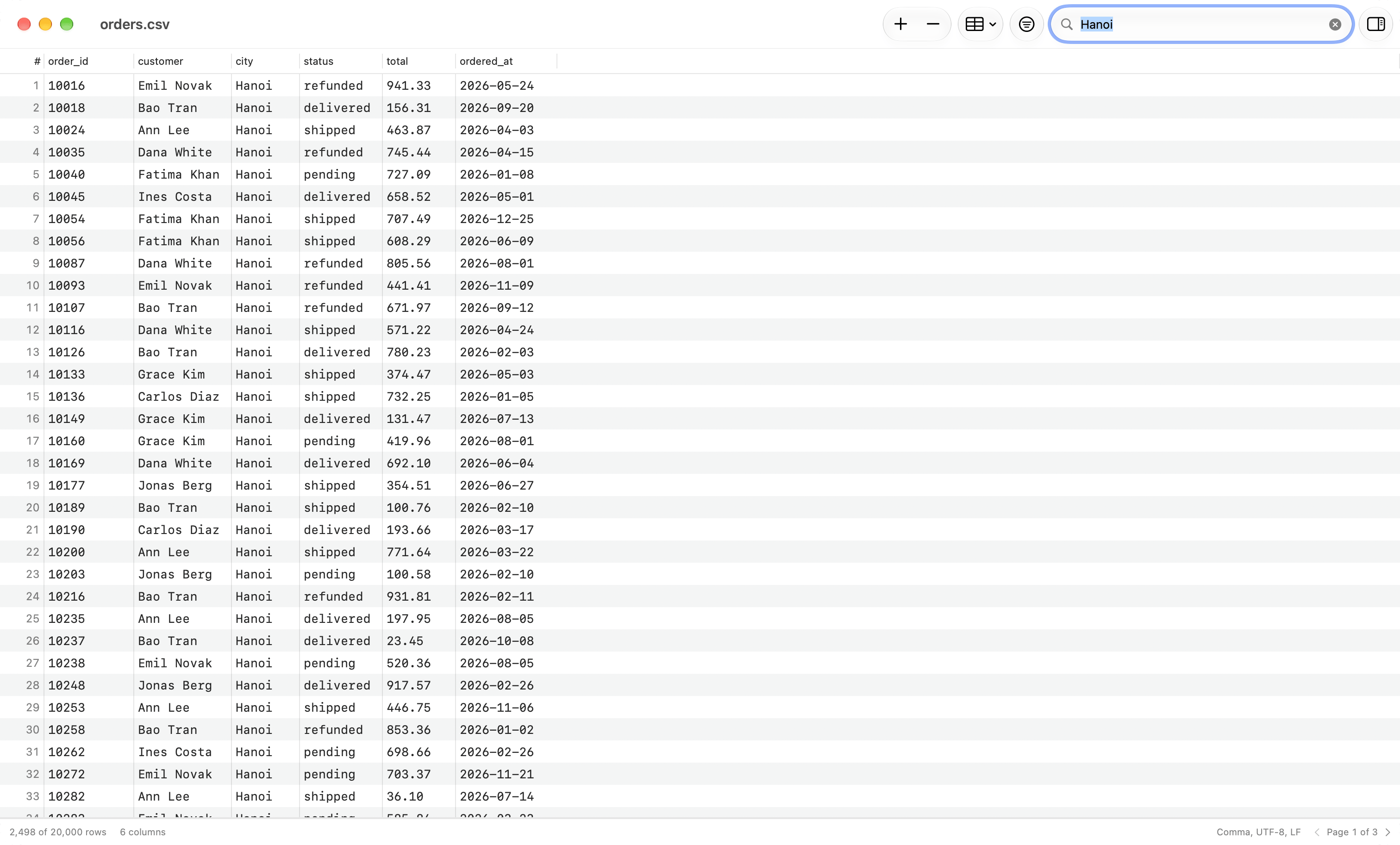
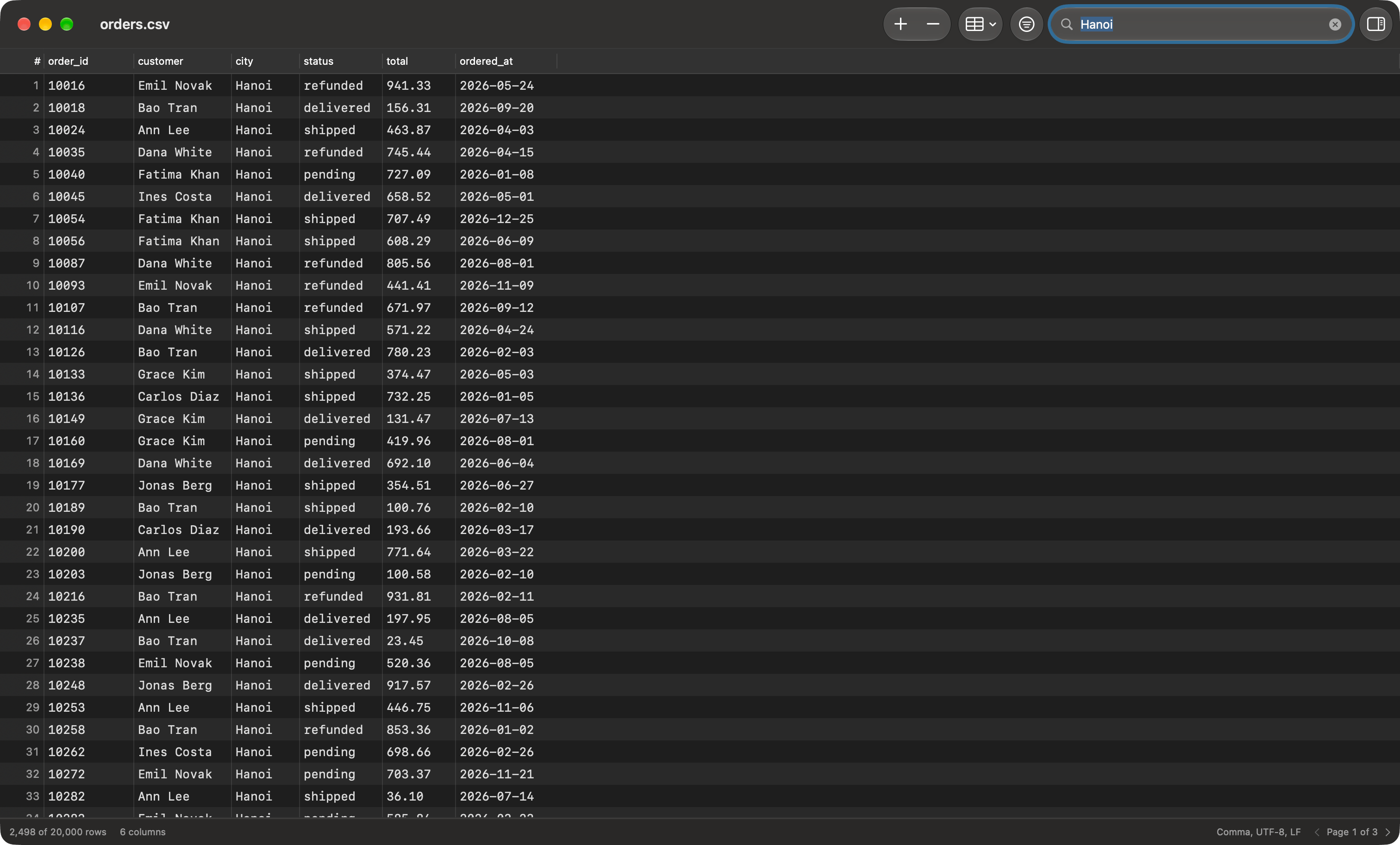
Search All Columns narrowing a 20,000-row order file to one city
Files that open
Open a file from Finder with a double-click or Open With > TablePro, drag it onto the Dock icon, or choose File > Open File… (
Cmd+O). .json and .ndjson files open here even when the DuckDB driver is installed; .parquet files still open as a DuckDB connection.
The window works on a private copy of the file taken when it opens, so another app writing the file cannot change what you are looking at. When that happens, the window reloads if you have no unsaved edits, and asks whether to reload or keep your changes if you do.
How a delimited file is read
Two columns with the same header, or an empty one, get unique names such as
amount (2) and Column 3. A row with more fields than the first row widens the table, and the status bar counts how many rows differ.
When a guess is wrong, choose Edit > Data > File Properties… to set the delimiter, quote, escape character, encoding, line ending and header row by hand, then click Reload. To flip only the header, choose Edit > Data > Switch First Row Between Header and Data (Cmd+Shift+H). Change Type on a column header overrides an inferred type, which changes how the column sorts, filters and appears in statistics, never what is written to disk.
Filter, search and sort
Cmd+Shift+F shows the filter bar. It is the filter bar a table tab uses, run over the file instead of a database: all 18 operators, Match all or Match any, a checkbox per row, Match Case, and saved presets. It has no raw SQL row. See Filtering for how each operator reads a value.
A comparison is numeric whenever the cell and the value both read as numbers, so > 50 keeps 100 and drops 9. Anything else compares as text. A CSV cell is never NULL, so is NULL matches nothing and is empty matches blank cells. In JSON, a null value and a missing key are both NULL.
Right-click a cell and choose Filter to add a condition built from its value. The Search All Columns field in the toolbar keeps the rows where any column contains the text, ignoring case and accents, and works alongside the filter bar.
Click a column header to sort by it, and Shift-click another header to add a tie-breaker. Numbers sort by value, text sorts naturally so Item 2 comes before Item 10, and blank cells always sort last.
Changing a filter, the search or the sort goes back to page 1.
Find and replace
Cmd+F opens the find bar and Cmd+Option+F opens it with a replace field. It searches every row in the file, not the current page, and counts the matches as 3 of 1,204. Return or Cmd+G moves to the next match and reveals it; Cmd+Shift+G goes back.
The options menu beside the field turns on Match Case, Whole Words and Regular Expression. With a regular expression, $1 in the replacement inserts the first capture group.
Replace All changes every match in one step, so one Cmd+Z puts all of them back. To search one column, right-click its header and choose Replace in Column…. Hidden columns are not searched.
Column statistics
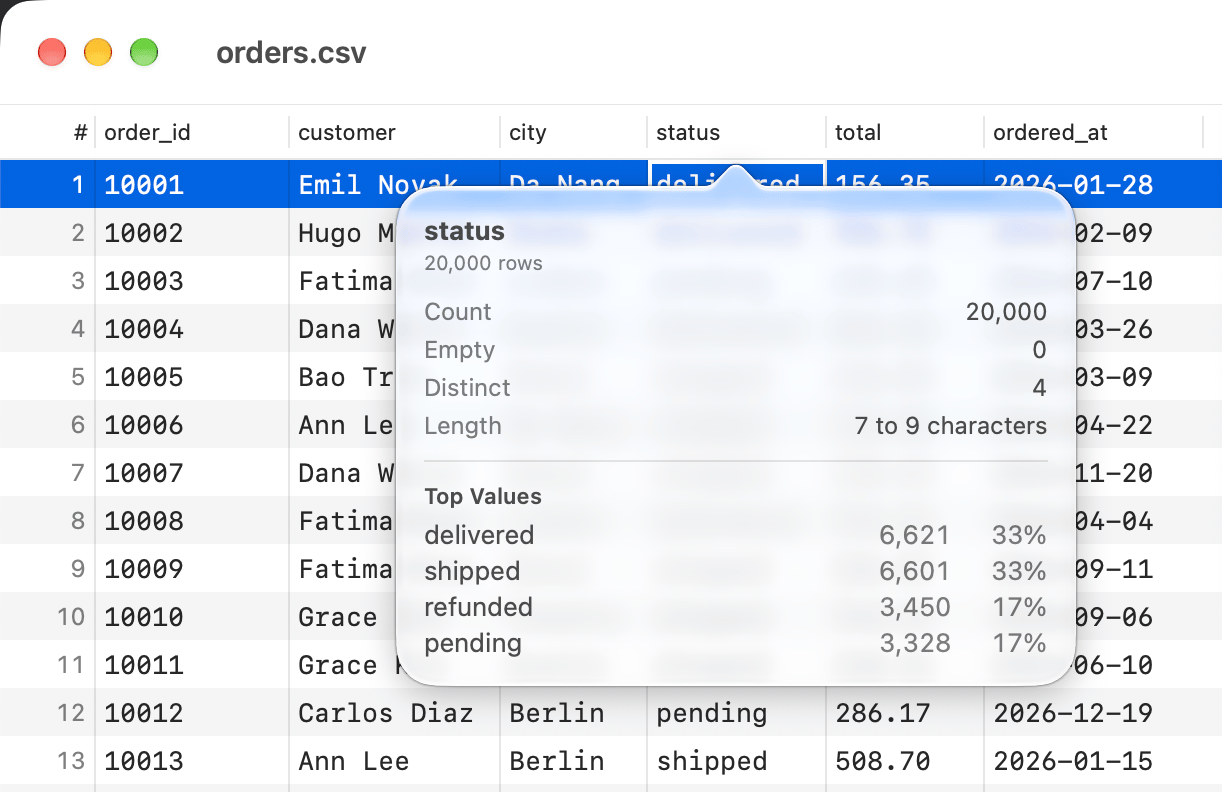
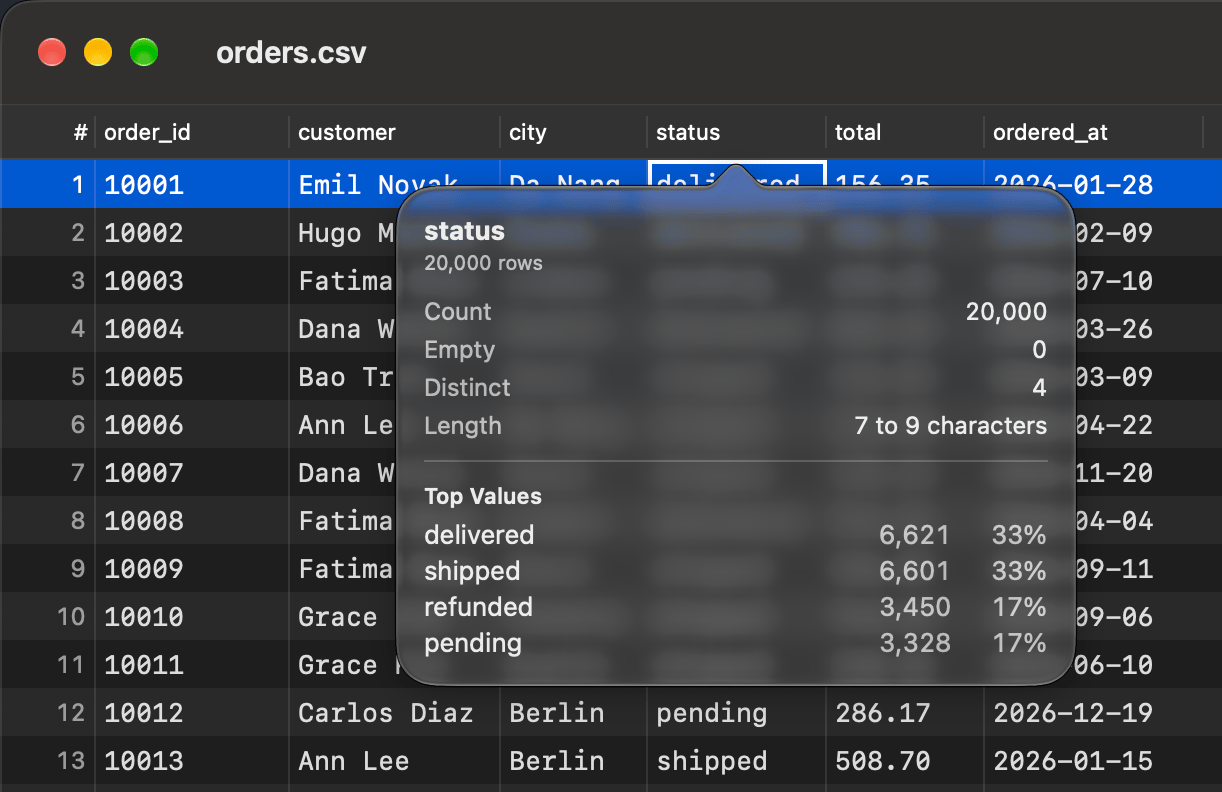
Statistics are computed over the rows that pass the current filter
- the row count, empty cells and distinct values
- minimum, maximum, sum, mean and median for a number column, plus how many cells are not numbers
- the earliest and latest value for a date column
- the shortest and longest value, in characters
- the most common values with their counts, the first ten until you click Show All
Row details
Cmd+Option+I opens Row Details beside the grid. It shows the selected row as a list of fields, each editable in place. An edit is committed when you stop typing, and Cmd+Z undoes it like any other edit.
Edit rows and columns
Double-click a cell, or select it and pressReturn, to edit it. Cmd+Shift+N adds a row at the end; Insert Row Above and Insert Row Below are on a row’s context menu. Select rows and press Cmd+Delete to delete them.
Cmd+C copies the selected rows as tab-separated text. With a cell selected, Cmd+V pastes a tab-separated block into the cells from there rightward and down. With no cell selected, it adds the lines as new rows, and a block wider than the table adds the columns it needs.
Right-click a column header, or use the Columns menu in the toolbar, to rename, insert, split, merge, retype or delete columns. Split Column… splits every value at a separator or a regular expression, and Merge Columns… joins a column with the one to its right.
Clean up data
These commands are on Edit > Data and on the column header’s context menu. With a whole column selected they change every visible row; with cells selected they change only those cells. Each one is a single undo step.
Rows hidden by a filter or search are left alone by every command here.
Large files
A file opens without being read into memory: the rows are indexed, and cells are read when they are shown, filtered or sorted. Rows appear a page at a time, at the Default page size from Settings > Data, and the status bar has the page controls. Filtering, sorting, searching, statistics and bulk edits run in the background. When one takes longer than a moment, the status bar shows its progress and a Cancel button; a cancelled bulk edit changes nothing. Editing is paused while a bulk edit runs. On a 12-core Apple silicon Mac, a 1 GB CSV with 6.9 million rows opens in about 0.4 s, filters in about 0.3 s, and searches every column or sorts in about a second.JSON files
Each object is a row and each key is a column. A key missing from an object reads as NULL, the same asnull, and nested objects and arrays appear as their JSON text.
An edited value keeps its JSON type. Type 42 over a number and it stays a number; type text over it and it becomes a string. A value typed into an empty cell takes the column’s type, so a number typed into a number column is saved as a number. Text typed over an object or array that is not valid JSON is saved as a string.
Save rewrites only the objects you changed, and only the values in them you edited, so formatting, key order and number spellings elsewhere are kept exactly. Renaming or deleting a column renames or removes that key in every object.
Excel workbooks
Every sheet in an.xlsx gets a tab under the grid; hidden sheets are marked as hidden. A sheet is read when you first open its tab. Dates are shown as ISO dates and times, and numbers keep the digits stored in the file.
A workbook is read-only. To keep a sheet, choose File > Save As and pick CSV, or export it.
Save and export
Cmd+S writes the file back in its own format. Rows you did not touch are copied byte for byte, so a large file with a handful of edits saves quickly and differs from the original only where you changed it. If a value holds a character the file’s encoding cannot store, the save stops and names the row and column. Choose File > Save As and set Text Encoding to UTF-8 to keep it; later saves keep the new encoding.
File > Save As (Cmd+Shift+S) writes a delimited file as CSV, TSV or pipe-separated text, and a JSON file as JSON, JSON Lines, CSV or TSV.
To write another format, choose File > Export > Export Results…, or right-click the grid and choose Export Results…. The export dialog offers every installed export format that works without a database, including CSV, JSON, SQL, XLSX, Markdown and HTML, and exports all rows, the rows passing the current filter, or the selected rows.