

Cmd+[ outdents in the SQL editor and pages back in the data grid, and neither one shadows the other. Everything here is the shipped default, and most of it is rebindable in Settings > Keyboard.
Same key, different pane
The grid meanings come back the moment you click into the grid, and
Delete on its own always deletes the selected rows. Cmd+W follows the same rule across the whole window; see Tabs and windows.
Essential
SQL editor
Query execution
File operations
Text editing and find
Find and Replace opens the same panel with a replacement field; the panel keeps whichever of the two
modes you left it in. Use Selection for Find searches for the selected text without opening the panel,
so
Cmd+G moves straight to the next occurrence.
Every row except the five find rows is built into the editor and cannot be rebound. Standard macOS text navigation and clipboard keys also apply.
Data Grid
Navigation and selection
Editing
Tab, Shift+Tab, Up and Down save the cell before they move. In a value that holds line breaks, Up and Down move the insertion point between its lines and leave the cell only from the first or last one.
Truncate table opens a dialog with Cascade and Ignore foreign key checks, then stages a pending truncate that Cmd+S runs.
Clipboard
Cmd+C copies a drag-selected range as TSV, a single focused cell as its value, and otherwise the selected rows as TSV.
Pagination
Filtering
See Filtering for the filter bar itself.
Import and export
Tabs and windows
Cmd+W closes whatever is in front. In a connection window that is the current editor tab, and the File menu reads Close Tab. Settings, Integrations, a JSON or PHP viewer, and the welcome window have no tabs, so it closes the window and the menu reads Close Window. While the connections strip holds the keyboard it closes the highlighted entry, and the menu names it; an entry that is its connection’s last one takes the connection with it.
Connections
Sidebar, panels, and view
Tab walks the panes in reading order and the six commands under View > Focus jump straight to one. The SQL editor keeps Tab and Shift+Tab for indentation, so a Focus command is the way out of it. A Focus command reveals a collapsed or hidden pane before moving the keyboard into it, and dims when the pane it names is not there.
With the sidebar focused, typing the first letters of an object’s name jumps to it.
In Agent mode
Cmd+Option+I opens and closes the Result column instead of the inspector, and the View menu’s item reads Show Result. Toggle assistant and Focus inspector both dim: the conversation is the window’s content column there and the pane beside it holds the result, so neither command has a surface to reach. Focus assistant puts the insertion point in the conversation’s composer.
Agent sessions
All five sit under File > Session in the menu bar and under Navigation in Settings > Keyboard.
Return opens the session the rail has highlighted and Delete asks to delete it, and neither is rebindable. See Agent mode.
Results
Query history drawer
With the drawer open (Cmd+Y) and its entry list focused, Return loads the selected entry into the editor, Delete removes it, and Cmd+C copies its query. Cmd+Y hides the drawer again.
Inspector fields
Ctrl+Option+N and Ctrl+Option+D skip a field the server owns and a column definition on a Structure tab, neither of which takes either state.
Welcome window
In Open Quickly,
Ctrl+J/Ctrl+N and Ctrl+K/Ctrl+P move the selection, and Cmd+Enter and Option+Enter open the selected item in a new tab.
Data files
See Data Files.
Vim mode
Turn on Vim mode in Settings > Editor. Vim keys apply only in the SQL editor; the data grid keeps its shortcuts, andCmd+Enter runs the query in any mode. See Vim Mode for the key reference.
Customizing shortcuts
Open Settings > Keyboard (Cmd+,). Each action has a recorder field: click it and press the new combination, and the menu bar updates immediately. Actions are listed under their own names there: the sidebar toggle is Toggle Table Browser. Filter with the search field, press Delete in a recorder field to clear a binding, click the curved-arrow button beside a changed shortcut to restore that one, or Reset to Defaults to restore all.
Some actions ship with no default and show as unassigned. That is a command waiting for a binding, not one you cleared, and Reset to Defaults leaves it unassigned.
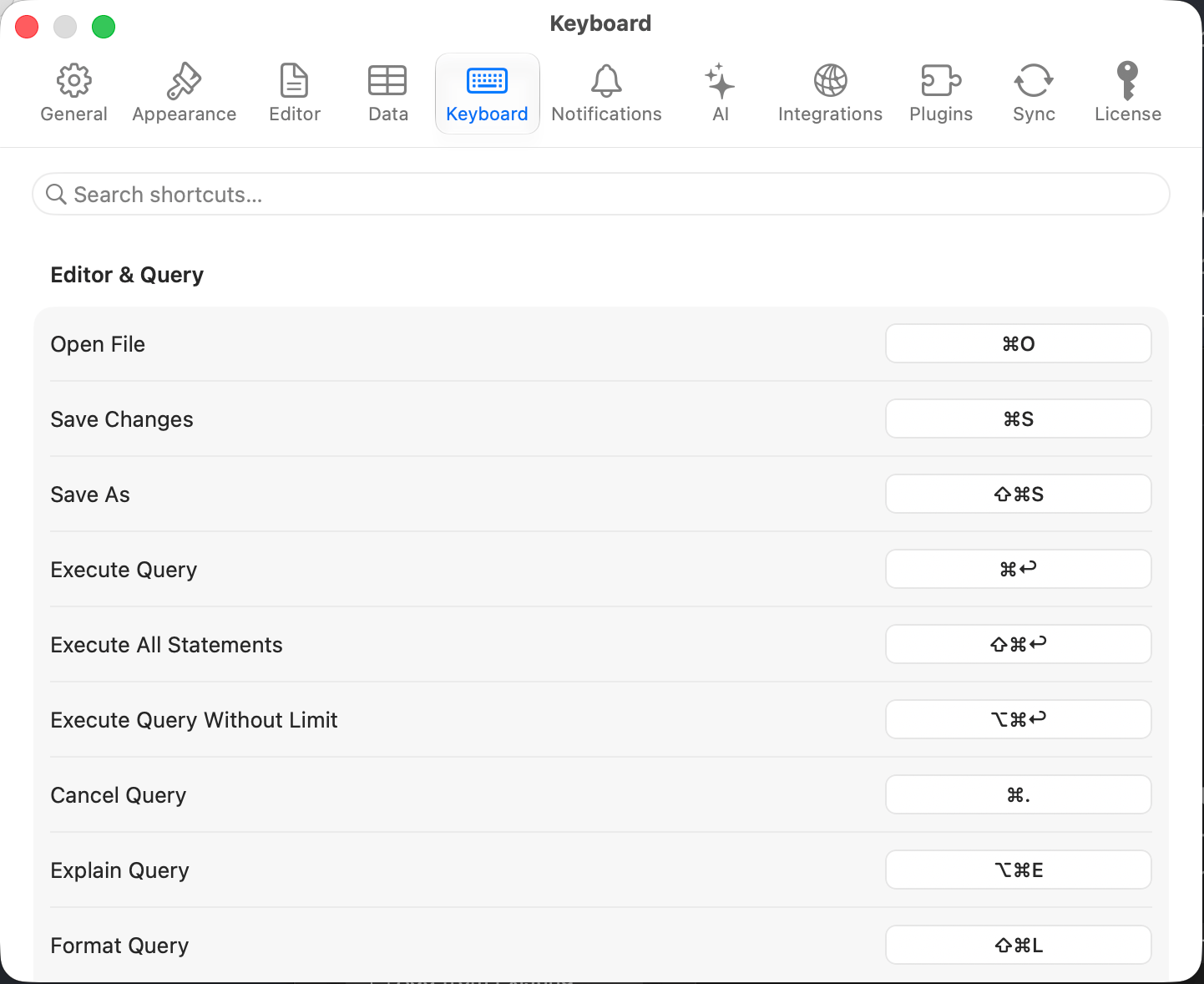
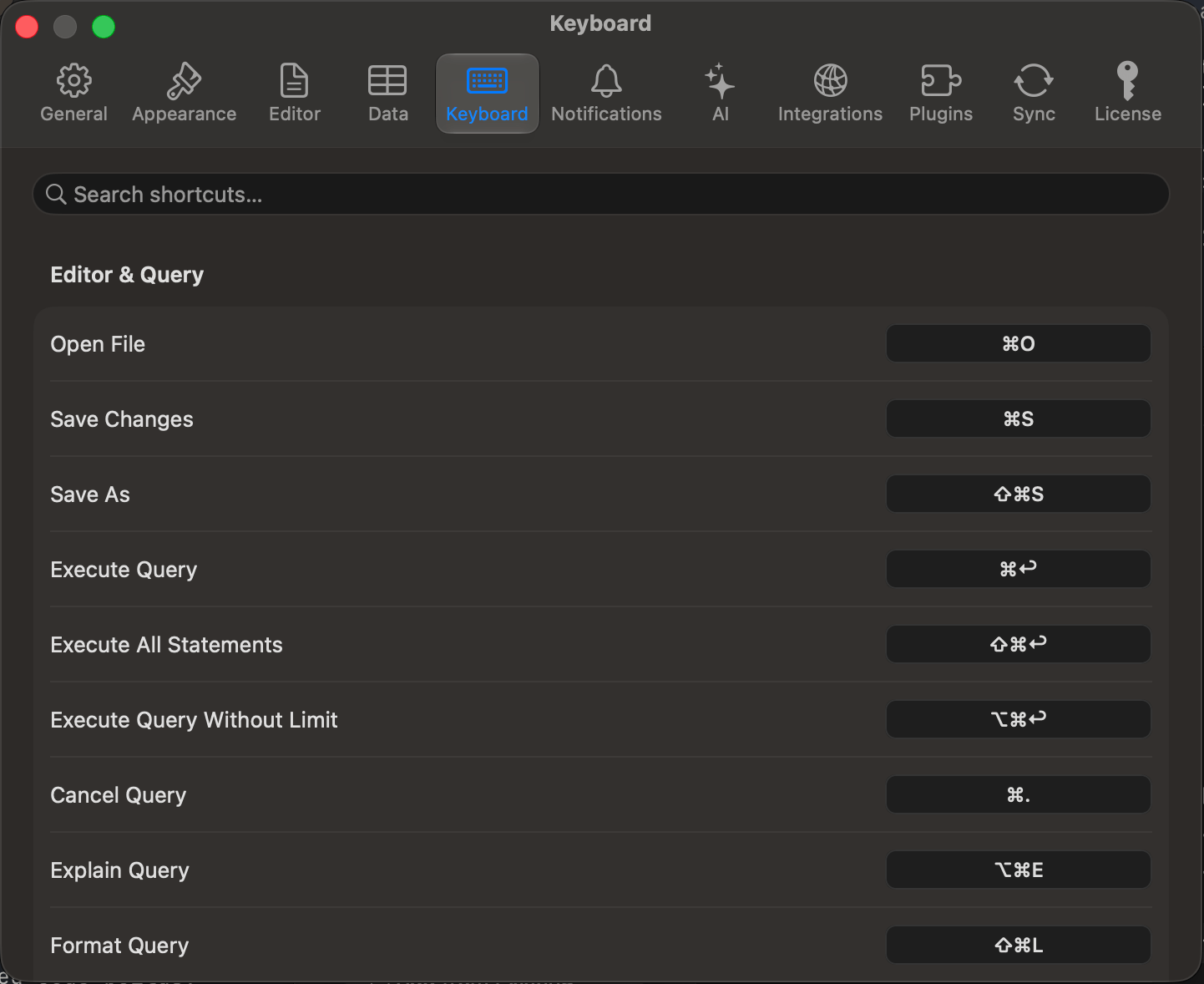
Keyboard shortcut customization
Cmd or Ctrl, with Option and Shift available alongside them but not on their own; function keys F1 through F12 work bare, as do grid actions that read the key directly, like Preview FK Reference (Space).
Some shortcuts cannot be reassigned: editor built-ins such as
Cmd+/, tab selection (Cmd+1 through Cmd+9), zoom (Cmd+=, Cmd+-), and macOS system shortcuts, which are read live from System Settings. The recorder warns if you try.Outside the app
Drive the app with no keyboard at all: the Raycast extension, thetablepro:// URL scheme, and MCP clients are covered in the External API section.