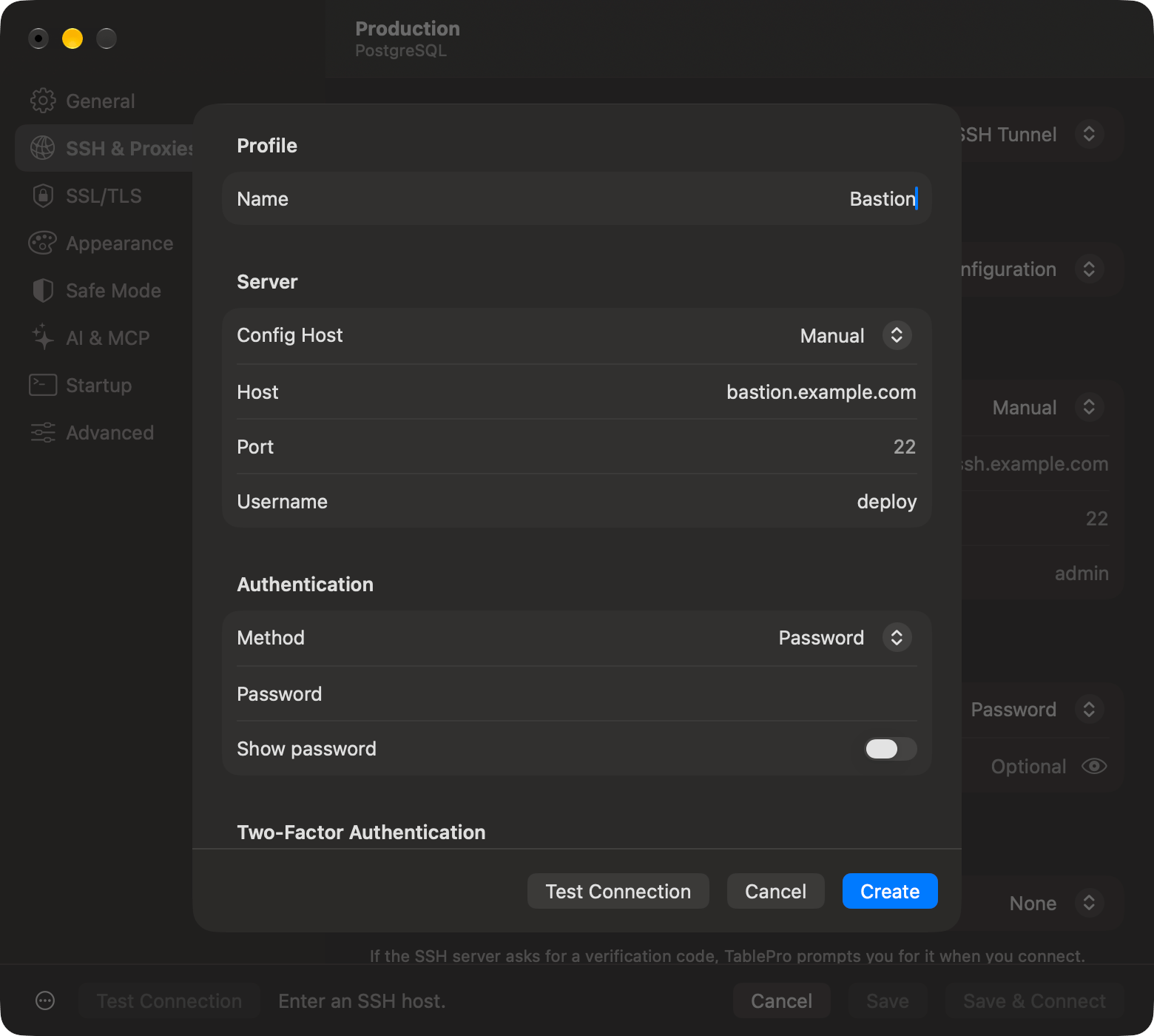

One bastion, many connections. A profile holds the server (host, port, username), the authentication method, the two-factor settings, and the jump hosts, so every connection through that bastion stops repeating them. How the tunnel itself behaves is on SSH Tunneling.

Create a profile

1

Select SSH Tunnel on any connection

On the SSH & Proxies pane, choose New Profile… from the SSH Profile menu.
2

Fill in the server and authentication fields

The same fields an inline config has, plus a name.
3

Click Create

The profile now appears in the SSH Profile menu of every connection.
Add SSH Profile… under SSH Profiles in Settings > Profiles creates one without opening a connection, and the same section lists every profile with how many connections use it. Click a row’s info button to edit it, or right-click it for Edit…, Duplicate and Delete…. A duplicate copies the password, key passphrase and TOTP secret too.
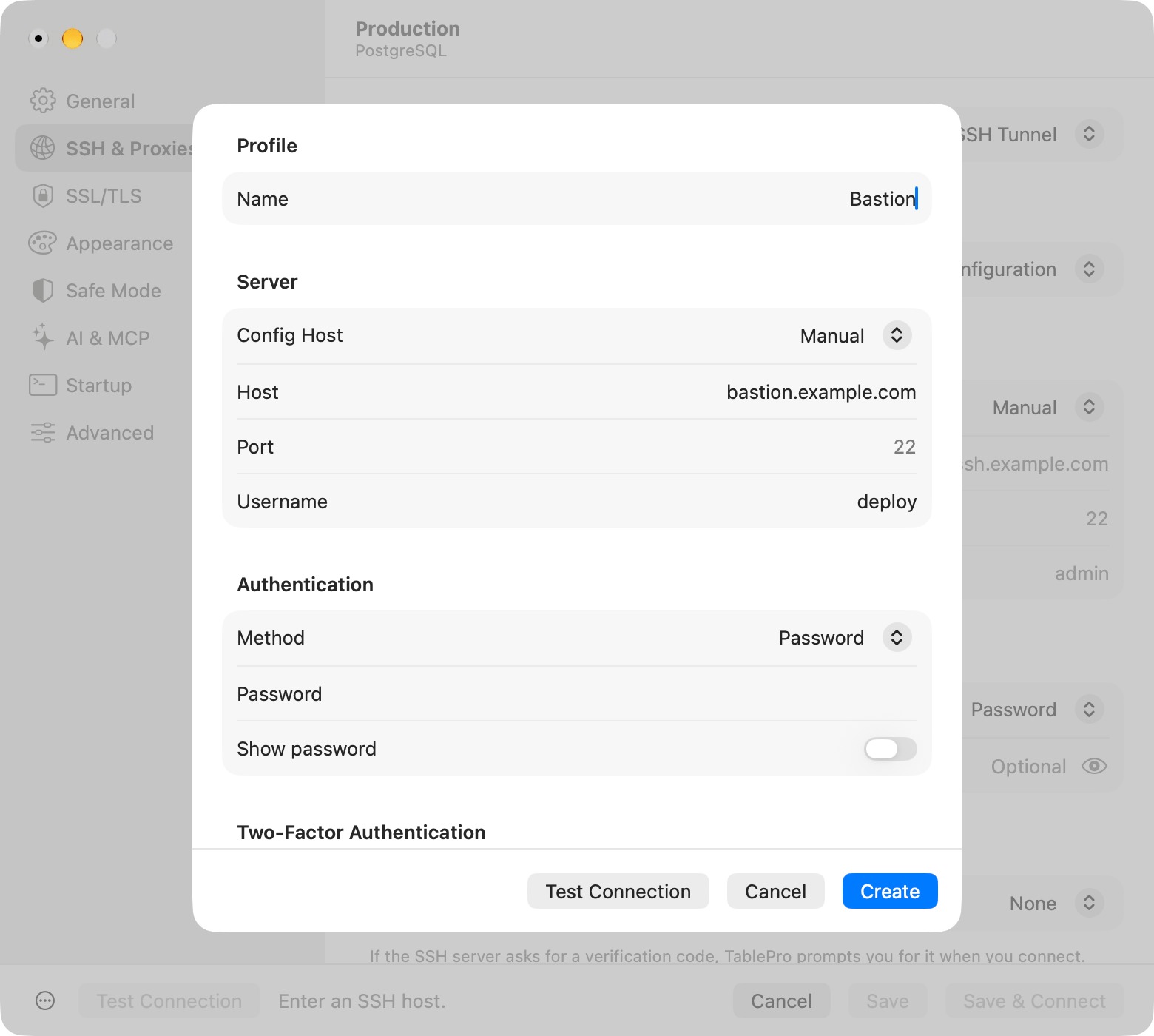
New SSH profile sheet over the connection form, with Name, Host, Port, Username and the authentication method, and Test Connection, Cancel and Create at the bottomNew SSH profile sheet over the connection form, with Name, Host, Port, Username and the authentication method, and Test Connection, Cancel and Create at the bottom

Creating an SSH profile

Save These as a Profile… in the same menu converts a connection that already has an inline config, and Manage Profiles… opens Settings > Profiles. Picking a profile swaps the inline fields for a read-only summary of its server, authentication and jump hosts; Inline Configuration brings the fields back for a tunnel that belongs to one connection alone.

Test a profile

Test Connection in the profile editor runs the handshake, verifies the host key, and authenticates, without touching a database. Success shows a green Connected at the bottom of the editor; failure shows the error there in red. An interactive prompt, a verification code for instance, appears here exactly as it would on connect.

Edit and delete

Edit Profile… in the SSH Profile menu opens the selected profile, and Delete Profile is at the bottom of that editor. An edit reaches every connection using the profile, on this Mac and on any Mac it syncs to: the server, the authentication method, the jump hosts, the password, the key passphrase and the TOTP secret all come from the profile on the next connect. A connection already open keeps the server and jump hosts it connected through. Once the profile points elsewhere, a reconnect TablePro starts on its own, a database switch that reconnects, and a connect asked for by an MCP client or a link stop with a message; Reconnect in the connection’s window uses the new server. Approvals to sign in with this Mac’s own credentials or environment variables are asked for again after a profile moves to another server. Deleting a profile hands its configuration and its secrets to each connection that used it, as that connection’s own inline tunnel. Nothing stops connecting, and the tunnel is now editable per connection on its SSH & Proxies pane.

iCloud Sync

Profiles sync across Macs with iCloud Sync on and SSH Profiles on under What Syncs in Settings > iCloud Sync. Passwords, key passphrases, and TOTP secrets stay in the local Keychain unless Passwords is on too, and that covers newly saved credentials only: re-save an existing password to include it. On iPhone and iPad, a connection that uses a profile keeps the profile’s server and jump hosts read only and signs in with the profile’s password once it reaches iCloud Keychain. Turning SSH Tunnel off there unlinks the profile from that connection on every device.