

caching_sha2_password connect on the first try, with no auth plugin to switch over. The same bundled driver covers 5.7 and later, plus MariaDB, TiDB, Databend, and OceanBase.
Quick setup
1
Create Connection
Click New Connection… on the welcome window and pick MySQL
2
Test and Save
Fill in host, port, and credentials, click Test Connection, then Save & Connect
Connection settings
Every connection sets its session character set to
utf8mb4 once it logs in, over any init_connect the server runs, so emoji and non-Latin text round-trip untouched. A connect attempt gives up after 10 seconds.
Connection URL
Common setups
Users & Roles
Database > Users & Roles manages users, roles, and privileges. Changes are staged and shown as SQL before they run. See Users & Roles.Query plans
EXPLAIN FORMAT=JSON, EXPLAIN FORMAT=TREE, and EXPLAIN ANALYZE render as a plan diagram or tree; plain multi-column EXPLAIN stays in the results grid. See EXPLAIN Visualization.
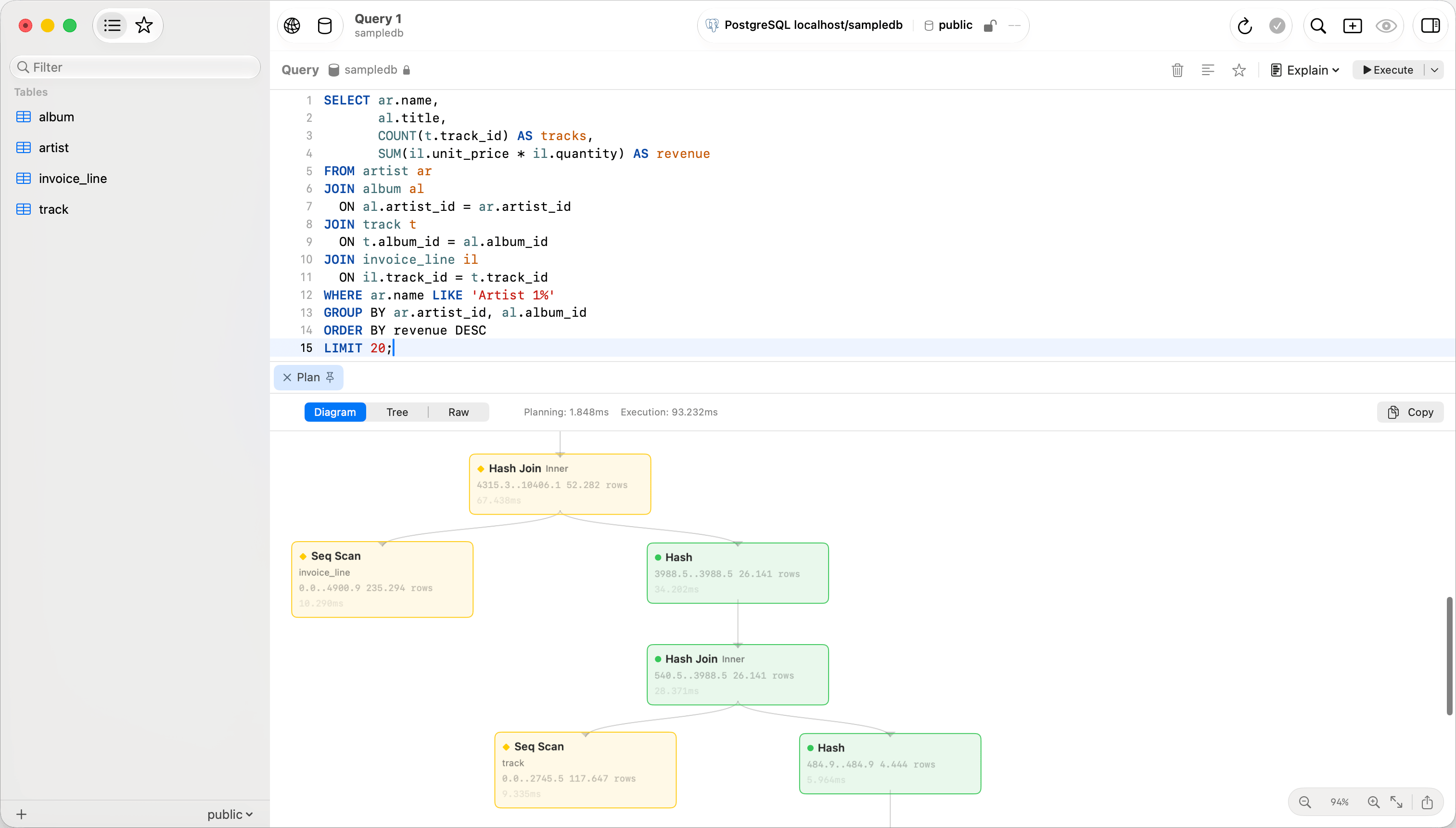
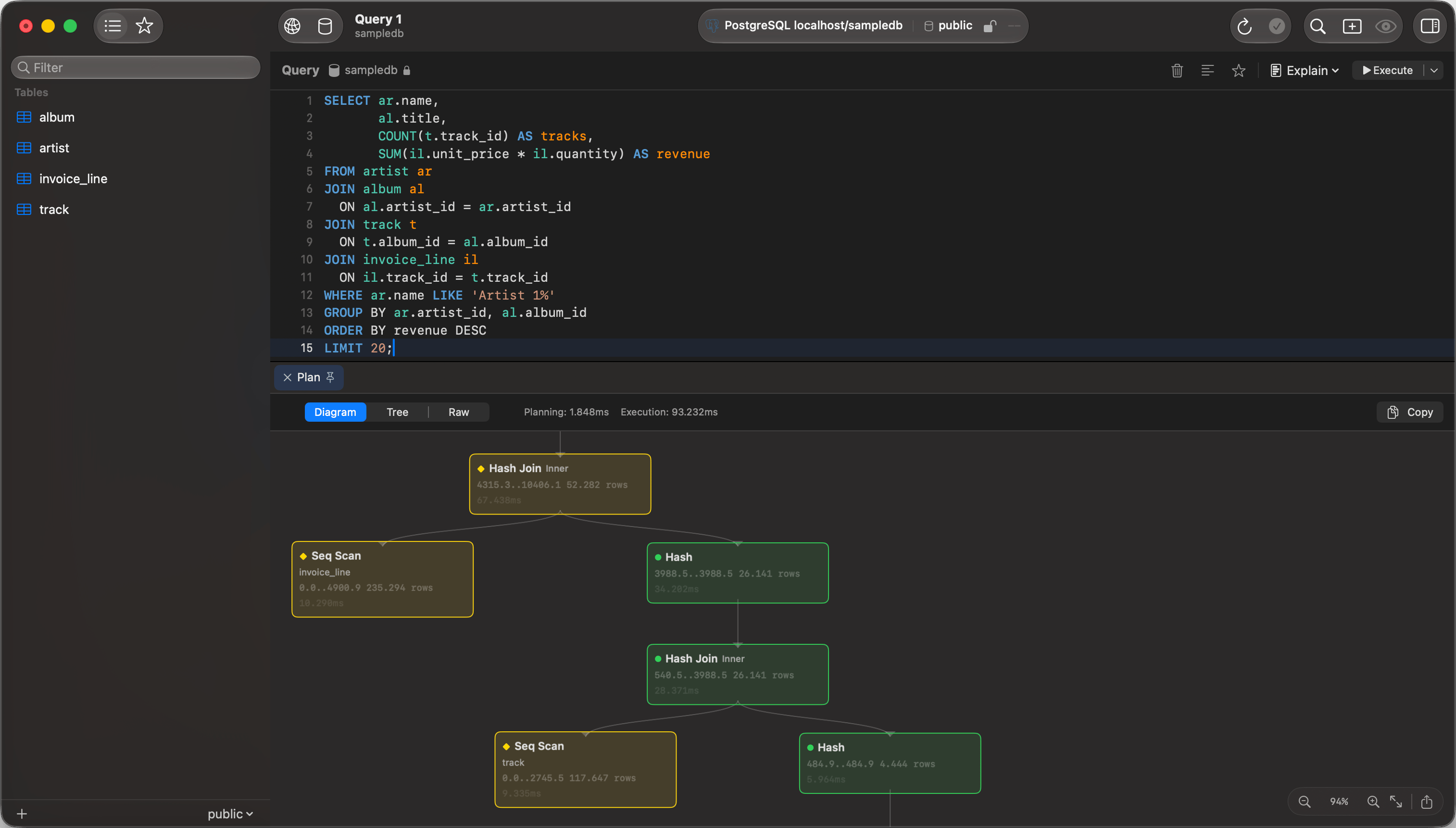
EXPLAIN rendered as a visual plan
Browsing
The sidebar lists one database’s tables, or every accessible database with View > Sidebar as Tree. Switch databases withCmd+K. A connection with an empty Database field opens on No Database Selected in the flat list: click Open Database… to pick one. A tab keeps the database it was opened on; MySQL switches database in place, so that tab runs on the same connection rather than a second one.
Table and column comments show in the UI: dimmed after a table’s name in the sidebar, and in the grid header tooltip. Turn that off under View Options, the button beside the sidebar’s filter field.
A partitioned table shows how many partitions it holds and lists them under it. A RANGE partition is labelled VALUES LESS THAN (2024) and a LIST one VALUES IN (1,2,3); HASH and KEY partitions state no bound, so their rows carry the position instead. Subpartitions nest under the partition they subdivide.
A MySQL partition belongs to its table rather than standing as one, so its row offers Copy Name, Copy Bound and Copy Table Name and nothing that writes. Query one with SELECT * FROM orders PARTITION (p2024) in the editor.
Releasing an idle connection
A connection holds a server thread and one slot againstmax_connections for as long as it is open, and MySQL’s wait_timeout rarely reclaims it because the connection check counts as activity on the server. Release the Server Connection After, in Options, hands the connection back after that many minutes of no queries and takes a new one on the next query. 0, the default, keeps it.
To stop the check itself, set Check connections to Only when I use the connection in Settings > General. That is the connection-wide setting; this one is per connection and closes the connection rather than quietening it.
Reconnecting costs a TCP connect, the TLS handshake and authentication: measured at 2ms against a server on the same machine and 800ms to 1.9s across the internet. That cost lands on the first query after an idle period, so leave this at 0 for a remote server unless the slot matters more than the wait.
A release is refused, with the reason, while the session holds anything a reconnect would destroy: an open transaction, a temporary table, a prepared statement, a GET_LOCK, LOCK TABLES, FLUSH TABLES WITH READ LOCK, an open HANDLER, a user variable, a changed session setting, a database selected with USE, or a stored routine call, whose body is opaque. The statements a dump runs inside /*!40101 ... */ count, since the server executes them. The transaction comes from the server itself, so one opened by SET autocommit = 0 or by an XA START counts as well.
When the server drops the connection
A read that fails because the server closed the connection is run once more on a new one, and only from a session holding nothing: the same list as above. Every other statement reports the error, because the second session answers from different state. Measured on MySQL 8.4.11, replaying regardless:SELECT @total came back NULL where it had come back 42, and SELECT DATABASE() came back as the connection’s own database rather than the one USE had selected, neither of them raising anything. LAST_INSERT_ID(), ROW_COUNT(), FOUND_ROWS() and CONNECTION_ID() are never replayed either, whatever the session holds: their answer belongs to the connection that is gone.
A connection with startup commands that run SET is holding a changed session setting from the moment it opens, so it reports the error rather than retrying. Database > Reconnect takes a new connection and puts back the database and the startup commands.
Waiting has its own limit, and reaching it is a different case. The socket gives the server the query timeout plus 30 seconds, and a statement that outlasts that is never sent again: the first copy is almost certainly still running there. It is stopped with KILL QUERY from a second connection, and the error comes back after that.
Garbled non-Latin text
A comment or value that readsメール where メール belongs was written by a client that sent UTF-8 while telling the server it was sending Latin 1. A mysql command-line client without a UTF-8 locale does that, and so does a MySQL 5.7 container loading its docker-entrypoint-initdb.d scripts, and so does any client on a server whose init_connect runs SET NAMES latin1. The server stored the garbled form, so every UTF-8 client shows the same thing.
To work with such a database the way that client did, set Encoding to UTF-8 via Latin 1 in Options and reconnect. Text written through Latin 1 then reads correctly, text stored correctly still reads correctly, and whatever you save is stored the way the old client stored it, so the application that wrote the data keeps reading it.
An SQL export taken with UTF-8 via Latin 1 holds the text as it reads, in UTF-8. Restoring it gives a database with the text fixed, which the old client then reads as ?. Restore it where you are moving off that client, not as a backup of the database it still writes to.
To fix the stored text instead, convert it in place. The WHERE clause skips values that were stored correctly:
ALTER TABLE each. This query writes them for the current database; run the statements it returns:
Behind a protocol proxy
DBLE, MyCat and ShardingSphere-Proxy answerinformation_schema from their own configuration rather than from the database in front of you. A logical schema whose name is not a physical database reads back empty there, or with ERROR 1064.
Point the connection at the proxy and browse as usual. Tables, columns, indexes and foreign keys come from SHOW statements when the catalog says nothing, and nothing changes on a direct server. The sidebar, the Structure tab, schema comparison and the ER diagram all fill in from that. Each whole-schema read costs one statement per table on that path, every time: a sidebar refresh, an ER diagram and a schema compare each pay it again.
Two fields are unavailable on that path, because only information_schema carries them:
- A generated column’s expression. The column still shows as generated.
- A foreign key’s
ON DELETEandON UPDATEwhere the server prints no clause for them. MySQL 8.0.11 and 8.0.12 print nothing forRESTRICT, which reads back asNO ACTION. 8.0.13 and later print it.
SSL/TLS
New connections default to Preferred: TLS first, dropping to plain text only after an SSL handshake error. Pick Verify CA with the provider’s certificate for strict validation. See SSL/TLS.Limitations
- No Unix socket connections. Give the connection a host and a port, and leave networking on in the server.
LOAD DATA LOCAL INFILEis refused by the driver. Load the file with File > Import > Import Data… instead.- An index key over an expression, such as
lower(email), needs MySQL 8.0.13 or later. MariaDB has none, so index a generated column instead. The Indexes tab stops the save on either server before anything runs.
Troubleshooting
Connection refused
Nothing answered on that host and port. Check the server is running (brew services start mysql), the port is right, and skip-networking is off.
Access denied for user ’…’@’…’ (using password: YES)
The password is wrong, or no account covers the host you connect from. Sign in with an account that can read themysql schema and run SHOW GRANTS FOR 'name'@'host'; with the real user name and host. Without that access, the statement fails with SELECT command denied.
Access denied for user ’…’@’…’ to database ’…’
The account can see the database in the list but holds no privilege in it, so the server refuses to open it. An account whose only privilege there covers routines, such asEXECUTE, opens the database and lists no tables. Check what the server matched and granted:
CURRENT_USER() can name a different account from the one you typed, such as 'name'@'%' when 'name'@'localhost' holds the grants. A role listed in SHOW GRANTS grants nothing until it is active, and a new connection starts with its default roles only: ask for SET DEFAULT ROLE ALL TO 'name'@'host';. Otherwise ask for SELECT on the database.
Authentication plugin errors
caching_sha2_password needs no configuration. For any other plugin, read the account’s plugin with SELECT user, plugin FROM mysql.user;.