

Cmd+Shift+F, type a condition into the row that appears, and press Enter.


Filter panel with column and raw SQL conditions
Enter runs what you typed, and Down then Enter takes a suggestion instead.
Filters are saved per connection, database, schema, and table, and survive a relaunch, unchecked rows and rows you never applied included. Clear keeps the rows and stops filtering, so they come back when you reopen the table. A table with an active filter opens in a new tab rather than replacing the current one.
Redis shows a key-pattern search bar (
user:* and the like) with a key-type picker instead of the filter bar. In a data file window the same filter bar runs over the file itself, with no raw SQL row.Filter by cell value
Right-click a cell in a table and open Filter. The conditions it offers are built from that cell’s stored value, not from its Display As text: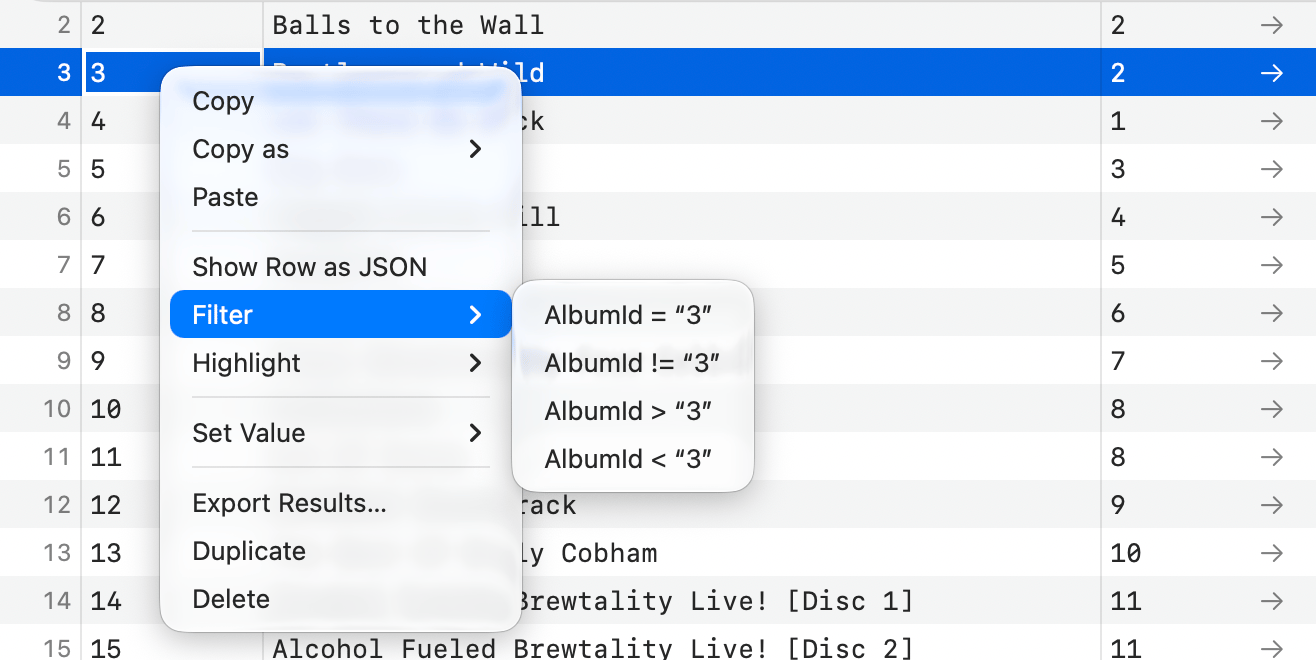
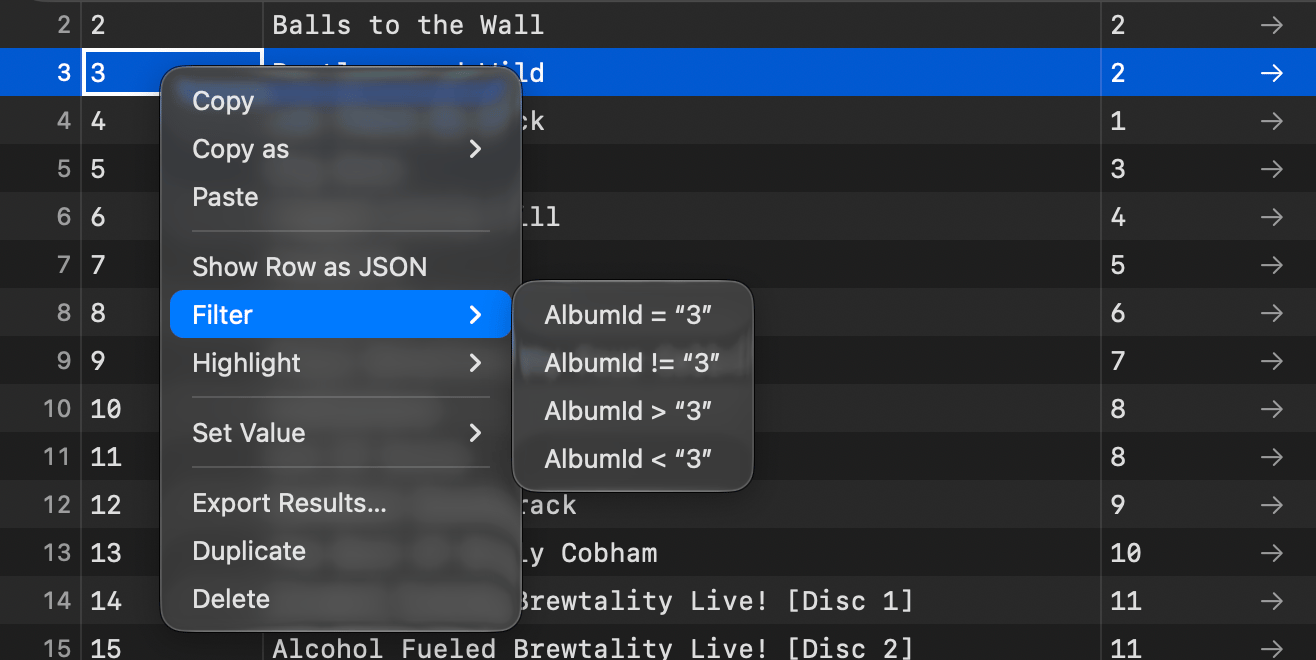
A number cell adds greater than and less than
!= condition also leaves out rows where the column is NULL.
There is no Filter item on a query result, on Redis, or on a new row or an edited cell. Binary, JSON, XML, spatial, array and large-object columns have none either, and neither does text with a leading or trailing space or over 10,000 characters: type those conditions into the filter bar instead.
Operators
Eighteen of them, and the menu shows the SQL each one produces.Case sensitivity
Contains, not contains, starts with, and ends with ignore case. Equals, not equals, IN, NOT IN, and regex respect it. Open the operator menu and use Match Case to flip either one for that row; anAa badge marks a row that is not on its usual setting.
On MySQL, MariaDB, SQL Server, SQLite, libSQL, and Cloudflare D1 the column’s collation decides, and no query can override it, so Match Case is dimmed. Their default collations already ignore case. Cassandra and Redis have no case-insensitive matching at all, so it is dimmed there too.
Combining conditions
Match all and Match any in the header join every row with AND or OR. There is no per-row choice and no grouping, so a mixed expression cannot be built out of rows. Put the parentheses in a raw SQL row instead, which enters the WHERE clause as a single parenthesized condition:Nested fields
On a document store such as MongoDB, a field holding an object or an array of objects is one column showing its JSON. The column picker also lists the paths inside it, socustomer.country and items.sku filter directly.
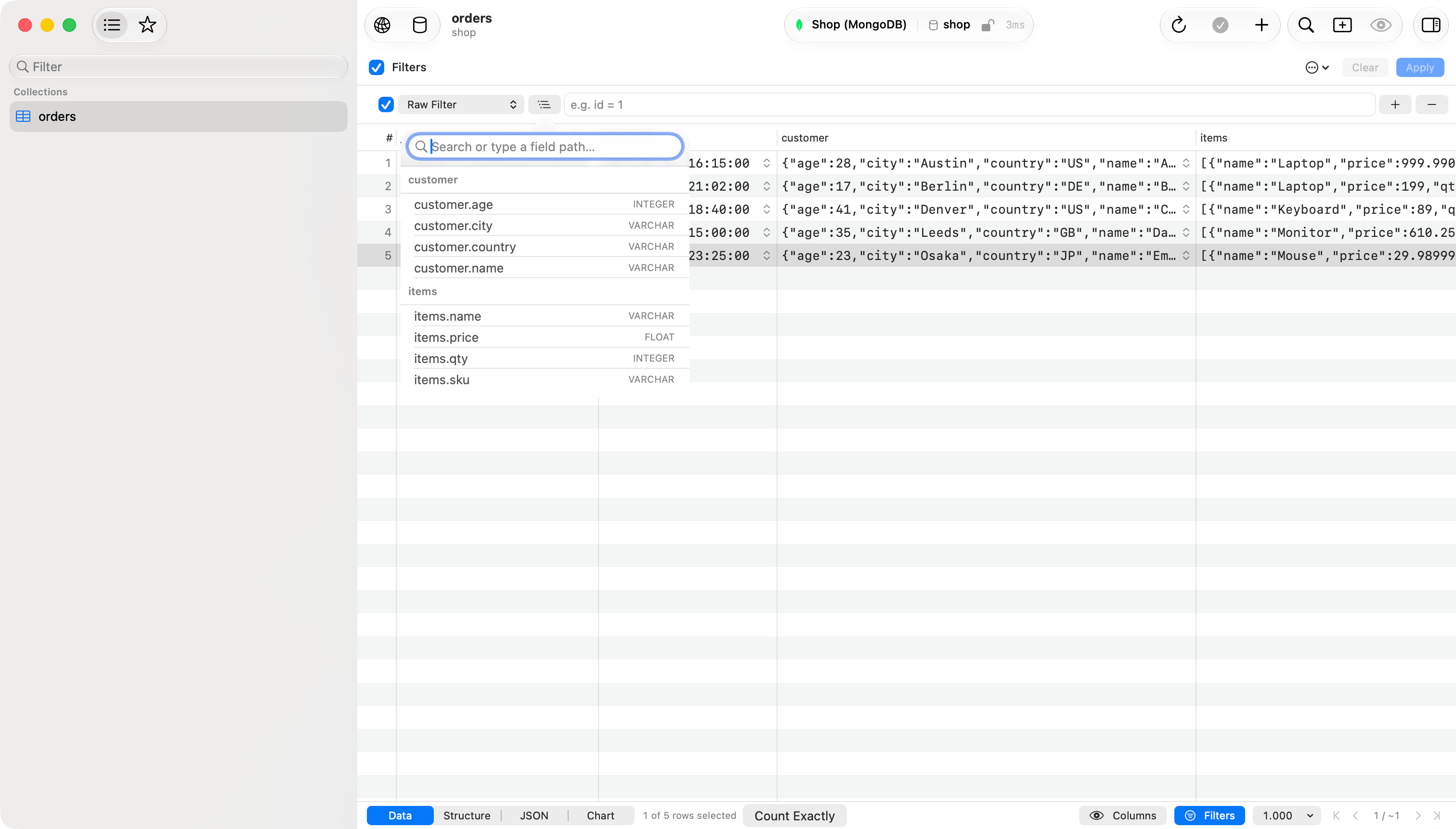
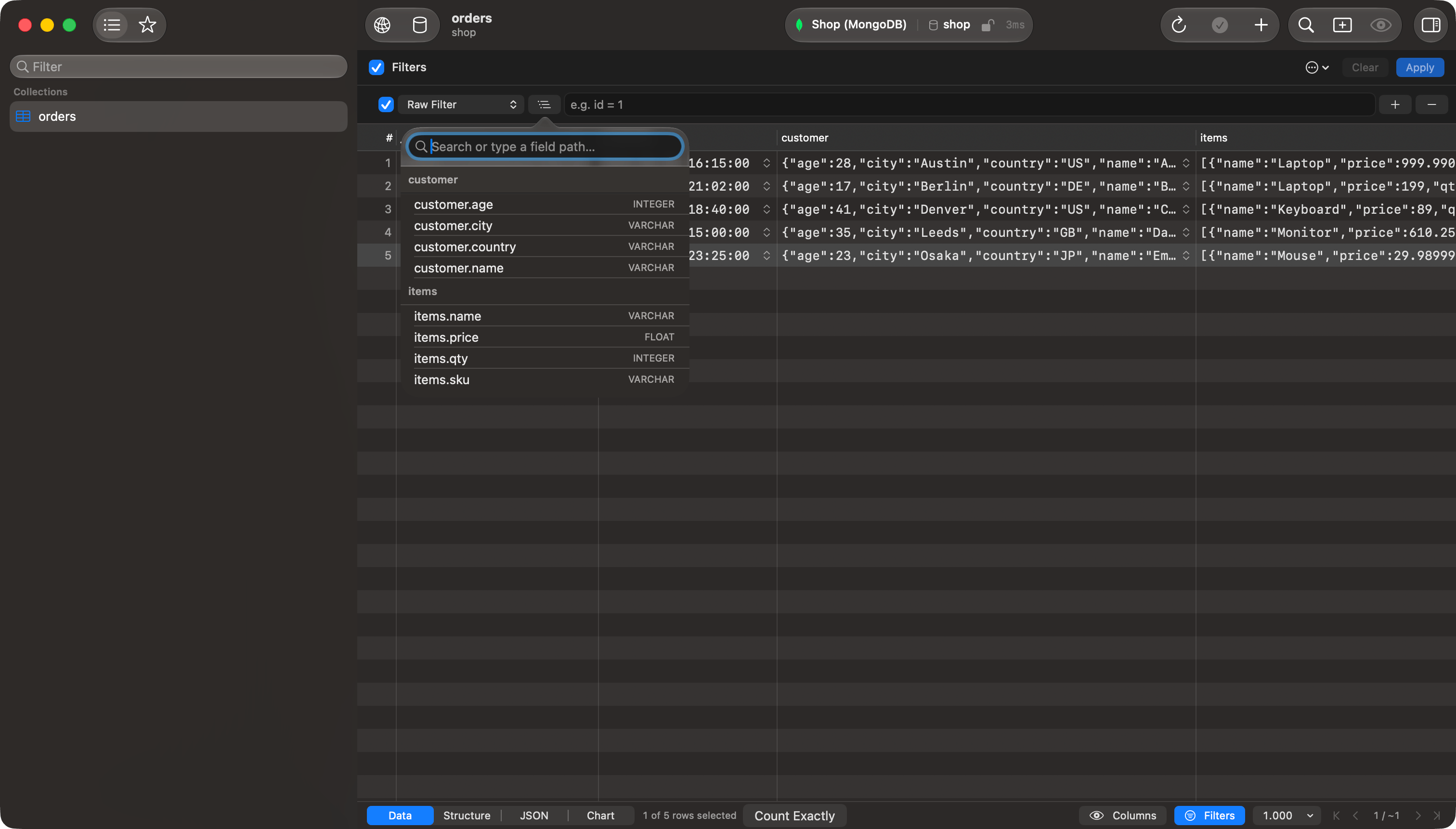
Column picker listing nested field paths under their parent
Fields inside an array
A row on a field inside an array gets one more control:
Filtering
items.price greater than 500 and items.name equal to Laptop with any element returns an order holding an expensive item and, separately, an item called Laptop. With same element on both rows it returns only orders holding one item that is both. any element is the default.
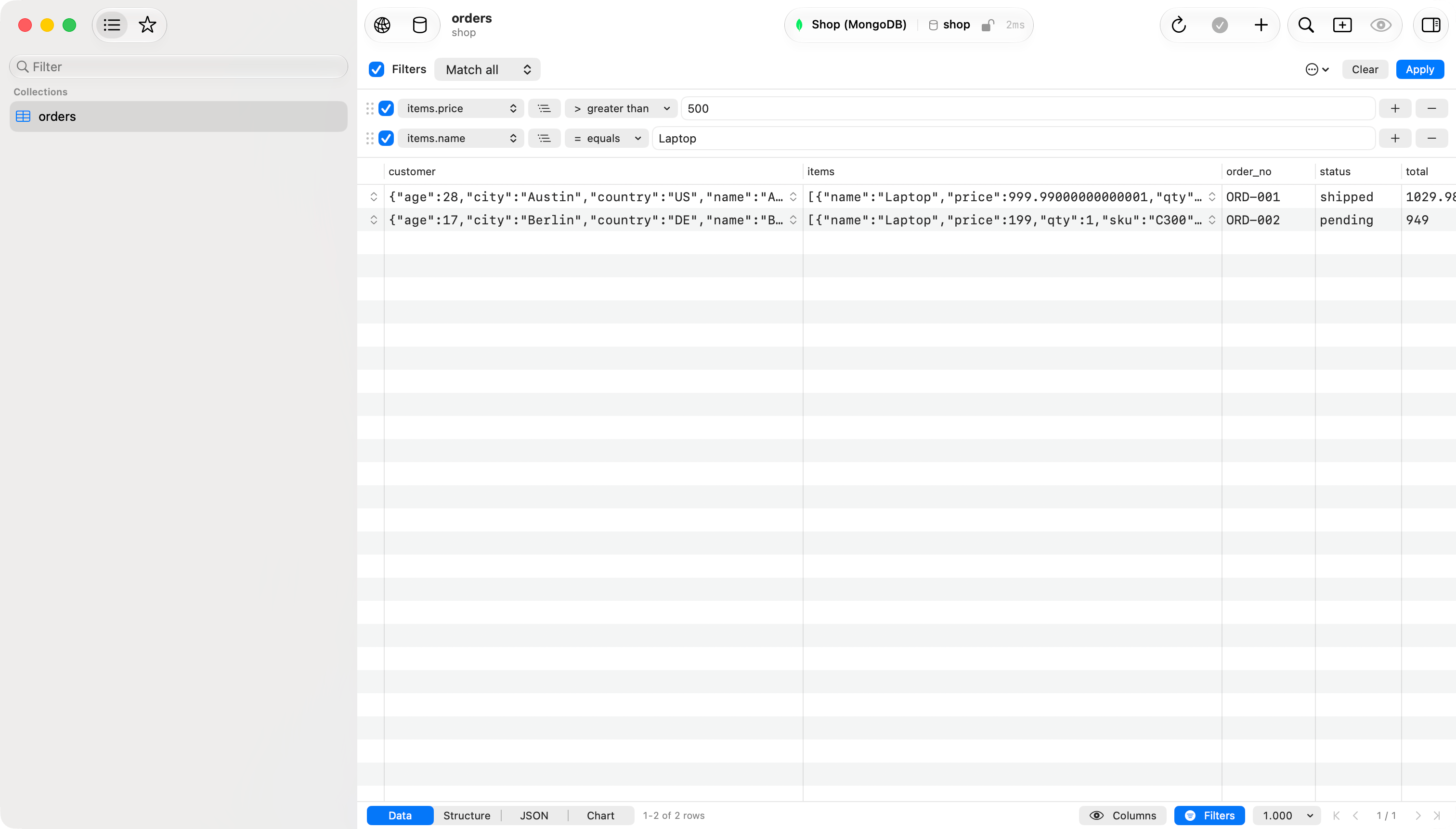
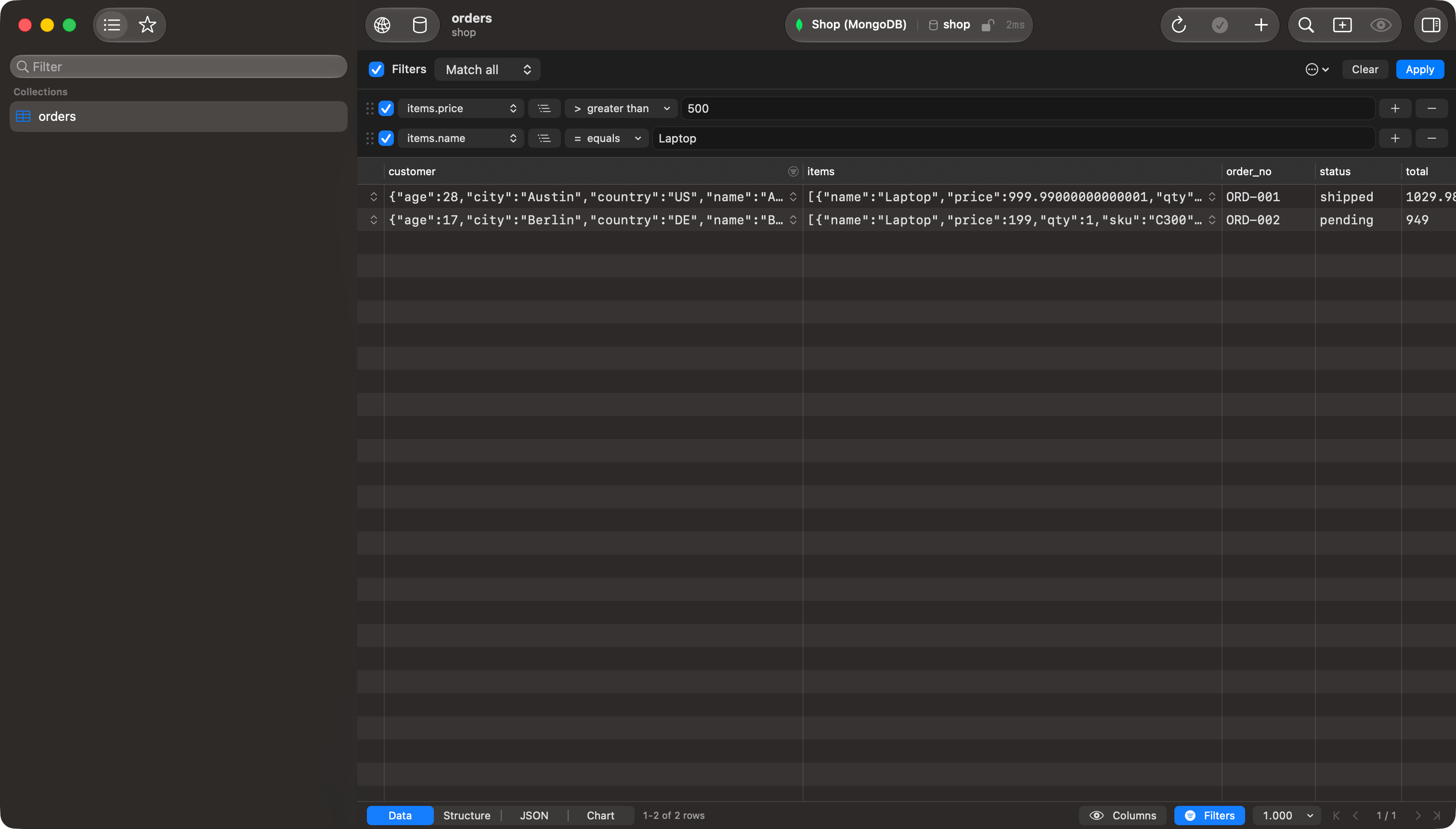
Two rows on items set to same element, so one array entry must satisfy both
Raw SQL
A new row starts in raw SQL, unless Default Column in the settings says otherwise, and picking a column from its picker switches it to column mode. Type any WHERE condition::: cast, and a position where the whole column list would be noise stays shut. Nothing in the list is selected until Up or Down selects it, so Return applies the filter. Once a suggestion is selected, Return or Tab inserts it. Escape dismisses the list without closing the filter bar. On a database that does not speak SQL the row is labeled Raw Filter and takes that database’s own syntax: on MongoDB, a filter document such as {"customer.country": "US"}.
Presets and settings
Both live in the ⋯ menu. Save as Preset… stores the current rows, clicking a preset name loads it, and Delete Preset removes one. Filter Settings sets what a new row starts as: Default Column is Raw SQL, Primary Key, or Any Column, and Default Operator is Equal or Contains. Always Show Filter Bar keeps the bar open on a table that has no filter. Saved Filters decides what reopening a table does with the rows saved for it.
Restore and apply is the default. Pick Restore without applying to see a table whole before deciding to filter it.