

Cmd+Enter sends one statement: the one the cursor is in. Semicolons separate statements, so a single tab holds a whole script and you run it a piece at a time.
SQL Editor with syntax highlighting
Run your first query
1
Open a query tab
Press
Cmd+T, or choose File > New Tab.2
Check the database picker
The toolbar picker binds this tab to one database. Changing it later affects this tab only.
3
Type a statement
Suggestions arrive as you type: tables after FROM and JOIN, a table’s columns after its alias and a dot. See Autocomplete.
4
Press Cmd+Enter
The statement under the cursor runs. Rows land in the grid below, under a tab named after the table they came from. See Query Results.
:name and fill it in when the query runs. See Query Parameters.
Cmd+O opens a .sql, .psql or .pgsql file as a query tab that Cmd+S writes back to. See SQL Files.
Running several statements
To run the whole tab, pressCmd+Shift+Enter, choose Run All Statements from the Run button’s menu, or use Query > Execute All Statements. Nothing needs to be selected first. Select text and Cmd+Enter runs the selection instead.
A batch runs top to bottom and stops at the first statement that fails. The error names its place in the run: “Statement 3/5 failed: …”. Each statement gets its own result, and each is recorded separately in query history.
A SQL Server script runs a batch at a time instead, cut at its GO lines, so a DECLAREd variable reaches every statement after it. See Scripts and batches.
Which transaction the batch runs in
The last row wins over the rest. The open transaction comes from a
BEGIN you ran with Cmd+Enter, a SET autocommit = 0, LOCK TABLES on MySQL or MariaDB, a SET TRANSACTION, SAVEPOINT or LOCK TABLE on Oracle, or an MCP client’s begin, and a batch that joins it sends no BEGIN, COMMIT or ROLLBACK at all: the script’s own text decides, so a script ending in COMMIT commits. Where a failed statement has left the transaction unable to commit, the message says to roll it back rather than offering the choice. A BEGIN left running here reaches the rest of the window too, so a grid save and a Users & Roles apply land inside it.
PostgreSQL, Redshift, CockroachDB, MySQL, MariaDB, TiDB, SQLite, DuckDB, SQL Server and Oracle report what their session holds. Anywhere else there is no answer to be had, so a plain batch is wrapped as it always was and a self-managed script is left alone after a failure, since the transaction its text opened may well predate the run.
Two things survive a rollback in any of those four cases. MySQL, MariaDB and Oracle commit a CREATE, ALTER or DROP the moment it runs, along with everything before it, and CockroachDB commits the open transaction before it processes any DDL at all.
Statements a transaction cannot hold
One of these anywhere in the batch leaves the whole of it unwrapped. The engine either refuses the statement inside a block, as PostgreSQL refusesVACUUM, or applies it and quietly throws it away, as SQLite does with PRAGMA foreign_keys.
The MySQL row covers the preamble a
mysqldump or mariadb-dump file carries, so a dump pasted into the editor runs the way mysql runs it. CockroachDB adds SET CLUSTER SETTING, BACKUP, RESTORE and IMPORT, and Redshift adds CREATE EXTERNAL TABLE, CREATE LIBRARY and ALTER TABLE … APPEND.
A CLUSTER or REINDEX naming one table, and a CALL of a procedure that commits inside itself, depend on the object rather than on the text, so the batch around them keeps its transaction. Run those on their own.
Redis has no transaction TablePro can open, so every command runs and answers as sent. A MULTI in the script opens a block of its own: each command after it answers QUEUED until EXEC, and a batch that fails or is stopped inside the block discards it. See Redis.
Stopping a batch
Stop (Cmd+.) acts between statements. The run halts before the next one goes out, and a transaction TablePro or the script opened is rolled back. A batch running outside a transaction keeps what it already wrote and shows no result for it, so refresh the table to see where it stands.
The commit is the point of no return. While it is on the wire Stop is dimmed and says why, and nothing else reaches it either: closing the tab releases the tab and nothing more, and disconnecting queues behind the commit, so the server finishes it either way. A script’s own COMMIT counts the same, and the statements after it become stoppable again.
If the connection dies while the commit is in flight, the result says the statements may or may not be saved and query history records them the same way. There is nothing left to ask, so no rollback is sent. Check the table before running them again.
Each tab runs its own queries
Stop andCmd+. act on the tab you are looking at. A query started in another tab, or on the same connection in another window, waits for the running one rather than stopping it: the waiting tab shows the ordinary Executing… spinner and a live Stop for as long as the other one runs, and a table opened in a new tab shows an empty grid with a spinner. Stopping the waiting tab leaves the running batch alone.
Statement markers
The editor marks which statement it is about to send.- The statement holding the cursor gets a faint band behind it. It is a decoration, not a selection, so your next keystroke does not replace it.
- Move the pointer over the gutter and a run button appears beside every statement. Click one to run that statement while the cursor is elsewhere. Their column is reserved at all times, so revealing them never shifts the text.
- A run button takes the same safe mode checks and parameter prompts as any other run, and dims while a query is running.
- VoiceOver reads each button as a button naming the line its statement starts on.
- A
BEGIN … ENDbody counts as one statement, so a trigger or stored procedure gets one button rather than one per line inside it.BEGIN;andBEGIN TRANSACTION;are statements of their own. On Oracle, a whole PL/SQL block or unit is one statement.
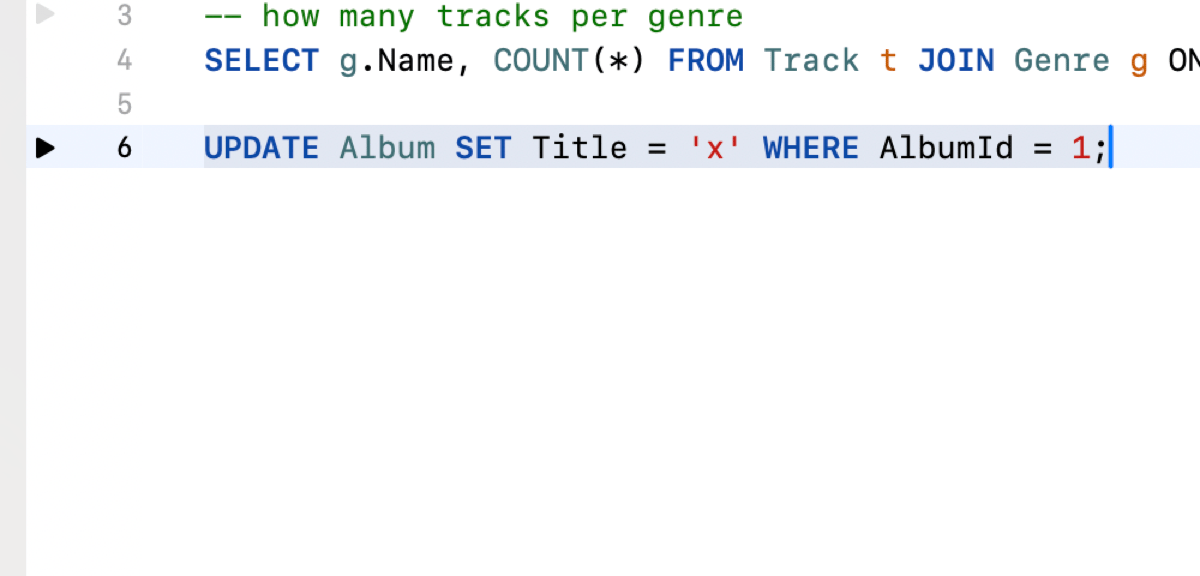
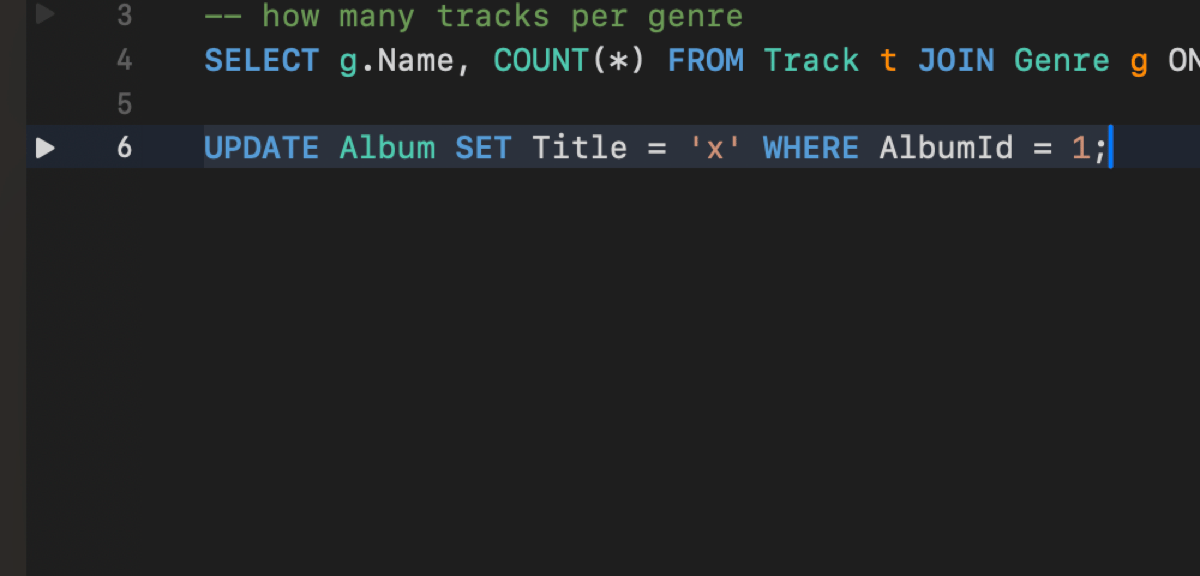
A run control beside each statement, and a band over the one at the cursor
Moving between statements
Ctrl+Cmd+Left and Ctrl+Cmd+Right step to the previous and next statement. From part-way through a statement, the first press back lands on that statement’s own start. Neither wraps.
Ctrl+Cmd+Enter runs the statement the cursor is in and then moves to the next one, so a script can be worked through without reaching for the pointer. The cursor moves first, so the next statement is visible while the current one runs.
Option+Shift+Up and Option+Shift+Down extend the selection by a statement, the way macOS extends a selection by a paragraph.
A statement hidden inside a collapsed fold unfolds when the cursor lands on it. All three commands are in the Query menu and rebindable in Settings > Keyboard.
Selecting text
Double-click takes a word, triple-click takes a line, and holding the button after either keeps extending at that size: a double-click drag moves whole words, a triple-click drag moves whole lines. Drag back past where the gesture started and that first word or line stays whole.Shift-click moves the far end of the selection and leaves the end you started from where it is, so
a Shift-click on the other side of the anchor turns the selection around instead of trimming it.
Shift-double-click and Shift-triple-click do the same to whole words and whole lines.
Operators select as one unit. Double-click the = in WHERE id = 1 and the operator comes back;
<= and || come back whole.
Drag past the top or bottom edge and the editor scrolls to follow at a steady speed. Extending with
Shift+arrow follows the end that is moving, so the moving edge stays on screen no matter how far
the selection already runs.
The JSON viewer, a table’s DDL and an import preview are read-only, and take the same arrow-key
movement and Shift+arrow selection as the editor here.
Inline diagnostics
Problems more typing cannot fix are underlined 500ms after you stop typing, and the underline clears as soon as you fix it. A red underline marks a structural mistake:
An orange underline marks a character that looks like SQL but reaches the server as something else. Chinese, Japanese and Korean input methods type these in full-width mode, and text pasted from a document or a chat often carries them.
SELECT 1; looks like a complete statement, but ; does not end it, so the editor and the server read it and the statement after it as one.
Each message names the character and the ASCII character to type instead. Query > Remove Invisible Characters turns every flagged space into an ordinary one in a single step. Orange underlines appear on SQL connections only, and none of them stops a query from running.
Full-width letters and digits inside a name written in another script, such as
売上2024, are not underlined. Full-width punctuation is, even inside a name: both parentheses in 价格(元) are flagged. Write such a name as a quoted identifier and the underline goes.
Text between ', " or ` quotes and text in a -- or /* */ comment is not checked. Neither is a # comment on MySQL and MariaDB, a $$ body on PostgreSQL, or a [bracketed] name on SQL Server and SQLite. On other engines, a # comment, a $$ body or a bracketed name is checked like the rest of the query.
A half-written statement is never flagged. An opener you have not closed yet, a string you are still typing, and brackets inside a string or a comment are all left alone. Documents over 100,000 characters are not checked at all.
Switching tabs or loading a query checks the new text the same way, without a keystroke. Rest the pointer on an underline to read its message. In VoiceOver, the rotor lists every underline under Query Issues, each read with its message.
On MongoDB connections the query parser runs as well, so an unknown collection method or a query that does not start with db. is underlined with the reason. Where the parser names the method, the method name itself is what gets marked.
Per-tab database picker
The editor toolbar carries a database picker, or a schema picker depending on the engine. Each tab binds to its own database, and switching the active database elsewhere leaves existing tabs on theirs. The picker lists the databases the sidebar’s database filter keeps, then the system databases after a divider. PostgreSQL, Redshift and CockroachDB reconnect the session to change database, so their picker shows a lock instead of a menu. The tab keeps the database it opened with, and a tab bound to anything other than the connection’s active database runs on a separate connection. See Cross-Database Tabs.Find and replace
PressCmd+F to open the find panel, Cmd+G and Cmd+Shift+G to walk the matches. Switch the panel to Replace mode to replace the current match or all of them. Match modes are contains, matches word, starts with, ends with, and regular expression, each with match case and wrap around toggles.
The editor also carries multiple cursors, for editing several places at once.
Formatting
PressCmd+Shift+L to format the statement at the cursor. The toolbar’s format button and Query > Format Query do the same, and the shortcut is rebindable in Settings > Keyboard.
The token-based formatter breaks a line per clause, indents two spaces, cases keywords per Settings > Editor > Keyword case, and keeps your comments, string literals, cursor position and dialect identifier quoting (MySQL backticks, PostgreSQL double quotes). JOINs, subqueries, CASE expressions, recursive CTEs, window functions and set operations are all handled. Procedural blocks pass through with minimal changes: PL/pgSQL DO, stored procedures, T-SQL BEGIN/END.
Before:
Invisible characters
Characters that would otherwise draw as nothing, or as an ordinary space, are marked where they sit. A mark is the character itself: select it, arrow past it, or delete it like any other text.

A backspace before SELECT, a non-breaking space before LIKE, a zero-width space after Composer
Emoji sequences, variation selectors, and the joiners Arabic, Persian and Indic text rely on are left unmarked.
Control characters never arrive by typing. A stray backspace an input method sends, or a chord such as
Ctrl+Option+H, is dropped. Pasted text is kept exactly as copied, with every invisible character marked.
Choose Query > Remove Invisible Characters to clean a query. With nothing selected, it removes marked characters outside string literals, quoted identifiers and comments. Special spaces, form feeds and vertical tabs become ordinary spaces, and a line or paragraph separator becomes a line break. Select text first to clean inside a literal as well. Cmd+Z undoes the whole change.
Invisible characters around a statement, such as a byte order mark in front of SELECT or a non-breaking space on the line after it, are not sent with it, and a line holding nothing else gets no run button. A NUL character inside a statement stops it from being sent. Remove the character and run it again.
A database often quotes the offending character back in its error message. Error messages show each marked character as its short name in angle brackets, so SQLite’s reply to a stray backspace reads unrecognized token: "<BS>". The error banner, query history and the other panes that show a database error also color the name orange and tint a special space. In an error alert, a special space shows as an ordinary space. The banner’s copy button copies the database’s text as it arrived, for a search or a bug report.
To hide the marks in the editor, turn off Show invisible characters in Settings > Editor. Read-only views, such as the AI assistant’s code blocks, and error messages always show them.
AI assistance
Review in the query bar sends the statement at the cursor, with the structure of the tables it names, for a review. Its menu holds Explain with AI (Cmd+L) and Optimize with AI (Cmd+Option+L), which send the same statement. When a query fails, Fix with AI in the error banner rewrites it. Inline suggestions complete your SQL as ghost text: Tab accepts, Escape dismisses. See AI Assistant for what each action sends.
For the execution plan rather than an opinion, press Cmd+Option+E and see Explain Visualization.