

Quick setup
Click New Connection…, select SQLite, pick the file with Browse…, and click Save & Connect. There is no host, port, or credential to fill in. The driver ships inside TablePro with its own SQLite 3.53.4, whatever macOS version you run, so there is no server version to match..db, .db3, .s3db, .sl3, .sqlite, .sqlite3, and .sqlitedb files list TablePro under Finder’s Open With, as an alternate handler rather than the default one. To make a double-click open them here, select one in Finder, press Cmd+I, set Open with to TablePro, and click Change All….
A database saved under some other name still opens. Drag it onto a TablePro window, pick it in File > Open File…, or drop it on the Dock icon, and the first sixteen bytes decide the driver: a file that starts SQLite format 3 opens here whether it is called store.bin, export, or data.csv. Finder’s double-click is the one route that still needs a name it knows.
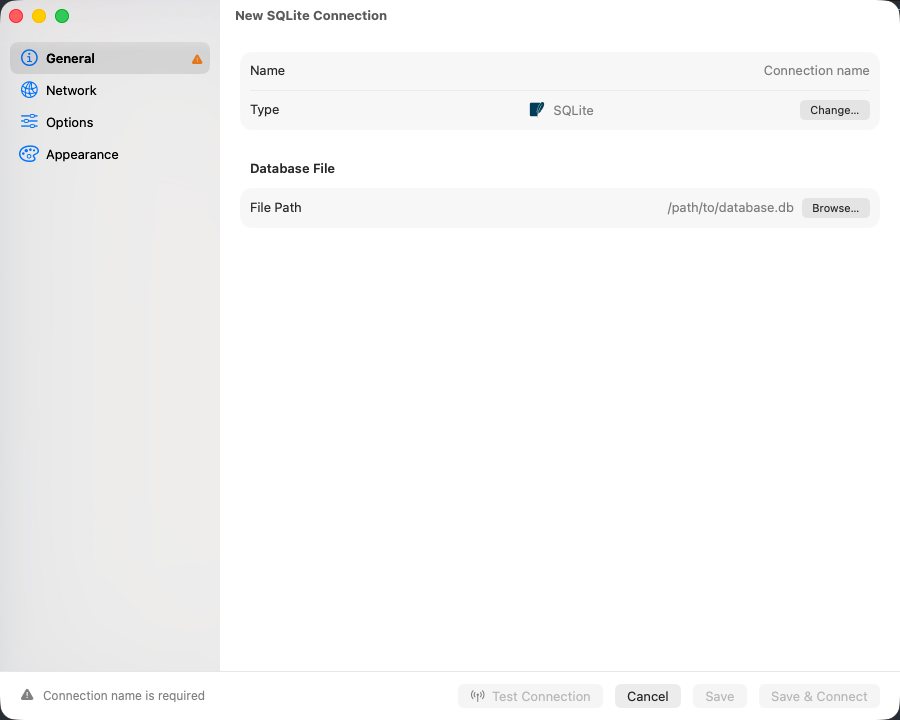
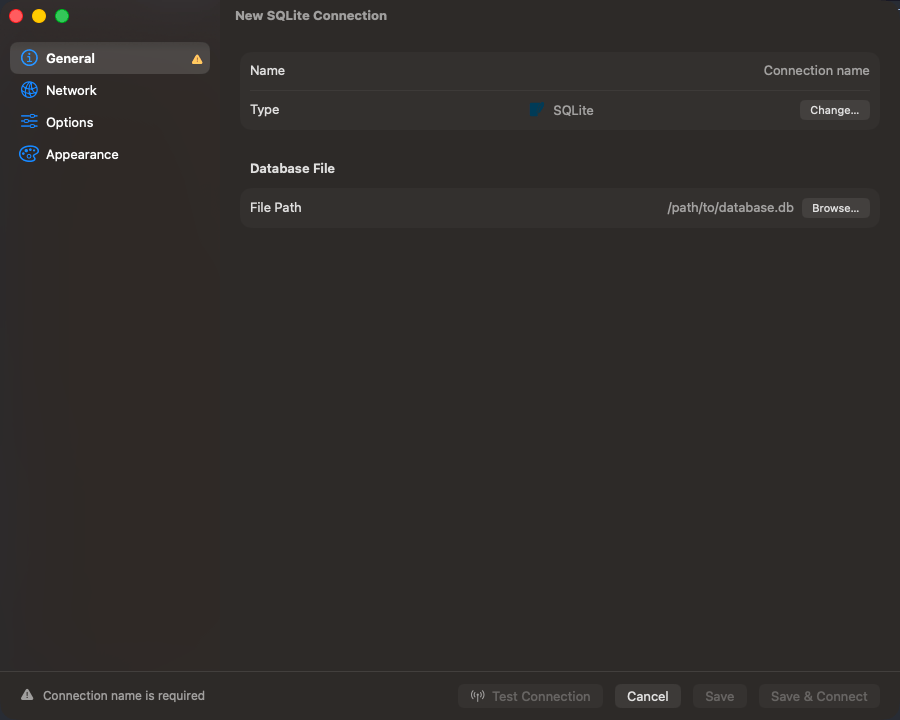
SQLite connection form
Common locations
Connection URL
Browsing
The sidebar lists tables and views and hides the internalsqlite_* tables. Each table carries its columns, constraints, indexes, foreign keys, and DDL; triggers can be read and edited.
Change the file outside TablePro and the object list reloads on its own. Rows already loaded in a tab stay until you refresh that tab.
One connection is one file, with no database to switch between, and the object list reads the main database only: a file you ATTACH in the editor is queryable as alias.table but never appears in the sidebar.
Extensions
A database built with sqlite-vec, SpatiaLite or another loadable extension cannot be read until that extension is loaded: a statement touching its tables fails withno such module: vec0 or no such function: ST_AsText.
1
Open the connection's Options
Right-click the connection in the welcome window, choose Edit…, and select Options. A new connection from File > New Connection… has the same pane.
2
Add the library
Click + under Extensions and choose the file:
vec0.dylib from a sqlite-vec release, or /opt/homebrew/lib/mod_spatialite.dylib after brew install libspatialite. The file panel hides /opt: press Cmd+Shift+G in the panel and type the folder. A row’s path can be edited in place afterwards, with the whole file name, .dylib included.3
Save and connect
Click Save, then connect. The extension’s functions and virtual tables answer in the editor, the sidebar and the Structure tab.
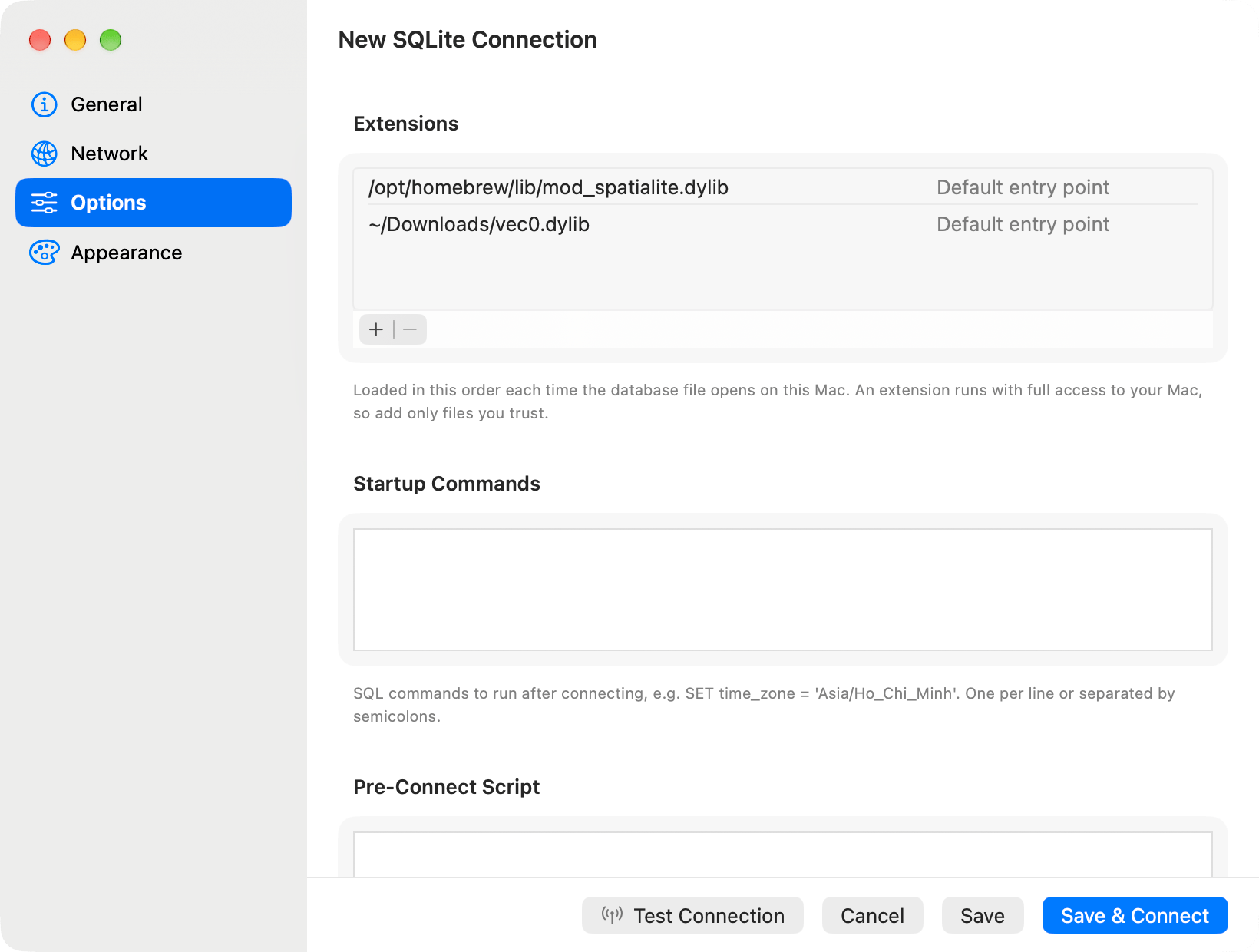
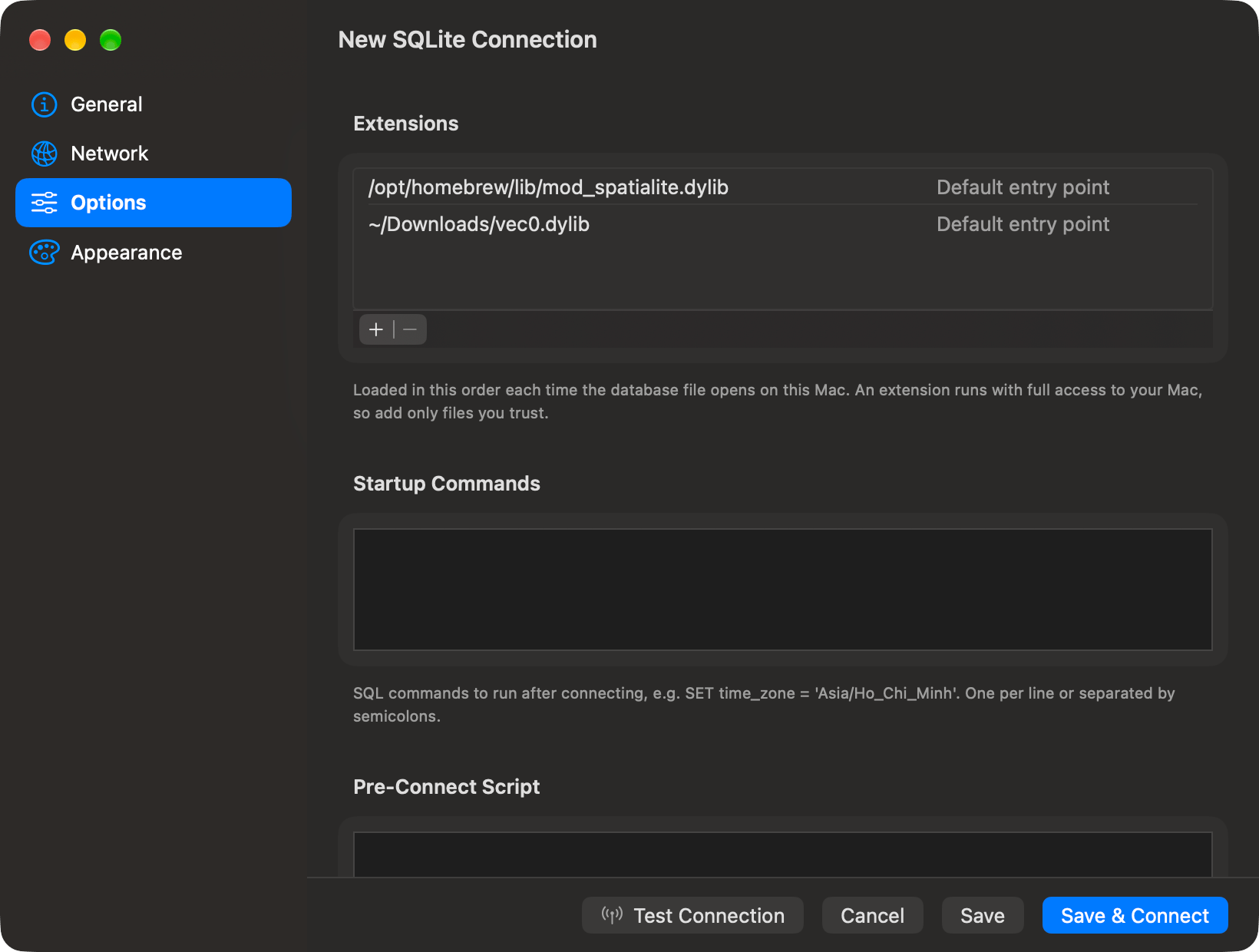
Two extensions, loaded top to bottom
sqlite3_vec_init for vec0.dylib. Fill it in for a renamed file, or to call a second function the same library exports, such as sqlite-vec’s sqlite3_vec_numpy_init.
Only this list loads code. The load_extension() SQL function stays refused, so a statement in the editor, an import or an AI client cannot load a library.
An extension’s functions can write files, so statements from MCP clients, AppleScript and the AI assistant may call only the functions built into SQLite on a connection that loads extensions. A vector search written with MATCH passes; SELECT vec_distance_l2(a, b) is refused with This connection loads SQLite extensions. Run such statements in the editor.
A list from somewhere else
An extension runs inside TablePro with full access to your Mac. A list that arrived through iCloud, an imported connection file, atablepro:// link, a linked folder or the team library therefore loads nothing until you approve it: connecting shows a Load Extensions alert naming every file, and Load Extensions records the answer for that connection on this Mac. At launch such a window waits with a Connect button instead of asking. Files added in the form on this Mac need no approval.
A library downloaded in a browser
macOS refuses a library that still carries the quarantine flag a browser sets, and the connect fails withlibrary load disallowed by system policy. If you trust the file, clear the flag:
mach-o file, but is an incompatible architecture. sqlite-vec publishes separate macos-aarch64 and macos-x86_64 archives.
A database on another machine
The Remote File pane points the connection at a database on an SSH server, and the Open menu beside the path decides how it is reached. On the Server runs your statements on the server against the live file, so reads and writes land on the database the server’s own programs are using. As a Read-Only Copy fetches a snapshot over SFTP and opens it on this Mac, and the original is never touched. On the Server needspython3 on the host, which every mainstream cloud image already carries, and nothing is installed. The read-only copy needs only SFTP, and it runs at Safe Mode Read-Only. See Remote Database Files.
Edits that recreate the table
ALTER TABLE covers renaming a table or a column, adding a column, dropping a column, and from 3.53 adding or dropping a CHECK. Everything else the Structure tab offers is made by writing the table again: a foreign key added or removed, and a column’s type, nullability or default changed.
A rebuild writes the table with the definition you asked for, copies the rows across with their rowids, puts the indexes and triggers back, and checks the rows against any new foreign key before committing. The script is shown in full and runs only when you confirm it, and everything staged in the same save travels in the same transaction.
Each column keeps its own stored text, so a CHECK, a COLLATE, a GENERATED ALWAYS AS and a DEFAULT containing a comma all survive a rebuild that touched a different column.
A column declared without a type, such as body in CREATE TABLE notes (id INTEGER PRIMARY KEY, body), has an empty Type cell. CREATE TABLE … AS SELECT declares one for every selected expression that is not a plain column or a CAST, so price + 1 AS total arrives typeless. Rename, index, drop or edit such a column like any other and it stays typeless. A type is required only on a column you add, or on one whose type you clear.
Changing a column’s type re-reads every value in it through the new affinity. Text that looks like a number becomes one, so '007' in a column retyped to INTEGER is stored as 7. The review sheet says so before the script runs.
A virtual table, such as an FTS5 table, cannot be recreated from what SQLite stored for it. The save is refused and names the table.
Limitations
- Encrypted databases do not open. The driver’s SQLite takes no key, and the form has nowhere to put one. Decrypt a SQLCipher file with the
sqlciphertool first. - Extensions load only for a file opened on this Mac. A connection that runs On the Server refuses a list with
Extensions load only for a database file on this Mac: remove the list, or open the file As a Read-Only Copy, which loads it. - A column that is
INTEGER PRIMARY KEYcannot be retyped: the key would stop generating values and start storing NULL. The save is refused and names the column. - A primary key cannot be added, removed or moved.
Troubleshooting
database is locked
Another process holds a write lock. Quit the app that owns the file, or look for-wal and -shm files a crashed process left behind. The wait runs until the query timeout; Query > Cancel Query ends it sooner.
unable to open database file
The path is wrong, or the folder is one you cannot read. For anything under~/Library, grant Full Disk Access and relaunch.
file is not a database
The file is encrypted or is not SQLite at all.file database.db names what it actually is.
no such module: …
The database has a virtual table from an extension the connection does not load, such asvec0 from sqlite-vec. Add the library under Extensions.
Could not load the extension ”…”.
The line under it is the reason.There is no file at "…" means the path is wrong or the file moved. The file has no function named … means the entry point SQLite derived is not in the library: type the name its documentation gives into the row’s entry point field. For a download or the wrong architecture, see A library downloaded in a browser.