Connect to your first database and run a query in a few minutes
With no connections saved, the welcome window offers Open Sample Database, a bundled Chinook SQLite file that needs no server and drops you at step 4. Reset it any time from Help > Reset Sample Database….
1
Install TablePro
brew install --cask tablepro, or the DMG from GitHub Releases. See Installation. The first launch shows a welcome sheet; click Continue to reach the welcome window, and choose Help > Getting Started to see it again.
2
Create a connection
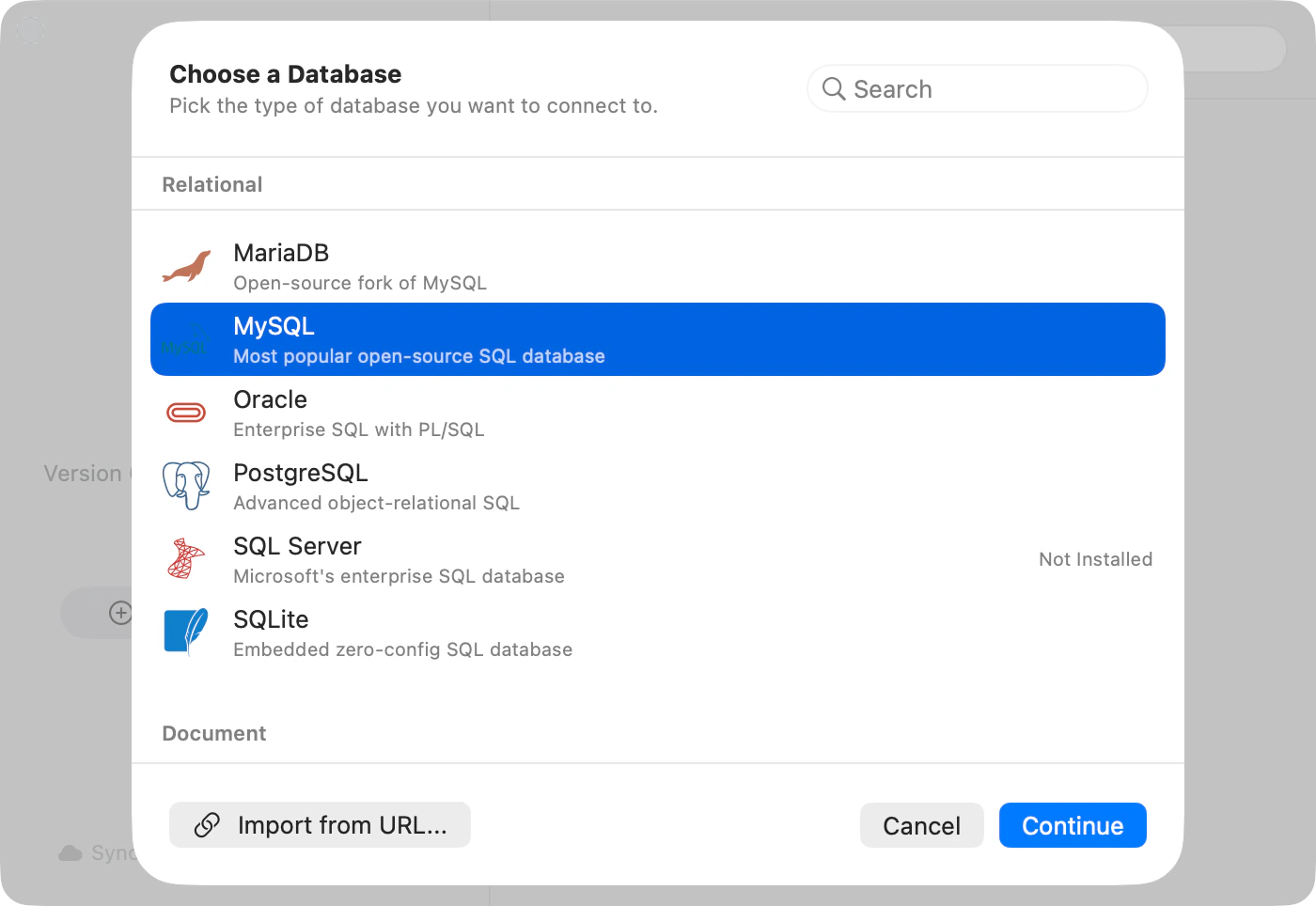
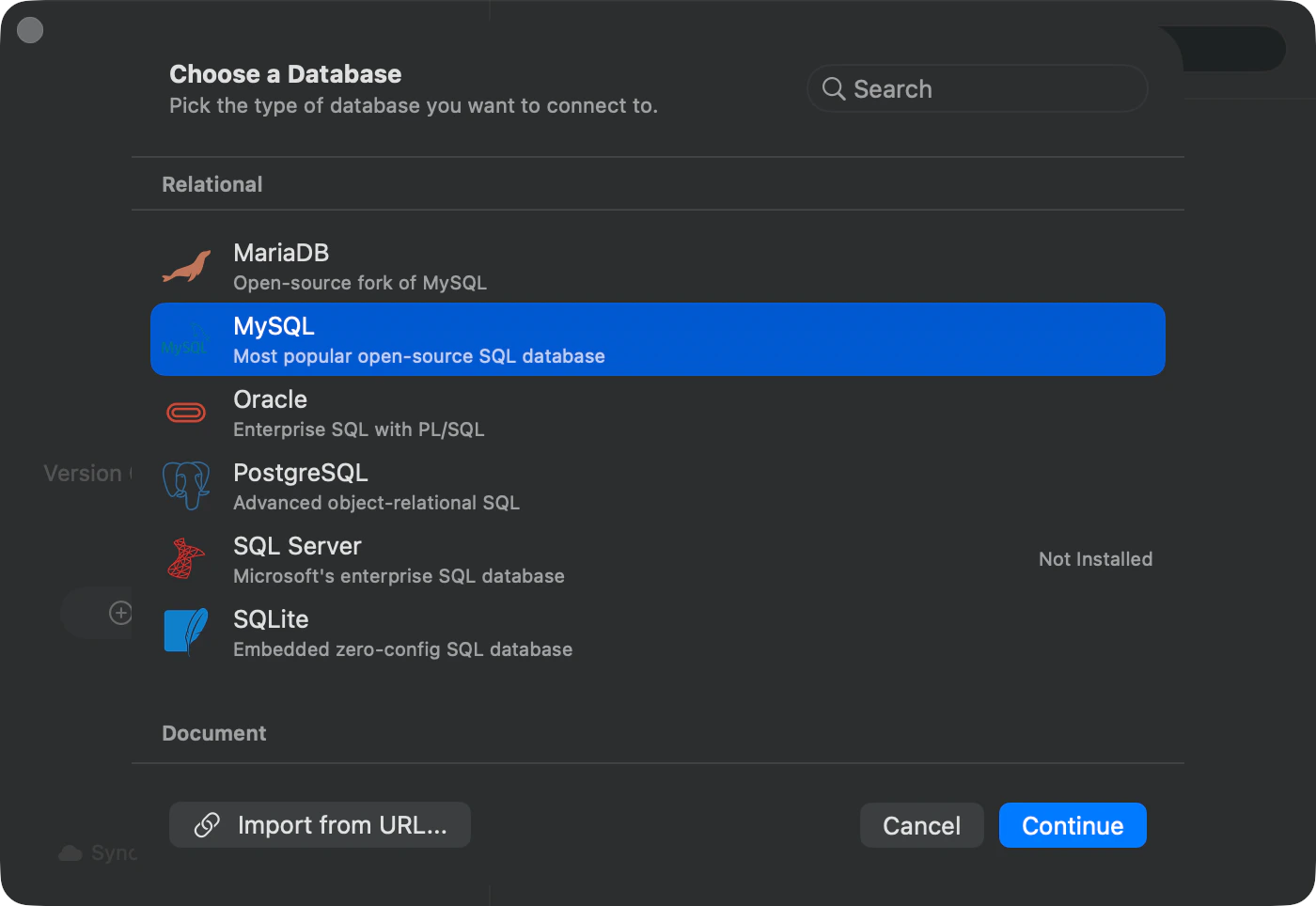
Click New Connection… in the welcome window, pick a type in the Choose a Database sheet, then click Continue. A type badged Not Installed downloads its driver before the form opens, with no restart.
Pick a database type
Already have a connection URL, another client’s connections, or a repository with a .env? The Import menu under New Connection… takes all three. See Switching to TablePro.
3
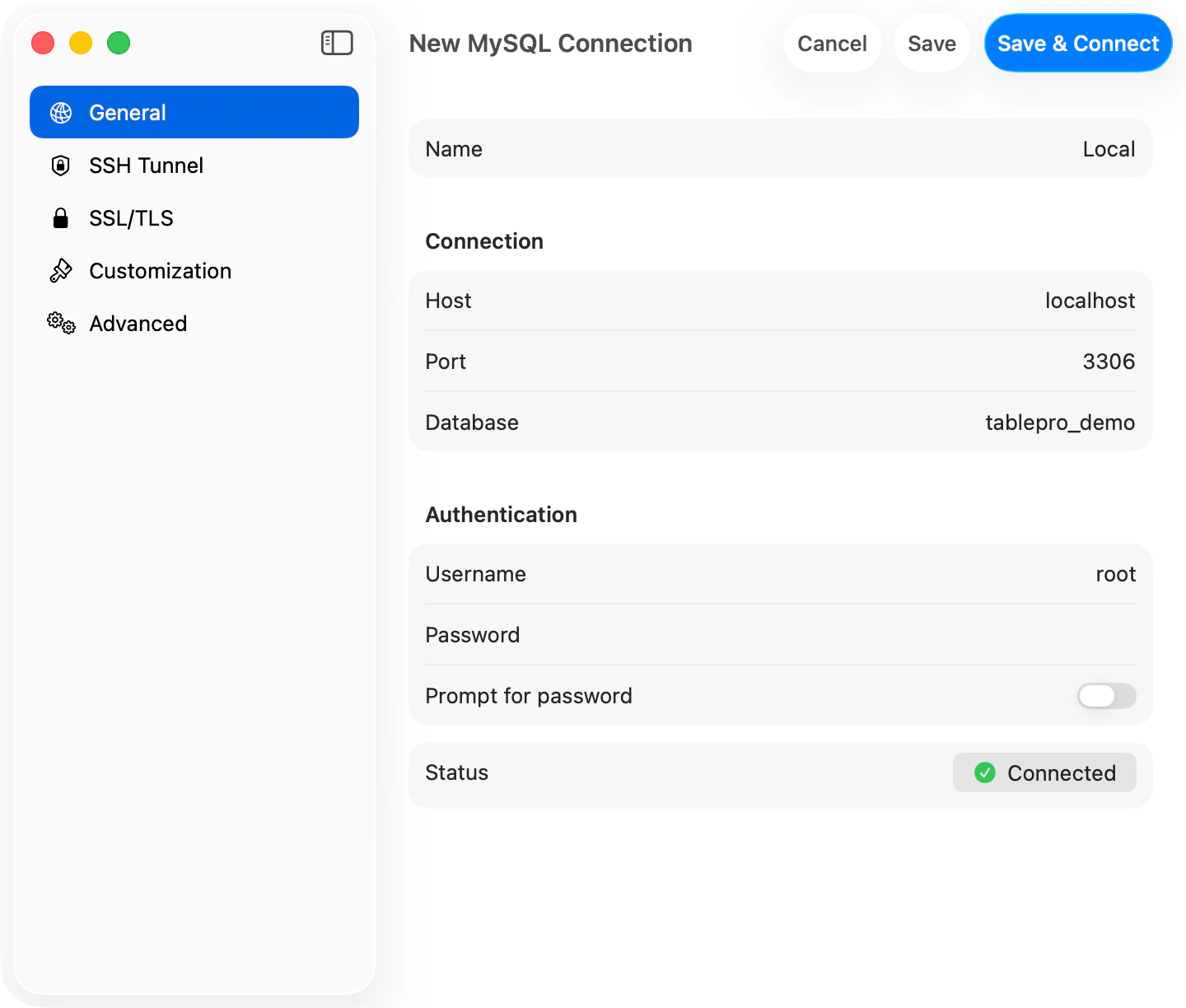
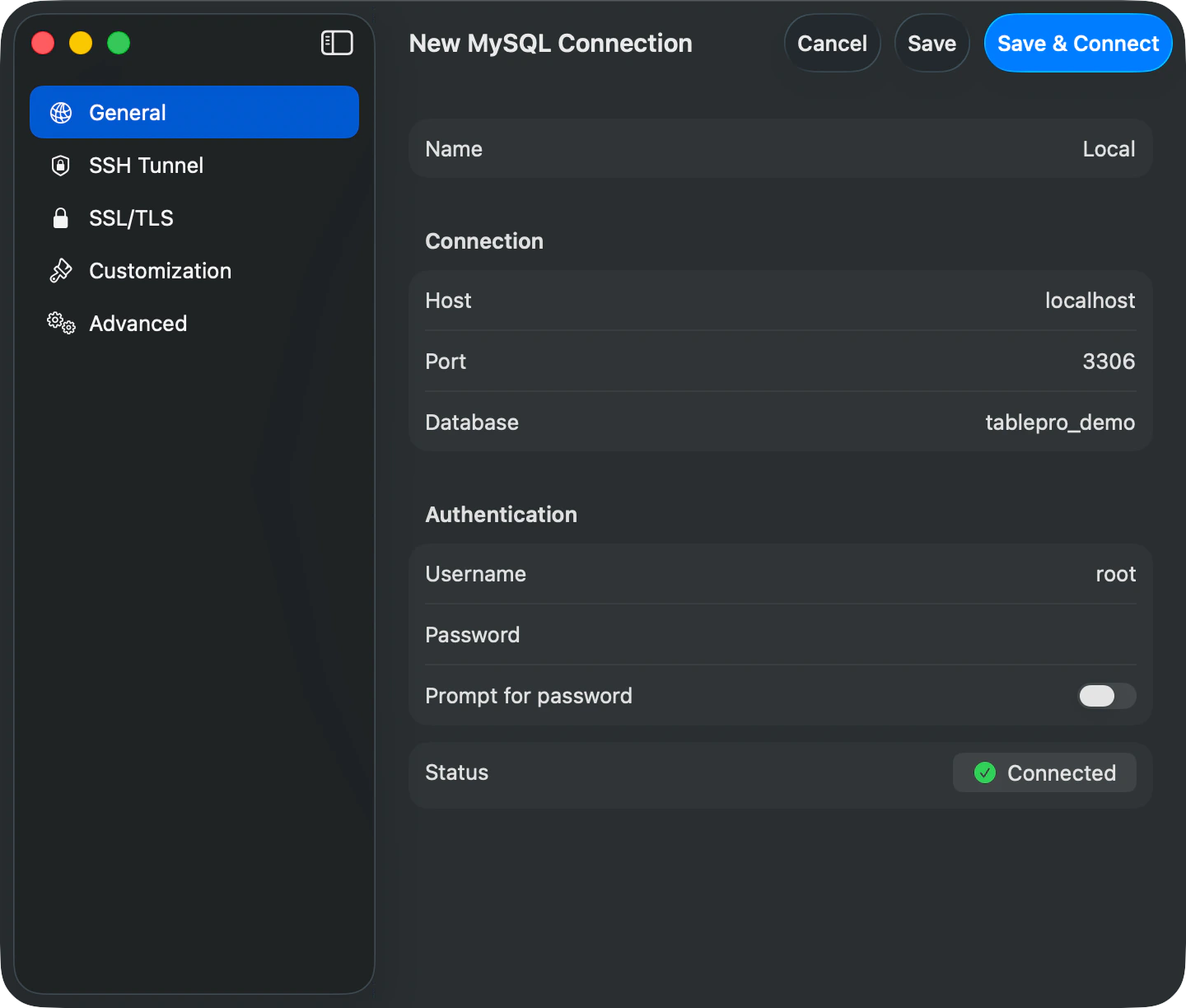
Fill in the form, test it, save it
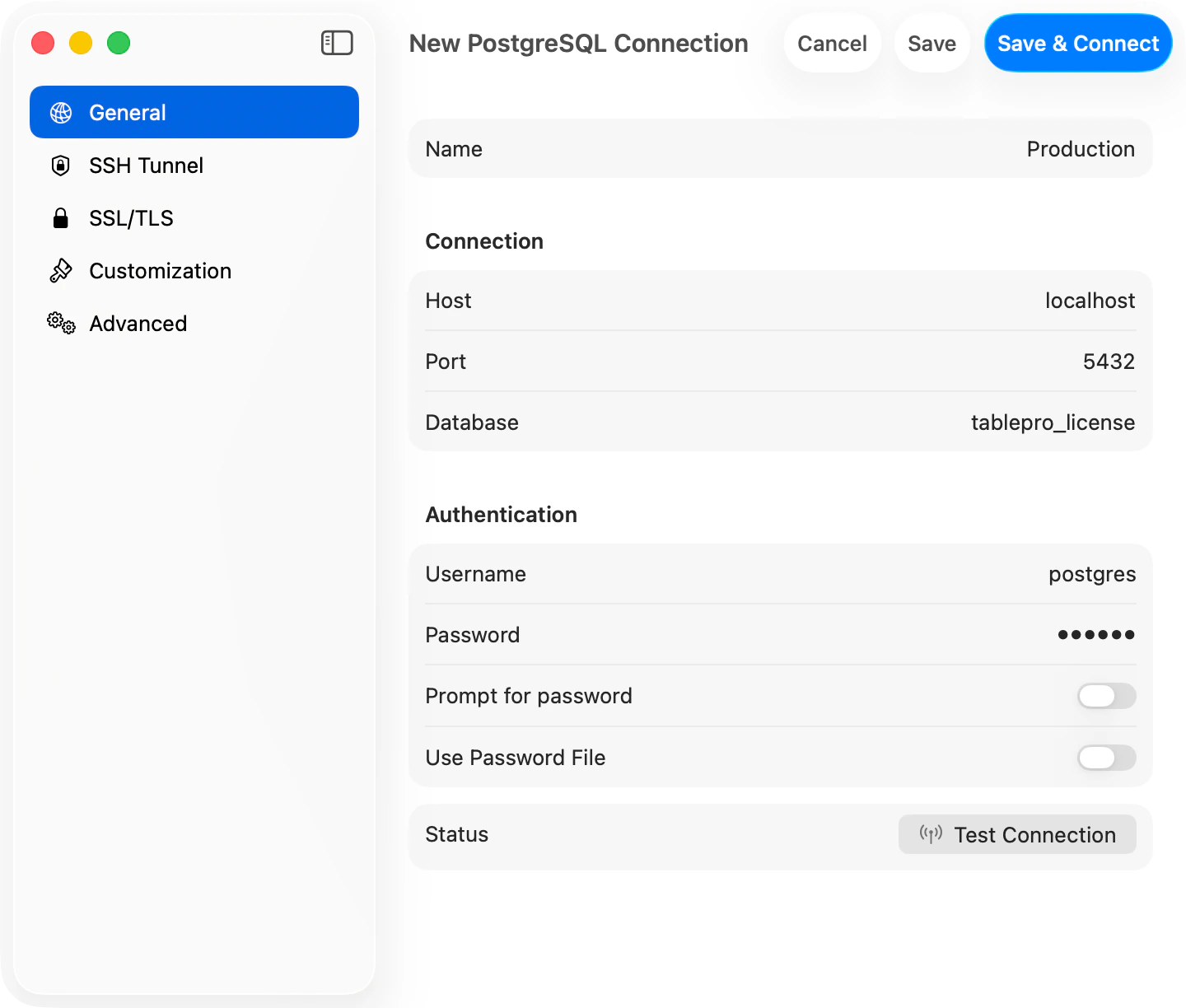
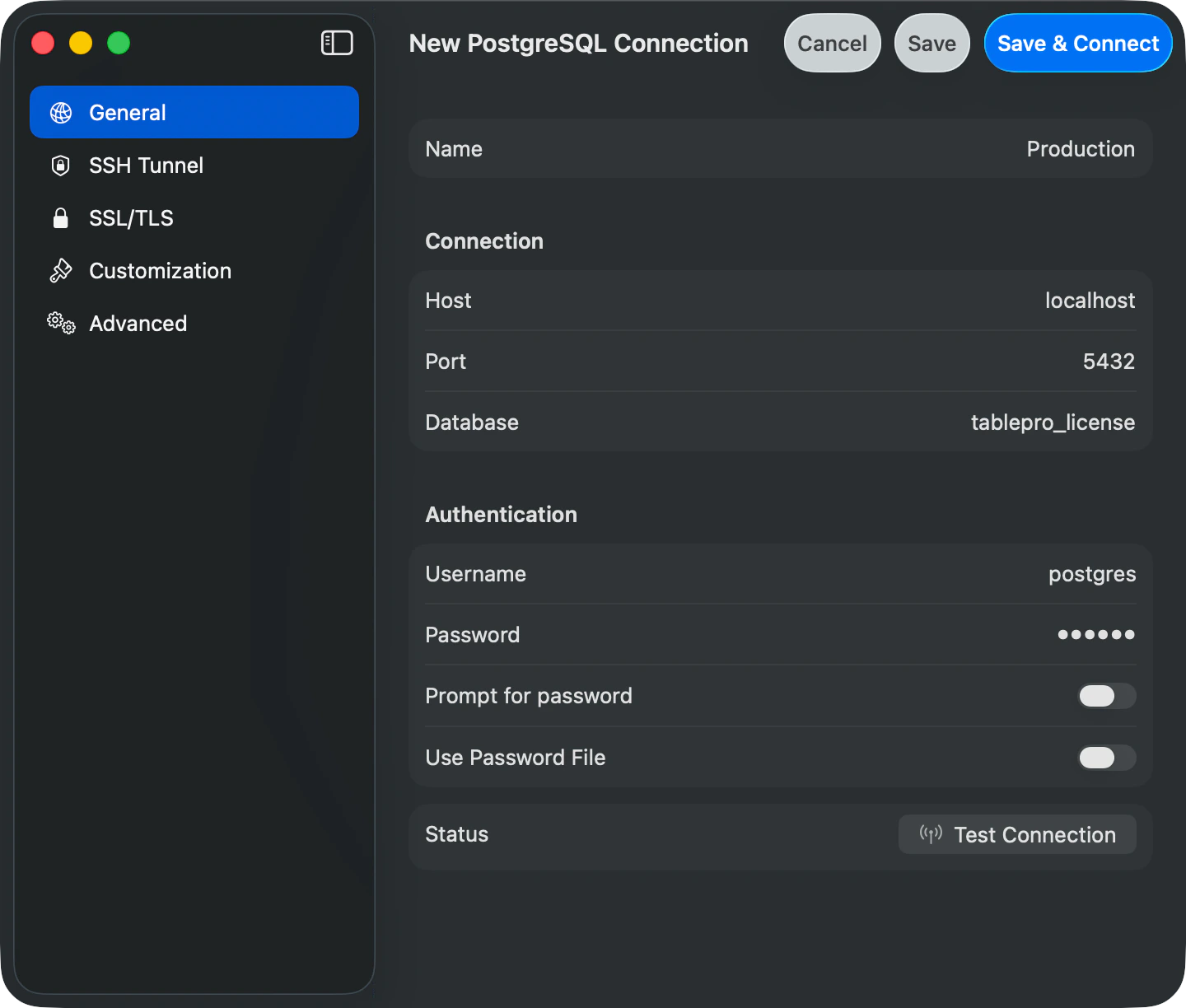
The host pre-fills to localhost and the port to the engine’s default. Username is optional: leave it empty and the database applies its own default. SQLite asks for a .sqlite or .db file instead of a host, with no credentials.
PostgreSQL connection form
Click Test Connection on the bar along the bottom. It turns into Connected with a green checkmark. Now click Save & Connect beside it.
Test Connection succeeded
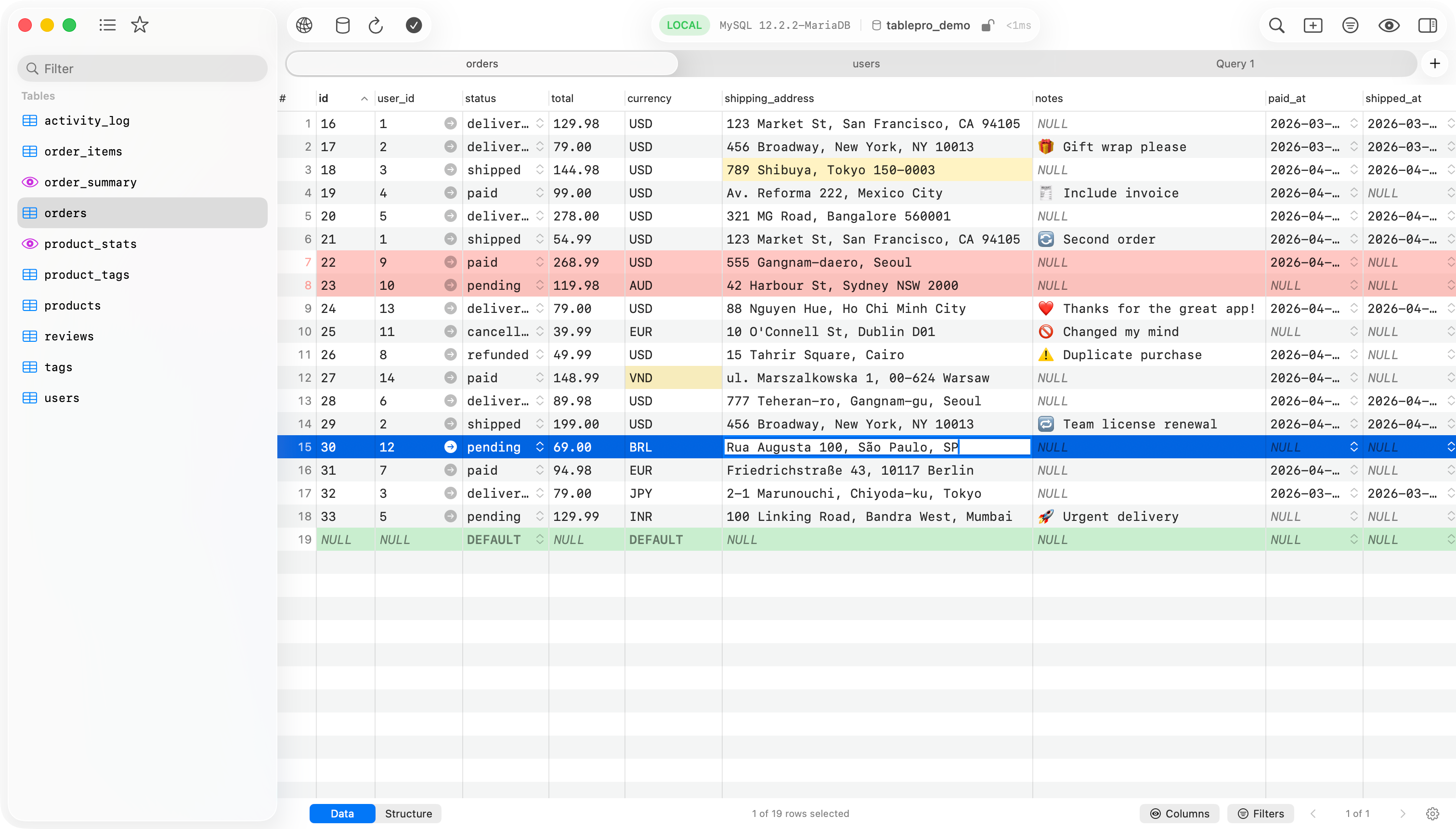
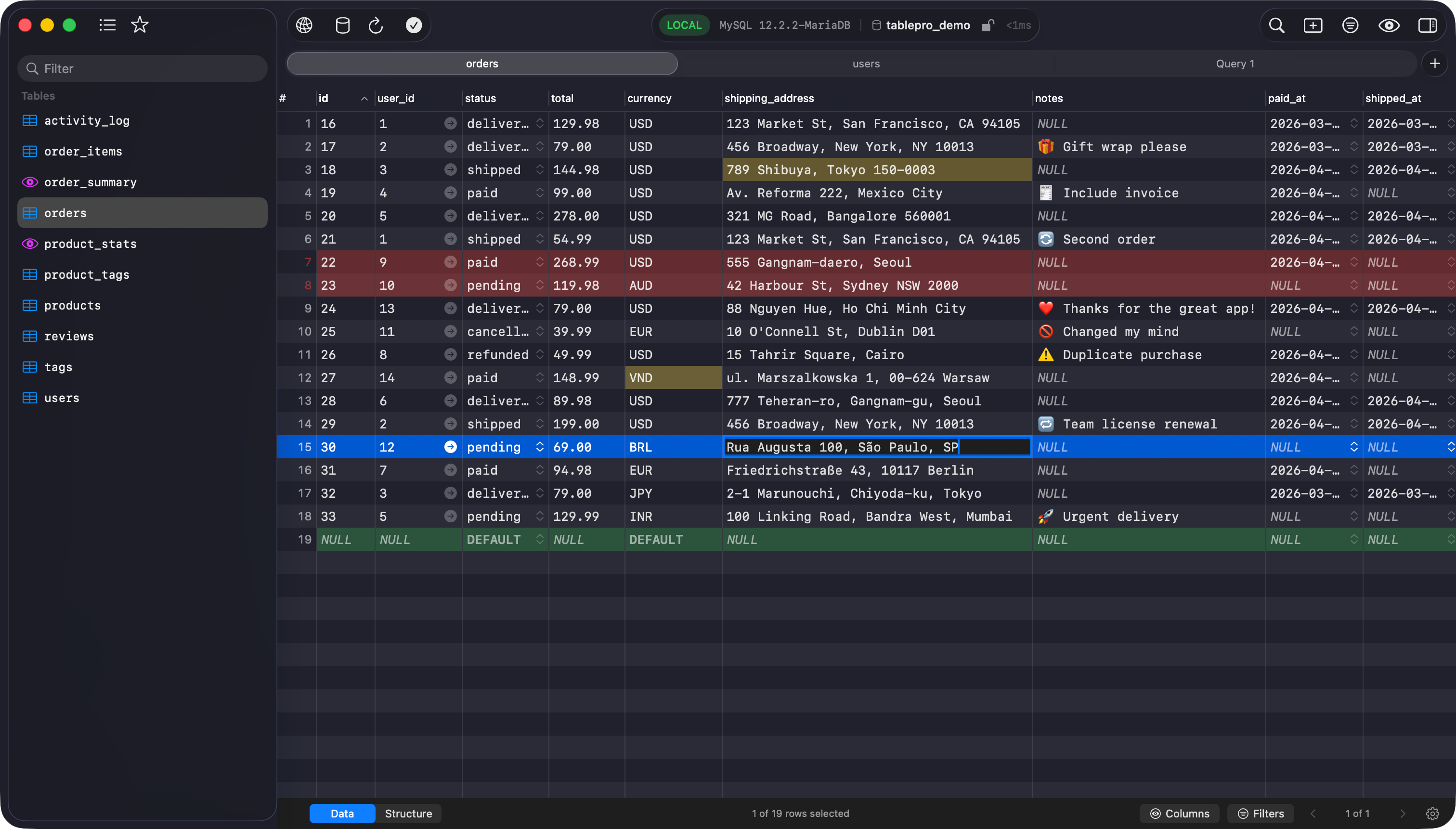
The window switches to the main layout: databases and tables in the sidebar, the open tab in the middle, the inspector on the right.
A failed attempt paints the window with the driver’s own message and a Try Again button instead. Troubleshooting sorts refused from timed out.
4
Run a query
Click a table in the sidebar to browse it. For SQL, press Cmd+T for a query tab, type, and press Cmd+Enter to run the statement under the cursor.