

Cmd+Y, View > Show Query History, or Show Query History under Actions in the toolbar. A History button is in the palette too, through Customize Toolbar.
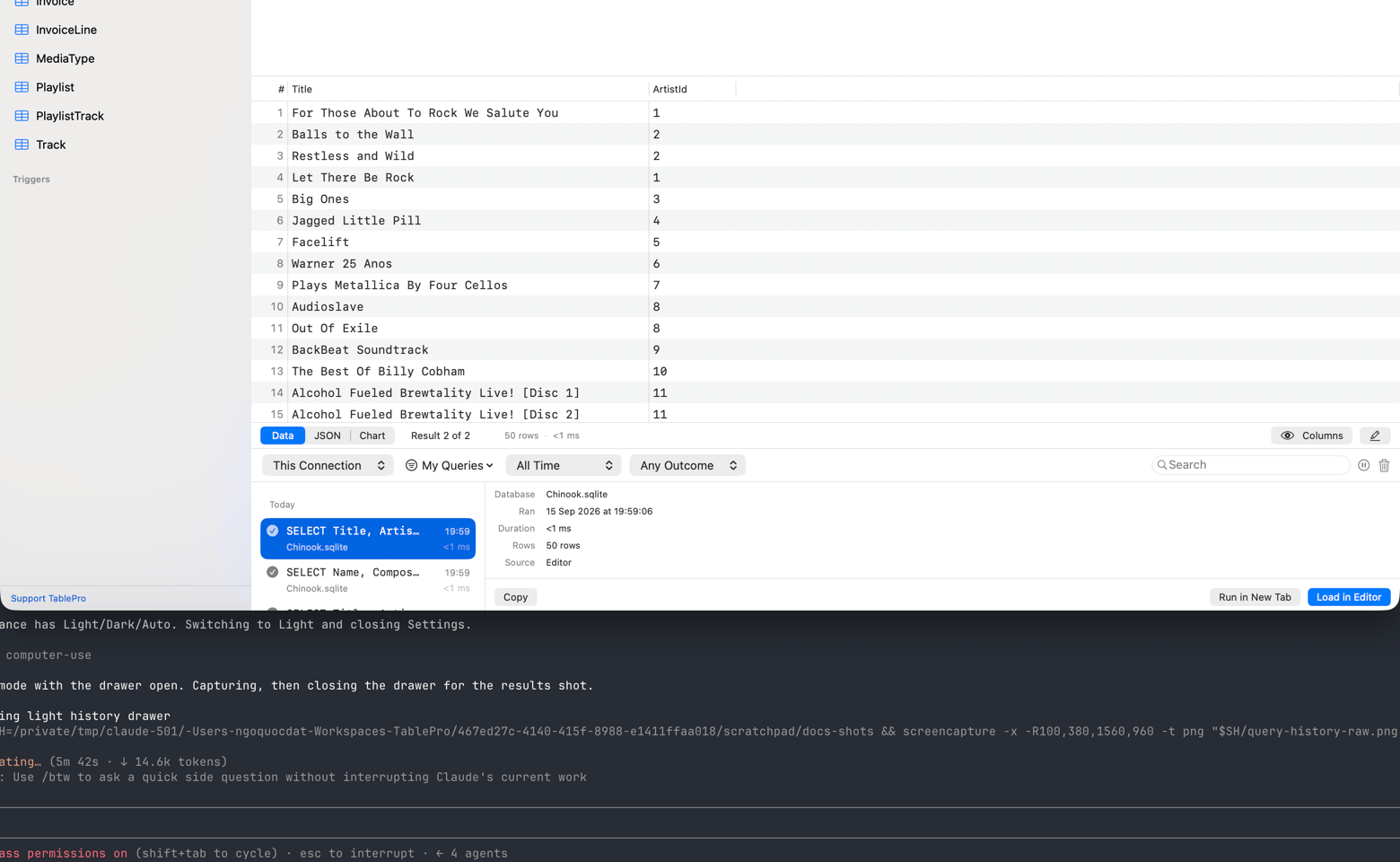
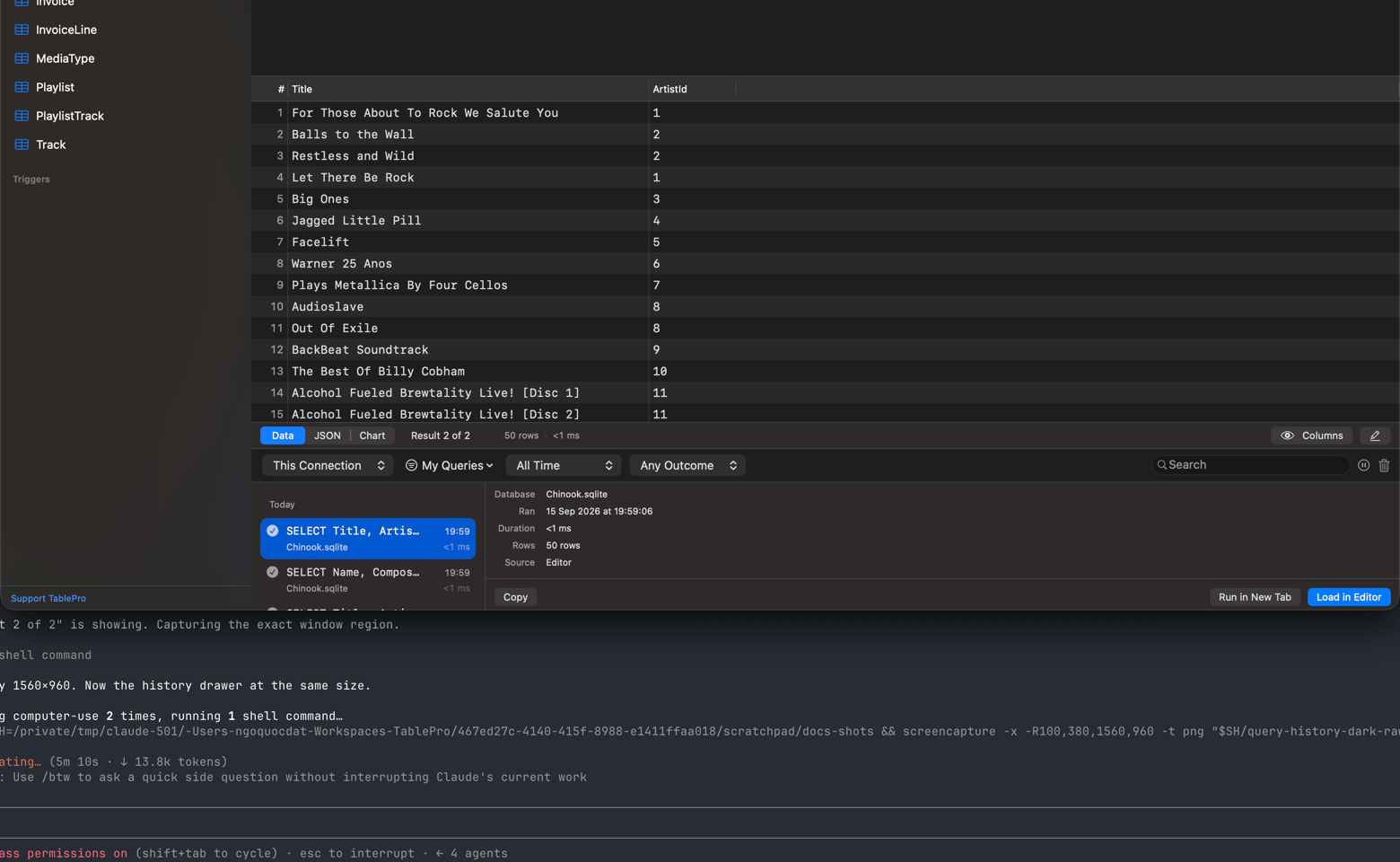
Query history drawer: entry list on the left, details on the right
The drawer
The drawer opens under the editor and its divider resizes it. Height, filters and whether it was open are remembered per connection. Entries group by day, newest first, under Today, Yesterday, or the date. A row carries the outcome, the query text, the database, the time it ran and how long it took. Under a millisecond reads<1 ms; a step whose duration was never measured reads – rather than 0 ms.
Select a row and the right pane shows the full query, highlighted for the database it ran against, with its connection, database and schema, timestamp, duration, row count, source, and the error when it failed. Where the driver separated execution from transfer, the duration is listed as its parts instead: see How long it took. The keyboard stays in the list, so arrow keys keep moving.
Recent queries also appear in Open Quickly. For the summary rather than the list, see Query Insights.
Filtering
Search matches partial words, so
cust finds customers. Several words must all match but need not be adjacent: select customers finds SELECT id, name FROM customers.
All Connections searches everything you have, and rows then name their connection, so two databases both called app stay apart. Reset Filters puts the drawer back to its defaults.
Sources
My Queries, the default, is Editor and Explain. Add Table Browsing to see what the app sent while you clicked around a table, Structure Changes to review what altered a schema and when.
Saved EXPLAIN plans
A successful EXPLAIN also saves its plan, so a later run of the same query can be compared against it. See EXPLAIN Visualization. Pausing history stops saving plans. Clearing, pruning or deleting history does not delete them: a saved plan outlives the run that produced it, and pinning one exempts it from cleanup entirely. Unpinned plans are pruned oldest first once they pass 100 MB in total.Working with entries
Run in New Tab goes to the server, so an entry that writes asks for confirmation whatever the connection’s safe mode is set to. Reads run straight away, and an entry using query parameters raises the parameter panel instead.
An entry belonging to another connection loads into a new tab in that connection’s own window rather than running against the connection in front of you. Run in New Tab is dimmed for those entries: load it there and run it from that window.
Pausing
The pause button stops recording on this Mac, from every source: row edits, structure changes, imports and AI clients included. The drawer says so until you resume. Pausing is local to the Mac you press it on and survives relaunch.Clearing history
The trash button deletes exactly the entries the drawer is listing. Anything the source, date, outcome or search filters are hiding stays, which at the default My Queries source spares table browsing, row edits, imports and AI queries. The confirmation names what it is about to delete. There is no undo. Settings > Data > Query History > Clear History… clears everything, for every connection.Storage and retention
History lives in~/Library/Application Support/TablePro/query_history.db, a local SQLite database with a full-text index. It never leaves the Mac that recorded it: query history is not one of the categories iCloud sync carries, so two Macs keep two separate histories.
There is no export command. The file is an ordinary SQLite database, so open it as a SQLite connection and query it like anything else.
Configure retention in Settings > Data > Query History:
Deleting a connection deletes its query history with it.
Parameter values are never recorded here, and the user and role editor never records a statement carrying a password, such as
CREATE USER … IDENTIFIED BY. A query you wrote yourself is recorded as you wrote it, so pause before running one that contains a secret.
Search from external clients
Thesearch_query_history MCP tool returns matching entries with timestamp, connection, query text, source and outcome. The Raycast extension wraps it in a Search Query History command; see Raycast commands.