

Cmd+N anywhere in the app to open the connection form. New Connection… on the welcome window does the same, and the Import menu under it takes one from a URL, another client, an exported file, or a project folder. Saved connections fill the right side of that window. The search field in its toolbar, focused by Cmd+F, matches name, host, database, username, type, tag and group. The window keeps one size and remembers where you left it on screen. Until you save a connection, that side offers Open Sample Database instead, plus Import from Other App… when a client TablePro imports from is installed.
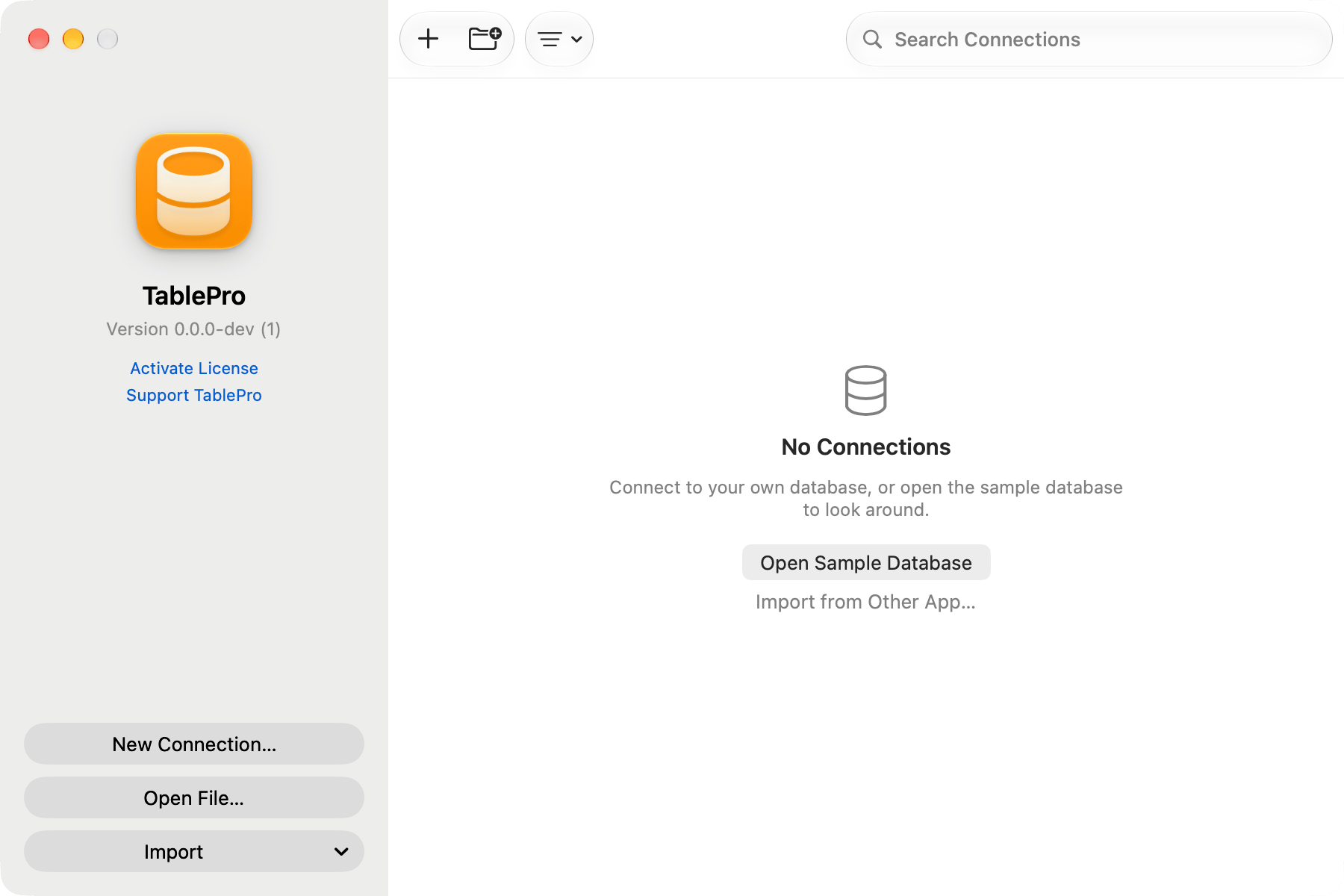
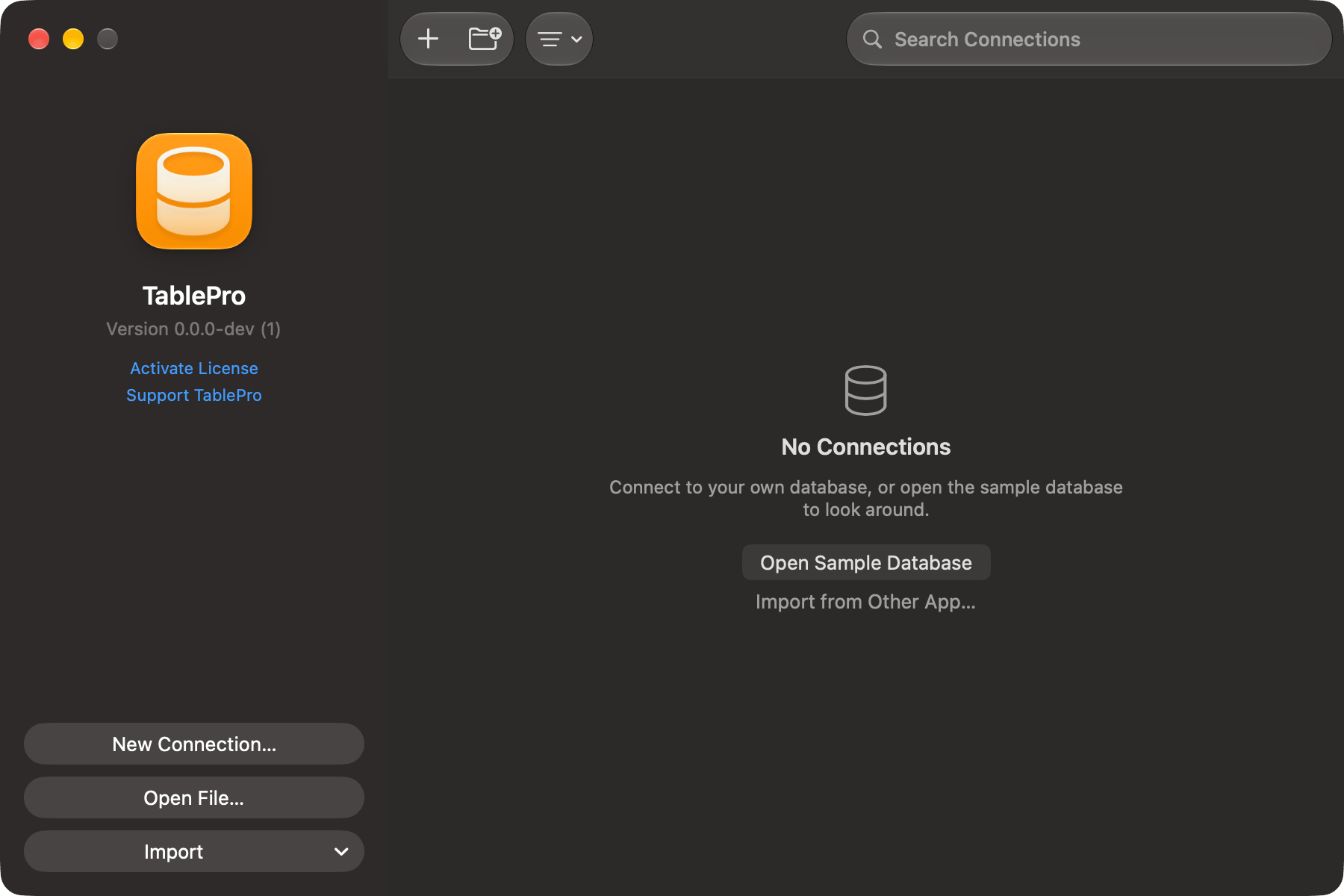
Welcome window
Create a connection
1
Pick a database type
The chooser sheet groups drivers as Relational, Document, Key-Value, Analytical, Wide-Column, Cloud Native, Coordination & Config, and Other. Picking a driver badged Not Installed offers the download before the form opens. See Plugins.
2
Fill in the connection details
Host, port, and credentials live on General. Everything else sits on Network, Options and Appearance; see Connection form.
3
Click Test Connection
On success the button becomes a green checkmark and reads Connected. When the server accepts the login with a warning, such as a password about to expire, the checkmark is a yellow triangle and the warning sits to the left of the buttons. On failure a Connection Test Failed sheet carries the driver’s own message, and for errors the driver recognizes a diagnostic sheet appears instead, with suggested fixes and Copy Diagnostic Info.
4
Click Save & Connect
The connection is saved and the window opens on it. Save alone keeps it without connecting.
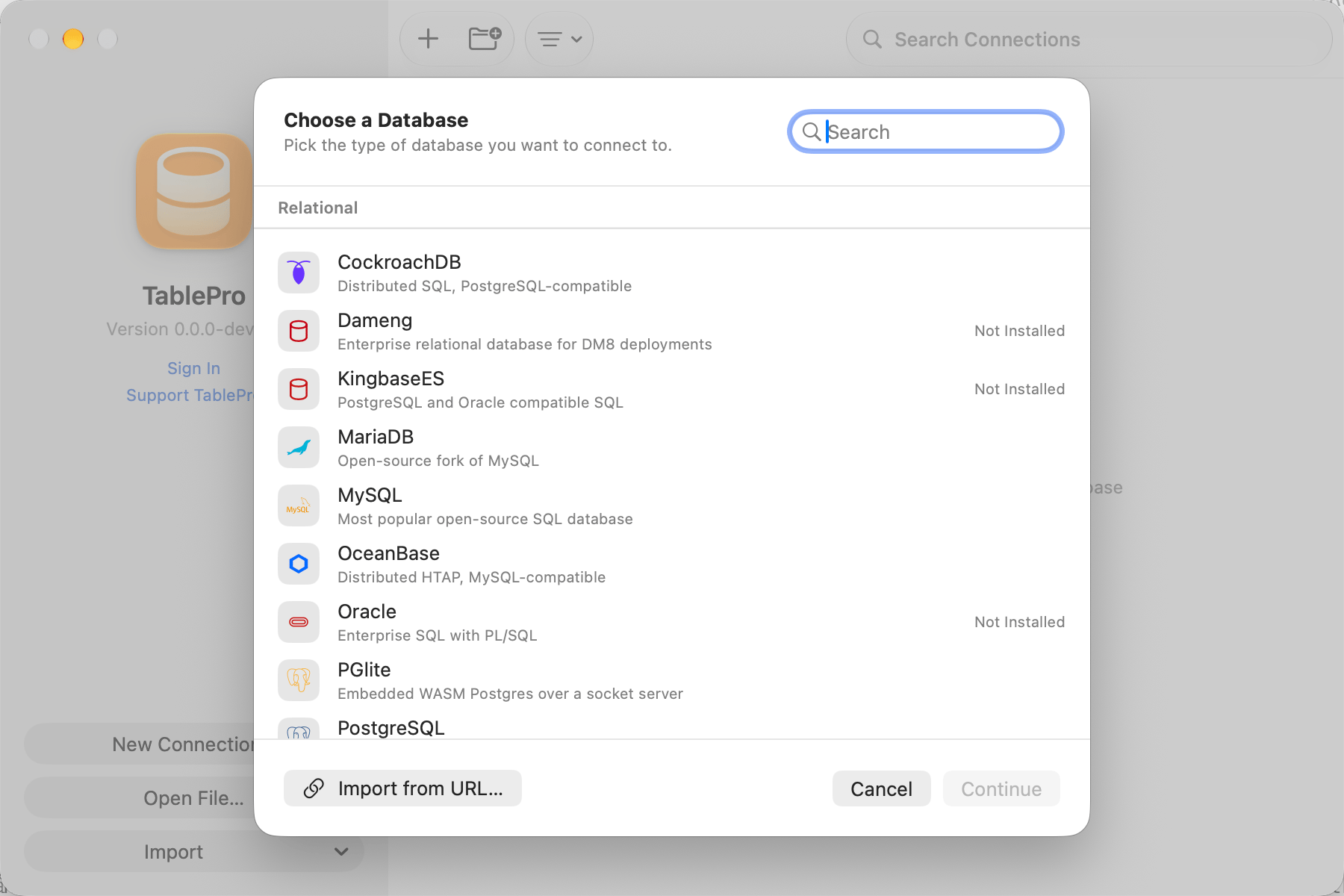
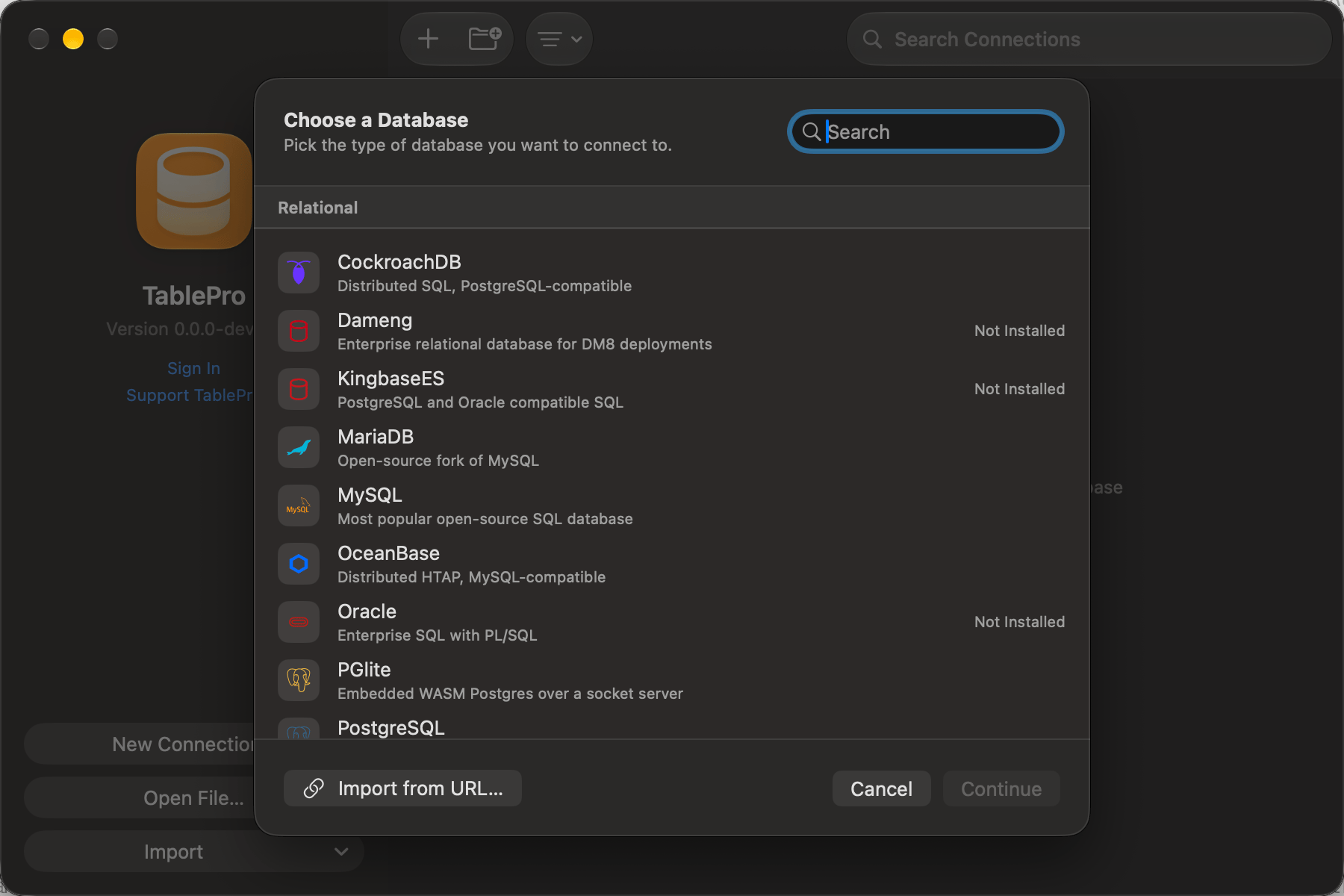
Database type chooser
Import from URL
Paste a connection string instead of typing the fields. Click Import from URL… in the chooser sheet footer, paste, check the parsed preview, and click Import. The form opens filled in, ready to save. Schemes, query parameters, and the+ssh form are in the Connection URL Reference.
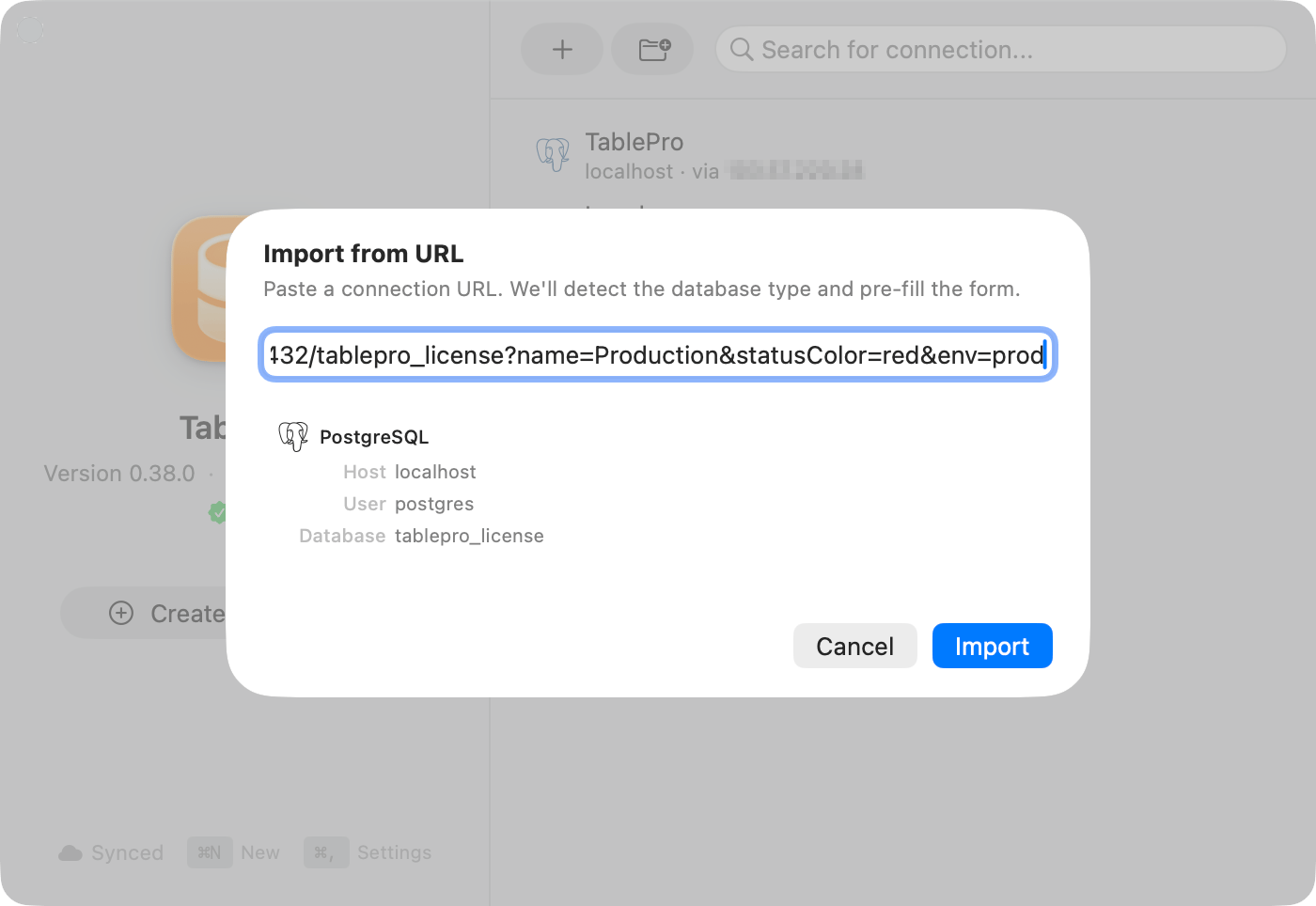
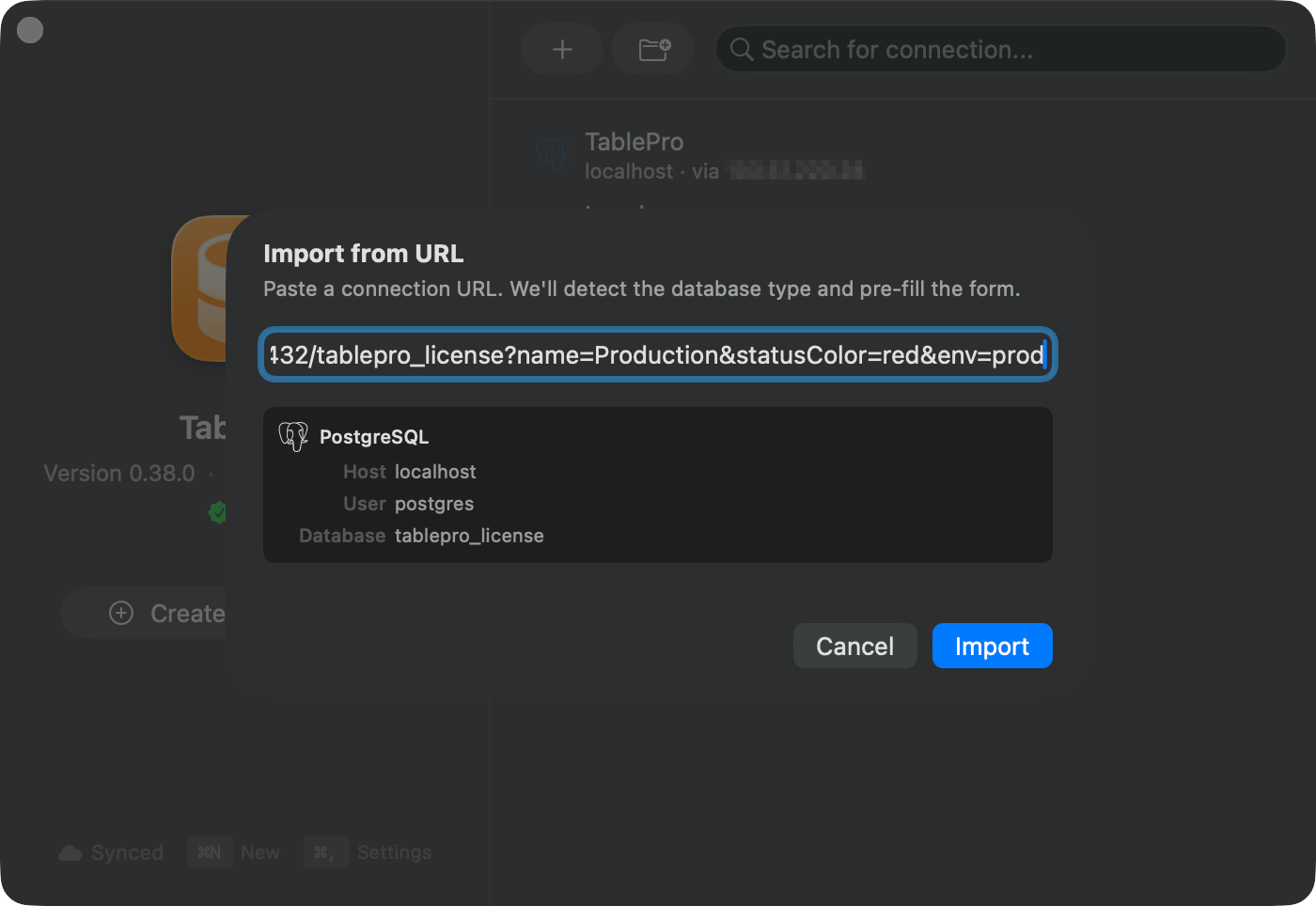
Import from URL sheet with parsed preview
Special characters in passwords (
@, #, %) need percent-encoding. p@ssword becomes p%40ssword.Open a URL without saving anything
Organize connections
The connection form’s Appearance tab holds Icon, Color, Tags and Group. Give two connections to the same engine different icons, such as a flame for production, to tell them apart at a glance. The color tints the toolbar while the connection is open.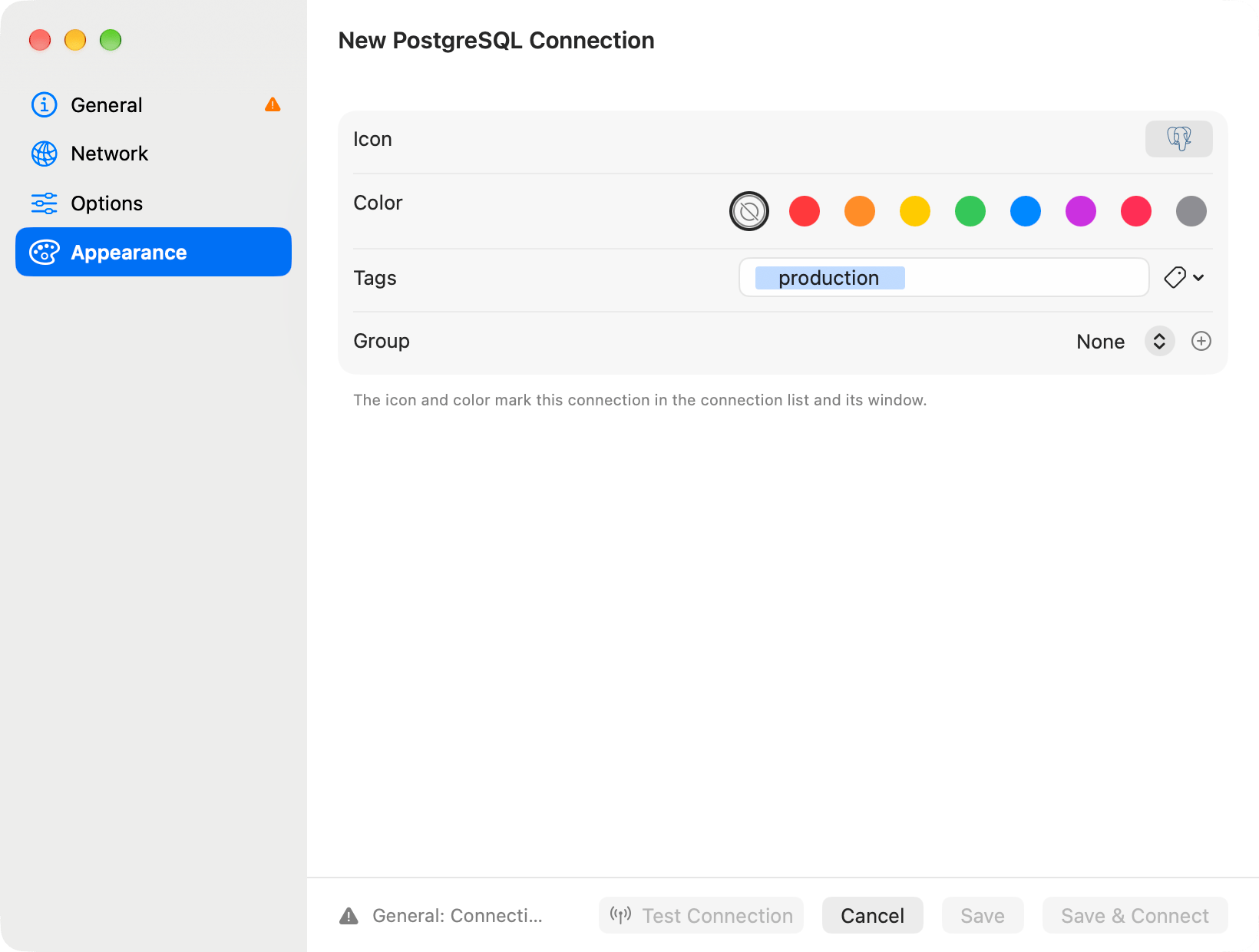
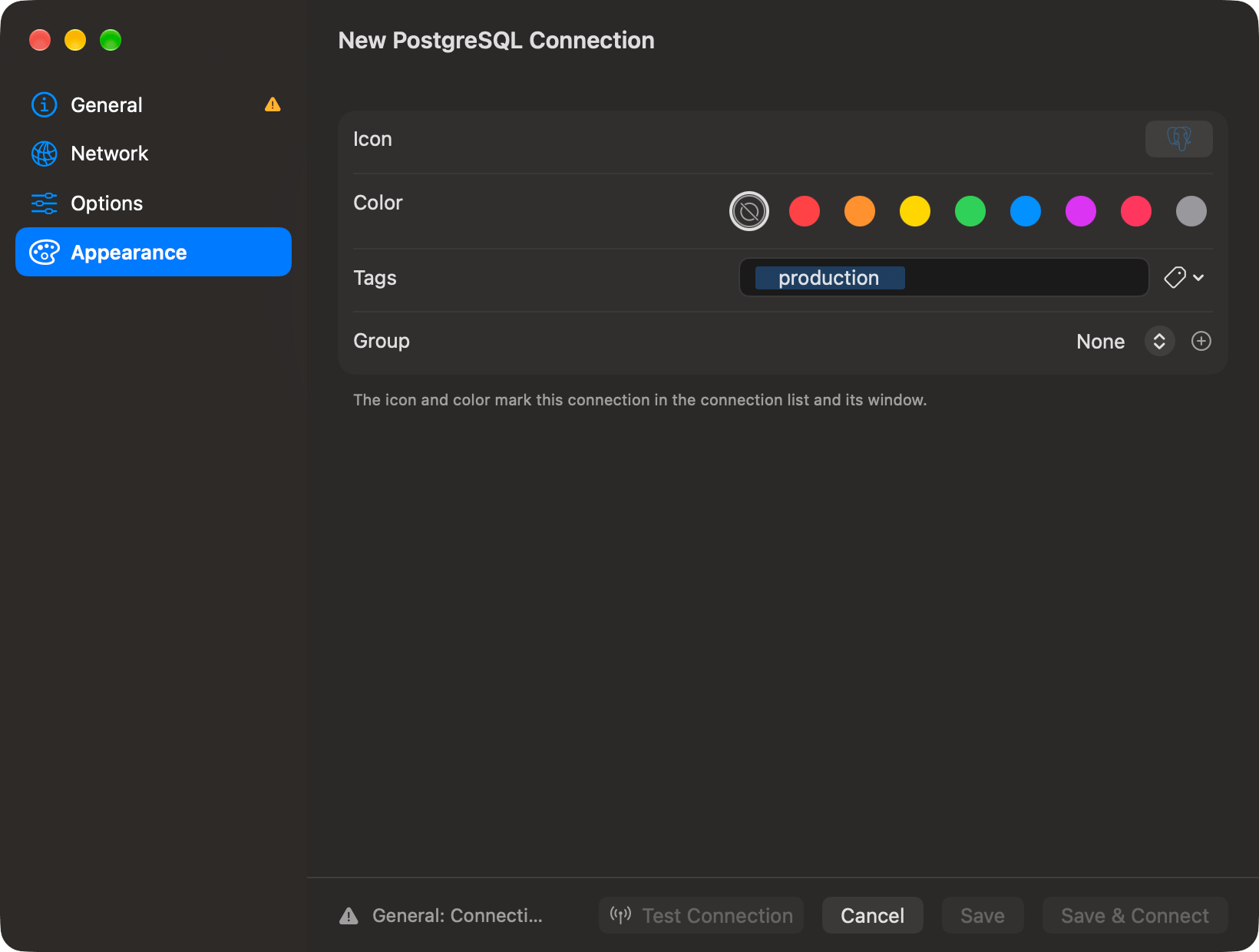
Color, tags and group on the Appearance section
A connection’s icon, group, tags, and favorite sync through iCloud, and so does a group’s icon, to the iPhone and iPad app as well, unless it is marked local only. See iCloud Sync.
Arrange the list
Drag connections and groups into a group, or onto the Connections header to take them out of every group. Choose the order under View > Sort Connections By or Sort By in the View Options menu: Manual, Name, Database Type, or Last Connected. Dragging to a spot between rows needs Manual; in the other orders a drop files the connection into the group and the sort places it. Edit > Undo puts a move back. To rename a connection or group, select it and choose File > Rename. PressReturn to keep the new name or Escape to restore the old one.
The sort order and the Recent section, shown or hidden, stay on this Mac.
Switch connections and databases
PressCtrl+Cmd+C for Switch Connection. Whatever is already open sits at the top, then your favorites and, while Show recent connections is on, the connections you opened last. The rest are listed under the group they belong to, a nested group carrying its full path. Arrow keys move, Return switches the window to that connection, and Cmd-click opens a saved one in a window of its own. Typing searches every group at once and collapses the matches into a single list.
Switching leaves the query tab you were in on its own connection. To take it with you, press Ctrl+Option+Cmd+C for Move Tab to Connection… instead. See Moving a query tab to another connection.
A footer under that list names the transport the window’s connection runs on. On an SSH tunnel or a SOCKS proxy it also carries the bytes that have crossed since the transport opened, received and sent, with the current rate beside each direction while something is moving. While the connection is connecting, reconnecting or lost, the footer shows that state in place of the byte counts.
The rest show their name alone. Cloudflare Tunnel, Cloud SQL Auth Proxy and Tunnel Command each run a separate binary that holds the connection end to end, a remote database file is fetched once and then read from disk, and a direct connection’s socket belongs to the database driver.
Open Database (Cmd+K) moves to another database on the same server.

Database switcher in toolbar
postgres (Redshift: dev) and switch with Cmd+K. System databases such as mysql, information_schema and master sit at the end of the switcher under System. To hide the rest, choose View > Filter Databases and select the ones you want; the choice is saved per connection and never hides a system database from the switcher. View > Filter Schemas does the same for the schemas of the database you are in. See Filtering schemas.
When a connection drops
A tunnel or proxy that dies under a connection, or a server that stops answering the health check, leaves the tabs and their rows on screen. A bar above them reads Reconnecting to <name> (1 of 10) with the cause underneath, such as SSH tunnel disconnected., and the count goes up with each try. The first try comes 2 seconds after the drop, then 4 and 8, doubling to 2 minutes between tries: 10 tries in about 10 minutes. Cancel on the bar stops the tries at once. When the tries run out, or you cancel, the pane reads Disconnected from <name> with the reason and a Reconnect button, and the tabs come back once it connects. Waking the Mac from sleep checks the tunnel of every open connection, and each one that died reconnects alongside the others rather than in turn. A new session starts empty. When the old one held an open transaction, or something your statements set up there, such as a temporary table, aSET value, a user variable, a prepared statement, a cursor, a session lock or a LISTEN, the next statement you run on that database is refused once with a message naming what is gone: one you run in a query tab, an Explain, or one an assistant or an MCP client sends. Set it up again, then run your statements. The message names the kinds only, never your statements or their values. Startup commands run again on every reconnect, so they never count, and neither does a routine you call. A Reconnect you choose yourself reports only a lost transaction. The first change TablePro writes for you there, such as a grid save, an import or a structure change, is refused once with the same message, since it would have run inside the lost transaction; run it again to write it on its own. Neither one uses up the other’s message. Work on a temporary table that went with the old session is refused until you create it again in a query tab, so an edit made for it cannot reach the real table it hid.
The connections strip, the welcome window and the connection switcher mark a reconnecting connection with a spinner and a lost one with a crossed-out bolt. Connection state lists every mark. Hover one to read the cause.
On the strip’s right-click menu and in the Database menu, the connection command follows the state: Connect, Reconnect, Stop Connecting or Stop Reconnecting. The welcome window’s right-click menu offers Reconnect for a lost connection and Connect for the rest. Disconnect stays on all three menus while a connection reconnects or is lost, and ends it without waiting for the next try.
Edit, delete, and where it all lives
Right-click a connection to edit or delete it, or select it and pressDelete. Deleting asks first and removes the saved settings, nothing on the server. Pressing Delete on a row under Favorites or Recent only takes it out of that section. Edits apply on the next connect.
Connections are stored in ~/Library/Application Support/TablePro/connections.json with their passwords in the macOS Keychain, so copying that file to another Mac restores the connections without the passwords. Each save keeps the file it replaces as connections.json.backup. A connection this version cannot read is kept as it is and the others load; it stays in the file, or moves to connections.json.unreadable-records when the file changed outside TablePro. A file that no longer reads as a list is restored from the backup, and the damaged copy is kept as connections.json.unreadable.
Right-clicking the Dock icon lists saved connections under Open Connection.