

glassEffect(_:in:) behind if #available(macOS 26.0, *), and that symbol
ships in the macOS 26 SDK. The deployment target stays at macOS 13.0, which is what the built app
runs on, not what you build on.
Prerequisites
The Swift language mode comes from
SWIFT_VERSION = 6.0 in Configs/Base.xcconfig, and each
package under Packages/ sets its own through swift-tools-version: 6.0. Never pass
SWIFT_VERSION= on an xcodebuild command line to test a language-mode change: the override
reaches the package targets too and reports their errors as yours.
Quick start
1
Clone the repository
2
Install the tools
3
Download the static libraries
libs-v1 GitHub Release: the macOS .a files (libmariadb, libpq,
libduckdb, libmongoc, and the rest) and the iOS xcframeworks. 257 MB downloaded, 621 MB on
disk. Every run, including one that downloads nothing, verifies Libs/ against the checksums
committed at HEAD.None of it is in git, so a build that skips this step fails at link time on missing symbols.4
Point signing at your own team
YOUR_TEAM_ID, which fails to sign exactly
the way leaving the file out does:TablePro/TablePro.Debug.entitlements,
which drops the iCloud container and CloudKit, so no paid Apple Developer Program membership is
needed and sync turns itself off at runtime. Plugin bundles and the MCP helper sign ad-hoc and
need no team at all.Configs/Secrets.xcconfig is gitignored, so these settings cannot reach a commit and they
survive regenerating the project. Changing signing in the Xcode UI has no effect that lasts:
the project is generated, and the next scripts/generate-project.sh discards the edit.5
Generate the Xcode project
TablePro.xcodeproj and TableProMobile/TableProMobile.xcodeproj from their
project.yml specs. Pass macos or ios to generate just one of them. Run it again after
editing a project.yml or anything in Configs/, and after adding, moving, or deleting a
source file, because XcodeGen collects sources at generation time and a new file is not in
the project until you regenerate.6
Build and run
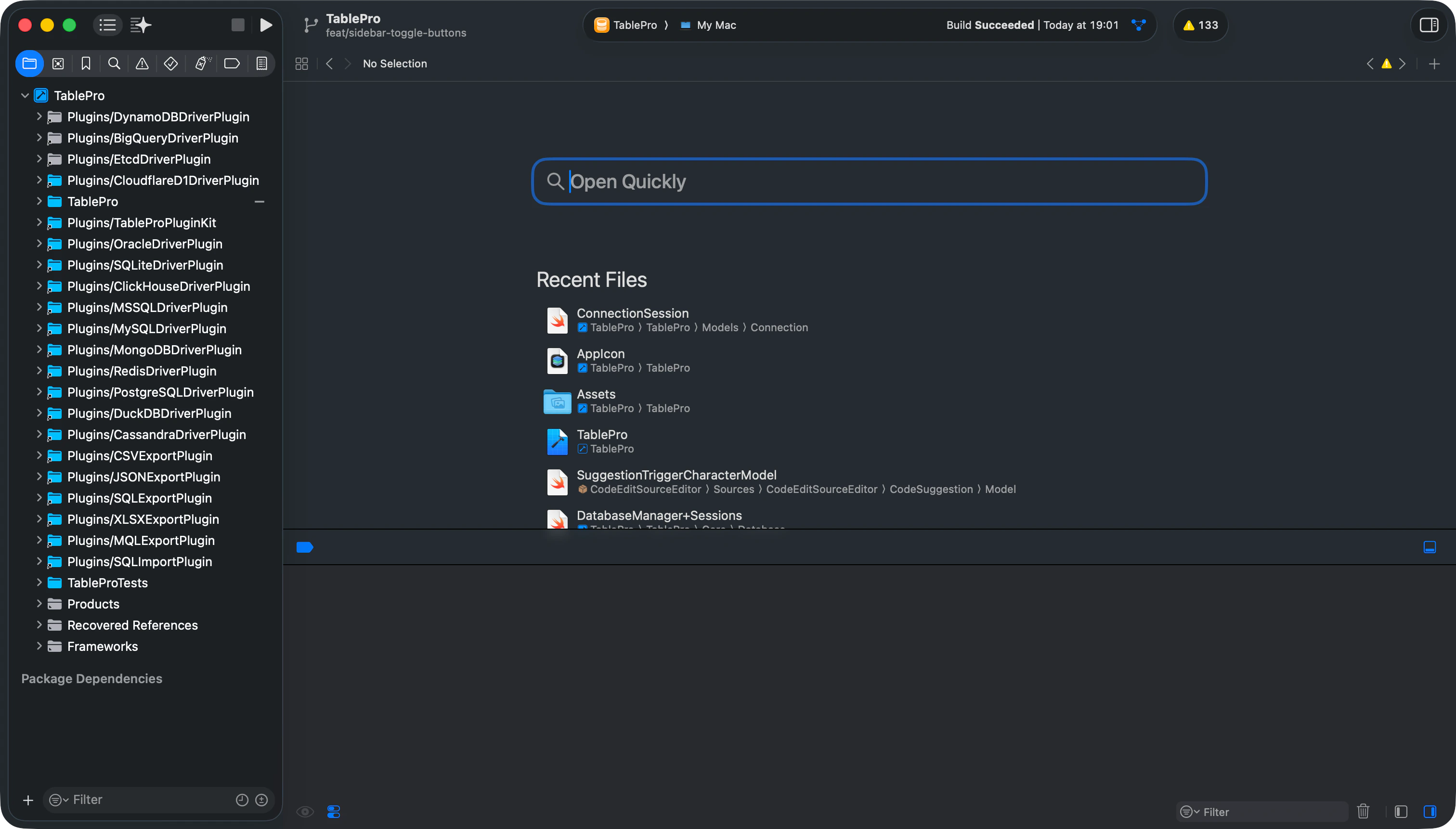
Cmd+R. Or stay on
the command line: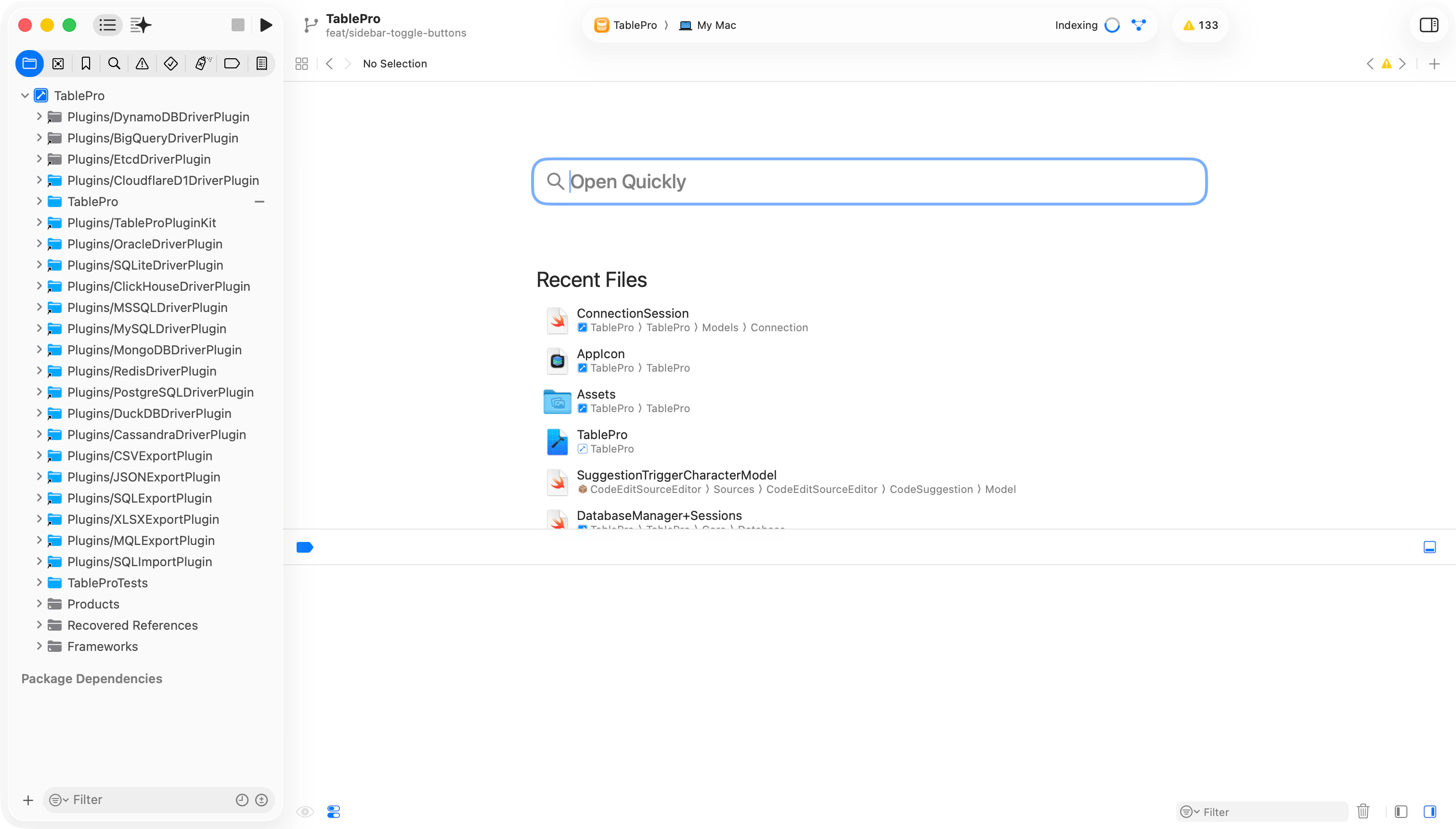
Project structure
TablePro
Core
Views
Models
ViewModels
Extensions
Theme
Resources
Plugins
Packages
Configs
Libs
TableProMobile
TableProTests
TableProUITests
docs
scripts
Packages/TableProCore/Sources/TableProPluginKit is a symlink to Plugins/TableProPluginKit. Edit
the files under Plugins/ only.
Running tests
Cmd+U in Xcode. To narrow the run, pass -only-testing:TableProTests/TestClassName or
-only-testing:TableProTests/TestClassName/testMethodName. -only-testing:TableProUITests runs the
UI automation on its own.
Linting and formatting
--strict turns warnings into errors, which is how the release workflow runs it, so a plain
swiftlint lint can pass on a change that later blocks a tag. Full tooling reference:
Code Style.
Troubleshooting
xcodegen: command not found
scripts/generate-project.sh needs XcodeGen on PATH. Run brew install xcodegen, then check
xcodegen --version reports 2.46.0.
TablePro.xcodeproj does not exist
It is generated, not committed. Run scripts/generate-project.sh.
Undefined symbols for architecture arm64
Libs/ is empty or stale. Run scripts/download-libs.sh, or scripts/download-libs.sh --force to
overwrite what is already there.
Libs does not match the checksums committed in git.
download-libs.sh compares the extracted libraries against the baseline at HEAD and refuses to
continue when they differ. Re-run with --force. If you rebuilt a library on purpose, publish it
so the baseline moves with it: see Releasing.
Signing errors after a fresh clone
Configs/Base.xcconfig defaults TABLEPRO_DEVELOPMENT_TEAM to the maintainer’s team, and it
includes Secrets.xcconfig with #include?, so a build without that file still runs and still
fails to sign. Create the file and set your own team.
A new source file does not compile
XcodeGen globs sources when the project is generated. Runscripts/generate-project.sh.
Package resolution fails
Clean the build folder withCmd+Shift+K and reopen Xcode. If that does not clear it,
rm -rf ~/Library/Developer/Xcode/DerivedData.