
ssh binary or external setup is required. The tunnel opens a local forwarding port in the 60000-65000 range (this is why macOS may show a network permission prompt), sends a keep-alive every 30 seconds, and reconnects automatically if the tunnel dies. Before handing that port to the database driver, TablePro checks that the SSH server can actually reach the destination, so a wrong host or a blocked forward fails with the real reason instead of a database timeout.
The SSH Tunnel pane appears only for databases whose driver supports it. SQLite, PGlite, libSQL, Beancount, BigQuery, Cloudflare D1, DynamoDB, Elasticsearch, and Snowflake do not show it: they are reached over a local file, a loopback socket, or a vendor HTTP API.
Setting Up
- Open the connection form and switch to the SSH Tunnel pane
- Toggle Enable SSH Tunnel on
- Fill in SSH Host, SSH Port (default 22), and SSH User
- Pick an authentication method
- Back on General, click Test Connection
The database Host and Port on the General pane are what the SSH server uses to reach the database, not what your Mac would use. Use
localhost if the database runs on the SSH server itself, or the internal hostname (for example an RDS endpoint reached through a bastion) if it runs elsewhere. If the database listens on a Unix socket rather than a port, use Socket Path instead.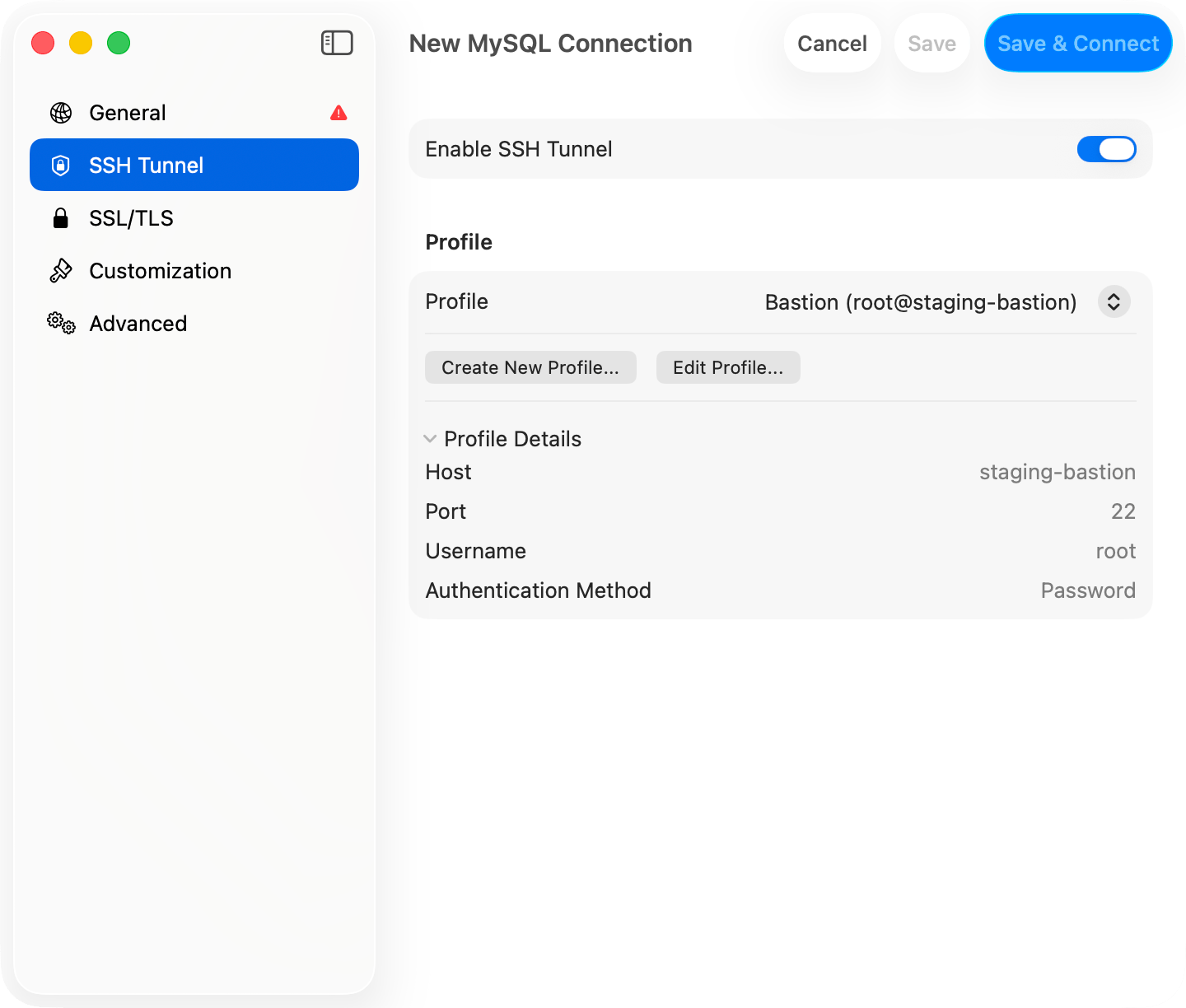

Reusing a saved SSH profile
Authentication Methods
- Password
- Private Key
- SSH Agent
- Keyboard Interactive
- None
Enter your SSH password in the Password field. Prefer keys for production servers.
Verification Prompts and Two-Factor Authentication
If the SSH server issues a keyboard-interactive challenge during authentication, for example a verification code fromgoogle-authenticator or duo_unix, TablePro shows the server’s prompt and lets you type the response. This works with every authentication method except None, including a private key or SSH agent followed by a second factor (AuthenticationMethods publickey,keyboard-interactive).
The Two-Factor Authentication section lets you skip that prompt for TOTP codes:
- None or Prompt at Connect: TablePro asks for the code when the server requests it.
- Auto Generate: TablePro computes the code from your base32 TOTP Secret (the key from your authenticator enrollment). Algorithm (SHA1, SHA256, SHA512), digits (6 or 8), and period (30s or 60s) are configurable; defaults match most setups.
Host Keys
On first connection TablePro shows the server’s key type and SHA-256 fingerprint (same format asssh-keygen -l) and asks whether to trust it. Trusted keys are stored in ~/Library/Application Support/TablePro/known_hosts.
If a trusted server’s key changes, TablePro shows a warning with the old and new fingerprints. Disconnect is the default button; choose Connect Anyway only if you know the server was reinstalled. With jump hosts, every hop’s key is verified.
Using ~/.ssh/config
If~/.ssh/config has Host entries, a Config Host picker appears above the SSH Host field. Pick an alias and TablePro resolves HostName, User, Port, IdentityFile, IdentityAgent, and ProxyJump from the config at connect time. Values you type in the form override the config. The file is re-read whenever it changes, including Included files.
Picking a host from ~/.ssh/config
Jump Hosts
When the database sits behind one or more bastions, expand the Jump Hosts section and add each intermediate host in order. TablePro chains the hops in-process: each hop is an SSH session tunneled through the previous one, nossh subprocess involved.
Password auth is not available for jump hosts. If the jump host list is empty and the SSH host matches a config entry with a
ProxyJump directive, TablePro follows it.
Forwarding to a Unix Socket
Some servers only listen on a Unix socket, with no TCP port open at all. A PostgreSQL box configured forlocal connections in pg_hba.conf is the common case. Fill in Socket Path on the General pane and TablePro forwards to that socket instead of a host and port, the same thing ssh -L 5434:/var/run/postgresql/.s.PGSQL.5432 server does by hand. Host and Port are ignored while a socket path is set.
Give the path to the socket file, not the directory holding it:
This works through jump hosts: the hops get you to the SSH server, and the socket is opened from there.
A database listening on a Unix socket cannot negotiate TLS, so TablePro turns SSL off for the connection. Nothing is exposed by this: the whole path still runs inside the encrypted SSH tunnel.
peer authentication works, because the connection to the socket is made by the SSH server as your SSH login user. So a local all all peer line authenticates you as the PostgreSQL role matching your SSH username.
The SSH server has to allow socket forwarding. It is on by default, but if sshd_config sets AllowStreamLocalForwarding no, TablePro says so instead of failing with a dropped connection. Note this is a separate setting from AllowTcpForwarding.
Import from URL
Paste ascheme+ssh:// URL to create a connection with SSH pre-filled. The +ssh suffix works with any non-file-based scheme (mysql+ssh, postgres+ssh, redis+ssh, mongodb+ssh, …). TablePlus SSH URLs import directly. See the Connection URL Reference for the format and parameters.
Troubleshooting
Tunnel connects but the database fails: the database host is resolved from the SSH server, not your Mac. Verify it from the server:ssh user@server "nc -z db-host 5432". Also check that the database credentials differ from the SSH ones where they should.
“The SSH server could not reach <host>”: the SSH connection is fine, but the SSH server could not open a connection to the database. Almost always the Host field. That address is resolved from the SSH server, not from your Mac, so if the database only listens on 127.0.0.1 (the default for MySQL and PostgreSQL), Host has to be localhost, not the server’s public name or IP. Check what the database is bound to with ss -lntp on the server. If the host is right, check that sshd_config has AllowTcpForwarding yes.
“The SSH server did not open a forwarding channel to <host>”: the destination took the connection attempt and never answered, which usually means a firewall or security group is dropping packets rather than refusing them. Test it from the SSH server itself: ssh user@server "nc -zv db-host 3306".
Tunnel drops on idle networks: TablePro already sends a libssh2 keep-alive every 30 seconds plus OS-level TCP keep-alives. If tunnels still drop, check the server’s ClientAliveInterval and idle timeouts on firewalls or load balancers in between.
Firewall prompt on connect: TablePro listens on a local port between 60000 and 65000 for the tunnel. Allow it.
SSH fails right away against a server on your own network: macOS 15 and later gate outbound connections to local network addresses behind a Local Network permission, and a denied app fails fast with “no route to host”. Check TablePro under System Settings > Privacy & Security > Local Network. Servers reached over the internet, and anything on 127.0.0.1, are not affected.
SSH itself fails: test the same host, user, and key in Terminal with ssh -v user@server. If that fails, the problem is server-side, not TablePro.