

project:region:instance, which is on the instance’s overview page in the Google Cloud console. The proxy itself runs as a child process, started on connect and killed on disconnect.
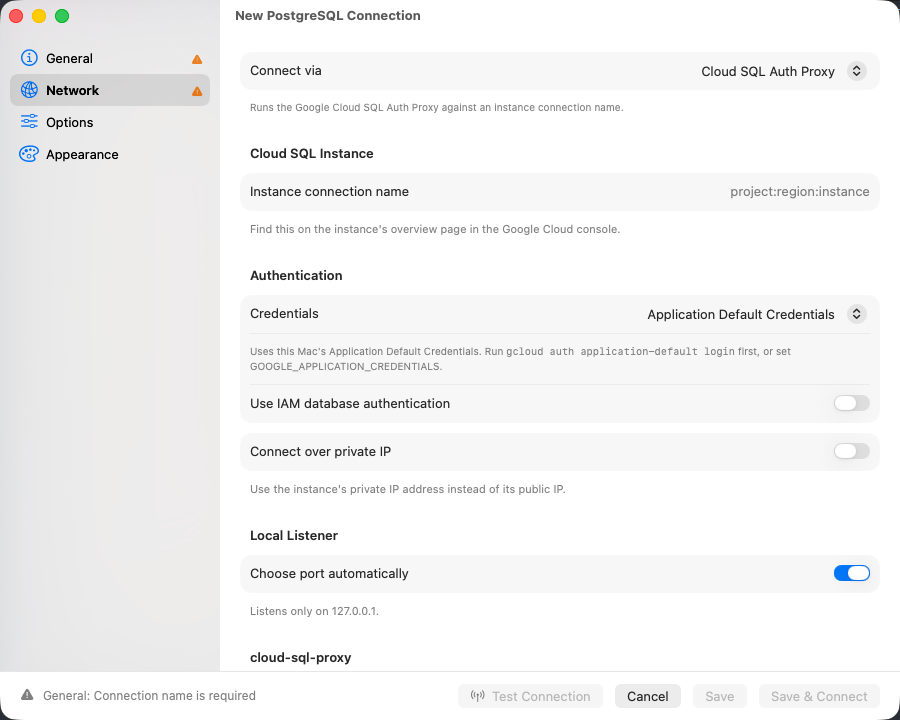
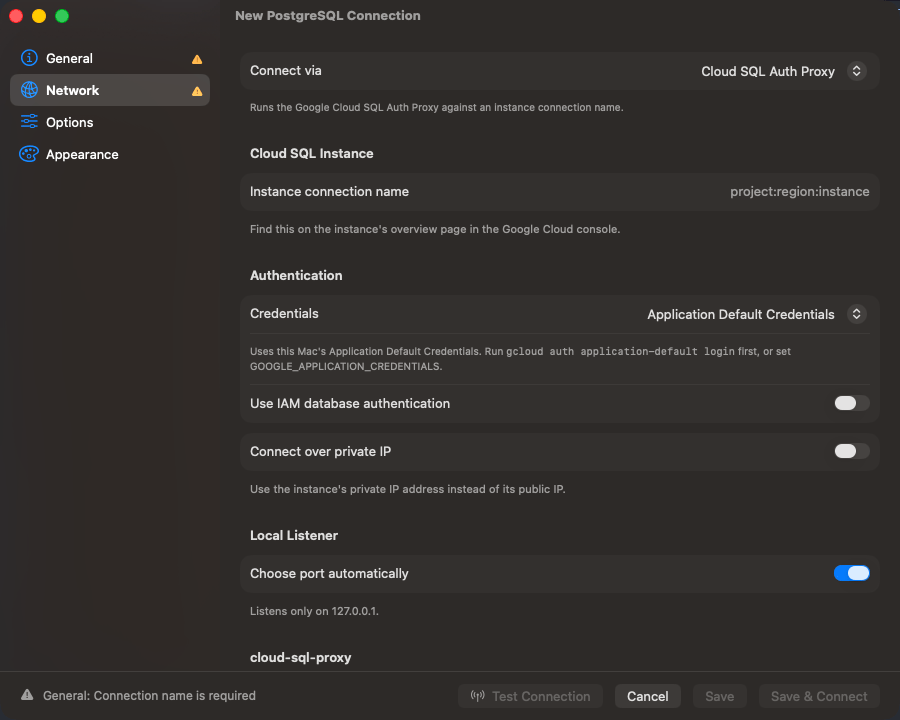
Cloud SQL Auth Proxy selected on the Network tab
Before you start
The transport appears for Cloud SQL instances running MySQL, PostgreSQL, or SQL Server. The account you connect with needs the Cloud SQL Client role (roles/cloudsql.client) on the project, and for Application Default Credentials, one run of:
PATH, /opt/homebrew/bin, /usr/local/bin, and ~/google-cloud-sdk/bin. Anywhere else, use Choose….
Setting up
1
Choose the transport
On the Network tab, set Connect via to Cloud SQL Auth Proxy. A connection uses one transport, so choosing this one switches off whichever was selected before.
2
Name the instance and pick credentials
Enter the Instance connection name, then choose Application Default Credentials or Service Account Key.
3
Leave SSL Mode alone
The proxy encrypts the leg to Cloud SQL and hands the driver plain loopback, so SSL/TLS stays off.
4
Test it
On General, click Test Connection. Host and Port there are never dialed: the instance connection name decides where the proxy lands. Username and Database work as usual.
Options
A pasted key is kept in the macOS Keychain and written to a temporary file readable only by you while the proxy runs, then deleted. It never reaches the command line.
GOOGLE_APPLICATION_CREDENTIALS works too, but the proxy inherits the app’s environment, and a GUI app never sees variables exported by your shell profile.
TablePro polls that port and gives 30 seconds to answer on it. Past that the connect fails
and the error carries the last lines printed, which is where the real reason usually is.
IAM sign-in without the proxy
When the instance is already reachable, over its private IP or an authorized network, you can skip the proxy and sign in as an IAM principal directly. This works for MySQL and PostgreSQL. On the General tab, set Authentication to one of:- Google Cloud IAM (Application Default): the credentials from
gcloud auth application-default login. - Google Cloud IAM (Service Account): a Service Account Key, as a file path or pasted JSON.
The password field disappears. The token TablePro signs in with allows a Cloud SQL sign-in and nothing else, and lasts one hour. It is reused until five minutes before it expires, then replaced, including for a reconnect and for the extra connection MySQL opens to stop a query. SSL/TLS is raised to Required if it was lower.
The principal needs the Cloud SQL Instance User role (
roles/cloudsql.instanceUser), and the instance needs IAM database authentication turned on and a database user for the principal:
GOOGLE_APPLICATION_CREDENTIALS is read from the app’s environment, which never has the variables your shell profile exports. To use a key file, choose Service Account and give its path.Troubleshooting
cloud-sql-proxy was not found
Install it withbrew install cloud-sql-proxy, download it from the Network tab, or set Path.
The proxy did not become ready in time
Run it by hand to see what it says:Permission or authentication errors
The proxy reports these on its own output, which the failed connect shows. Usually the account is missing the Cloud SQL Client role, Application Default Credentials were never set up, or IAM database authentication is on with no database user for the principal.The gcloud login does not allow Cloud SQL sign-in
The login was made with--scopes that leave out Cloud SQL sign-in. Run gcloud auth application-default login again without --scopes.