

Filter rows
Click Filter in a table tab, or pressCtrl+Shift+F, to show the filter bar above the rows.
1
Pick a column and an operator
The operators match the column’s type: text offers contains and starts with, numbers and dates offer greater than and between, and every column offers is NULL.
2
Type the value
between takes two values. in list takes values separated by commas:
3, 7, 12.3
Apply
Click Apply or press
Enter in a value box. The tab reads the first page again and counts the rows the filter picks.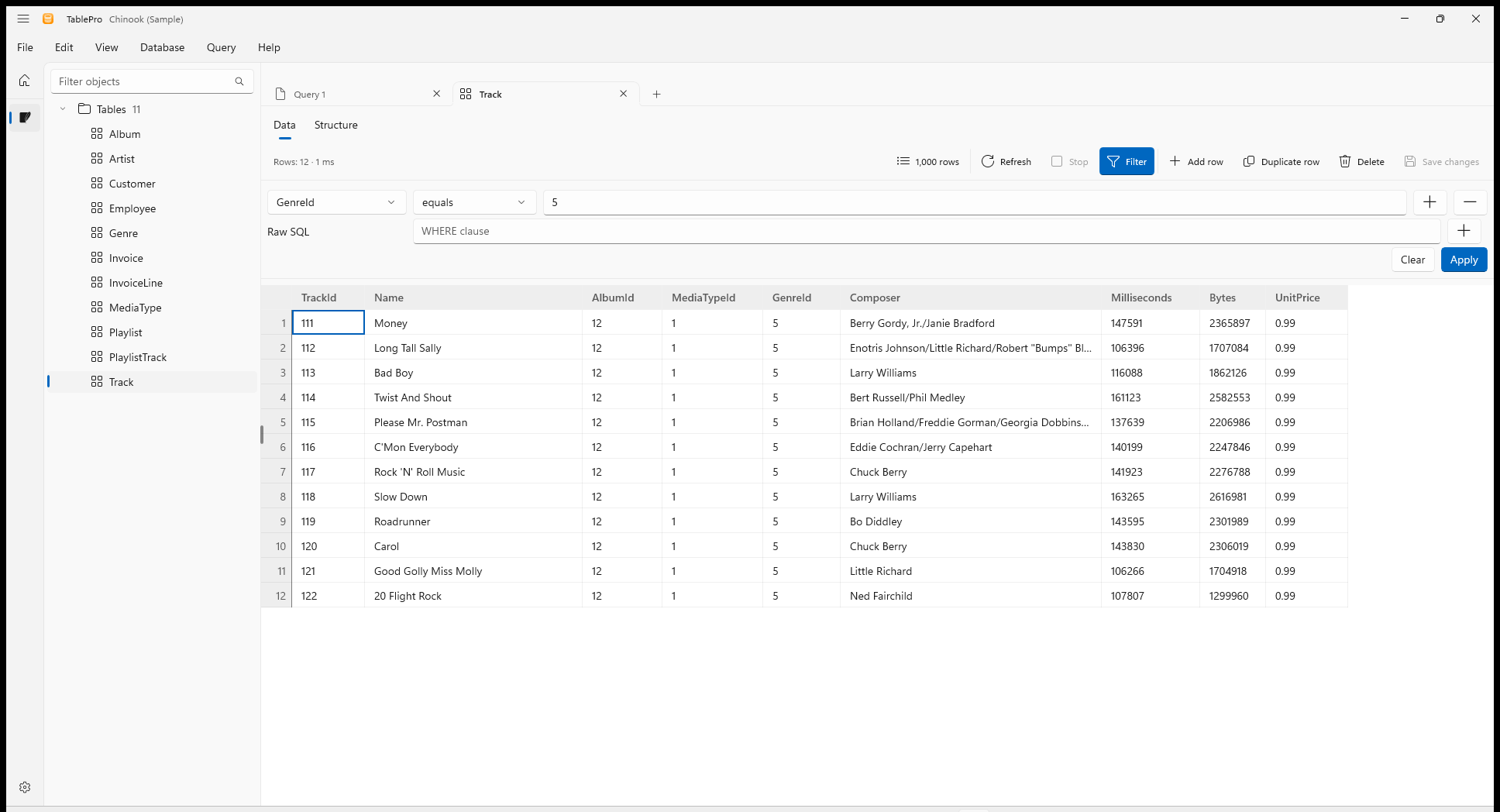
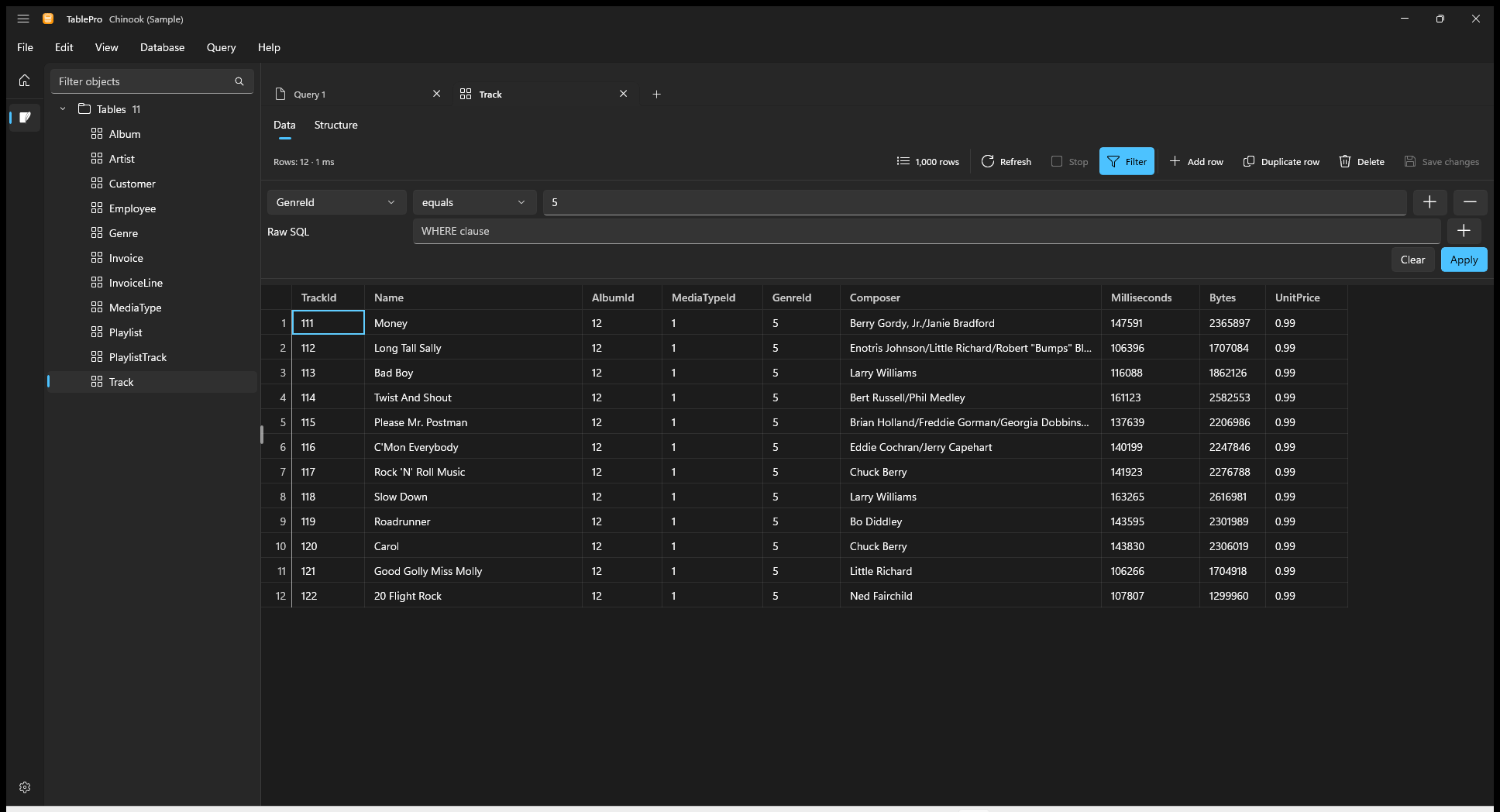
GenreId equals 5 picks 12 of the Track table's rows
WHERE, such as length(name) > 6. Clear reads the whole table again.
- A rule missing its value is pointed out before anything runs.
- A filter the database refuses keeps the filter you had, and the results say why. Refresh reads the rows again.
- Changing the filter while edits are pending asks before it discards them.
- The filter stays with the tab when TablePro restarts.
Read a table’s structure
Switch a table tab from Data to Structure.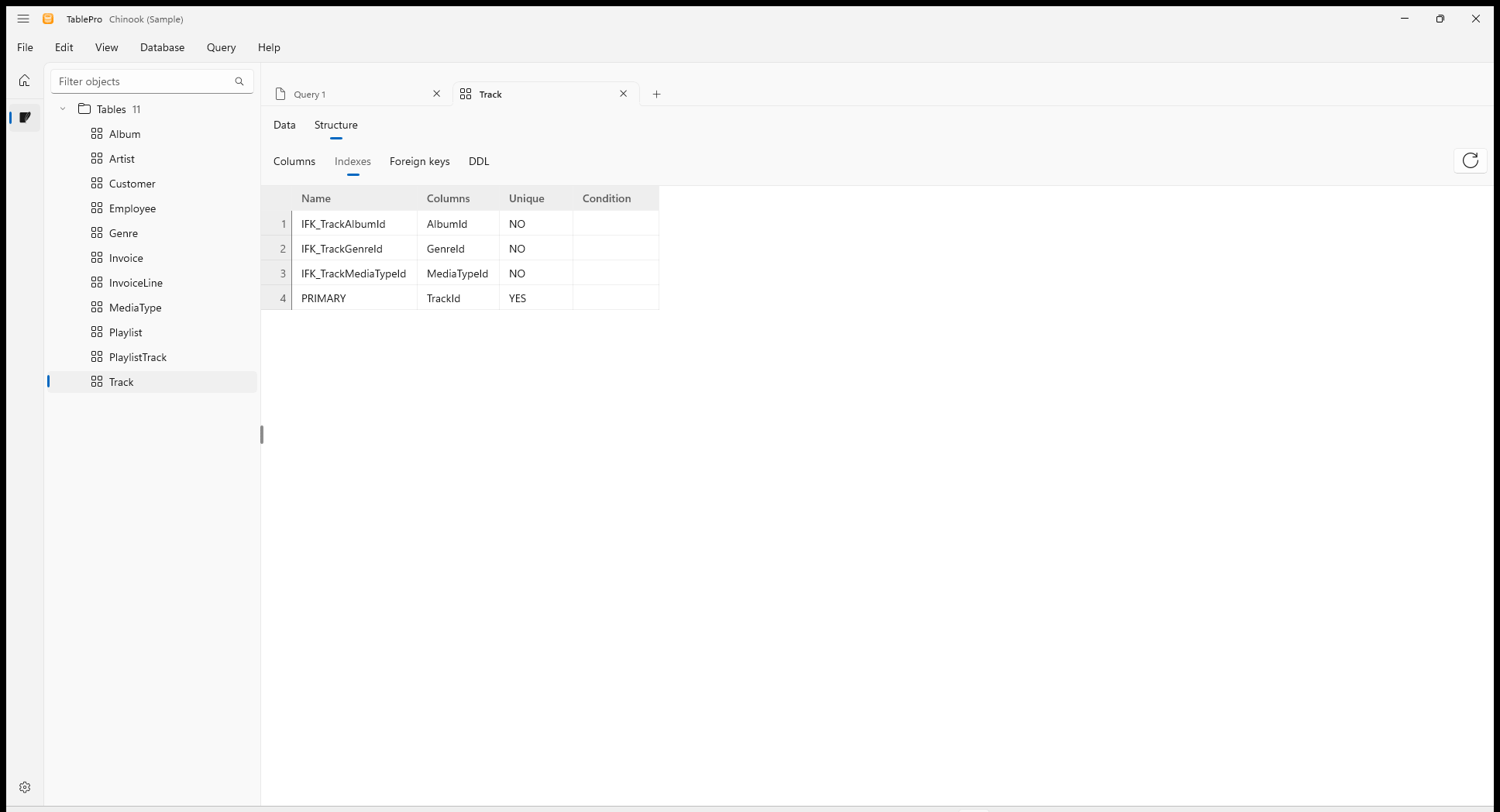
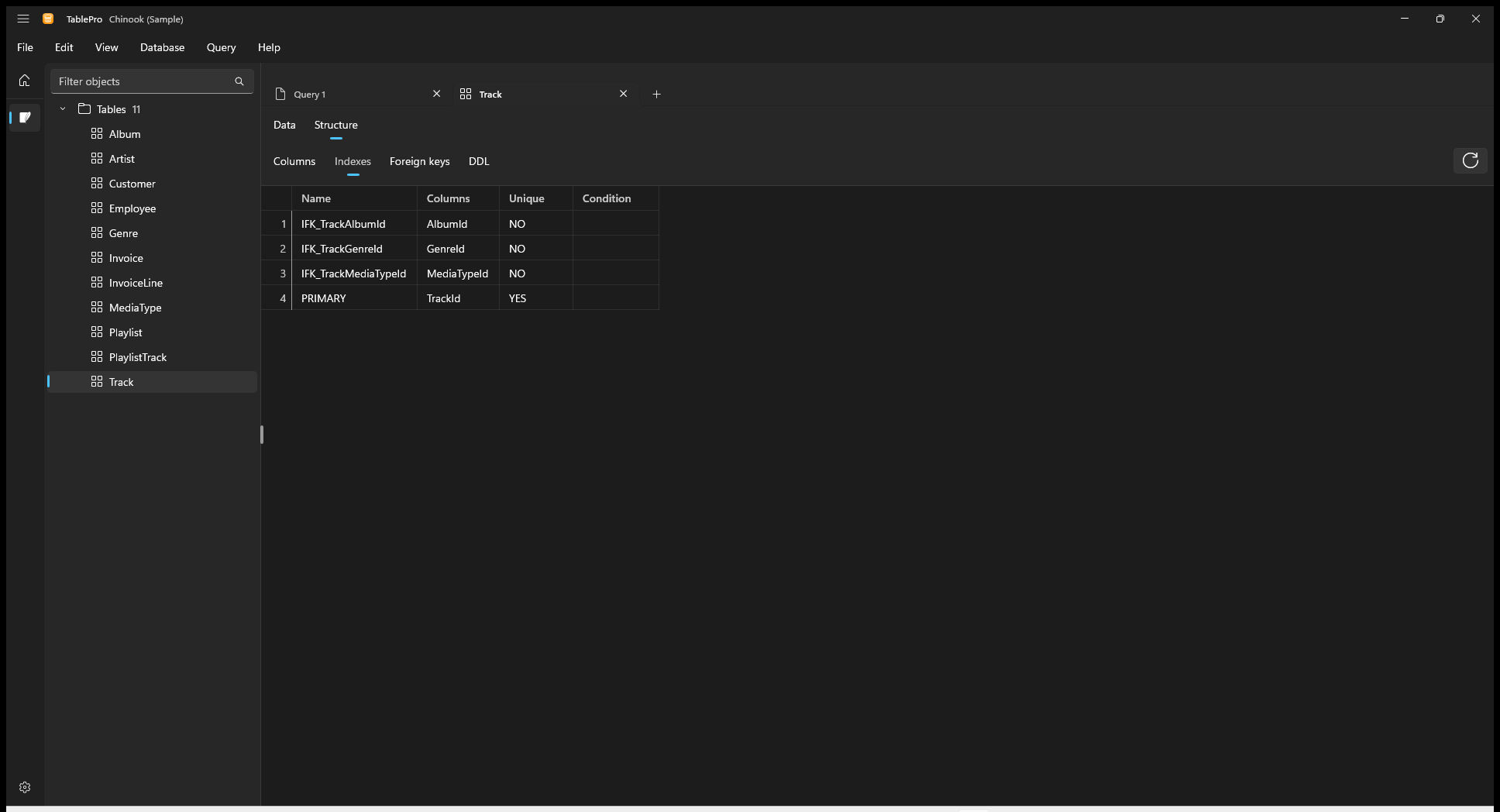
Indexes of the Track table
The DDL section is empty for a view, whose columns come from its query. Right-click a table in the tree and choose Show structure to open it on Structure directly.
Open functions, procedures, triggers and sequences
Click one in the tree to open its source in a read-only tab. Reload reads it again from the database, and Copy copies it.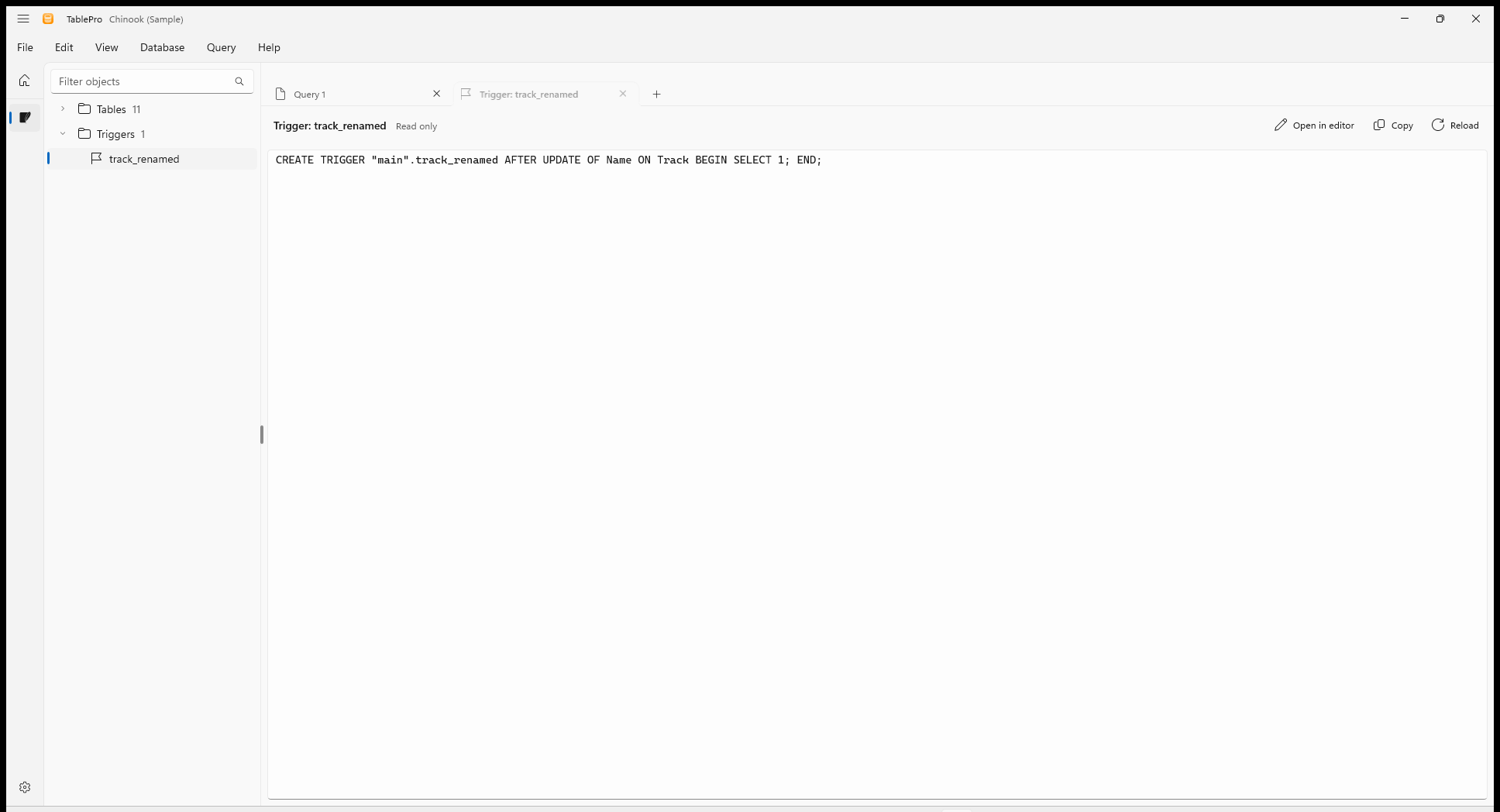
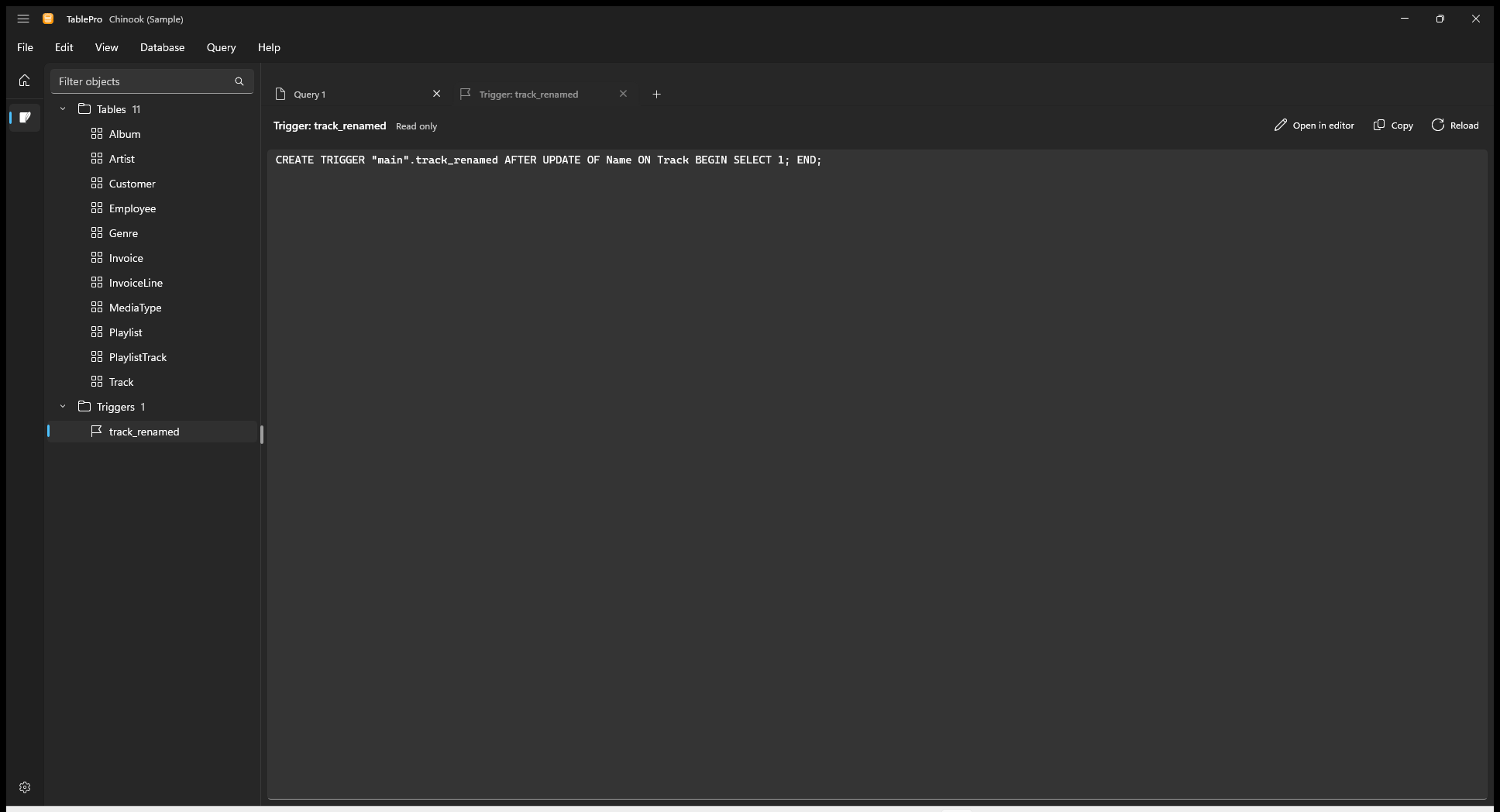
A trigger's source opens read only
Keep fewer results from a script
A script whose statements return rows lists each result in the picker above the grid. To keep only the newest, set Settings > Queries > Results kept per run.
Earlier results are dropped as the script runs, and the status line says how many:
Rows: 1 · 12 ms · 990 earlier results were dropped. A statement that returns no rows never counts toward the limit. A change applies from the next run.
Export results
Choose File > Export results or pressCtrl+Shift+E.
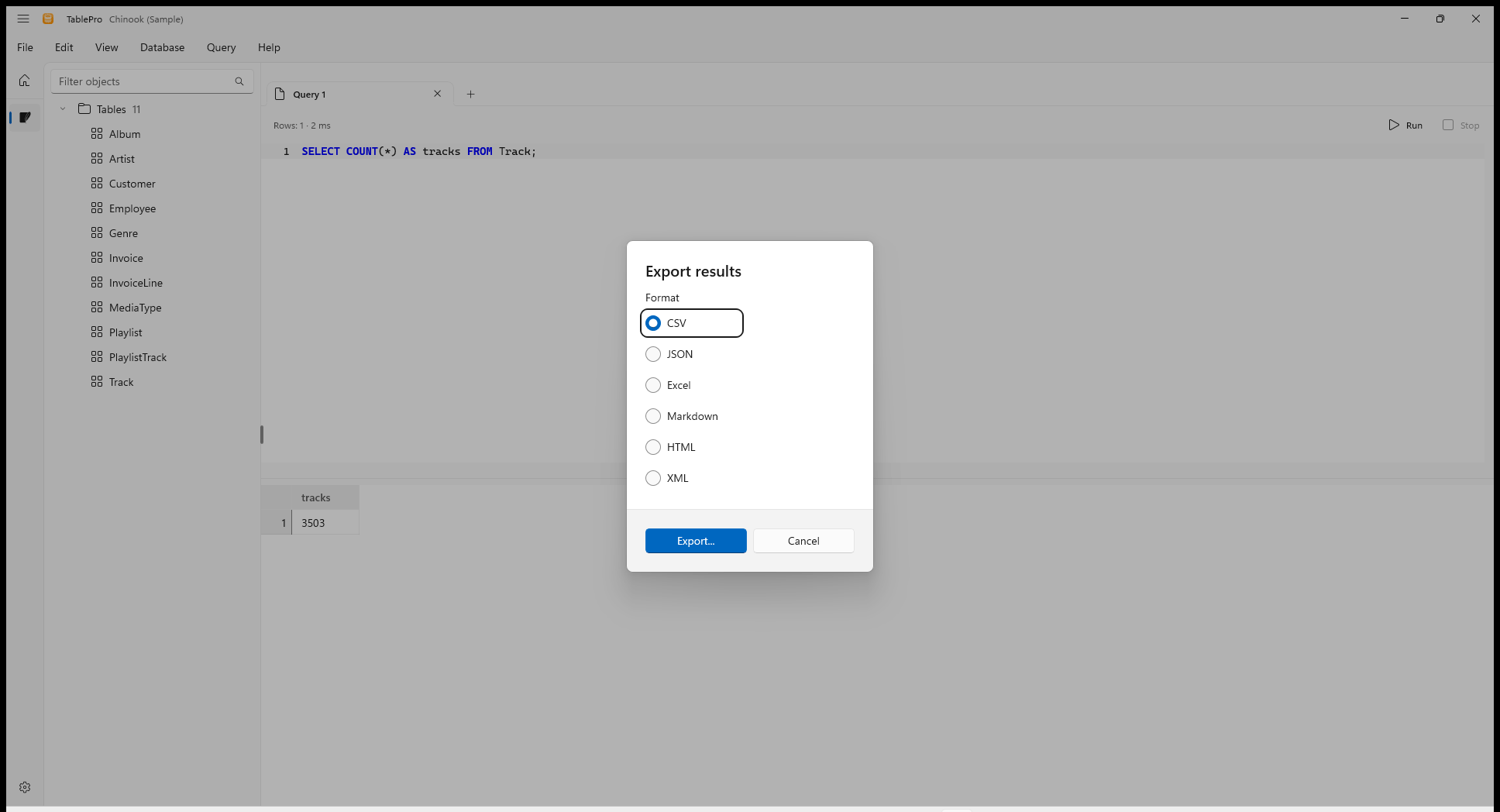
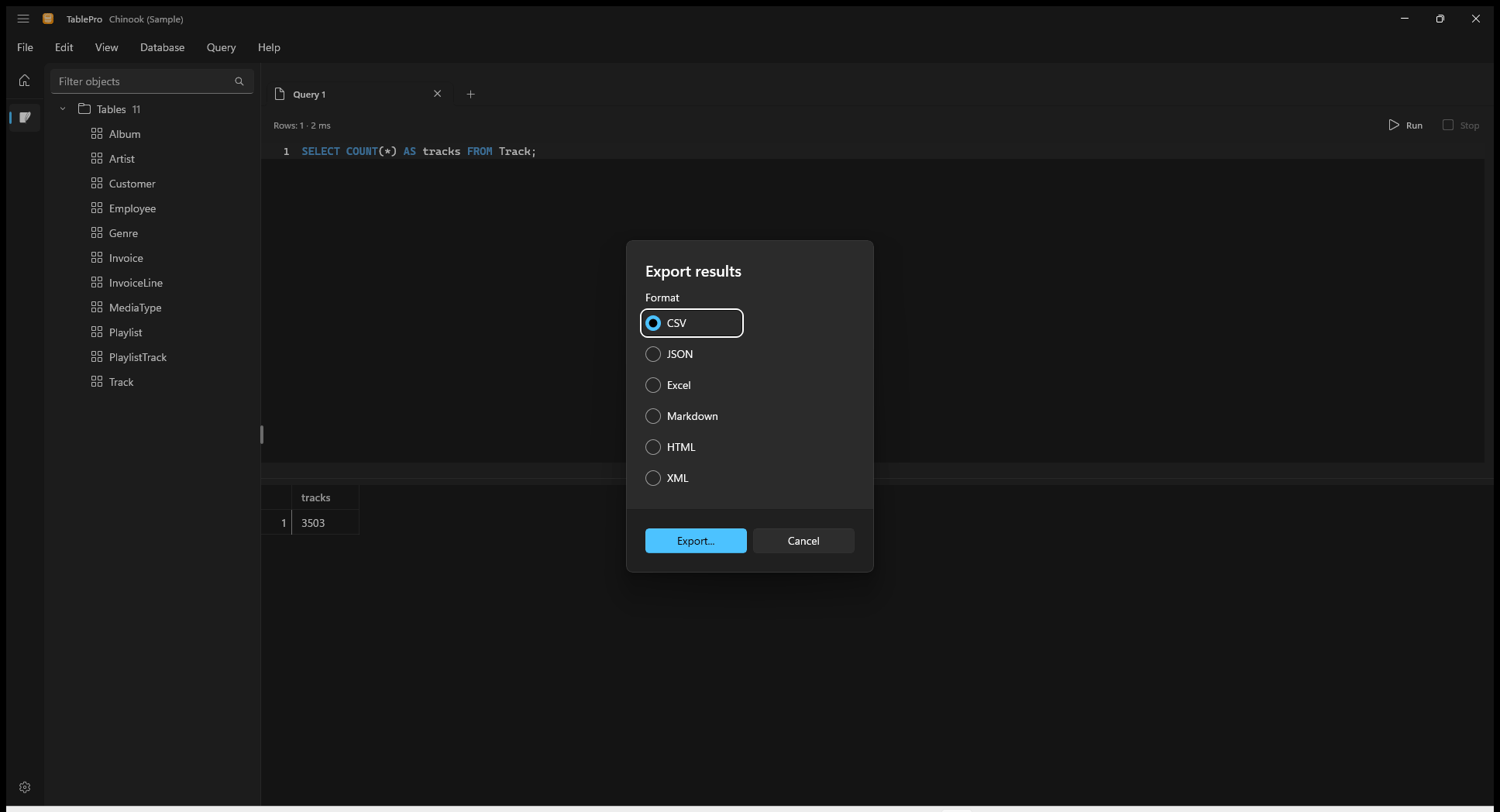
Export results from a query tab
1
Pick a format
CSV, JSON, Excel, Markdown, HTML or XML. From a table tab, SQL INSERT writes one statement per row for that table.
2
Pick the rows, in a table tab
Current page writes the rows on screen. Entire table reads every row the filter and sort pick, however many pages they span.
3
Choose where to save
The file appears only once every row is written. A failed or cancelled export leaves no file behind.
Share a result or query
Sharing needs a signed-in TablePro account; signed out, the share dialog offers Sign in….
A result can be shared once its run has finished. A table shares from its first row, whichever page is on screen, and Share… is dimmed while edits are pending. When TablePro cannot write the table’s query for its database, the link holds the rows without SQL and opens nothing in TablePro.
In the dialog, Share as picks Personal or a team where you hold a seat, and Share creates the link and copies it, with Open in browser beside it. For a result, Columns sets each column to Keep, Mask with a mask, or Remove, and columns that look sensitive start masked. Manage shared links… in the File menu opens your links in the browser. The dialog’s fields, the Free and Pro limits, and what a link sends are in Shared Links, and the column choices in Sensitive data.
Opening a
tablepro://share link puts its SQL in a new query tab without running it. With no connection open, a dialog shows the SQL with Copy SQL instead.
Find a past query
Choose View > Show query history to open the history beside the tabs. Every query you run in a query tab is kept with its time, duration and outcome, newest first. Type in the search box to find one by any words it contains.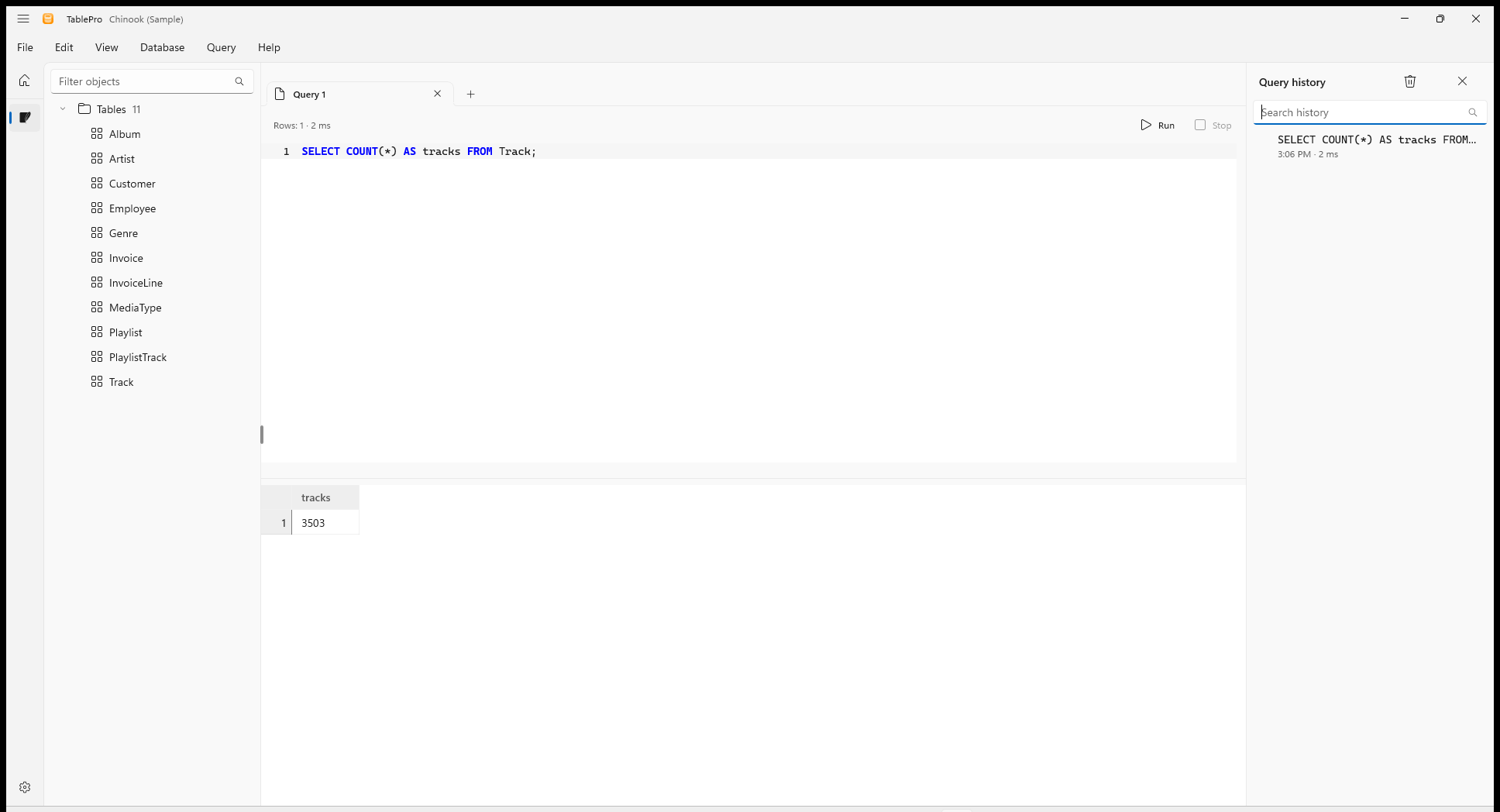
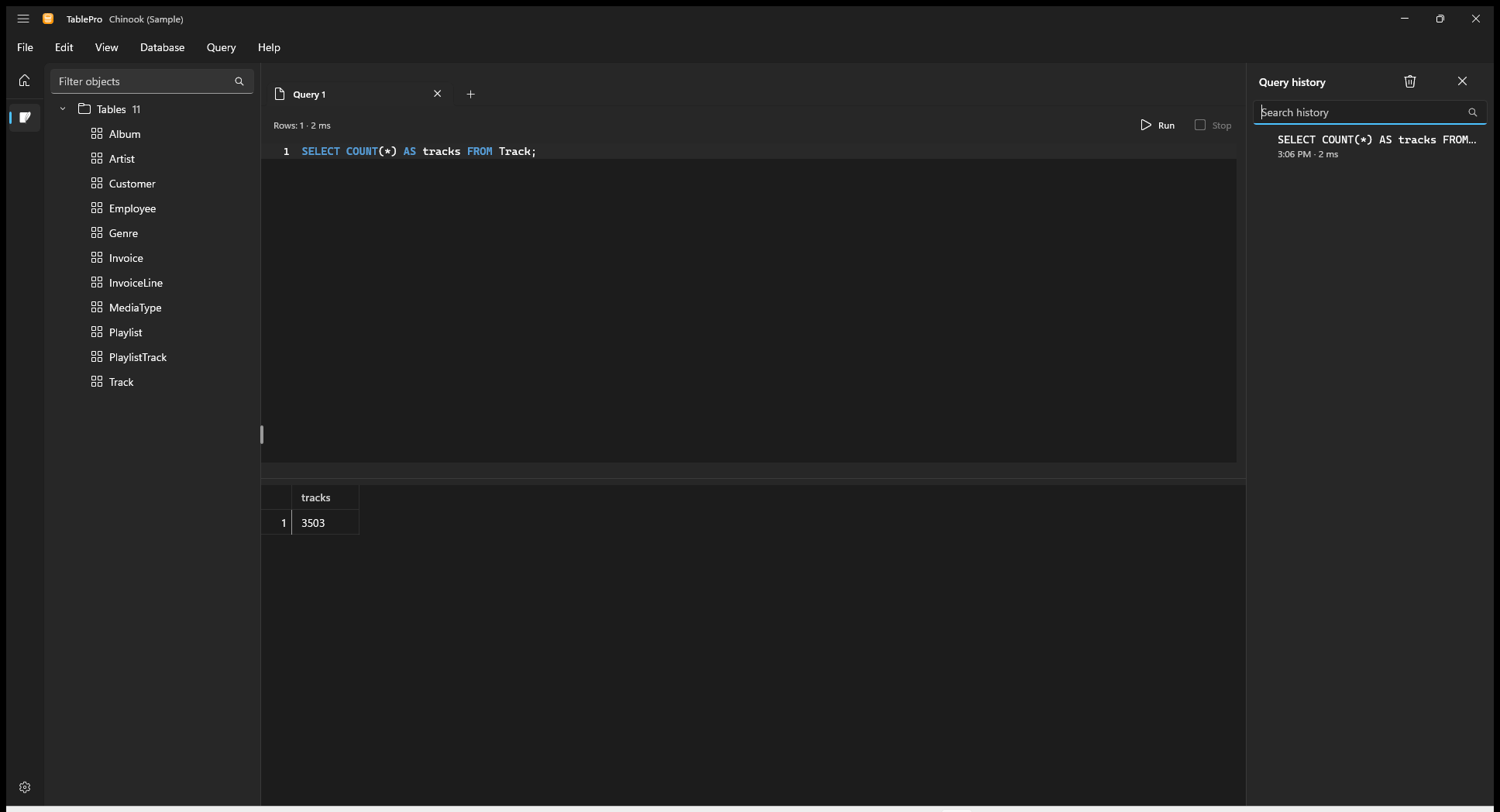
The query history beside the tabs
- Double-click a query, or select it and press
Enter, to open it in a new query tab. - Right-click a query to copy or delete it.
- Clear history removes the history of every connection, after asking.