> ## Documentation Index
> Fetch the complete documentation index at: https://docs.tablepro.app/llms.txt
> Use this file to discover all available pages before exploring further.
# MCP Server
> Built-in Model Context Protocol server that lets AI clients query your databases through TablePro
# MCP Server
TablePro includes a built-in [Model Context Protocol](https://modelcontextprotocol.io) (MCP) server. AI clients like Claude Desktop, Claude Code, Cursor, and Zed connect to it and query your databases through TablePro's saved connections, without ever seeing your passwords.
This page covers the **Settings > Integrations** pane. Protocol details, the tool catalog, and token scopes live in the [External API](/external-api/index) section.
 ## Enabling the server
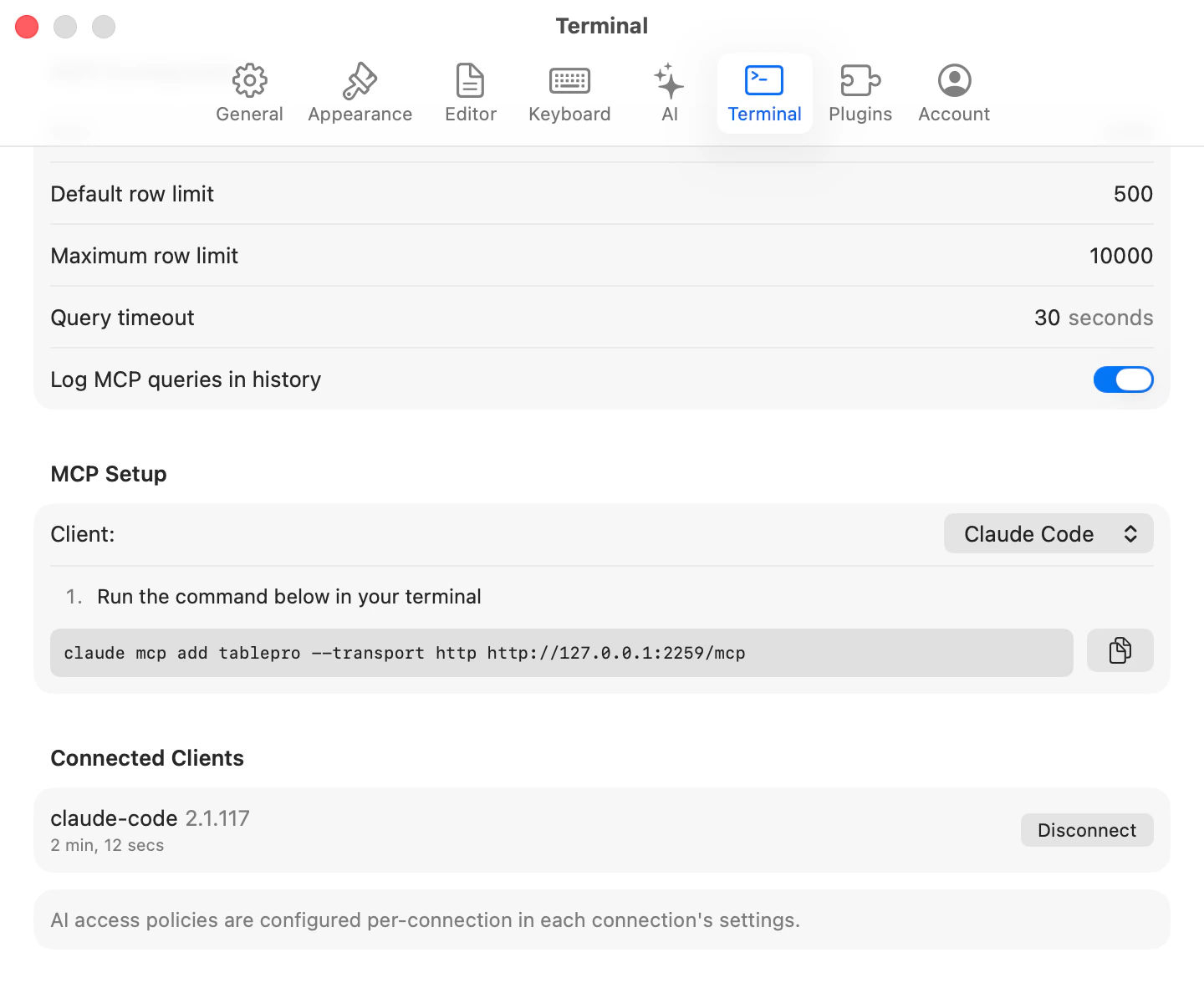
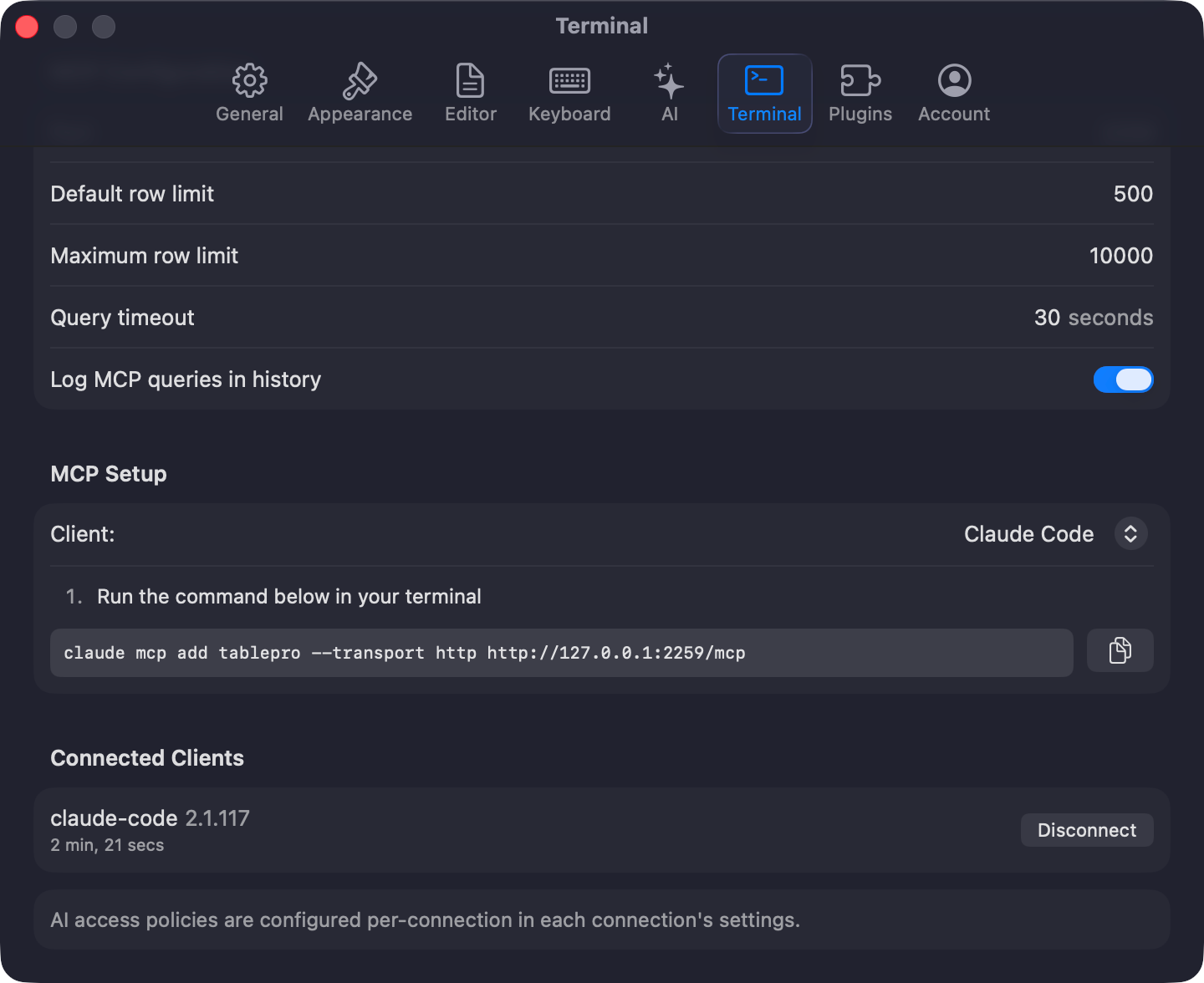
Open **Settings > Integrations** and turn on **Enable MCP Server**. A status row shows the state and the port the server is running on.
You can also skip the toggle: the server lazy-starts on demand. The bundled `tablepro-mcp` stdio bridge fires `tablepro://integrations/start-mcp` on cold start, and pairing an extension starts the server too.
The server binds the configured port (default **23508**). Starts triggered on demand fall back to a free port in the 51000-52000 range if that port is taken. Starting from Settings does not fall back; a taken port shows a port-in-use error in the status row. The actual port is written to `~/Library/Application Support/TablePro/mcp-handshake.json`, which the stdio bridge reads, so client configs never hardcode a port.
## Server configuration
| Setting | Default |
| -------------------------- | ---------- |
| Port | 23508 |
| Default row limit | 500 |
| Maximum row limit | 10,000 |
| Query timeout | 30 seconds |
| Log MCP queries in history | on |
## Connecting a client
Click **Connect a Client…** in **Settings > Integrations**. The sheet has a tab per client: **Claude Desktop**, **Claude Code**, **Cursor**, and **Zed**. Each tab shows numbered steps and a copyable config snippet or command that points at the bundled stdio bridge. You paste it into the client's own config; TablePro does not write to other apps' files.
For VS Code, Cline, Continue, Windsurf, Goose, the HTTP transport, and troubleshooting, see [MCP Clients](/external-api/mcp-clients).
## Authentication
**Require authentication** is on by default. Turning it on for the first time, with no tokens yet, generates a full-access "Default token" and shows the plaintext once so you can copy it. Manage tokens (create, scope, allowlist, expire, revoke) in the same section; the details are in [Tokens](/external-api/tokens).
With the toggle off, requests from your own machine are accepted without a token as long as the server is localhost-only. Remote clients always need a bearer token, regardless of the toggle.
## Remote access
The server listens on localhost only by default. **Settings > Integrations > Network > Allow remote connections** opens it to other machines. Enabling it turns on authentication and TLS automatically.
The TLS certificate is self-signed, generated automatically, and valid for 1 year. Its SHA-256 fingerprint is written to the handshake file so the stdio bridge can pin it.
Remote access exposes the server to your network. Leave it off unless you connect from another machine.
## Activity and connected clients
**View Activity…** opens a separate window with two panes:
* **Activity Log**: every authentication, tool call, and resource read, with token, category, connection, and outcome. Filter by time range, category, or token, search, and export the filtered view to CSV. Entries are kept for 90 days.
* **Connected Clients**: active MCP sessions, with a **Disconnect** button to end one.
## Security model
* Clients query through TablePro's saved connections; passwords never leave the Keychain and are not readable over MCP.
* AI access policies are set per connection in each connection's settings, including blocking a connection from external access entirely.
* Bearer tokens carry scopes and per-connection allowlists; see [Tokens](/external-api/tokens) for what tokens can and cannot do.
* The reachable surface is the [tool catalog](/external-api/mcp-tools) and [resources](/external-api/mcp-resources), nothing else.
## Reference
JSON-RPC tools with input and output schemas.
Read-only resources for connection metadata, schema, and history.
Scopes, allowlists, expiry, revocation, rate limits.
Setup for every supported client, plus troubleshooting.
## Enabling the server
Open **Settings > Integrations** and turn on **Enable MCP Server**. A status row shows the state and the port the server is running on.
You can also skip the toggle: the server lazy-starts on demand. The bundled `tablepro-mcp` stdio bridge fires `tablepro://integrations/start-mcp` on cold start, and pairing an extension starts the server too.
The server binds the configured port (default **23508**). Starts triggered on demand fall back to a free port in the 51000-52000 range if that port is taken. Starting from Settings does not fall back; a taken port shows a port-in-use error in the status row. The actual port is written to `~/Library/Application Support/TablePro/mcp-handshake.json`, which the stdio bridge reads, so client configs never hardcode a port.
## Server configuration
| Setting | Default |
| -------------------------- | ---------- |
| Port | 23508 |
| Default row limit | 500 |
| Maximum row limit | 10,000 |
| Query timeout | 30 seconds |
| Log MCP queries in history | on |
## Connecting a client
Click **Connect a Client…** in **Settings > Integrations**. The sheet has a tab per client: **Claude Desktop**, **Claude Code**, **Cursor**, and **Zed**. Each tab shows numbered steps and a copyable config snippet or command that points at the bundled stdio bridge. You paste it into the client's own config; TablePro does not write to other apps' files.
For VS Code, Cline, Continue, Windsurf, Goose, the HTTP transport, and troubleshooting, see [MCP Clients](/external-api/mcp-clients).
## Authentication
**Require authentication** is on by default. Turning it on for the first time, with no tokens yet, generates a full-access "Default token" and shows the plaintext once so you can copy it. Manage tokens (create, scope, allowlist, expire, revoke) in the same section; the details are in [Tokens](/external-api/tokens).
With the toggle off, requests from your own machine are accepted without a token as long as the server is localhost-only. Remote clients always need a bearer token, regardless of the toggle.
## Remote access
The server listens on localhost only by default. **Settings > Integrations > Network > Allow remote connections** opens it to other machines. Enabling it turns on authentication and TLS automatically.
The TLS certificate is self-signed, generated automatically, and valid for 1 year. Its SHA-256 fingerprint is written to the handshake file so the stdio bridge can pin it.
Remote access exposes the server to your network. Leave it off unless you connect from another machine.
## Activity and connected clients
**View Activity…** opens a separate window with two panes:
* **Activity Log**: every authentication, tool call, and resource read, with token, category, connection, and outcome. Filter by time range, category, or token, search, and export the filtered view to CSV. Entries are kept for 90 days.
* **Connected Clients**: active MCP sessions, with a **Disconnect** button to end one.
## Security model
* Clients query through TablePro's saved connections; passwords never leave the Keychain and are not readable over MCP.
* AI access policies are set per connection in each connection's settings, including blocking a connection from external access entirely.
* Bearer tokens carry scopes and per-connection allowlists; see [Tokens](/external-api/tokens) for what tokens can and cannot do.
* The reachable surface is the [tool catalog](/external-api/mcp-tools) and [resources](/external-api/mcp-resources), nothing else.
## Reference
JSON-RPC tools with input and output schemas.
Read-only resources for connection metadata, schema, and history.
Scopes, allowlists, expiry, revocation, rate limits.
Setup for every supported client, plus troubleshooting.