> ## Documentation Index
> Fetch the complete documentation index at: https://docs.tablepro.app/llms.txt
> Use this file to discover all available pages before exploring further.
# CSV Inspector
> Open, view, and edit CSV and TSV files natively without importing into a database first.
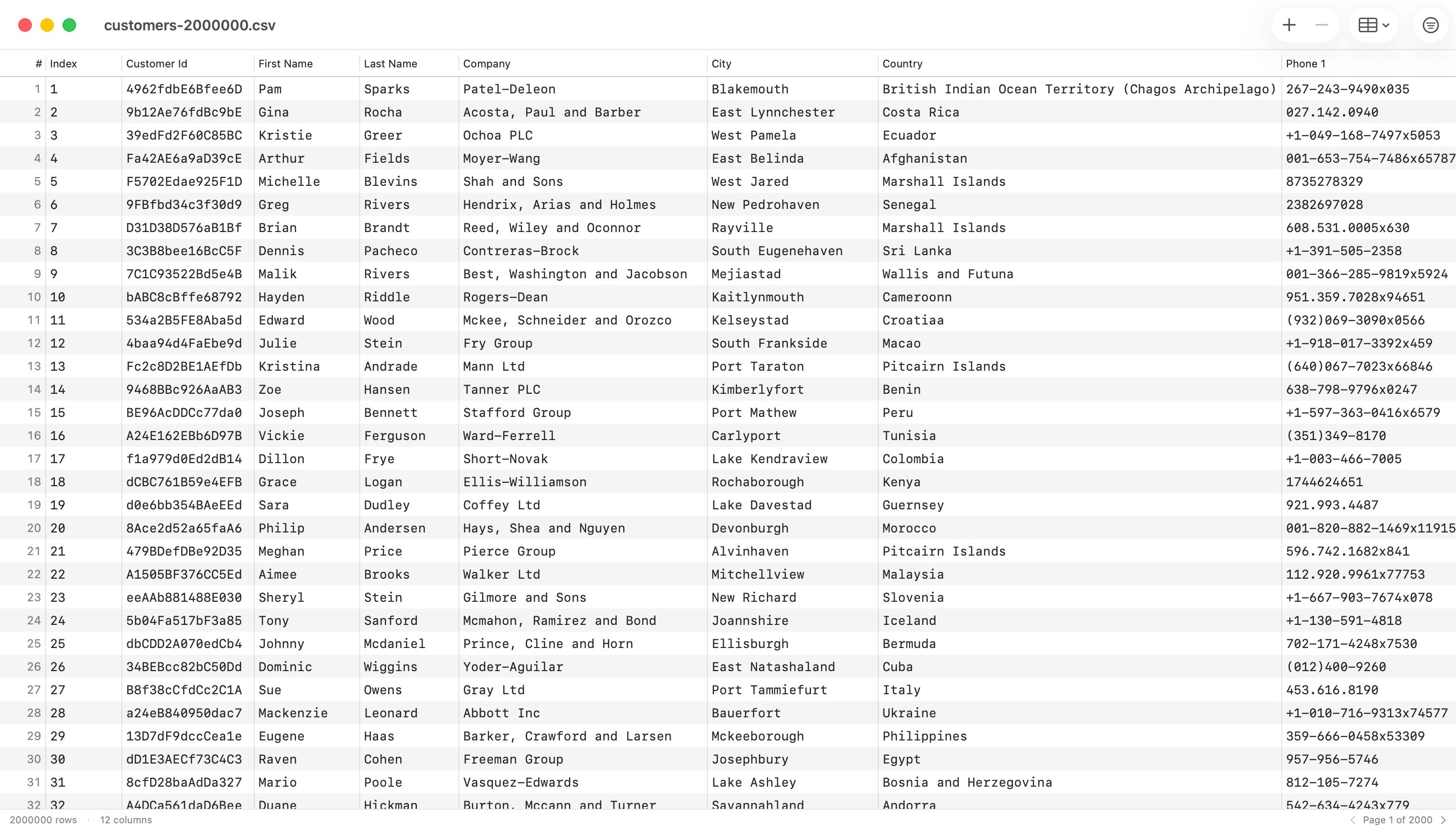
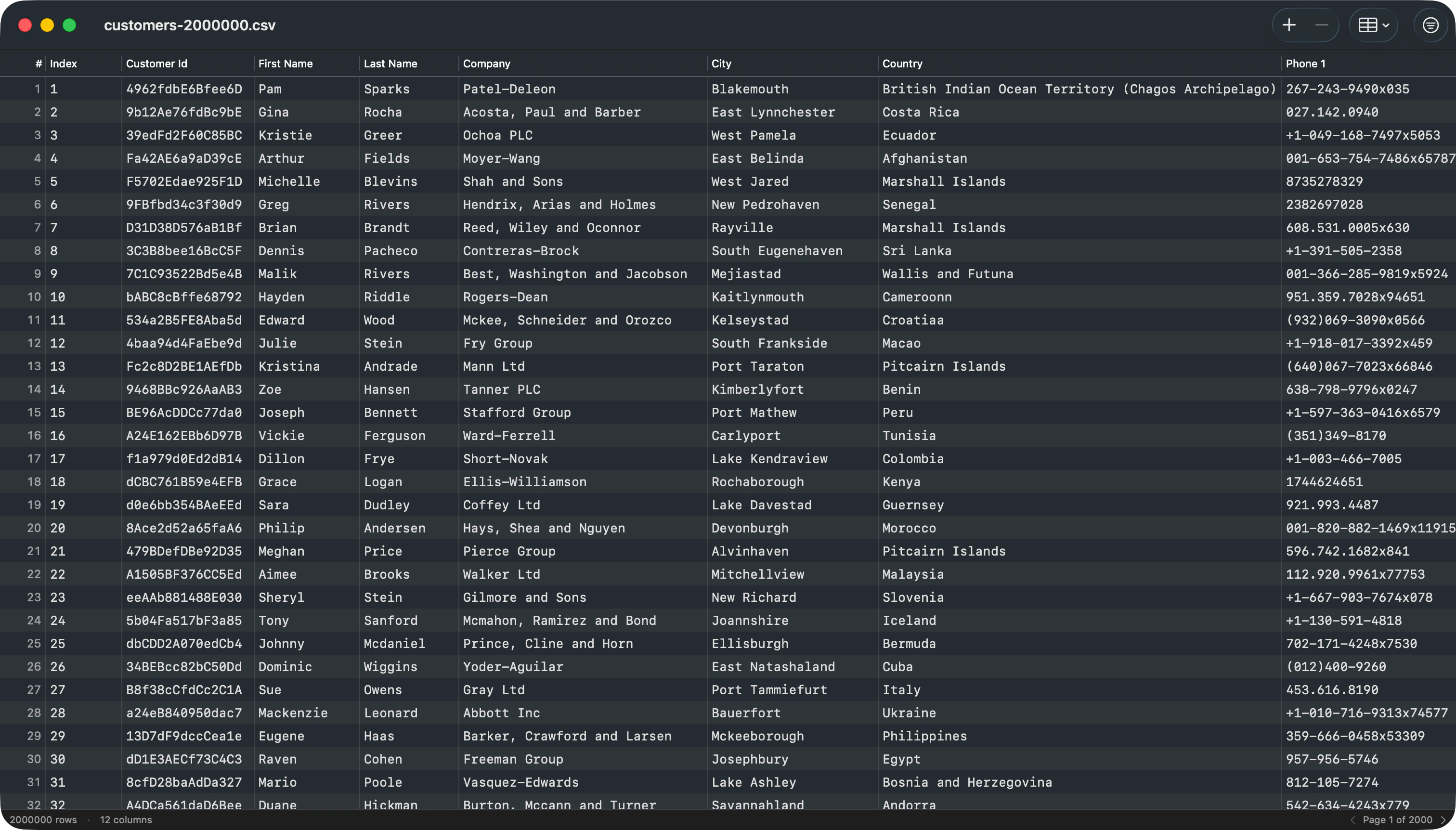
TablePro opens `.csv` and `.tsv` files directly as documents. No scratch database, no import step. The file is the source of truth; Save writes back to it.
 ## Opening a file
* Double-click a `.csv` or `.tsv` in Finder.
* Drag a file onto the TablePro Dock icon or an open TablePro window.
* File > Open... and pick a CSV or TSV.
* File > Open Recent lists previously opened CSV documents alongside saved connections.
## Auto-detection
When a file opens, TablePro reads the first 8 KB to detect:
* **Delimiter**: comma, tab, semicolon, or pipe, chosen by which appears most often outside quoted regions.
* **Encoding**: UTF-8 (with or without BOM), UTF-16 BE, UTF-16 LE. Files without a BOM are read as UTF-8 with Latin-1 fallback for stray bytes.
* **Line ending**: CRLF, LF, or CR. Whichever appears first.
* **Header row**: TablePro treats row one as headers when every value is non-numeric and unique. Otherwise it generates `Column 1`, `Column 2`, ... and treats every row as data.
## Editing
* Double-click a cell to edit. Tab or Return commits and moves to the next cell.
* The toolbar `Add Row` button appends a new row, scrolls to it, and selects it for editing.
* Select rows and press `Delete` (or the toolbar `−` button) to remove them. The next row takes selection so arrow keys keep working from where you were.
* Cmd+Z and Cmd+Shift+Z undo and redo every change. A bulk delete or a paste is a single undo step.
## Column operations
## Opening a file
* Double-click a `.csv` or `.tsv` in Finder.
* Drag a file onto the TablePro Dock icon or an open TablePro window.
* File > Open... and pick a CSV or TSV.
* File > Open Recent lists previously opened CSV documents alongside saved connections.
## Auto-detection
When a file opens, TablePro reads the first 8 KB to detect:
* **Delimiter**: comma, tab, semicolon, or pipe, chosen by which appears most often outside quoted regions.
* **Encoding**: UTF-8 (with or without BOM), UTF-16 BE, UTF-16 LE. Files without a BOM are read as UTF-8 with Latin-1 fallback for stray bytes.
* **Line ending**: CRLF, LF, or CR. Whichever appears first.
* **Header row**: TablePro treats row one as headers when every value is non-numeric and unique. Otherwise it generates `Column 1`, `Column 2`, ... and treats every row as data.
## Editing
* Double-click a cell to edit. Tab or Return commits and moves to the next cell.
* The toolbar `Add Row` button appends a new row, scrolls to it, and selects it for editing.
* Select rows and press `Delete` (or the toolbar `−` button) to remove them. The next row takes selection so arrow keys keep working from where you were.
* Cmd+Z and Cmd+Shift+Z undo and redo every change. A bulk delete or a paste is a single undo step.
## Column operations
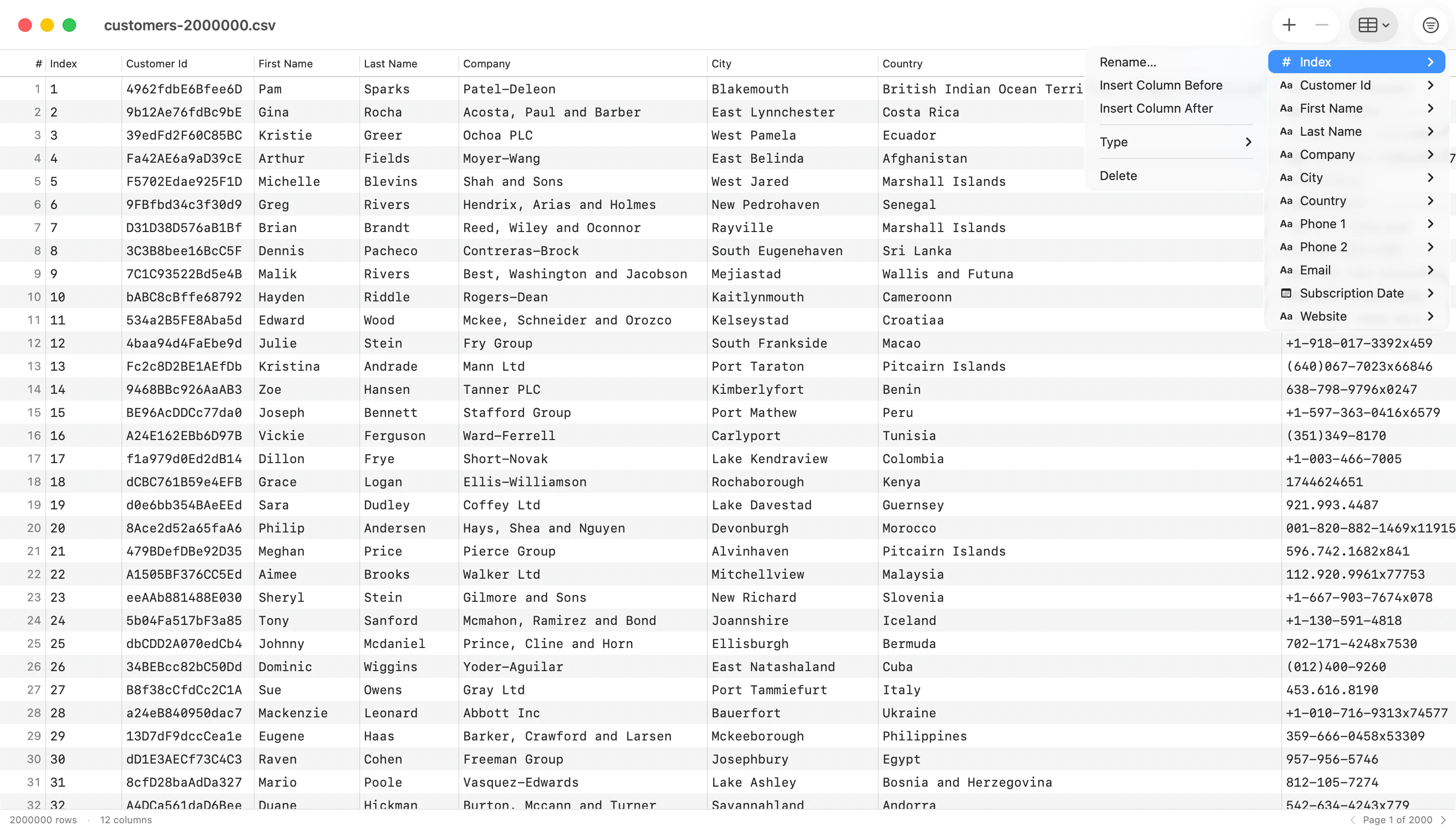
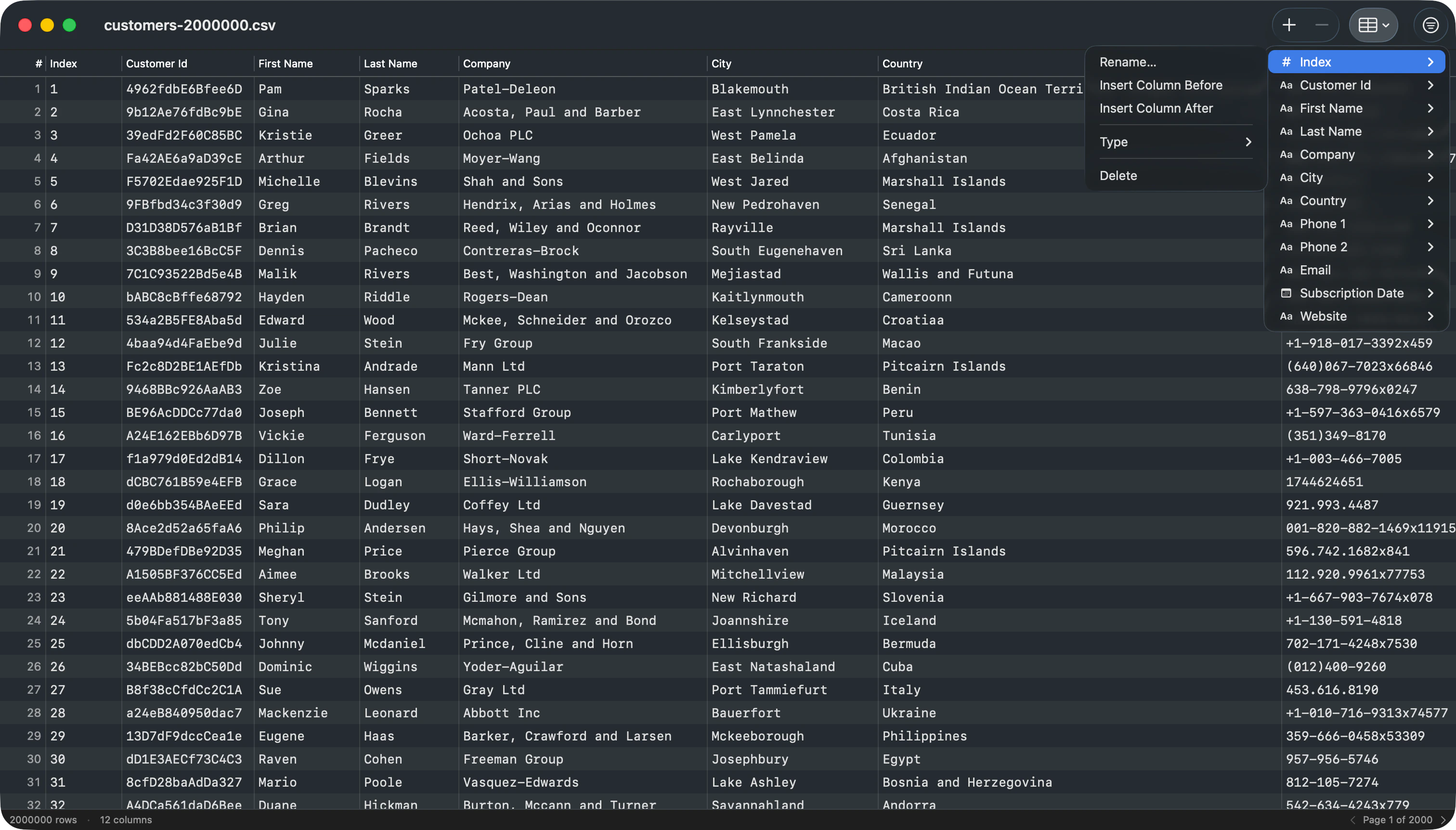 The toolbar `Columns` button opens a menu listing every column with its current type. Each column has a submenu for:
* **Rename…** opens a sheet to enter a new name; the column stays in place.
* **Insert Column Before / After** inserts a new column at the chosen position with a name you supply.
* **Type ▸** overrides the inferred type as Text, Integer, Real, Boolean, or Date. **Reset to Inferred** drops the override.
* **Delete** removes the column (undoable).
## Filter and sort
The toolbar `Columns` button opens a menu listing every column with its current type. Each column has a submenu for:
* **Rename…** opens a sheet to enter a new name; the column stays in place.
* **Insert Column Before / After** inserts a new column at the chosen position with a name you supply.
* **Type ▸** overrides the inferred type as Text, Integer, Real, Boolean, or Date. **Reset to Inferred** drops the override.
* **Delete** removes the column (undoable).
## Filter and sort
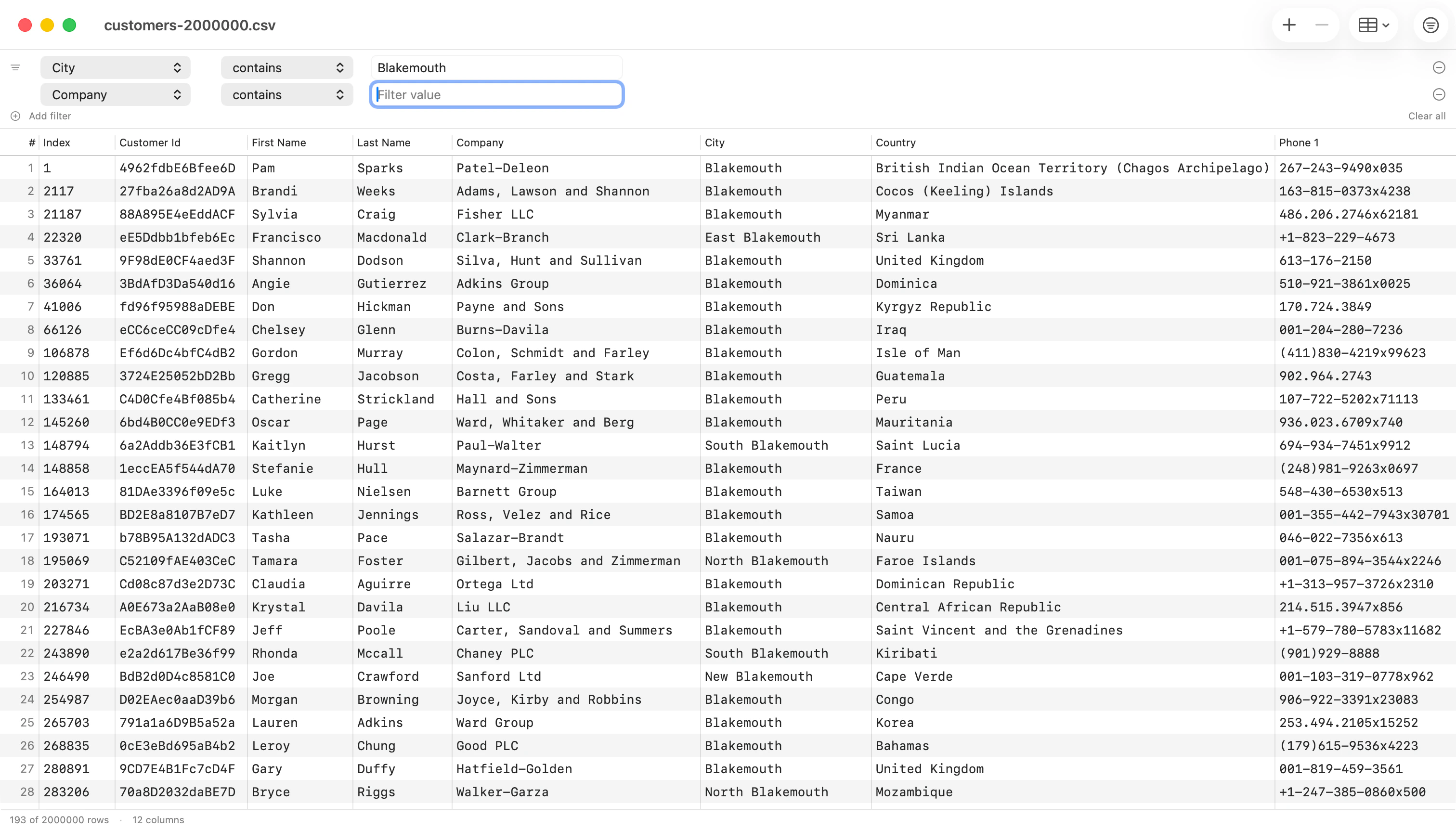
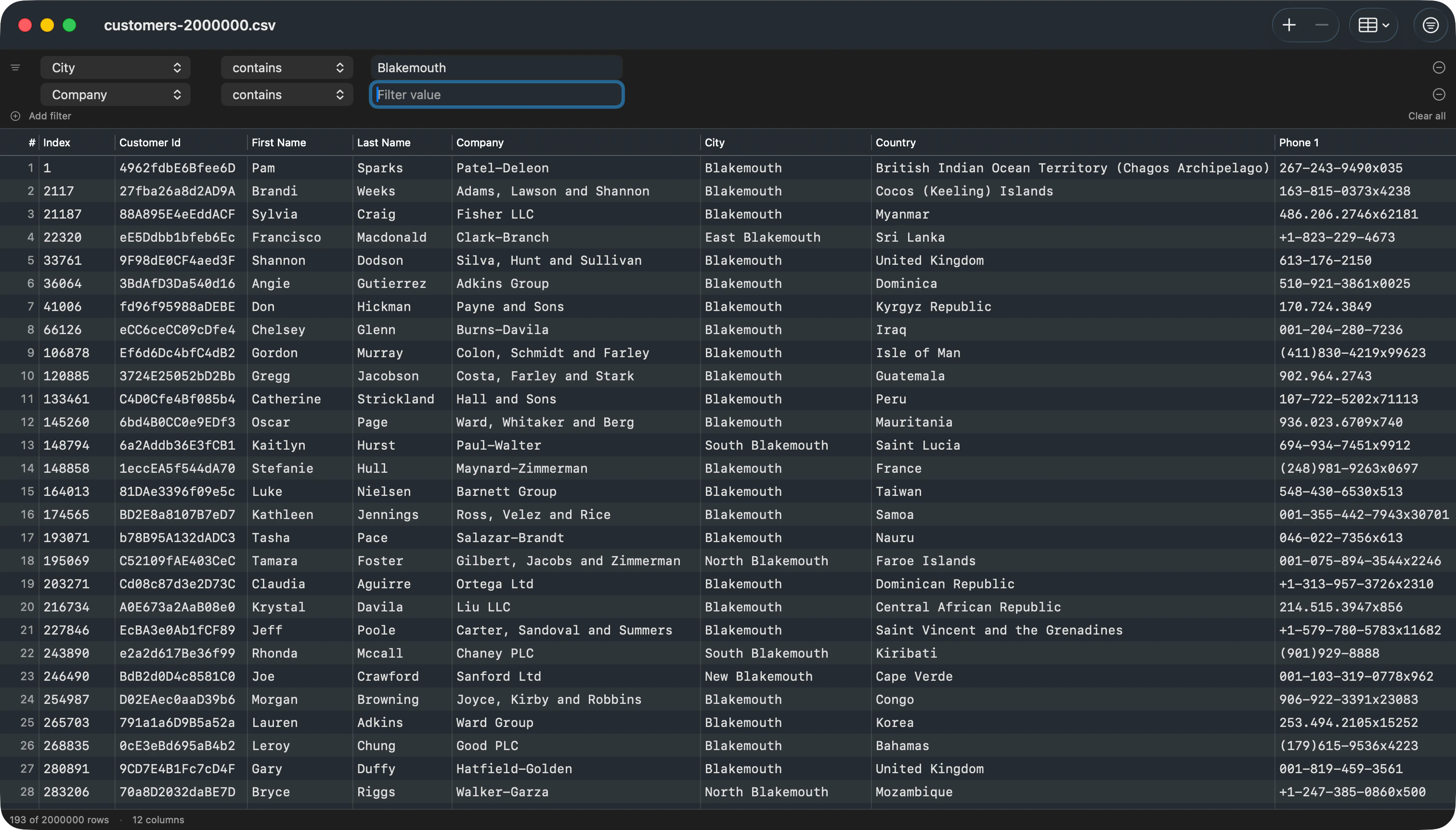 * `Cmd+F` toggles the filter bar. Each row is one condition: column, operator (`contains`, `equals`, `does not equal`, `starts with`, `ends with`, `is empty`, `is not empty`), and value.
* Use `+ Add filter` for additional conditions. All conditions are combined with AND.
* `Clear all` resets to a single empty condition.
* Click a column header to sort by that column. Shift-click another column to add it as a secondary sort key (and so on for tie-breakers).
* Numeric-typed columns sort numerically; text columns sort with natural ordering (so `Item 2` comes before `Item 10`).
* Filter and sort run off the main thread, so the UI stays responsive on large files. An "Updating…" indicator shows in the status bar while a recompute is in flight.
## Copy and paste
* `Cmd+C` copies selected rows to the pasteboard as TSV (tab-separated values).
* `Cmd+V` parses TSV from the pasteboard and appends each line as a new row. A whole paste is one undo step.
## Type inference
TablePro samples the first 200 non-empty values per column and infers `Integer`, `Real`, `Boolean`, `Date`, or `Text`. The inferred type controls numeric sort and right-alignment. Inferred types do not modify the stored data: every cell is still a string on disk. Override per-column from the `Columns` menu.
## Saving
* Cmd+S saves to the original path, preserving the detected delimiter, encoding, line ending, and BOM byte-for-byte.
* Cmd+Shift+S brings up Save As, where you can re-pick the destination.
* File > Revert To > Last Saved restores the last saved version. File > Revert To > Browse All Versions opens the macOS document version browser.
* The window title shows "Edited" until you save.
## External changes
If another application writes the file while you have it open in TablePro:
* If you have no unsaved edits, TablePro reloads the file.
* If you have unsaved edits, TablePro asks whether to keep your version or revert to the version on disk.
This is the standard macOS document behavior, the same as TextEdit and Pages.
## Window tabbing
CSV windows form their own native window tab group (separate from connection windows). Cmd+T inside a CSV window creates a new CSV inspector tab. Drag a CSV tab out of the window to detach it into its own window, or drop one back in to re-attach.
* `Cmd+F` toggles the filter bar. Each row is one condition: column, operator (`contains`, `equals`, `does not equal`, `starts with`, `ends with`, `is empty`, `is not empty`), and value.
* Use `+ Add filter` for additional conditions. All conditions are combined with AND.
* `Clear all` resets to a single empty condition.
* Click a column header to sort by that column. Shift-click another column to add it as a secondary sort key (and so on for tie-breakers).
* Numeric-typed columns sort numerically; text columns sort with natural ordering (so `Item 2` comes before `Item 10`).
* Filter and sort run off the main thread, so the UI stays responsive on large files. An "Updating…" indicator shows in the status bar while a recompute is in flight.
## Copy and paste
* `Cmd+C` copies selected rows to the pasteboard as TSV (tab-separated values).
* `Cmd+V` parses TSV from the pasteboard and appends each line as a new row. A whole paste is one undo step.
## Type inference
TablePro samples the first 200 non-empty values per column and infers `Integer`, `Real`, `Boolean`, `Date`, or `Text`. The inferred type controls numeric sort and right-alignment. Inferred types do not modify the stored data: every cell is still a string on disk. Override per-column from the `Columns` menu.
## Saving
* Cmd+S saves to the original path, preserving the detected delimiter, encoding, line ending, and BOM byte-for-byte.
* Cmd+Shift+S brings up Save As, where you can re-pick the destination.
* File > Revert To > Last Saved restores the last saved version. File > Revert To > Browse All Versions opens the macOS document version browser.
* The window title shows "Edited" until you save.
## External changes
If another application writes the file while you have it open in TablePro:
* If you have no unsaved edits, TablePro reloads the file.
* If you have unsaved edits, TablePro asks whether to keep your version or revert to the version on disk.
This is the standard macOS document behavior, the same as TextEdit and Pages.
## Window tabbing
CSV windows form their own native window tab group (separate from connection windows). Cmd+T inside a CSV window creates a new CSV inspector tab. Drag a CSV tab out of the window to detach it into its own window, or drop one back in to re-attach.