> ## Documentation Index
> Fetch the complete documentation index at: https://docs.tablepro.app/llms.txt
> Use this file to discover all available pages before exploring further.
# Connection Sharing
> Share connections with your team or import from other apps
# Connection Sharing
Export connections to a `.tablepro` file and share with your team. Passwords stay in your Keychain.
## Export
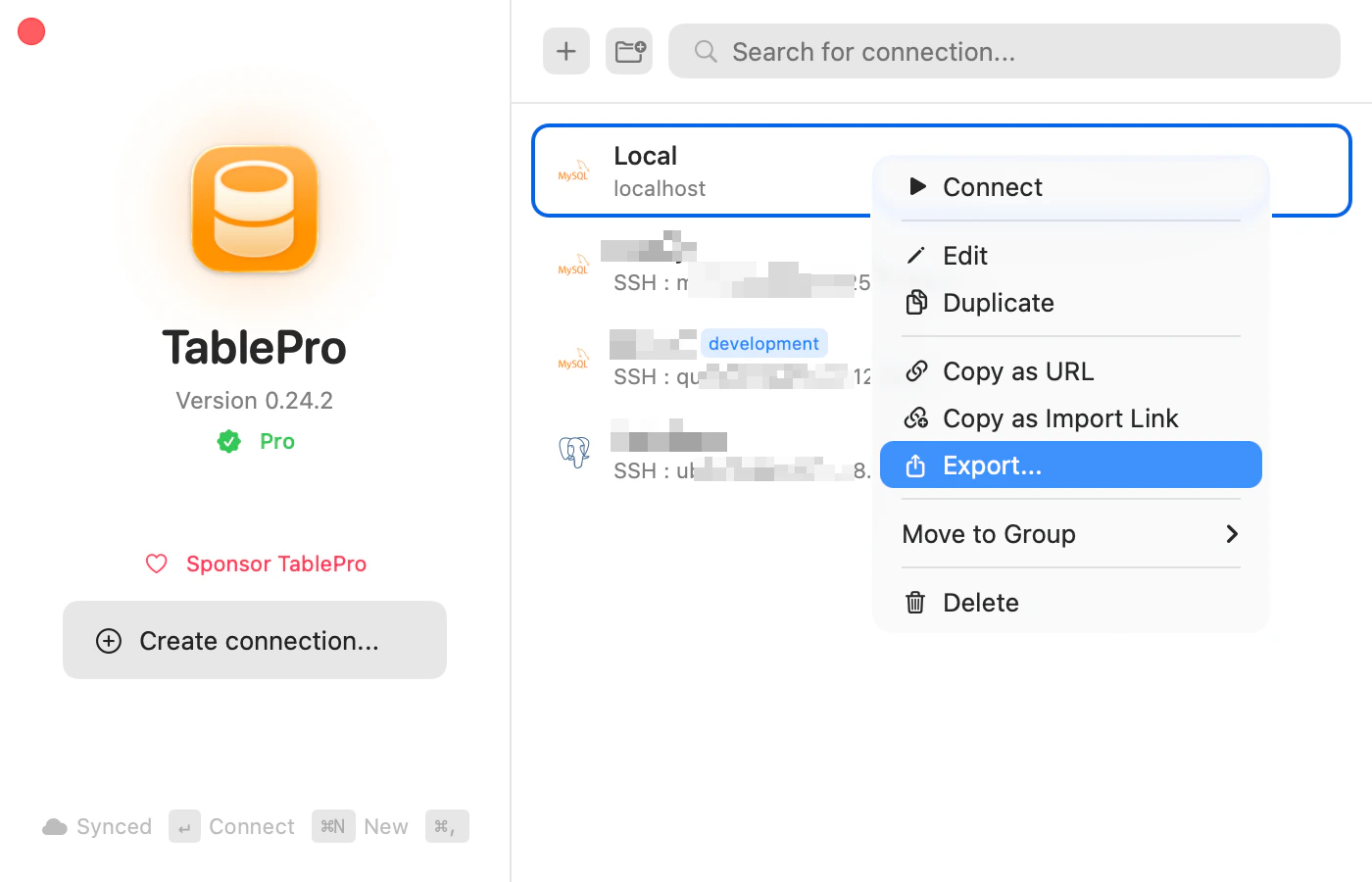
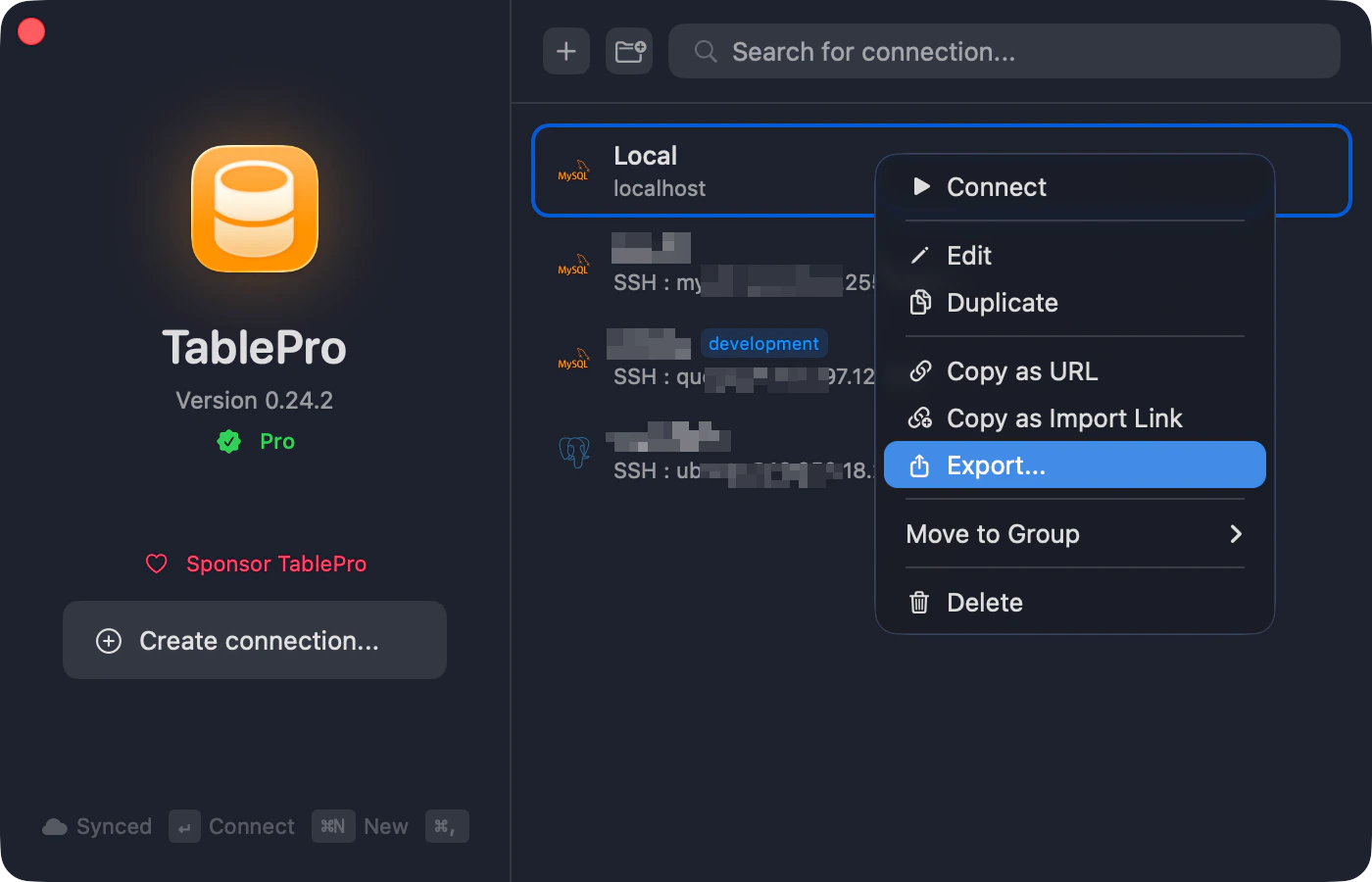
Right-click a connection > **Export Connection...**. Select multiple first to export together. Or use **File** > **Export Connections...** for all.
Exported: host, port, username, type, SSH/SSL config, color, tag, group, Safe Mode. Not exported: passwords, key passphrases, TOTP secrets.
 ## Import
* **File** > **Import Connections...**
* Right-click empty area > **Import Connections...**
* Double-click a `.tablepro` file
* Drag onto TablePro
A preview shows each connection before importing:
| Badge | Meaning |
| --------------- | ------------------------- |
| Green checkmark | Ready |
| Yellow triangle | SSH key or cert not found |
| "duplicate" tag | Already exists |
Duplicates are unchecked. Check to import, then pick **As Copy**, **Replace**, or **Skip**.
## Import
* **File** > **Import Connections...**
* Right-click empty area > **Import Connections...**
* Double-click a `.tablepro` file
* Drag onto TablePro
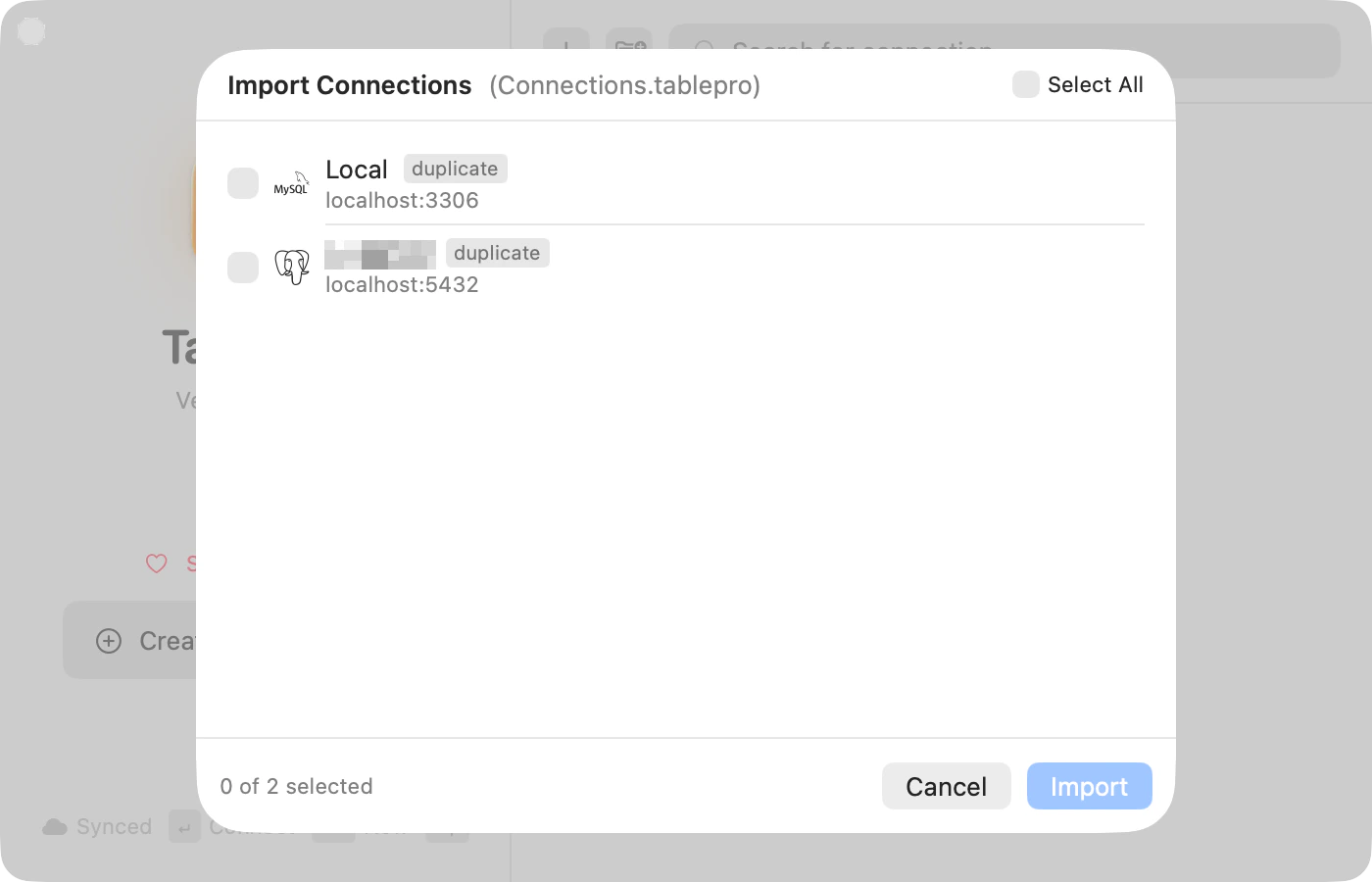
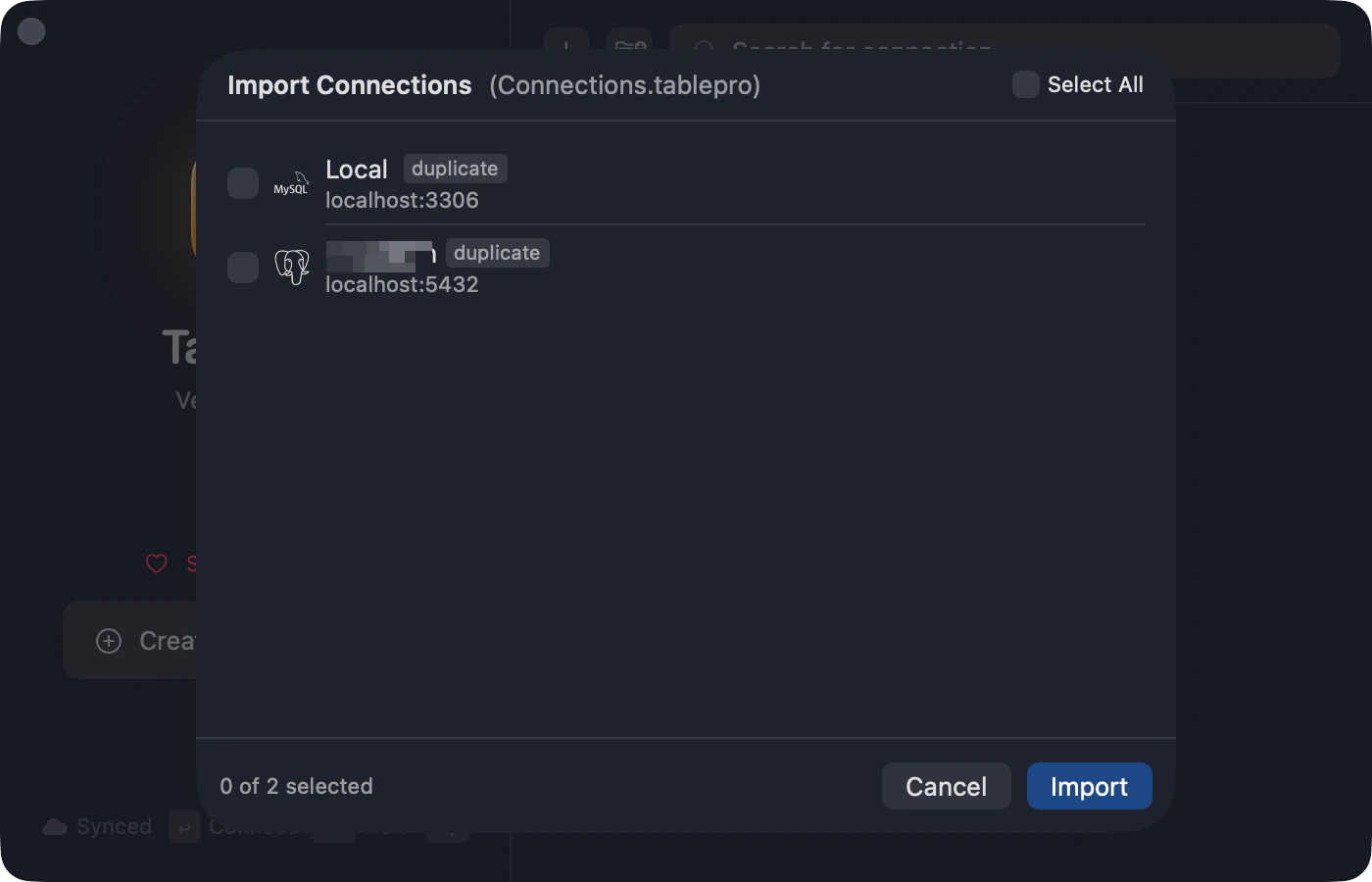
A preview shows each connection before importing:
| Badge | Meaning |
| --------------- | ------------------------- |
| Green checkmark | Ready |
| Yellow triangle | SSH key or cert not found |
| "duplicate" tag | Already exists |
Duplicates are unchecked. Check to import, then pick **As Copy**, **Replace**, or **Skip**.
 ## On iPhone
TablePro for iPhone reads and writes the same `.tablepro` file, so connections move between your Mac and your phone.
**Import:** tap the **more** menu (•••) above the connection list and choose **Import Connections**, then pick a `.tablepro` file. You can also open a `.tablepro` file from the Files app or accept one over AirDrop, and it opens straight into TablePro. The same preview shows each connection with its status, and you choose **As Copy**, **Replace**, or **Skip** for duplicates. Encrypted files prompt for the passphrase first.
**Export:** tap the **more** menu and choose **Export Connections** to share a `.tablepro` file through the system share sheet. Passwords are left out by default. To include them, turn on **Include passwords** and set a passphrase that encrypts the file.
## Import from Other Apps
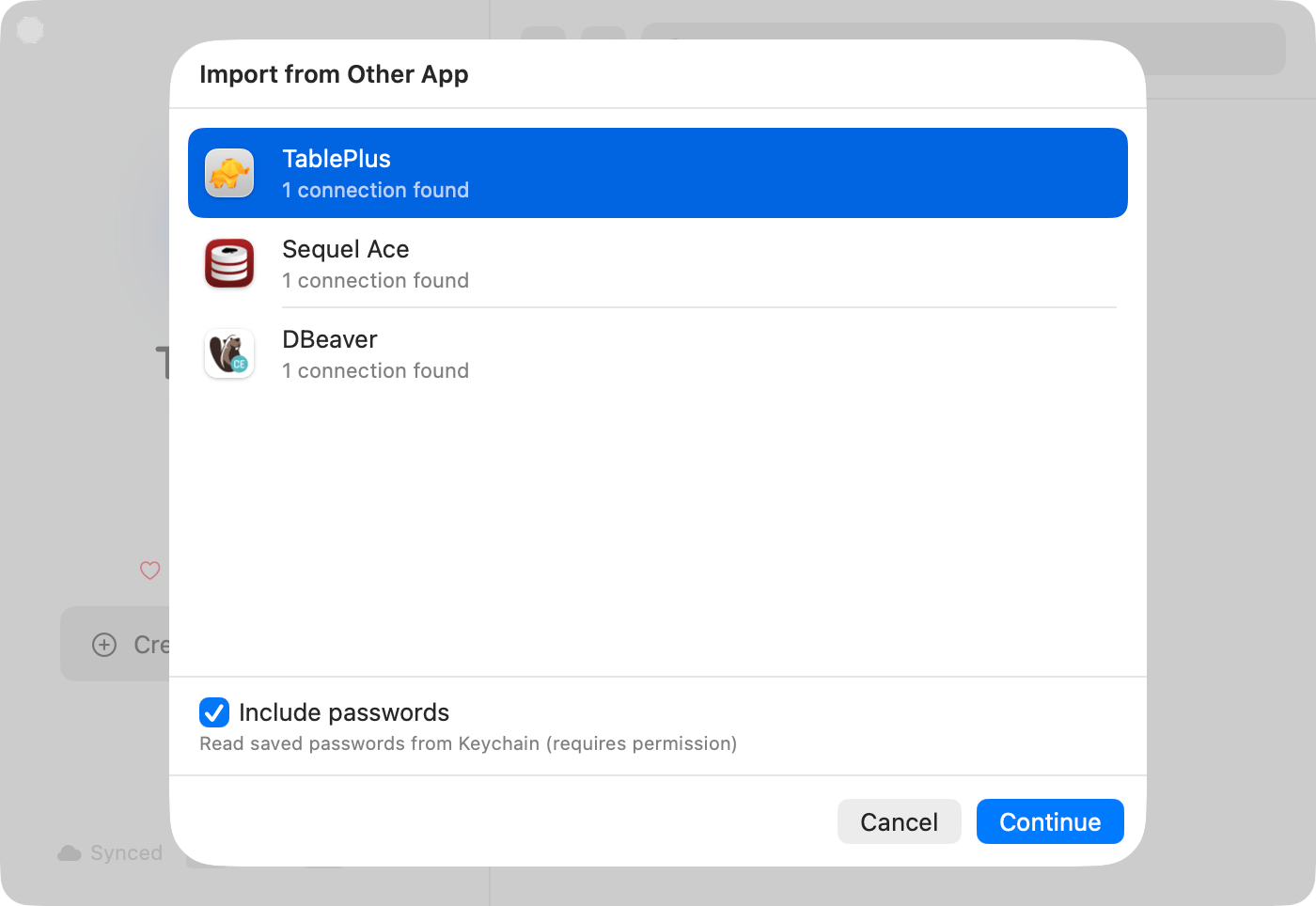
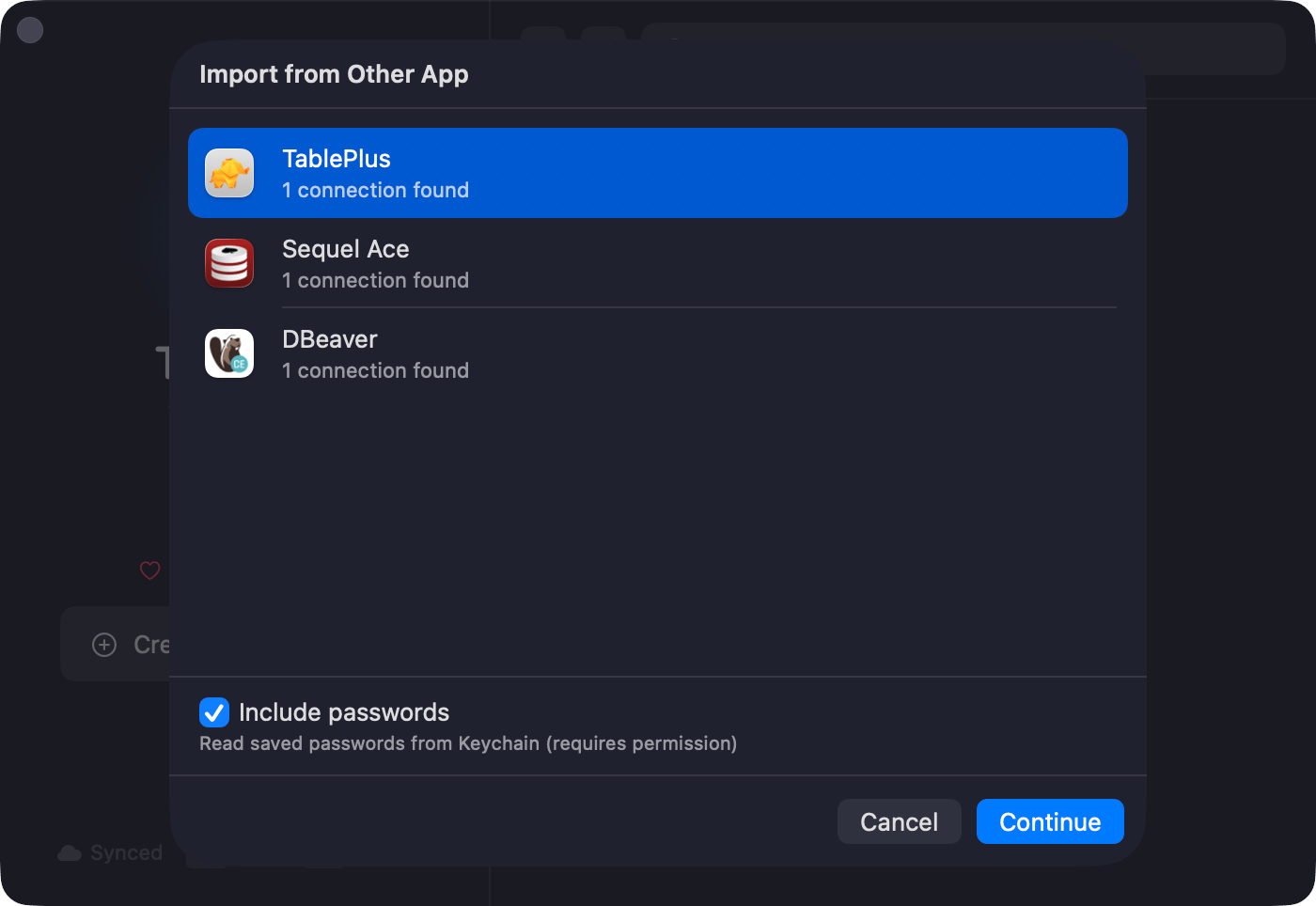
Bring your connections over from TablePlus, Sequel Ace, DBeaver, DataGrip, or Navicat. Passwords can be imported too. The source app doesn't need to be running.
1. **File** > **Import from Other App...**
2. Pick the source app and click **Continue**. Navicat opens a file picker: choose the `.ncx` file you exported from Navicat.
3. Review the list. Duplicates match by host, port, database, and username. Uncheck anything you don't want, or choose **As Copy**, **Replace**, or **Skip** for duplicates, then click **Import**.
## On iPhone
TablePro for iPhone reads and writes the same `.tablepro` file, so connections move between your Mac and your phone.
**Import:** tap the **more** menu (•••) above the connection list and choose **Import Connections**, then pick a `.tablepro` file. You can also open a `.tablepro` file from the Files app or accept one over AirDrop, and it opens straight into TablePro. The same preview shows each connection with its status, and you choose **As Copy**, **Replace**, or **Skip** for duplicates. Encrypted files prompt for the passphrase first.
**Export:** tap the **more** menu and choose **Export Connections** to share a `.tablepro` file through the system share sheet. Passwords are left out by default. To include them, turn on **Include passwords** and set a passphrase that encrypts the file.
## Import from Other Apps
Bring your connections over from TablePlus, Sequel Ace, DBeaver, DataGrip, or Navicat. Passwords can be imported too. The source app doesn't need to be running.
1. **File** > **Import from Other App...**
2. Pick the source app and click **Continue**. Navicat opens a file picker: choose the `.ncx` file you exported from Navicat.
3. Review the list. Duplicates match by host, port, database, and username. Uncheck anything you don't want, or choose **As Copy**, **Replace**, or **Skip** for duplicates, then click **Import**.
 Groups and folders carry over.
| App | Databases | Passwords |
| ---------- | --------------------------------------------------------------- | -------------------------- |
| TablePlus | MySQL, PostgreSQL, MongoDB, SQLite, Redis, and more | From Keychain |
| Sequel Ace | MySQL | From Keychain |
| DBeaver | MySQL, PostgreSQL, SQLite, SQL Server, Oracle, and more | Decrypted from config file |
| DataGrip | MySQL, PostgreSQL, SQLite, SQL Server, Oracle, and more | From Keychain or `c.kdbx` |
| Navicat | MySQL, MariaDB, PostgreSQL, SQLite, SQL Server, Oracle, MongoDB | Decrypted from `.ncx` file |
DBeaver is detected from its data folder, so every edition is picked up: Community, Lite, Enterprise, Ultimate, and Team. The app doesn't need to be installed for its saved connections to import.
DataGrip stores connections per project. TablePro imports the connections from the projects DataGrip is tracking (its recent projects), along with their SSH tunnel and SSL settings, and the SSH tunnel password when DataGrip saved one. If a connection is missing, open its project in DataGrip once so it returns to the recent list. Connections protected by a DataGrip master password can't be read.
Navicat keeps its connections in an encrypted store that can't be read directly, so TablePro imports from an export instead. In Navicat, choose **File** > **Export Connections**, and turn on **Export Password** if you want passwords to come across. Pick the resulting `.ncx` file in TablePro. SSH tunnel and SSL settings carry over. A connection exported without its password imports without one, so you enter it the first time you connect.
## Share via Link
Two link forms ship with TablePro. Pick the one that matches what you want to share.
### Copy as Import Link
Right-click > **Copy as Import Link**. Produces a `tablepro://import?...` URL with host, port, type, and username (no password). Paste in Slack, a wiki, or a README. The recipient opens the link, reviews the prefilled form, adds their own password, and saves.
```
tablepro://import?name=Staging&host=db.example.com&port=5432&type=PostgreSQL&username=admin
```
### Copy Connection Deep Link
Right-click > **Copy Connection Deep Link**. Produces a `tablepro://connect/` URL that opens the connection you already have saved. The link refers to your local connection record by UUID, so it only works on a Mac that already has the same connection saved (for example, your other Mac with iCloud Sync, or a teammate who imported the connection). Use this form for bookmarks, Raycast Quicklinks, or shell aliases.
```
tablepro://connect/9f1f0c3e-2e3d-4b14-9c3a-1d2f4ad1f6f1
```
See [URL Scheme](/external-api/url-scheme#open-a-connection) for the full path syntax (table targets, query parameters, percent-encoding).
## Encrypted Export Pro
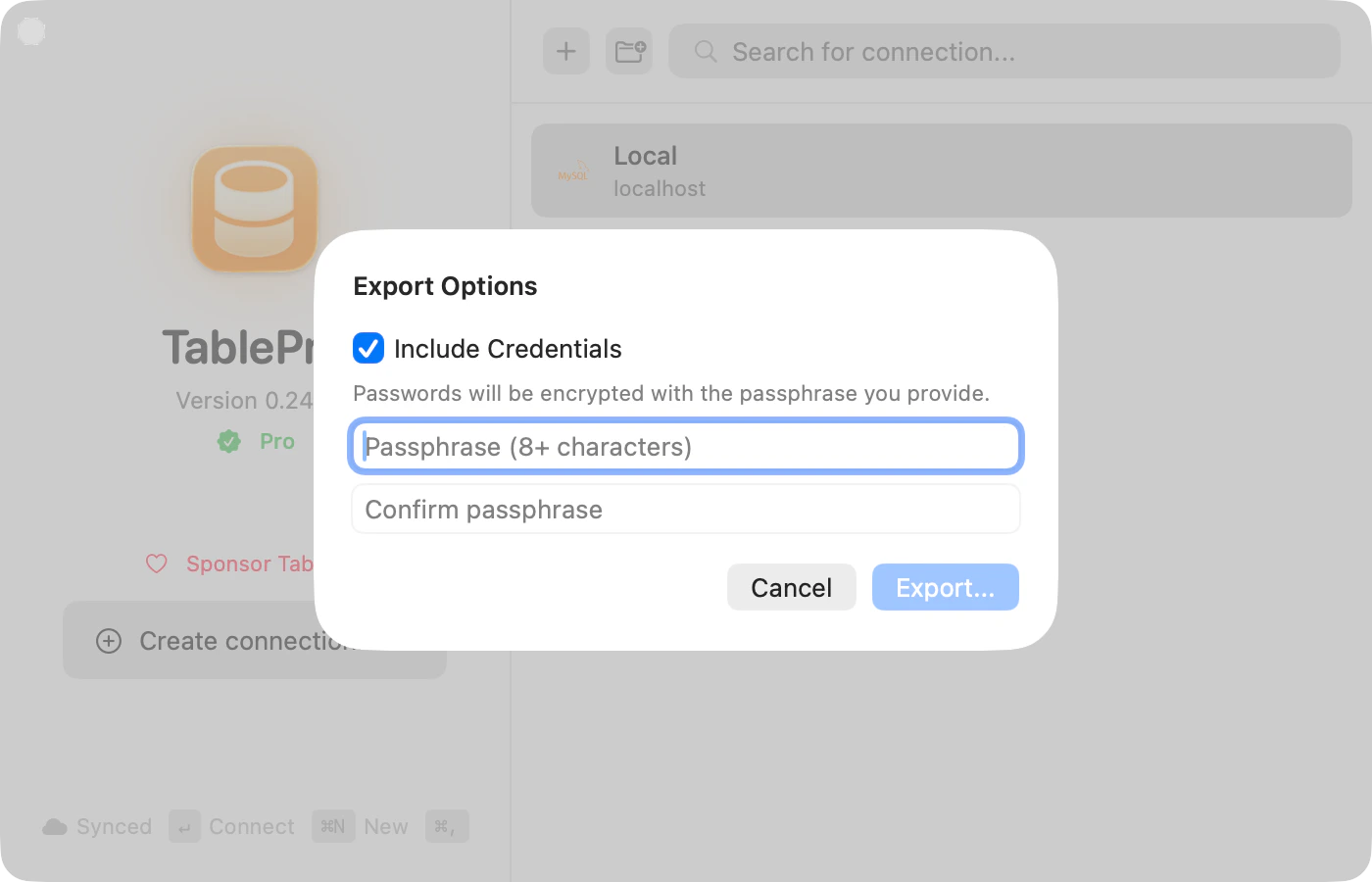
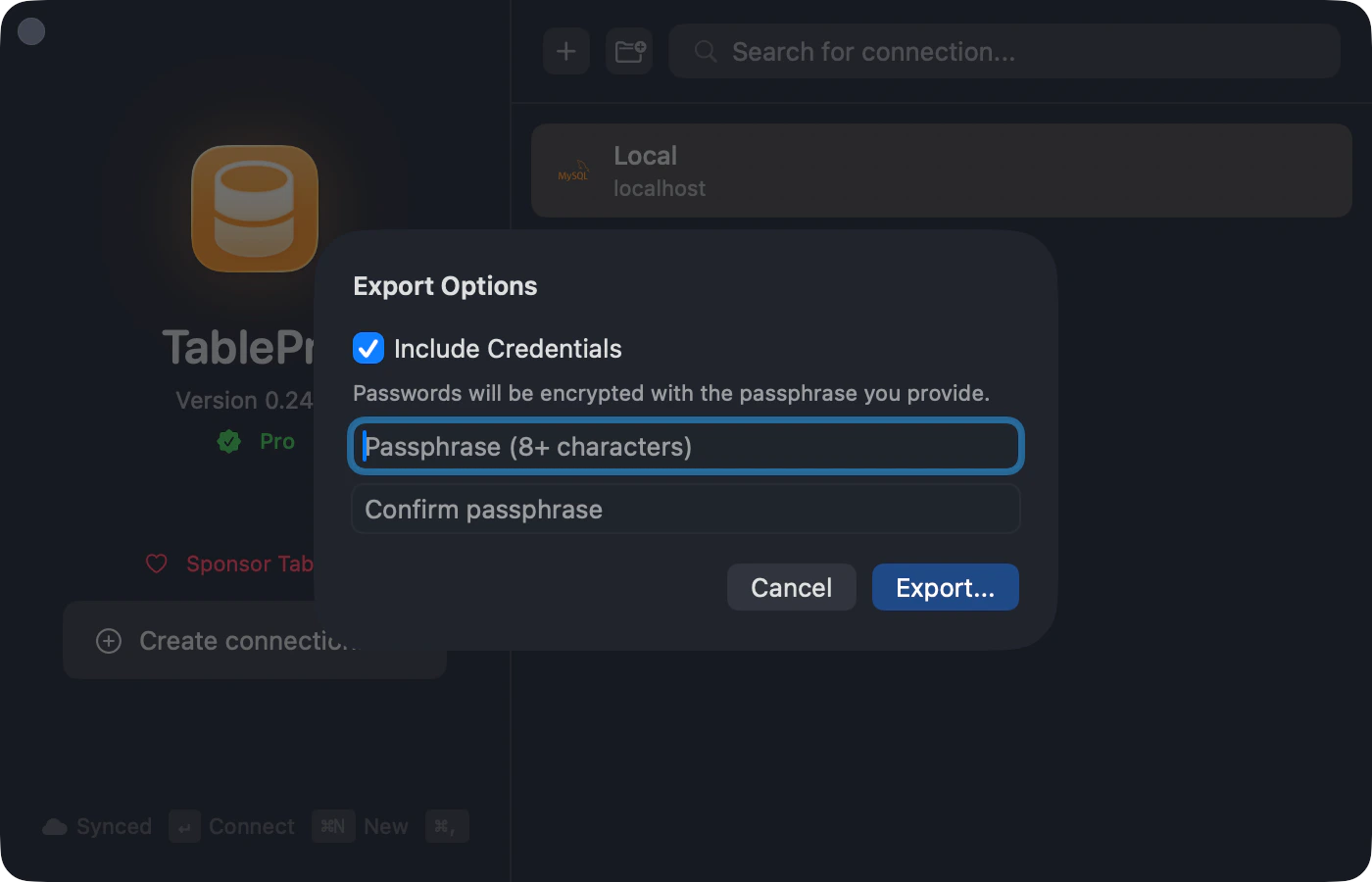
Include passwords in the export, protected by a passphrase (AES-256-GCM).
1. Right-click > **Export...**
2. Check **Include Credentials**
3. Enter passphrase (8+ characters), confirm
4. **Export...**
When importing, TablePro prompts for the passphrase.
Groups and folders carry over.
| App | Databases | Passwords |
| ---------- | --------------------------------------------------------------- | -------------------------- |
| TablePlus | MySQL, PostgreSQL, MongoDB, SQLite, Redis, and more | From Keychain |
| Sequel Ace | MySQL | From Keychain |
| DBeaver | MySQL, PostgreSQL, SQLite, SQL Server, Oracle, and more | Decrypted from config file |
| DataGrip | MySQL, PostgreSQL, SQLite, SQL Server, Oracle, and more | From Keychain or `c.kdbx` |
| Navicat | MySQL, MariaDB, PostgreSQL, SQLite, SQL Server, Oracle, MongoDB | Decrypted from `.ncx` file |
DBeaver is detected from its data folder, so every edition is picked up: Community, Lite, Enterprise, Ultimate, and Team. The app doesn't need to be installed for its saved connections to import.
DataGrip stores connections per project. TablePro imports the connections from the projects DataGrip is tracking (its recent projects), along with their SSH tunnel and SSL settings, and the SSH tunnel password when DataGrip saved one. If a connection is missing, open its project in DataGrip once so it returns to the recent list. Connections protected by a DataGrip master password can't be read.
Navicat keeps its connections in an encrypted store that can't be read directly, so TablePro imports from an export instead. In Navicat, choose **File** > **Export Connections**, and turn on **Export Password** if you want passwords to come across. Pick the resulting `.ncx` file in TablePro. SSH tunnel and SSL settings carry over. A connection exported without its password imports without one, so you enter it the first time you connect.
## Share via Link
Two link forms ship with TablePro. Pick the one that matches what you want to share.
### Copy as Import Link
Right-click > **Copy as Import Link**. Produces a `tablepro://import?...` URL with host, port, type, and username (no password). Paste in Slack, a wiki, or a README. The recipient opens the link, reviews the prefilled form, adds their own password, and saves.
```
tablepro://import?name=Staging&host=db.example.com&port=5432&type=PostgreSQL&username=admin
```
### Copy Connection Deep Link
Right-click > **Copy Connection Deep Link**. Produces a `tablepro://connect/` URL that opens the connection you already have saved. The link refers to your local connection record by UUID, so it only works on a Mac that already has the same connection saved (for example, your other Mac with iCloud Sync, or a teammate who imported the connection). Use this form for bookmarks, Raycast Quicklinks, or shell aliases.
```
tablepro://connect/9f1f0c3e-2e3d-4b14-9c3a-1d2f4ad1f6f1
```
See [URL Scheme](/external-api/url-scheme#open-a-connection) for the full path syntax (table targets, query parameters, percent-encoding).
## Encrypted Export Pro
Include passwords in the export, protected by a passphrase (AES-256-GCM).
1. Right-click > **Export...**
2. Check **Include Credentials**
3. Enter passphrase (8+ characters), confirm
4. **Export...**
When importing, TablePro prompts for the passphrase.
 ## Linked Folders Pro
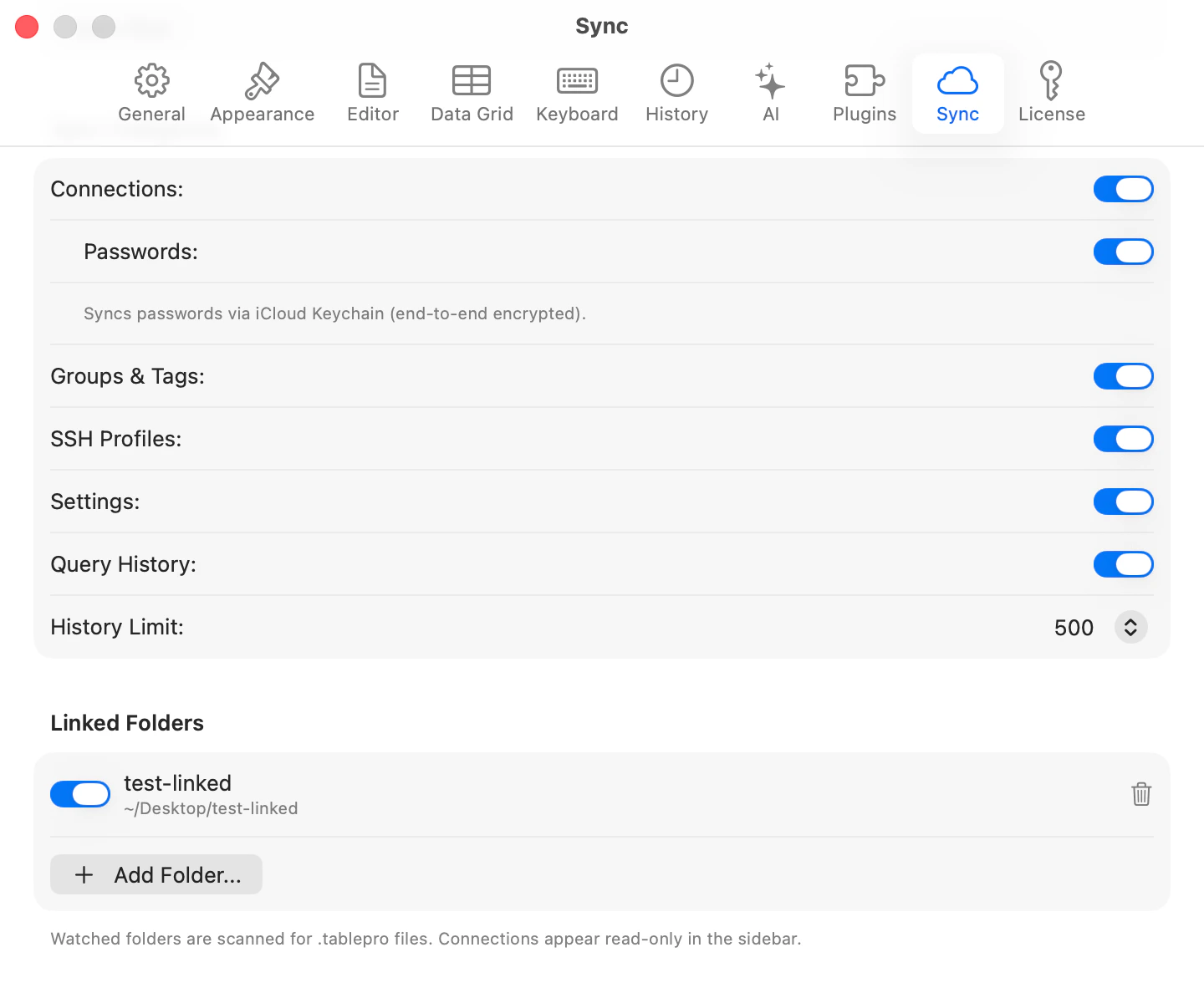
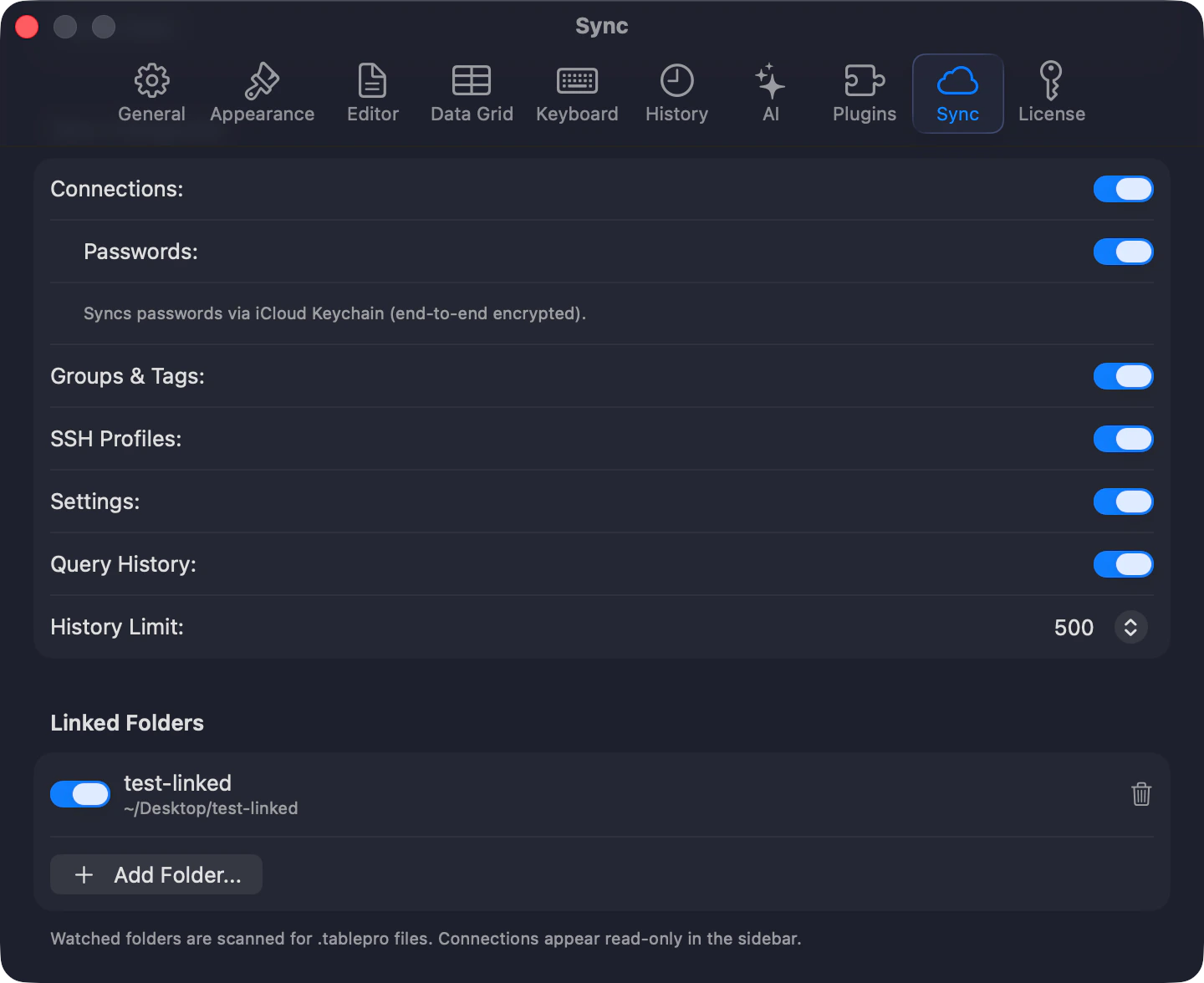
Watch a shared directory for `.tablepro` files. Connections appear read-only in the sidebar. Each person enters their own password.
**Settings** (`Cmd+,`) > **Account** > **Linked Folders** > **Add Folder...**
Works with Git repos, Dropbox, network drives.
## Linked Folders Pro
Watch a shared directory for `.tablepro` files. Connections appear read-only in the sidebar. Each person enters their own password.
**Settings** (`Cmd+,`) > **Account** > **Linked Folders** > **Add Folder...**
Works with Git repos, Dropbox, network drives.
 ## Environment Variables Pro
Use `$VAR` and `${VAR}` in `.tablepro` files. Resolved at connection time.
```json theme={null}
{
"host": "${DB_HOST}",
"username": "$DB_USER"
}
```
Works with `.env` files, 1Password CLI (`op run`), direnv.
## Password Sources
Connections in `~/Library/Application Support/TablePro/connections.json` can declare where their password comes from instead of storing it in the Keychain. This helps when a script provisions connections, for example one Docker database per git worktree. The password is resolved at connect time. It is not synced to iCloud, since the path, variable, or command is specific to one Mac.
Add a `passwordSource` object to the connection:
```json theme={null}
{ "passwordSource": { "kind": "file", "path": "~/.config/tablepro/secrets/feature-x.pw" } }
{ "passwordSource": { "kind": "env", "variable": "STAGING_DB_PASSWORD" } }
{ "passwordSource": { "kind": "command", "shell": "op read op://vault/feature-x/password" } }
```
* `file`: reads the password from the file. A trailing newline is trimmed. Use `chmod 600` to keep it private.
* `env`: reads the named environment variable. Apps launched from the Dock do not inherit your shell exports, so set it with `launchctl setenv NAME value` or launch TablePro from a terminal.
* `command`: runs the command through `/bin/bash` and reads stdout. Works with `op`, `vault`, `pass`, and `sops`. A trailing newline is trimmed, a non-zero exit fails the connection, and the command has a 30 second timeout.
When `passwordSource` is set it replaces the Keychain lookup for that connection. If resolution fails, the connection reports the error instead of falling back to the Keychain.
## File Format
JSON. Required fields: `name`, `host`, `type`.
```json theme={null}
{
"formatVersion": 1,
"connections": [
{
"name": "Production",
"host": "db.example.com",
"port": 3306,
"type": "MySQL",
"username": "deploy",
"tagName": "production"
}
],
"groups": [
{ "name": "Backend", "color": "Blue" },
{ "name": "Staging", "color": "Green", "parentGroupName": "Backend" }
],
"tags": [{ "name": "production", "color": "Red" }]
}
```
Groups and tags match by name. Missing ones are created. Nested groups use `parentGroupName` to preserve hierarchy. Paths use `~/` for portability.
## Sharing vs iCloud Sync
| | Sharing | iCloud Sync |
| ------------- | ----------------------------- | ------------- |
| **For** | Team | Your Macs |
| **How** | Files, links | CloudKit |
| **Passwords** | Per-user (encrypted with Pro) | Optional sync |
| **Requires** | Nothing (Pro for extras) | Pro + iCloud |
## Environment Variables Pro
Use `$VAR` and `${VAR}` in `.tablepro` files. Resolved at connection time.
```json theme={null}
{
"host": "${DB_HOST}",
"username": "$DB_USER"
}
```
Works with `.env` files, 1Password CLI (`op run`), direnv.
## Password Sources
Connections in `~/Library/Application Support/TablePro/connections.json` can declare where their password comes from instead of storing it in the Keychain. This helps when a script provisions connections, for example one Docker database per git worktree. The password is resolved at connect time. It is not synced to iCloud, since the path, variable, or command is specific to one Mac.
Add a `passwordSource` object to the connection:
```json theme={null}
{ "passwordSource": { "kind": "file", "path": "~/.config/tablepro/secrets/feature-x.pw" } }
{ "passwordSource": { "kind": "env", "variable": "STAGING_DB_PASSWORD" } }
{ "passwordSource": { "kind": "command", "shell": "op read op://vault/feature-x/password" } }
```
* `file`: reads the password from the file. A trailing newline is trimmed. Use `chmod 600` to keep it private.
* `env`: reads the named environment variable. Apps launched from the Dock do not inherit your shell exports, so set it with `launchctl setenv NAME value` or launch TablePro from a terminal.
* `command`: runs the command through `/bin/bash` and reads stdout. Works with `op`, `vault`, `pass`, and `sops`. A trailing newline is trimmed, a non-zero exit fails the connection, and the command has a 30 second timeout.
When `passwordSource` is set it replaces the Keychain lookup for that connection. If resolution fails, the connection reports the error instead of falling back to the Keychain.
## File Format
JSON. Required fields: `name`, `host`, `type`.
```json theme={null}
{
"formatVersion": 1,
"connections": [
{
"name": "Production",
"host": "db.example.com",
"port": 3306,
"type": "MySQL",
"username": "deploy",
"tagName": "production"
}
],
"groups": [
{ "name": "Backend", "color": "Blue" },
{ "name": "Staging", "color": "Green", "parentGroupName": "Backend" }
],
"tags": [{ "name": "production", "color": "Red" }]
}
```
Groups and tags match by name. Missing ones are created. Nested groups use `parentGroupName` to preserve hierarchy. Paths use `~/` for portability.
## Sharing vs iCloud Sync
| | Sharing | iCloud Sync |
| ------------- | ----------------------------- | ------------- |
| **For** | Team | Your Macs |
| **How** | Files, links | CloudKit |
| **Passwords** | Per-user (encrypted with Pro) | Optional sync |
| **Requires** | Nothing (Pro for extras) | Pro + iCloud |