> ## Documentation Index
> Fetch the complete documentation index at: https://docs.tablepro.app/llms.txt
> Use this file to discover all available pages before exploring further.
# PostgreSQL
> Connect to PostgreSQL 12+ with schema browsing, JSONB display, and full libpq driver support
# PostgreSQL Connections
TablePro supports PostgreSQL 12 and later via the libpq C connector. Schema browsing, rich type display (JSONB, arrays, UUID, inet), and all standard PostgreSQL query features work out of the box.
## Quick Setup
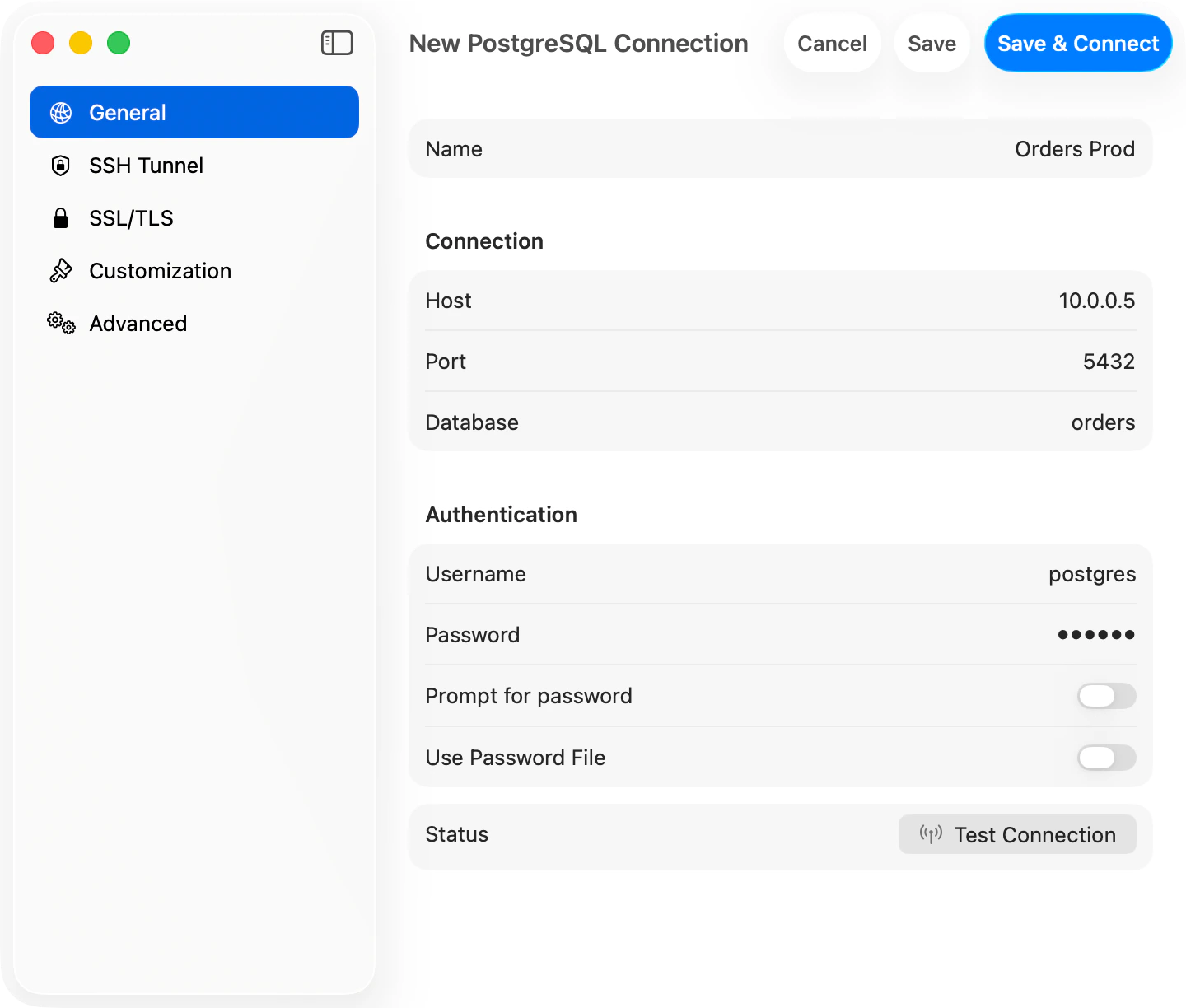
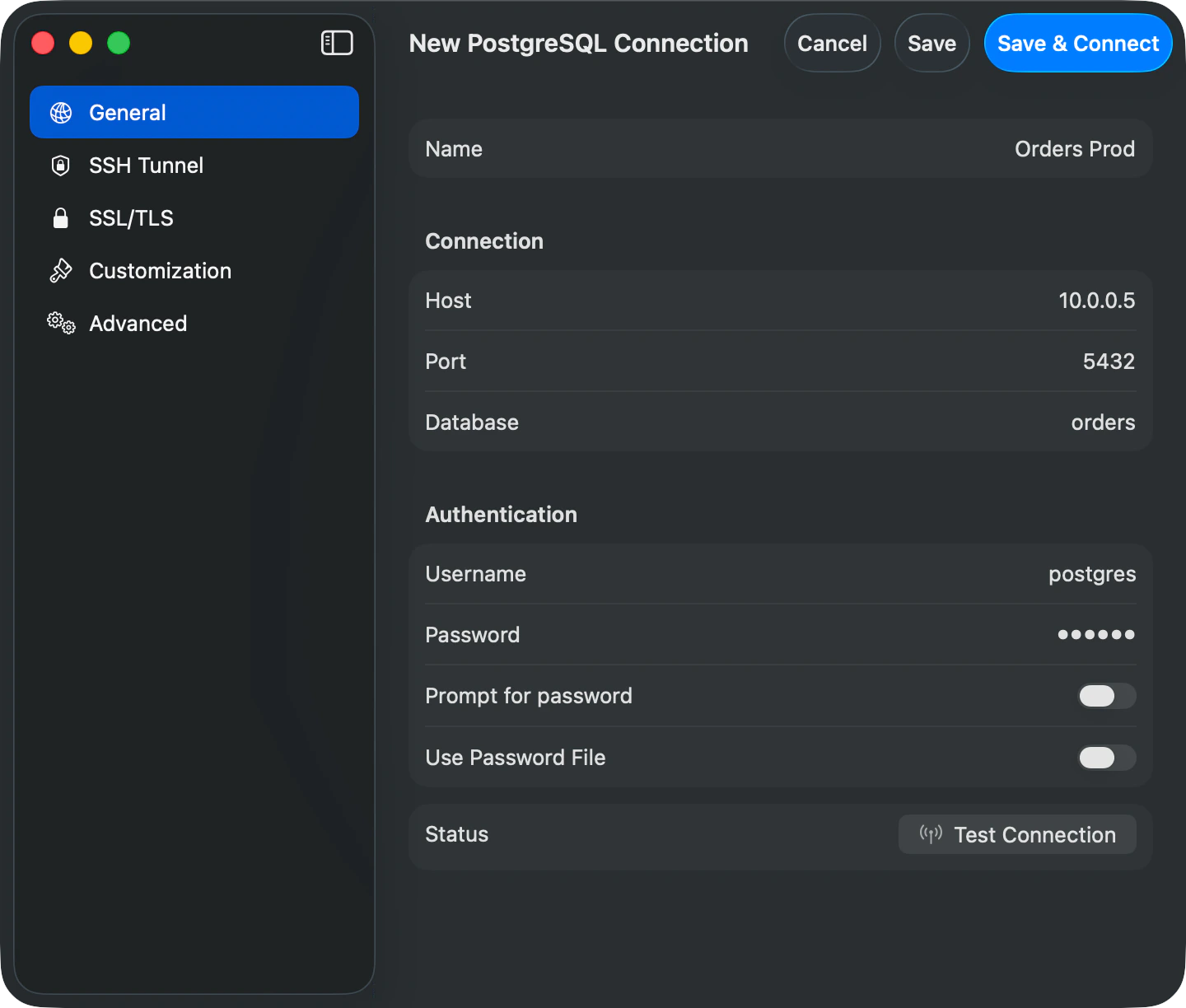
Click **New Connection**, pick **PostgreSQL** in the chooser sheet, fill in host/port/username/password/database, and click **Save & Connect**
Click **Test Connection** to verify
## Connection Settings
| Field | Default | Notes |
| ------------ | ----------- | --------------------------- |
| **Host** | `localhost` | |
| **Port** | `5432` | |
| **Username** | `postgres` | |
| **Database** | - | **Required** (unlike MySQL) |
Open URLs like `postgresql://user:pass@host/db` directly to connect. See [Connection URL Reference](/databases/connection-urls).
 ## Example Configurations
**Local**: host `localhost:5432`, user `postgres`, "trust" auth (no password) with Homebrew
**Docker**: host `localhost:5432`, password from `POSTGRES_PASSWORD` env
**AWS RDS**: Use the endpoint hostname with a password or AWS IAM (see below)
**Heroku**: Parse `DATABASE_URL` for credentials
**Remote**: Use [SSH tunneling](/databases/ssh-tunneling) for secure access
## AWS IAM Authentication
Connect to RDS or Aurora with IAM database authentication instead of a static password. Set **Authentication** in the connection form to one of the AWS IAM options:
* **AWS IAM (Access Key)**: enter an access key ID, secret access key, and optional session token.
* **AWS IAM (Profile)**: use a named profile from `~/.aws/credentials` or `~/.aws/config`. Profiles that use `credential_process` work too, so you can back the profile with SSO or assume-role via `aws configure export-credentials`.
* **AWS IAM (SSO)**: use a profile backed by IAM Identity Center. Run `aws sso login --profile ` first.
Set **Username** to a database role granted `rds_iam`. The **AWS Region** is detected from the RDS hostname and can be overridden.
TablePro generates a fresh 15-minute login token on every connect and reconnect, so you never paste an expiring token. SSL is required for IAM and is turned on automatically.
The database role must be set up for IAM auth (`GRANT rds_iam TO "user"`). Connecting fails if the role only has a password.
## Features
Sidebar displays all accessible schemas and tables. Switch databases/schemas with **Cmd+K**. Table info shows structure (columns, indexes, constraints) and DDL. Full PostgreSQL syntax support:
```sql theme={null}
-- JSONB queries
SELECT data->>'name' as name, data->'address'->>'city' as city
FROM customers
WHERE data @> '{"active": true}'::jsonb;
-- Array operations
SELECT name, tags
FROM products
WHERE 'electronics' = ANY(tags);
-- Window functions
SELECT
department,
employee,
salary,
salary - LAG(salary) OVER (PARTITION BY department ORDER BY hire_date) as salary_change
FROM employees;
-- CTEs with RETURNING
WITH inserted AS (
INSERT INTO orders (customer_id, total)
VALUES (1, 99.99)
RETURNING *
)
SELECT * FROM inserted;
-- Full-text search
SELECT title, ts_rank(search_vector, query) as rank
FROM articles, to_tsquery('english', 'database & performance') query
WHERE search_vector @@ query
ORDER BY rank DESC;
```
### PostgreSQL-Specific Types
Supports `jsonb` (formatted JSON), `array`, `uuid`, `inet` (IP), `timestamp with time zone`, `interval`, `bytea` (binary).
### PostGIS
If the PostGIS extension is installed, `geometry` and `geography` columns render as EWKT with the SRID preserved (`SRID=4326;POINT(-73 40.7237)`) instead of the raw EWKB hex libpq returns. TablePro detects spatial columns from a one-time `pg_type` lookup at connect time, then converts the fetched values with `ST_AsEWKT(...)`. Your query is never re-run, so parameterized, multi-statement, and any other query shape all render EWKT. NULL stays NULL and `POINT EMPTY` round-trips. If the conversion fails, the raw hex is kept without an error.
## Troubleshooting
**Connection refused**: Check server is running (`brew services start postgresql@16`), verify `listen_addresses` in `postgresql.conf`, ensure firewall allows port 5432.
**Auth failed**: Check `pg_hba.conf` for correct auth method (`md5`/`scram-sha-256` for passwords, `trust` for local dev). Reset password with `ALTER USER postgres WITH PASSWORD 'newpassword';`
**Database doesn't exist**: Connect to `postgres` database and create it with `CREATE DATABASE myapp;`
**Permission denied**: Grant access with `GRANT ALL ON DATABASE/SCHEMA/TABLES TO username;`
**SSL/TLS**: New connections default to **Preferred** (libpq `sslmode=prefer`), which tries TLS first and falls back to plain. Works for both local Postgres and hosted providers (AWS RDS, Cloud SQL, Heroku, Supabase, Neon). Pick **Verify CA** when you need to validate the server certificate. See [SSL/TLS](/features/ssl) for details.
**Postgres-compatible engines**: Connect wire-compatible engines (such as db9.ai) using the PostgreSQL type. TablePro checks which system catalogs each server actually provides, so engines that omit catalogs like `pg_matviews` still load their tables; materialized views or foreign tables just won't appear if the server doesn't expose them.
## Advanced Configuration
**Startup Commands** (Advanced tab): Set session variables like `SET timezone = 'UTC'; SET search_path TO myschema, public;` to apply automatically on connect.
**\~/.pgpass Support**: Use format `hostname:port:database:username:password` with wildcards (`*`). Must have `chmod 0600` permissions.
**Pre-Connect Script** (Advanced tab): Run a shell script before connecting (e.g., to refresh credentials from a secrets manager). 10-second timeout.
**PostgreSQL Extensions**: PostGIS, hstore, ltree work out of the box. Check with `SELECT * FROM pg_extension;`
**Performance**: Use `EXPLAIN ANALYZE` for query optimization. `LIMIT` large exploratory queries, create indexes, enable pagination.
**MySQL Migration Notes**: Use `SERIAL` (not `AUTO_INCREMENT`), `LIMIT y OFFSET x` syntax, double quotes for identifiers, `GENERATED AS IDENTITY` for new schemas.
## Example Configurations
**Local**: host `localhost:5432`, user `postgres`, "trust" auth (no password) with Homebrew
**Docker**: host `localhost:5432`, password from `POSTGRES_PASSWORD` env
**AWS RDS**: Use the endpoint hostname with a password or AWS IAM (see below)
**Heroku**: Parse `DATABASE_URL` for credentials
**Remote**: Use [SSH tunneling](/databases/ssh-tunneling) for secure access
## AWS IAM Authentication
Connect to RDS or Aurora with IAM database authentication instead of a static password. Set **Authentication** in the connection form to one of the AWS IAM options:
* **AWS IAM (Access Key)**: enter an access key ID, secret access key, and optional session token.
* **AWS IAM (Profile)**: use a named profile from `~/.aws/credentials` or `~/.aws/config`. Profiles that use `credential_process` work too, so you can back the profile with SSO or assume-role via `aws configure export-credentials`.
* **AWS IAM (SSO)**: use a profile backed by IAM Identity Center. Run `aws sso login --profile ` first.
Set **Username** to a database role granted `rds_iam`. The **AWS Region** is detected from the RDS hostname and can be overridden.
TablePro generates a fresh 15-minute login token on every connect and reconnect, so you never paste an expiring token. SSL is required for IAM and is turned on automatically.
The database role must be set up for IAM auth (`GRANT rds_iam TO "user"`). Connecting fails if the role only has a password.
## Features
Sidebar displays all accessible schemas and tables. Switch databases/schemas with **Cmd+K**. Table info shows structure (columns, indexes, constraints) and DDL. Full PostgreSQL syntax support:
```sql theme={null}
-- JSONB queries
SELECT data->>'name' as name, data->'address'->>'city' as city
FROM customers
WHERE data @> '{"active": true}'::jsonb;
-- Array operations
SELECT name, tags
FROM products
WHERE 'electronics' = ANY(tags);
-- Window functions
SELECT
department,
employee,
salary,
salary - LAG(salary) OVER (PARTITION BY department ORDER BY hire_date) as salary_change
FROM employees;
-- CTEs with RETURNING
WITH inserted AS (
INSERT INTO orders (customer_id, total)
VALUES (1, 99.99)
RETURNING *
)
SELECT * FROM inserted;
-- Full-text search
SELECT title, ts_rank(search_vector, query) as rank
FROM articles, to_tsquery('english', 'database & performance') query
WHERE search_vector @@ query
ORDER BY rank DESC;
```
### PostgreSQL-Specific Types
Supports `jsonb` (formatted JSON), `array`, `uuid`, `inet` (IP), `timestamp with time zone`, `interval`, `bytea` (binary).
### PostGIS
If the PostGIS extension is installed, `geometry` and `geography` columns render as EWKT with the SRID preserved (`SRID=4326;POINT(-73 40.7237)`) instead of the raw EWKB hex libpq returns. TablePro detects spatial columns from a one-time `pg_type` lookup at connect time, then converts the fetched values with `ST_AsEWKT(...)`. Your query is never re-run, so parameterized, multi-statement, and any other query shape all render EWKT. NULL stays NULL and `POINT EMPTY` round-trips. If the conversion fails, the raw hex is kept without an error.
## Troubleshooting
**Connection refused**: Check server is running (`brew services start postgresql@16`), verify `listen_addresses` in `postgresql.conf`, ensure firewall allows port 5432.
**Auth failed**: Check `pg_hba.conf` for correct auth method (`md5`/`scram-sha-256` for passwords, `trust` for local dev). Reset password with `ALTER USER postgres WITH PASSWORD 'newpassword';`
**Database doesn't exist**: Connect to `postgres` database and create it with `CREATE DATABASE myapp;`
**Permission denied**: Grant access with `GRANT ALL ON DATABASE/SCHEMA/TABLES TO username;`
**SSL/TLS**: New connections default to **Preferred** (libpq `sslmode=prefer`), which tries TLS first and falls back to plain. Works for both local Postgres and hosted providers (AWS RDS, Cloud SQL, Heroku, Supabase, Neon). Pick **Verify CA** when you need to validate the server certificate. See [SSL/TLS](/features/ssl) for details.
**Postgres-compatible engines**: Connect wire-compatible engines (such as db9.ai) using the PostgreSQL type. TablePro checks which system catalogs each server actually provides, so engines that omit catalogs like `pg_matviews` still load their tables; materialized views or foreign tables just won't appear if the server doesn't expose them.
## Advanced Configuration
**Startup Commands** (Advanced tab): Set session variables like `SET timezone = 'UTC'; SET search_path TO myschema, public;` to apply automatically on connect.
**\~/.pgpass Support**: Use format `hostname:port:database:username:password` with wildcards (`*`). Must have `chmod 0600` permissions.
**Pre-Connect Script** (Advanced tab): Run a shell script before connecting (e.g., to refresh credentials from a secrets manager). 10-second timeout.
**PostgreSQL Extensions**: PostGIS, hstore, ltree work out of the box. Check with `SELECT * FROM pg_extension;`
**Performance**: Use `EXPLAIN ANALYZE` for query optimization. `LIMIT` large exploratory queries, create indexes, enable pagination.
**MySQL Migration Notes**: Use `SERIAL` (not `AUTO_INCREMENT`), `LIMIT y OFFSET x` syntax, double quotes for identifiers, `GENERATED AS IDENTITY` for new schemas.